How to create a title and two coloumns layout in Google Slides


Transform your Google Slides with elegance learn to create a professional title and two-column layout effortlessly.
A well-structured presentation not only captures attention but also enhances the communication of your ideas. In this guide, we'll walk you through the steps to create a polished title and two-column layout in Google Slides, adding a touch of professionalism to your slides.
How to create a title and two coloumns layout in Google Slides
Step 1: Open Your Google Slides Presentation
Begin by accessing your Google Slides presentation or create a new one where you want to implement the title and two-column layout.
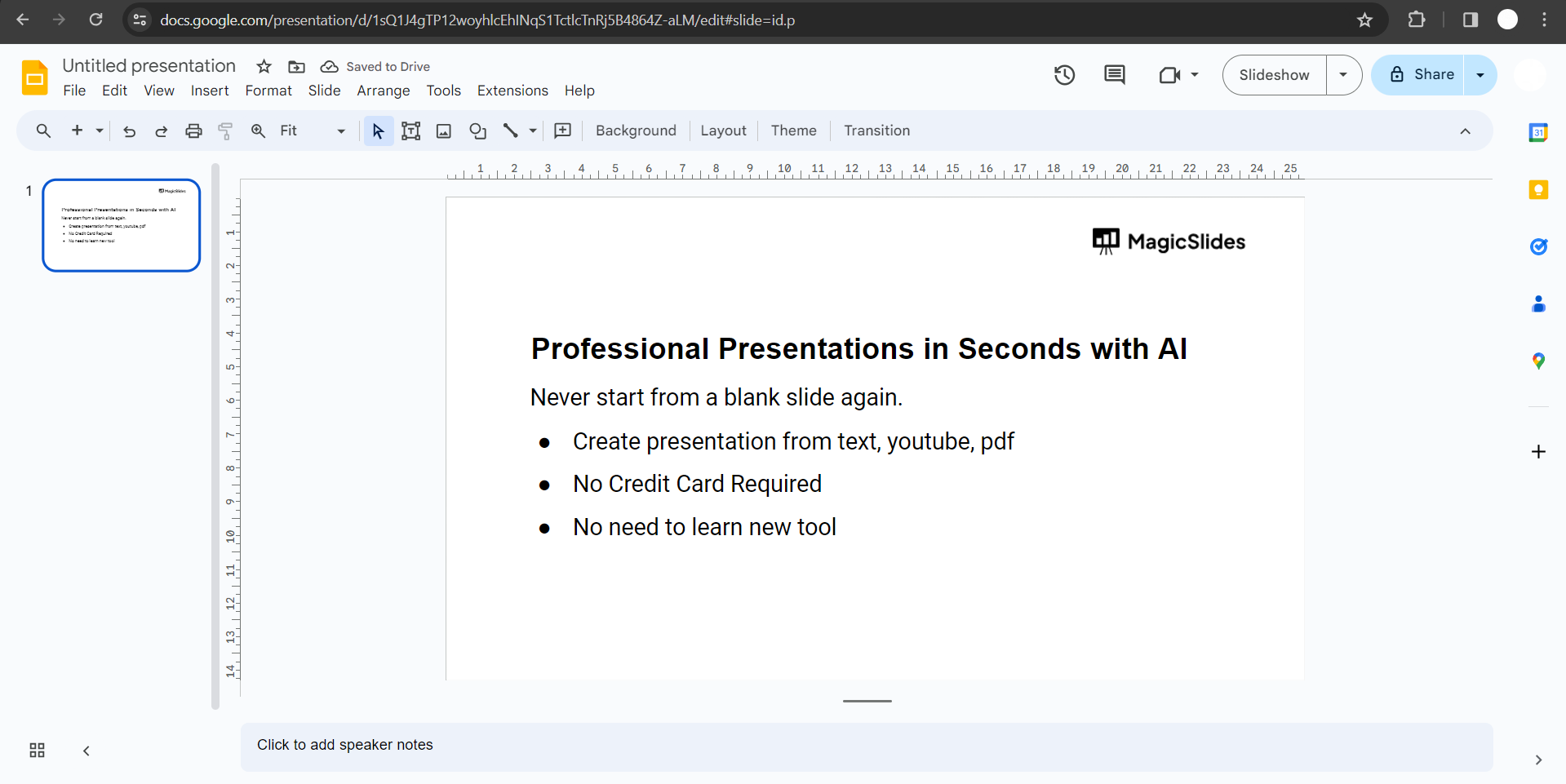
Step 2: Choose a Slide for the Layout
Select the slide where you want to apply the title and two-column layout. This could be a title slide or a content slide, depending on your presentation structure.
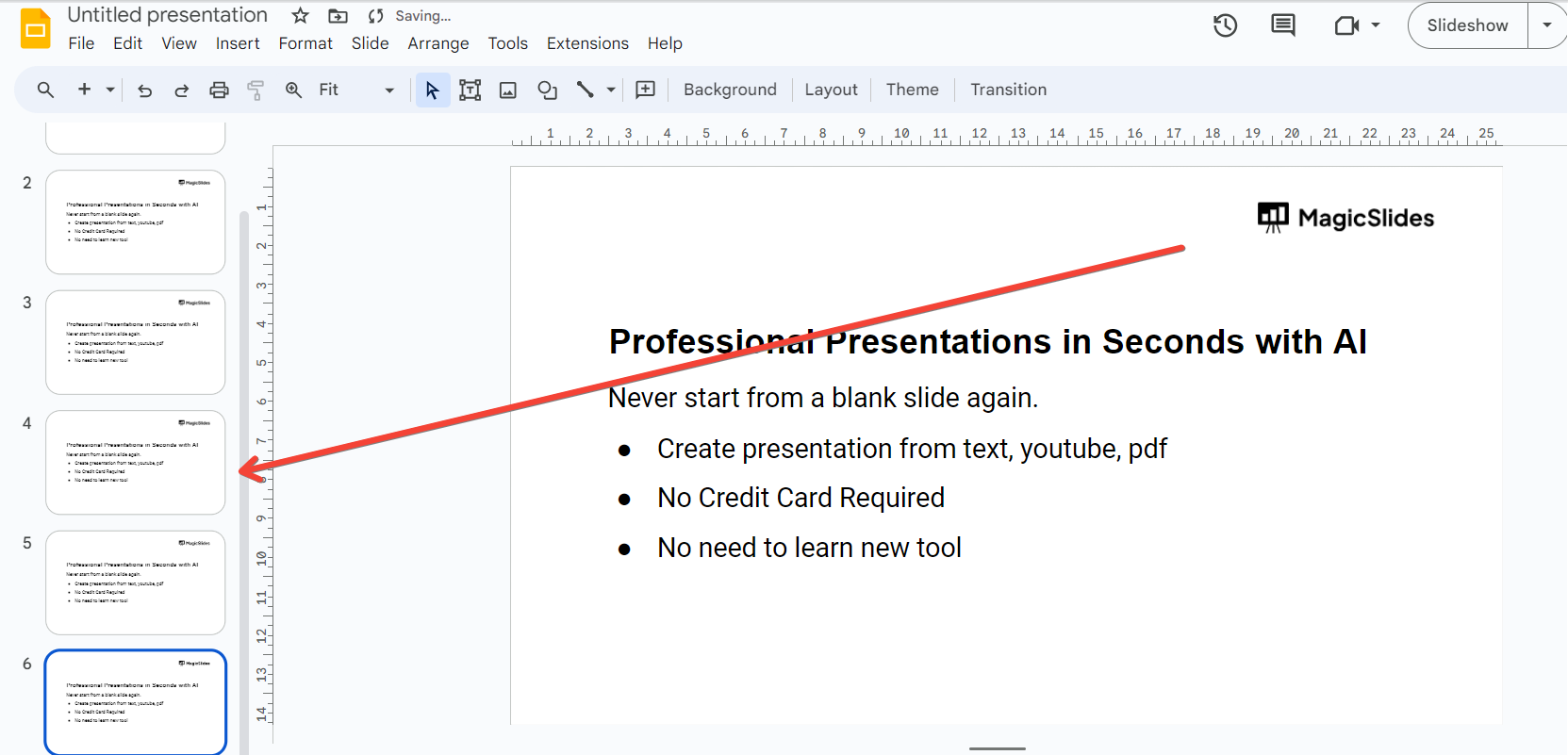
Step 3: Insert a Title Text Box
Click on the "Text box" icon in the toolbar, then click on the slide to insert a title text box. Type in your title and adjust the font, size, and color to suit your design.
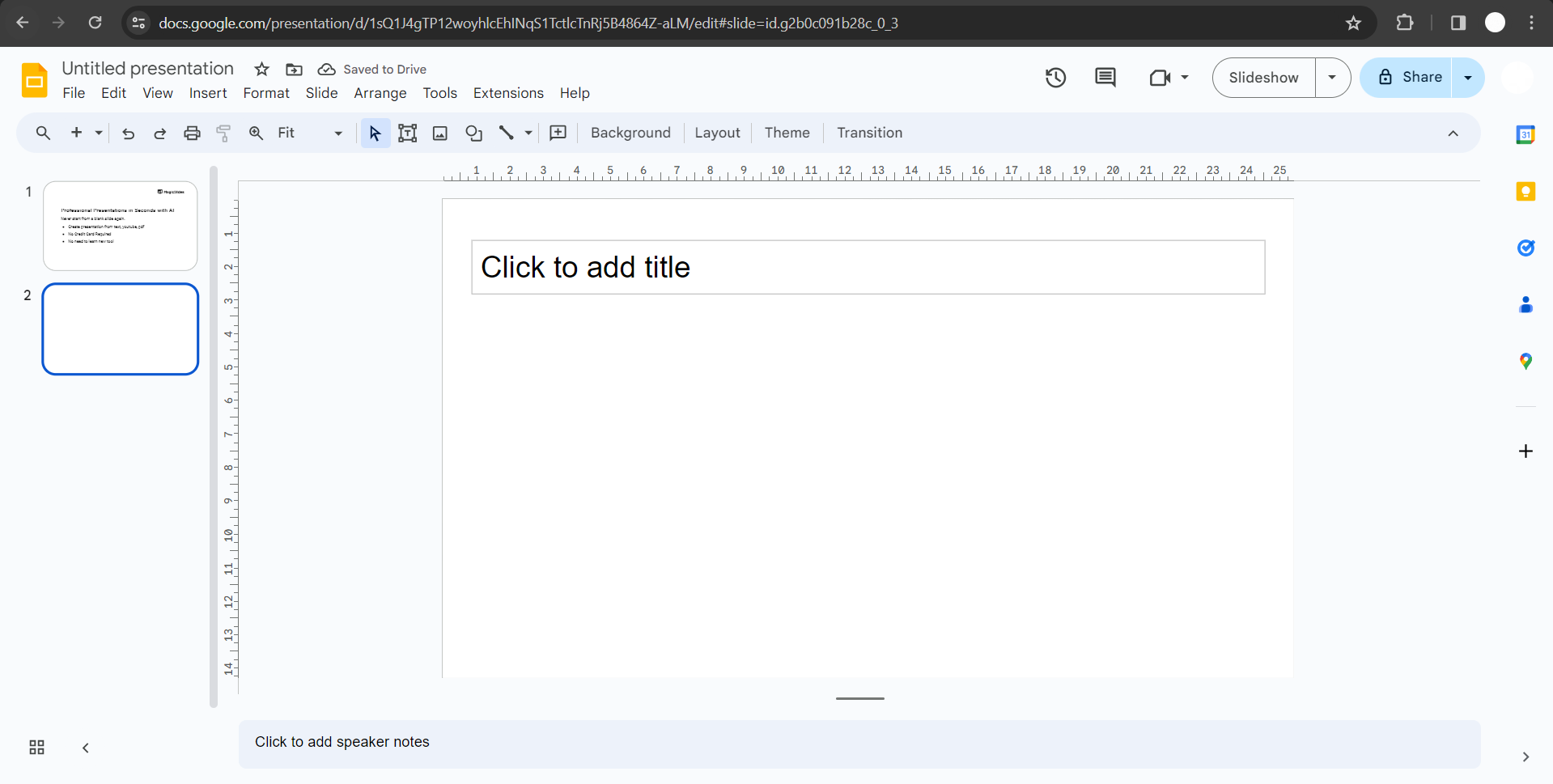
Step 4: Insert Two Text Boxes for Columns
Click on the "Text box" icon again and insert two text boxes beneath the title. Position them side by side to create the two-column structure.
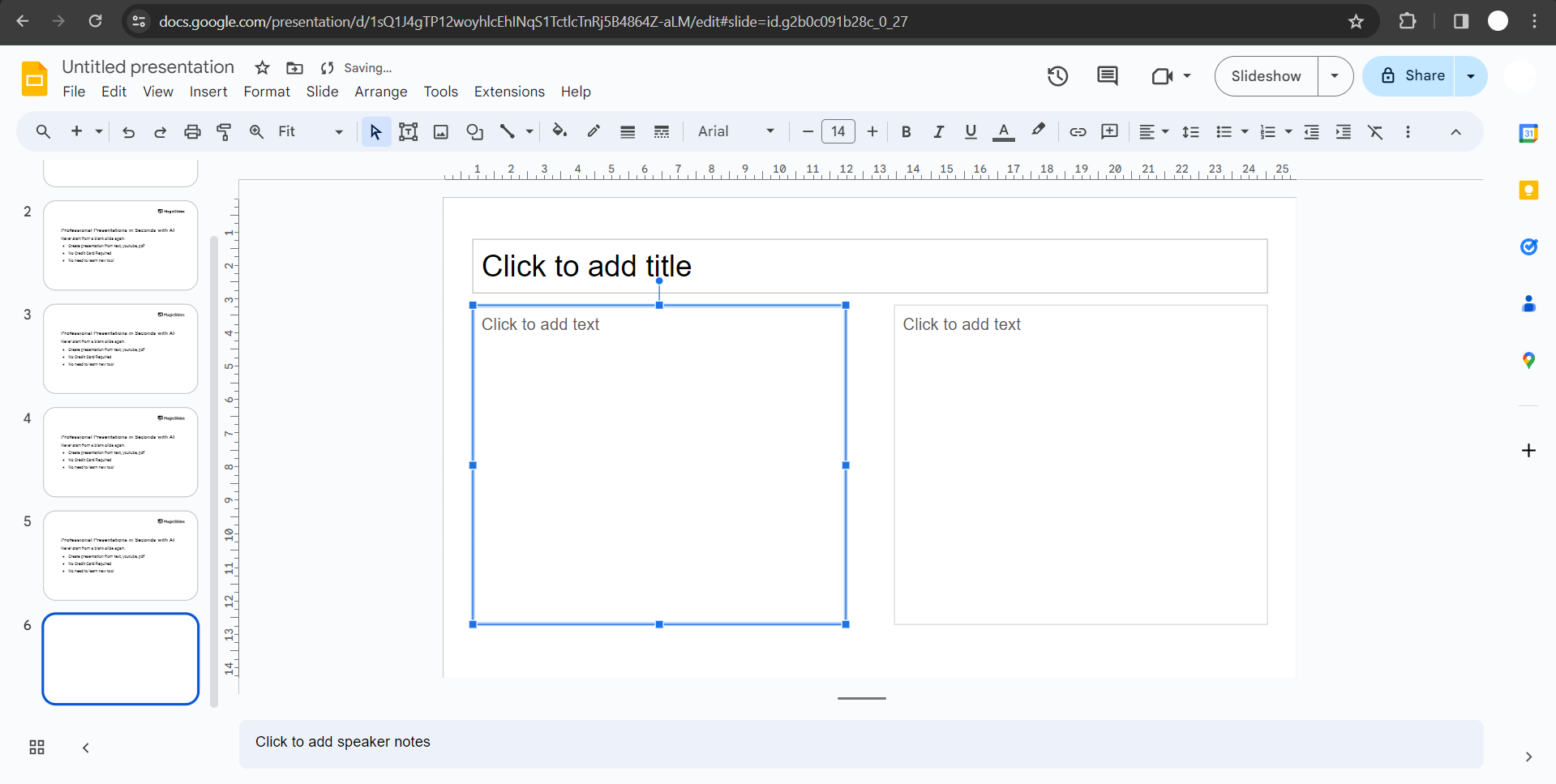
Step 5: Adjust Text Box Sizes and Alignments
Resize and align the text boxes to create a balanced and visually appealing two-column layout. Ensure the spacing is consistent for a professional look.
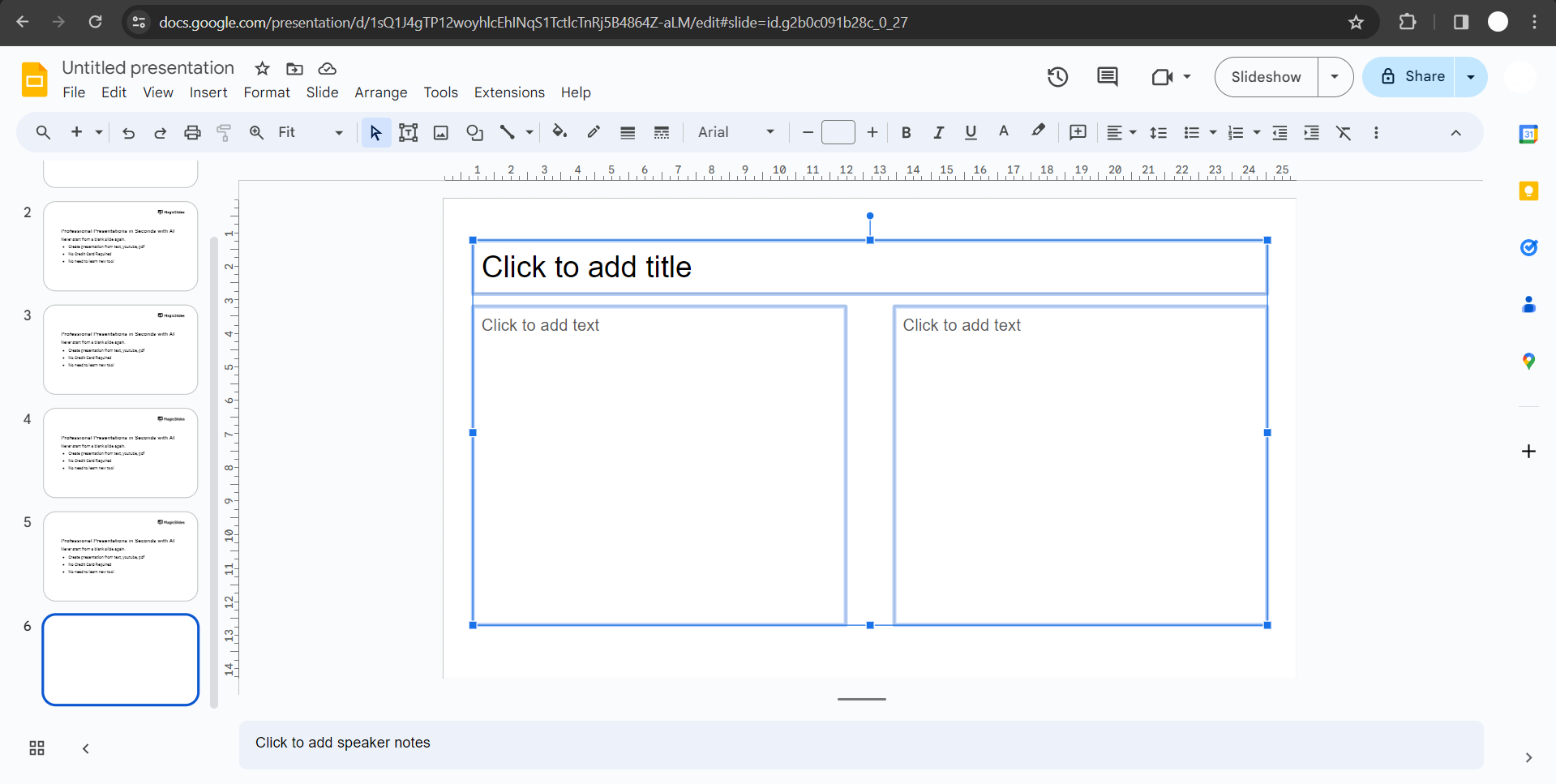
Step 6: Add Content to Columns
Fill in your content within the respective text boxes. This could be bullet points, paragraphs, or any information relevant to your presentation.
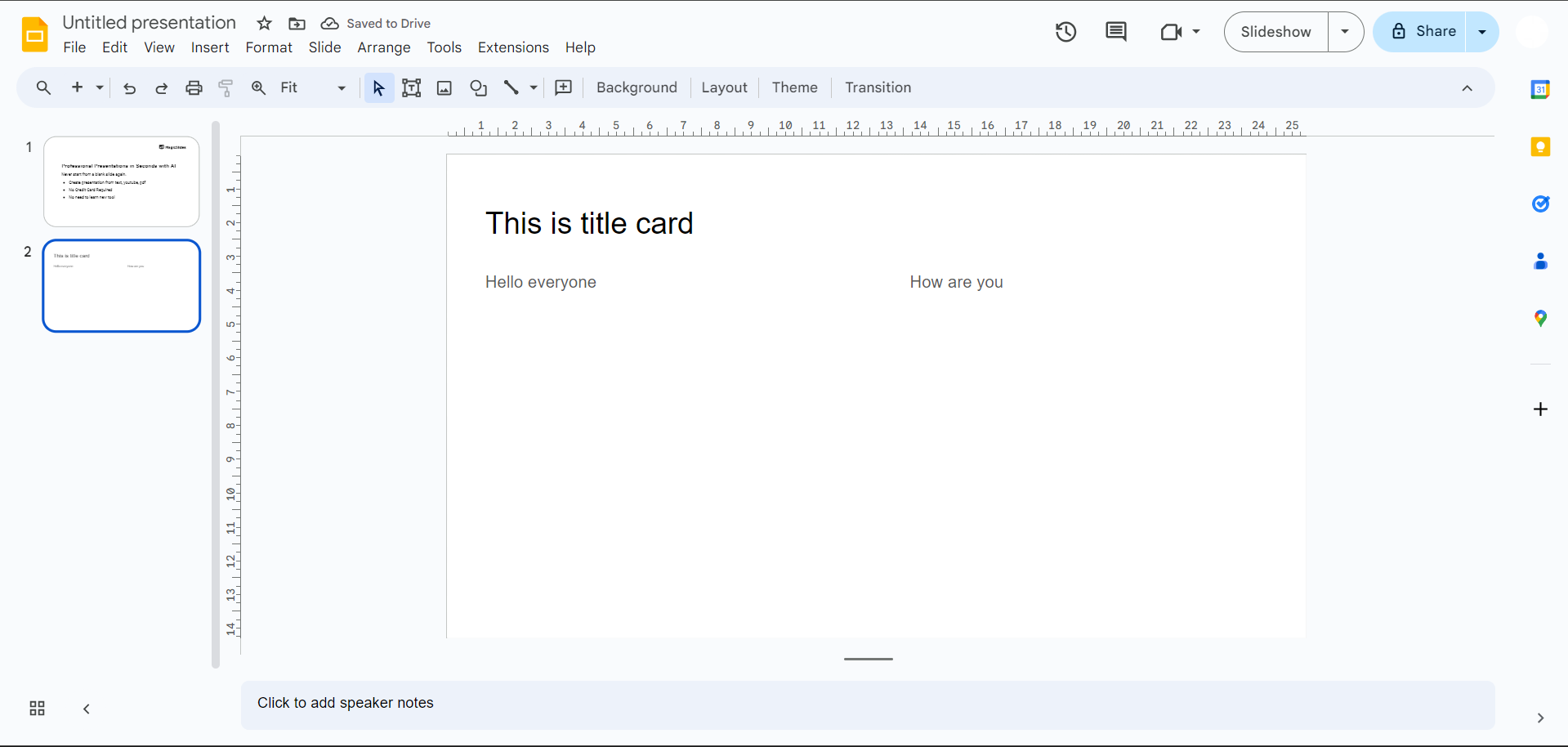
Step 7: Fine-Tune Design and Style
Refine your layout by adjusting colors, fonts, and other design elements to maintain a cohesive and professional visual theme throughout the presentation.
Conclusion:
By following these straightforward steps, you've successfully crafted a title and two-column layout in Google Slides. This not only adds a professional touch to your presentation but also enhances the clarity of your content. Elevate your slides and captivate your audience with a structured and visually appealing design that reinforces your message effectively.
Frequently Asked Questions:
Can I apply a title and two-column layout to existing slides in Google Slides?
Yes, you can easily modify existing slides by adding title and two-column structures.
Are there predefined templates for title and two-column layouts in Google Slides?
While there aren't specific templates, you can customize layouts to achieve the desired structure easily.
Can I change the colors of the title and columns to match my presentation theme?
Absolutely, Google Slides provides customization options to adjust colors and maintain a cohesive visual theme.
How do I ensure a consistent look across multiple slides with this layout?
Use the "Slide Master" in Google Slides to apply the title and two-column layout consistently throughout your presentation.


