How to Create Dynamic Presentations from Speeches or Public Speaking Scripts?


Transform speeches into captivating presentations with our step-by-step guide. Learn to create dynamic slides that amplify your message effectively.
In the world of dynamic presentations, turning speeches or public speaking scripts into captivating slides is a valuable skill. With the help of innovative tools like MagicSlides GPT, the process becomes not only efficient but also creatively engaging. This step-by-step guide will take you through the basics and lead you to a seamlessly transformed presentation.
How to Create Dynamic Presentations from Speeches or Public Speaking Scripts?
Visit Google Slides
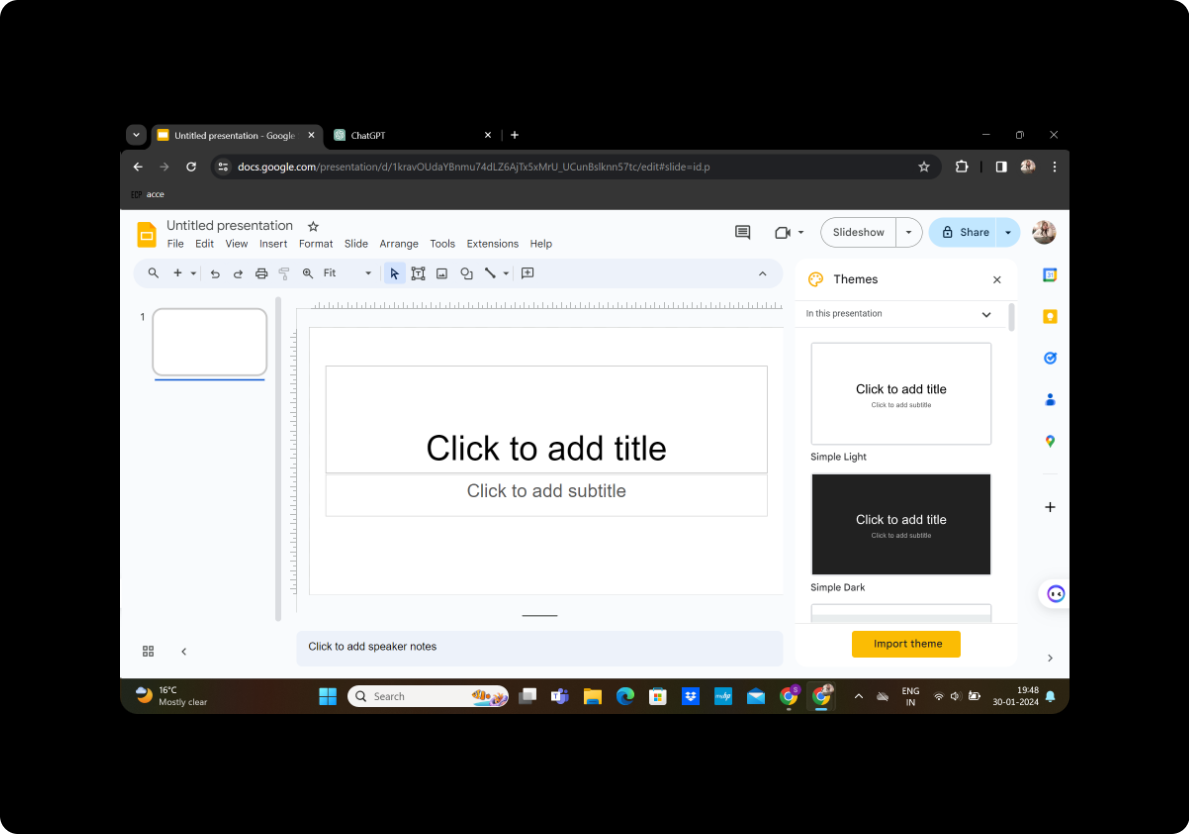
Begin by visiting Google Slides, Google's user-friendly cloud-based presentation tool. If you don't have an account, sign up to get started.
Sign in with Google to Google Slides
After visiting Google Slides, sign in with your Google account. This step is crucial for saving and accessing your presentations seamlessly.
Download MagicSlides GPT Extension (if not downloaded)
In the extensions menu, locate and click on "MagicSlides GPT" to download it. If already downloaded, proceed to the next step.
Open MagicSlides GPT in Google Slides
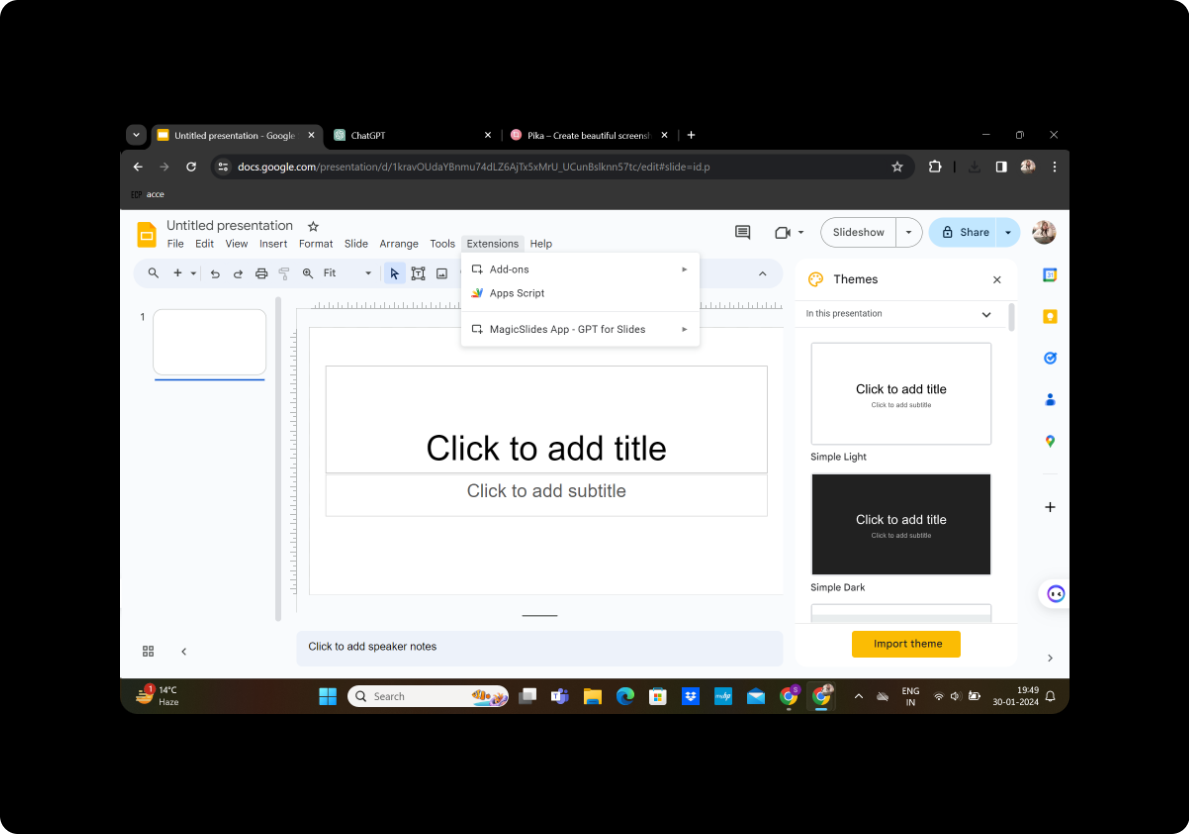
Once downloaded, open MagicSlides GPT by clicking on the extension icon. If using it for the first time, allow necessary permissions.
Click on "Generate PPT" in MagicSlides GPT
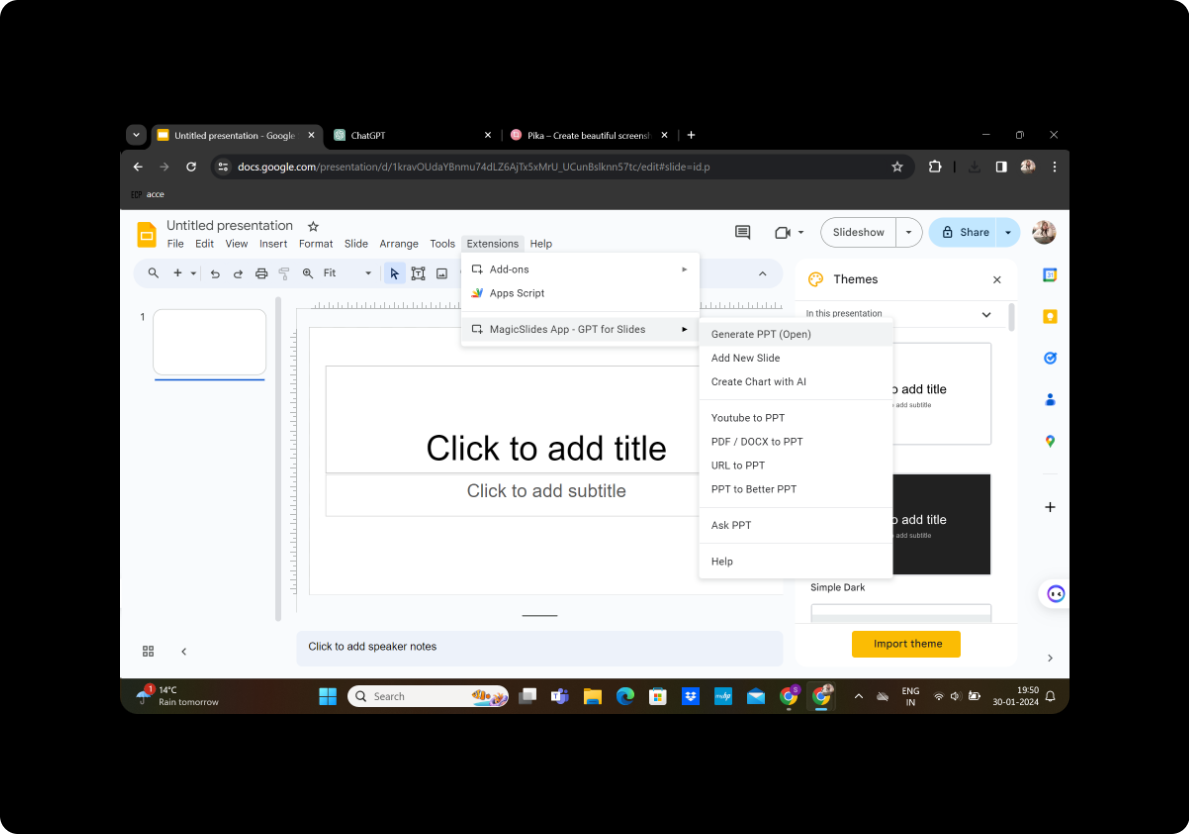
Within the MagicSlides GPT interface, click on "Generate PPT" to initiate the transformation process.
Add Title and Text Content
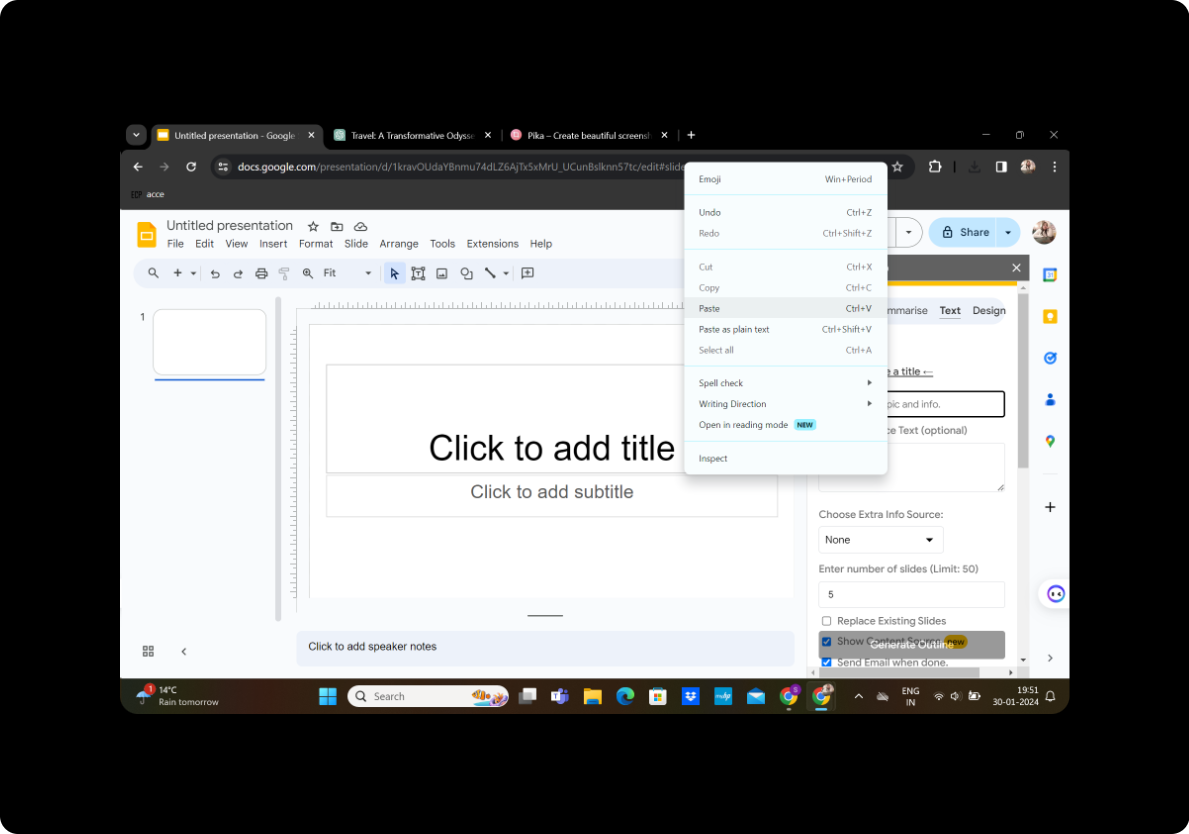
In the provided boxes, add your presentation title and paste the speech or script text into the designated text box.
Select the Number of Slides
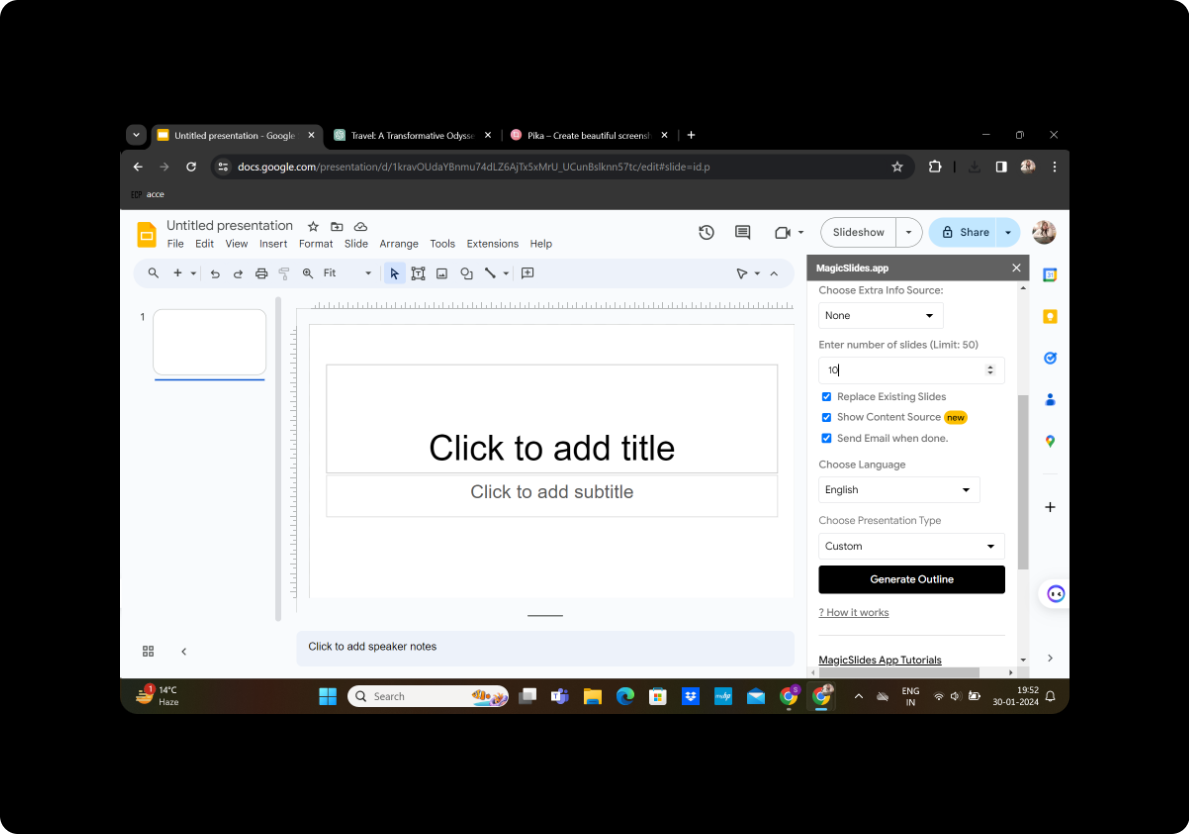
Choose the number of slides you want for your presentation. MagicSlides GPT will automatically generate an outline based on your speech or script.
Click on "Generate Outline"
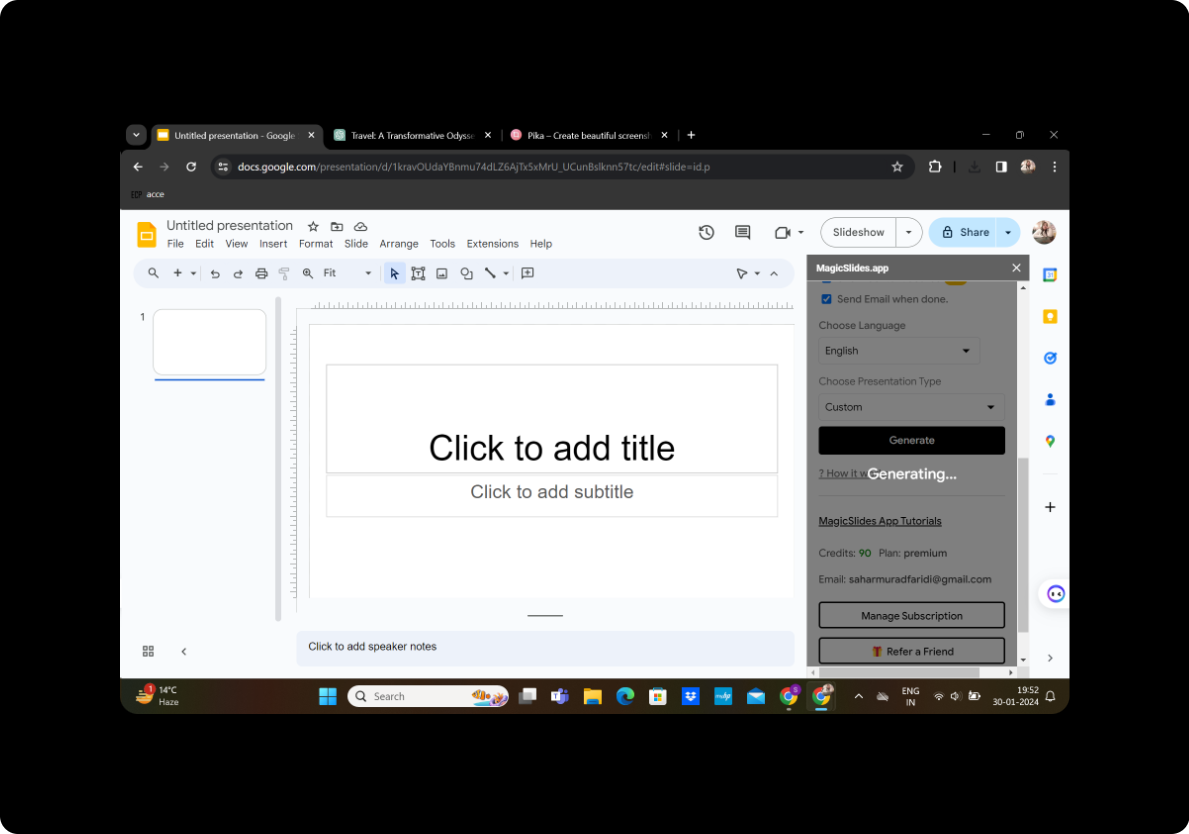
Click on the "Generate Outline" button to let MagicSlides GPT create an initial outline for your presentation.
Modify as per Preference
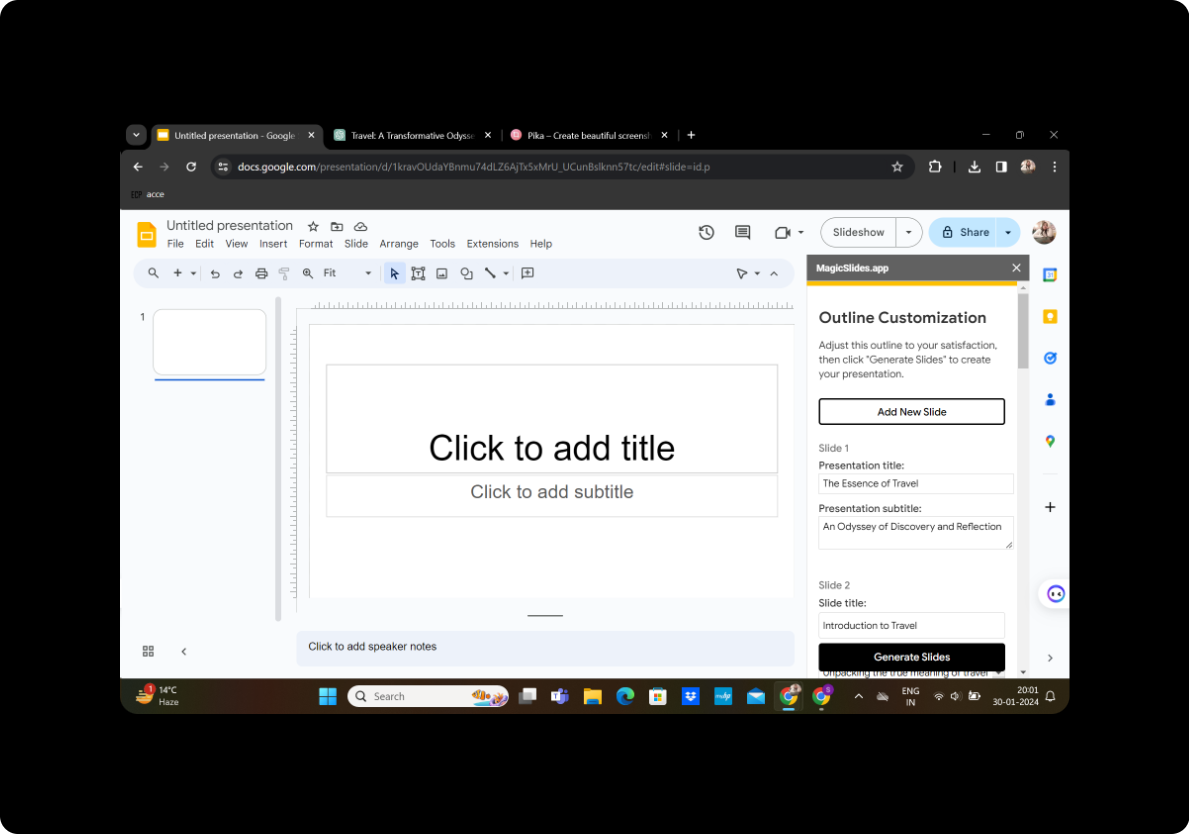
Review the generated outline and modify it according to your preferences. Adjust slide titles, content placement, and other elements as needed.
Click on "Generate Presentation"
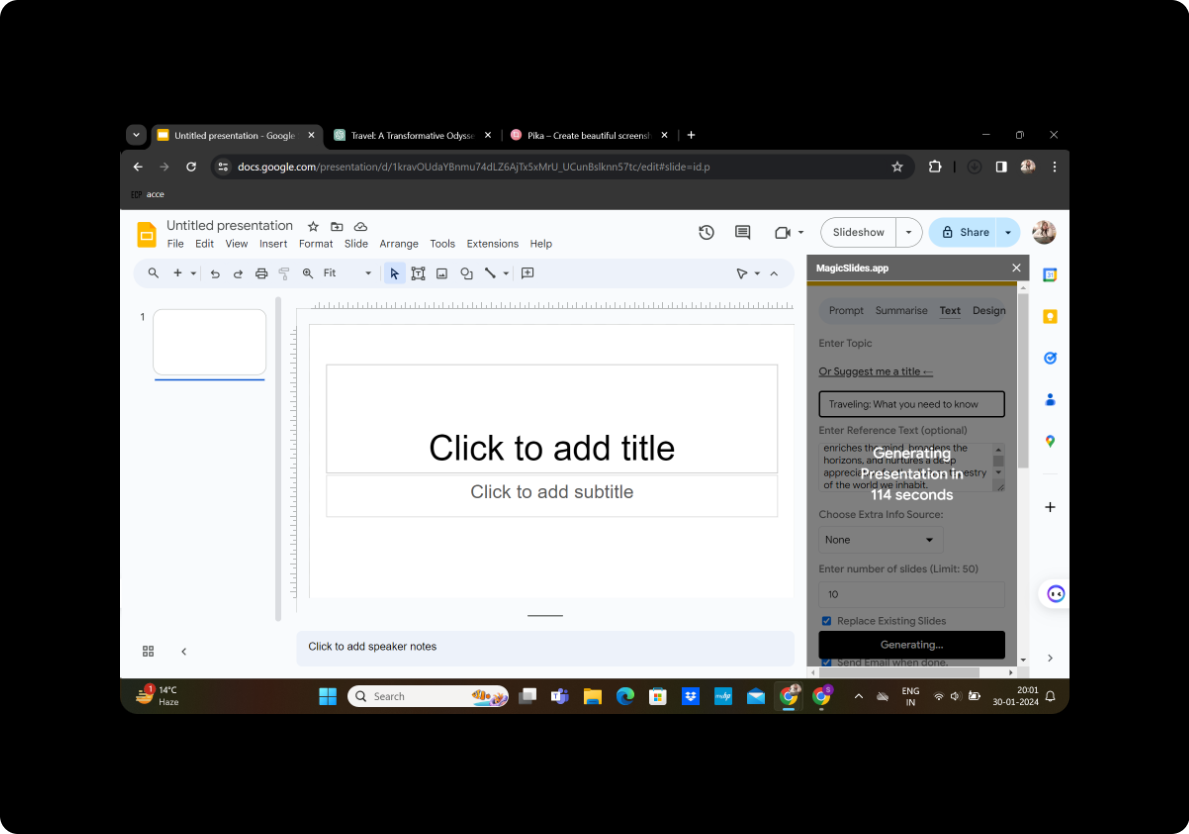
Once satisfied with the modifications, click on "Generate Presentation" to transform the outline into a visually appealing and dynamic presentation.
Conclusion
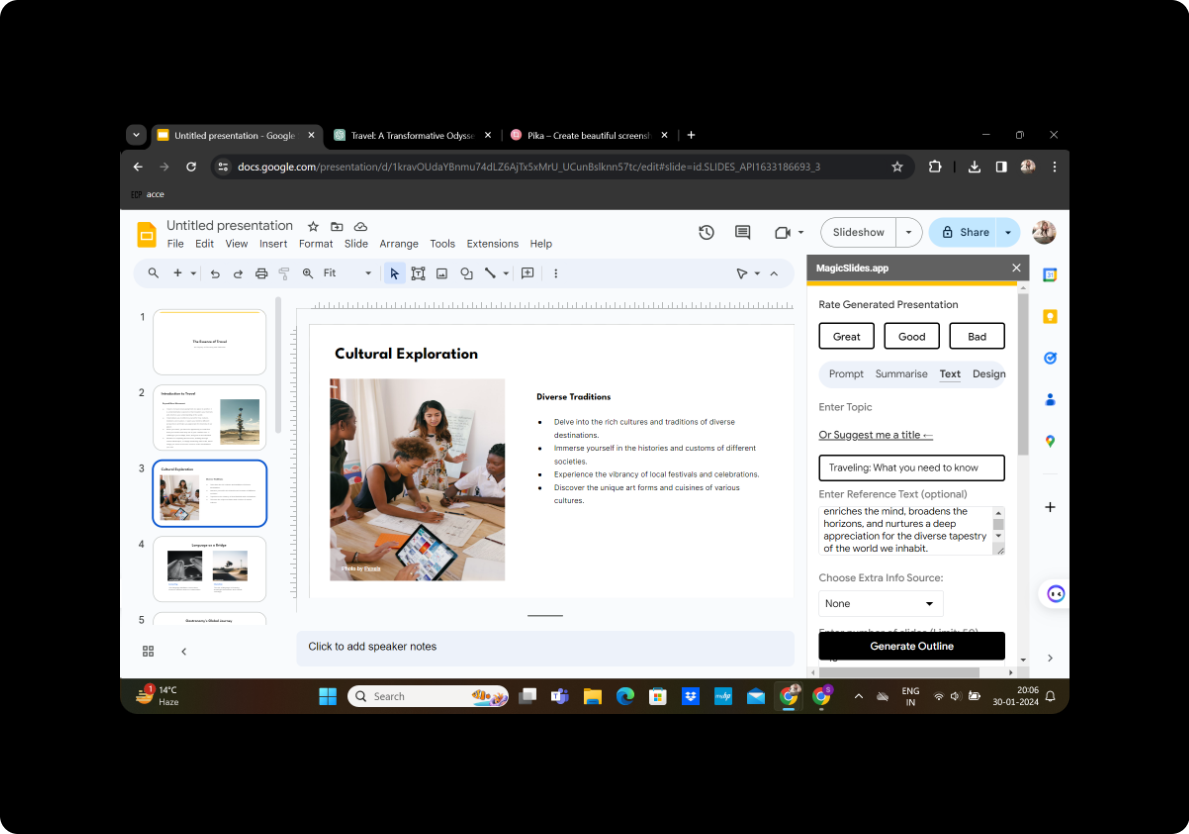
Congratulations! Your presentation is now ready to captivate your audience. The process, made effortless with MagicSlides GPT, allows for creativity and customization, turning your speeches into impactful visual experiences.
Frequently Asked Questions
Q: Can I edit the slides further after using MagicSlides GPT? A: Yes, MagicSlides GPT provides flexibility, allowing you to modify the generated slides according to your preferences.
Q: Is MagicSlides GPT free to use? A: Yes, MagicSlides GPT is available as a free extension for Google Slides.
Q: Can I use MagicSlides GPT for multiple presentations? A: Absolutely! MagicSlides GPT can be used for transforming speeches into presentations as many times as needed.
Q: How do I share my presentation created with MagicSlides GPT? A: Once your presentation is ready, simply use the sharing options within Google Slides to share it with your audience.
Q: Does MagicSlides GPT work with other presentation software? A: Currently, MagicSlides GPT is designed to seamlessly integrate with Google Slides for an optimal user experience.


