How to Create Memorable PowerPoint Lectures from Philosophy Texts


Transform philosophy texts into engaging PowerPoint lectures with expert tips. Craft memorable presentations that captivate your audience intellectually. Elevate your teaching!
In the realm of academia, delivering engaging lectures is essential, especially when it comes to philosophical content. Converting dense philosophy texts into visually compelling PowerPoint presentations can breathe life into your lectures, making them more memorable and accessible. This step-by-step guide will walk you through the process, utilizing the power of Google Slides and MagicSlides GPT.
How to Create Memorable PowerPoint Lectures from Philosophy Texts
Open Google Slides and a Blank Presentation
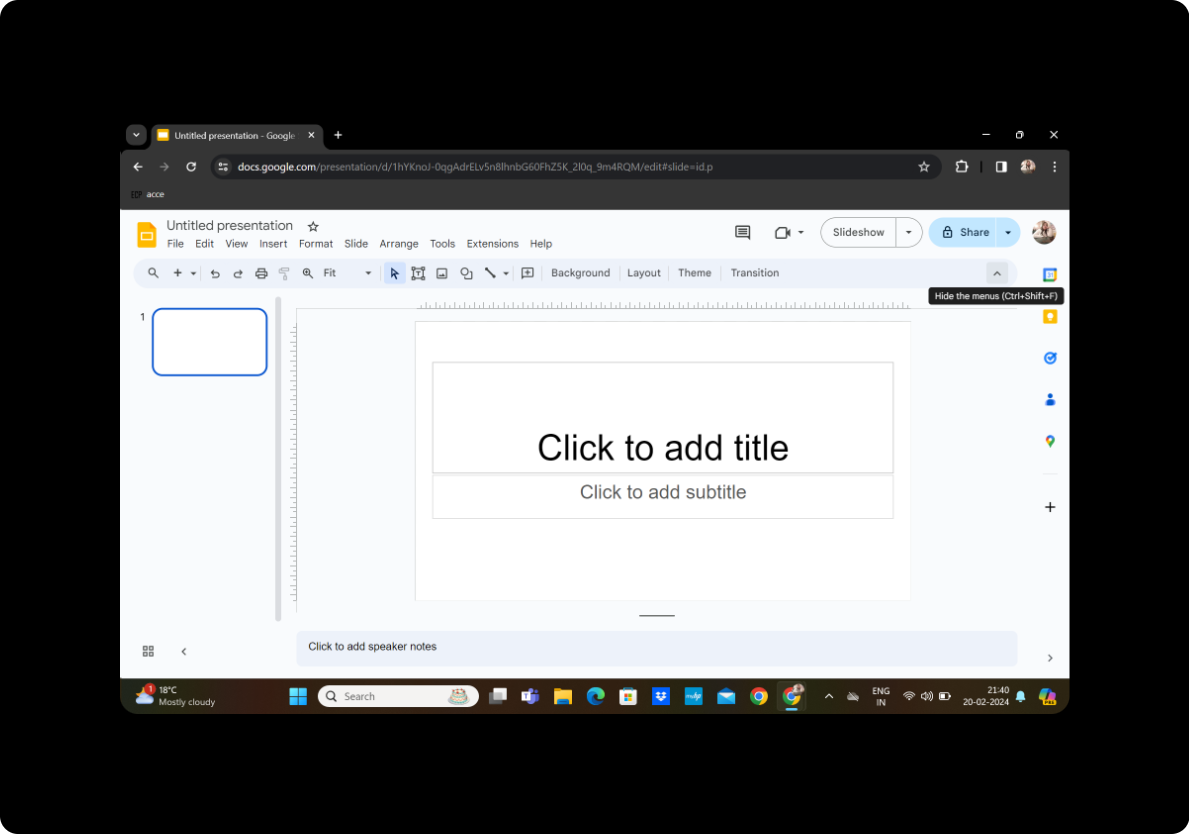
Begin by launching Google Slides and creating a new blank presentation. If you don't have a Google account, sign up and log in to access this powerful cloud-based tool.
Click on Extensions and MagicSlides GPT
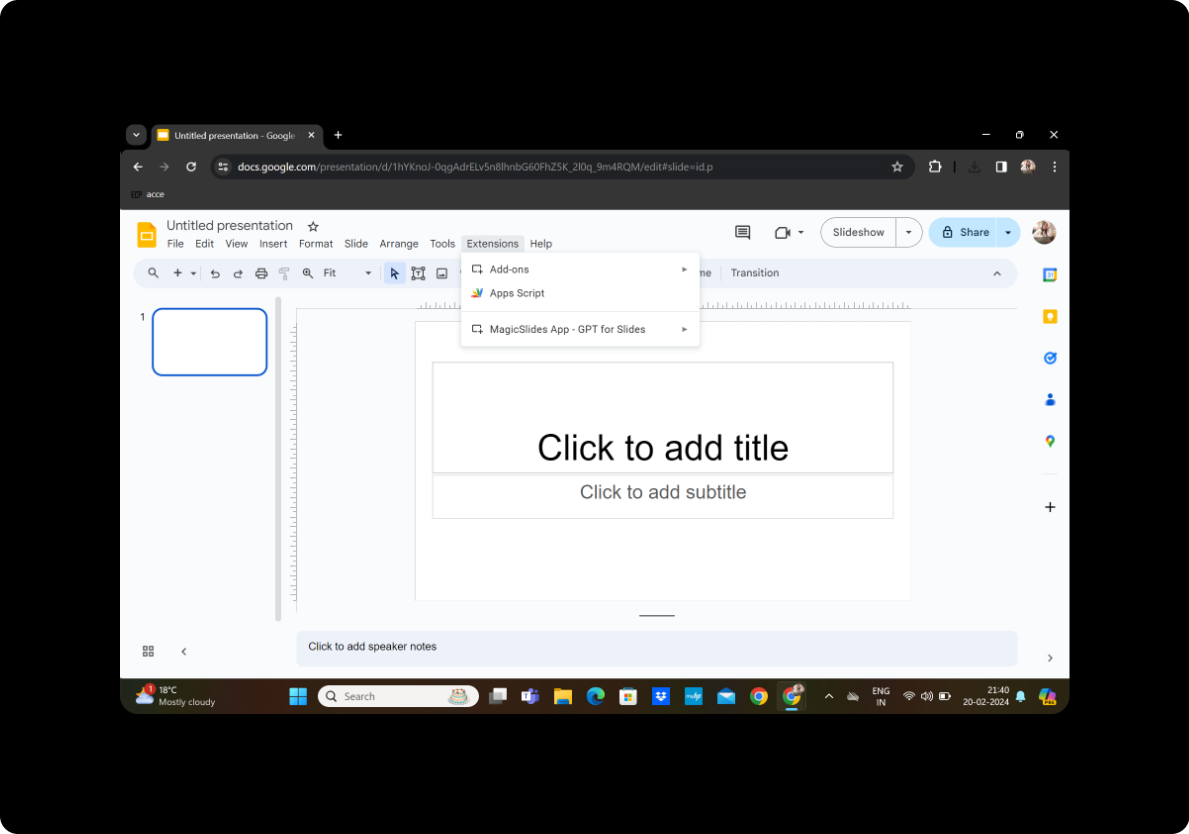
Navigate to the toolbar, find the "Extensions" option, and click on it. Look for "MagicSlides GPT" in the dropdown menu. Click to activate this innovative tool that seamlessly integrates with Google Slides.
Steps to Transform Philosophy Texts into PowerPoint Presentations
Step 1: Click on 'PDF/DOCX to PPT'
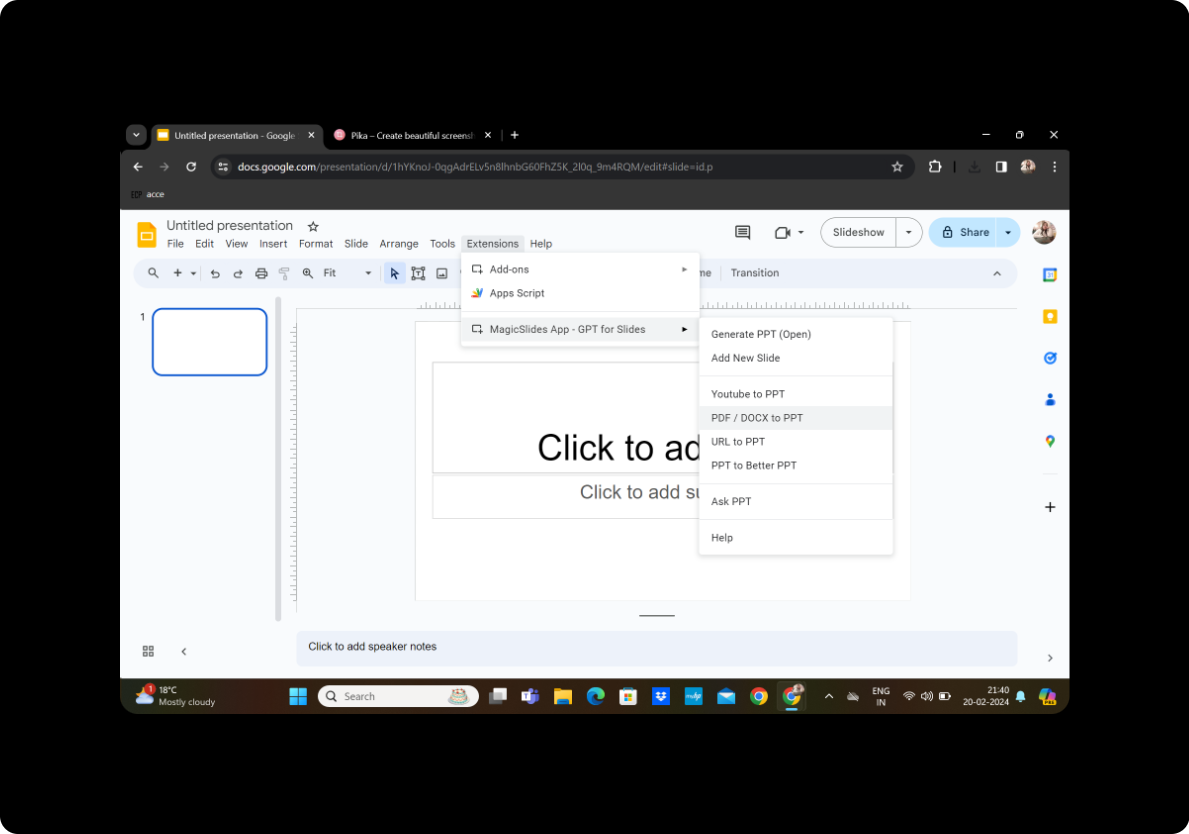
Within the MagicSlides GPT interface, locate the 'PDF/DOCX to PPT' option. This feature allows you to import your philosophy texts directly into the presentation.
Step 2: Upload the PDF and Click on Fetch Transcript
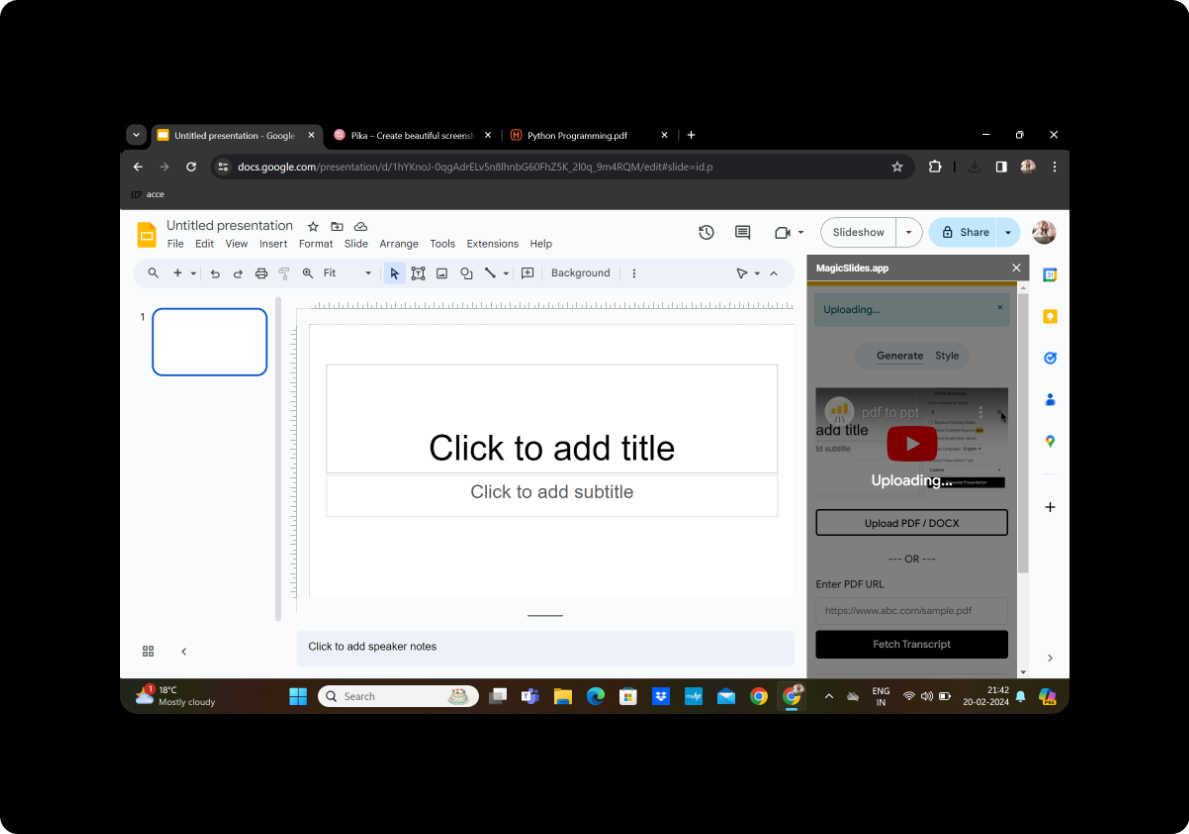
Upload the philosophy text in PDF format. Click on 'Fetch Transcript' to initiate the process of converting the written content into a format suitable for PowerPoint.
Step 3: Select the Number of Slides
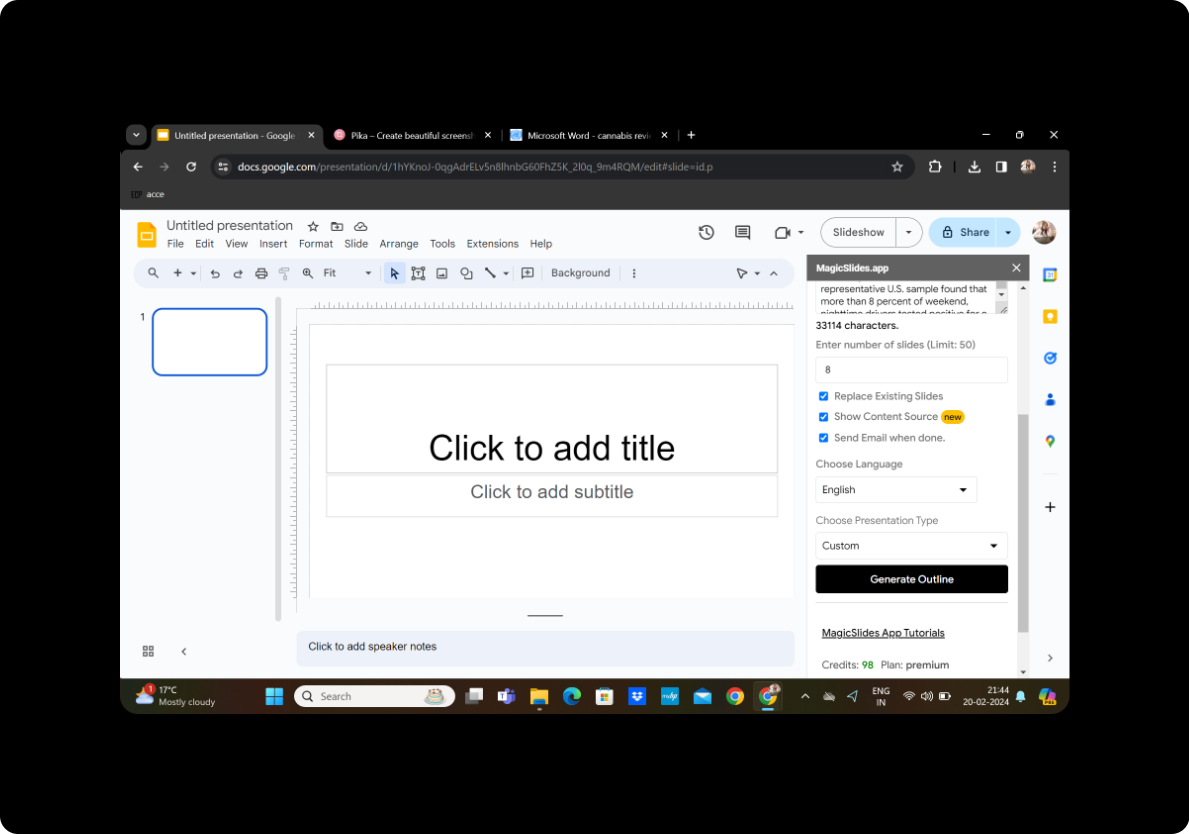
Customize your presentation by choosing the desired number of slides. This step ensures that the content is appropriately distributed, maintaining coherence and clarity.
Step 4: Click on Generate Outline
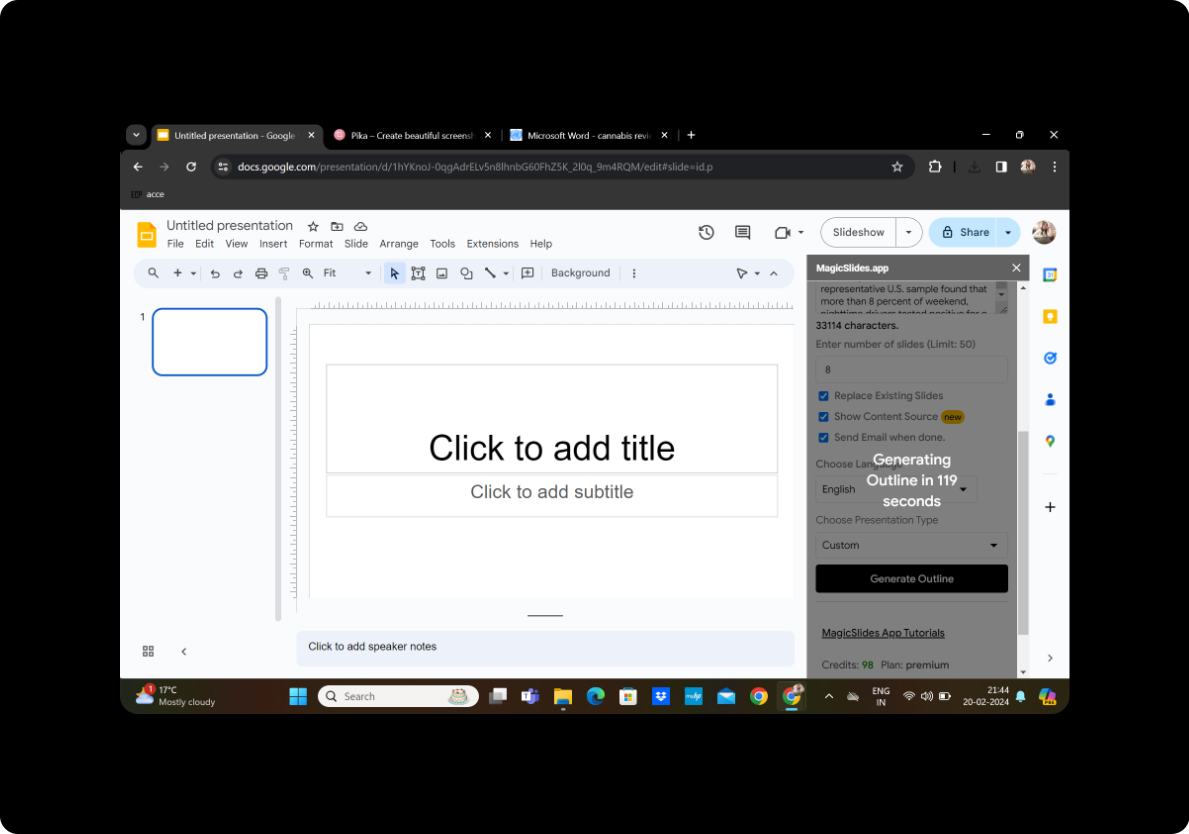
MagicSlides GPT offers an 'Outline' feature. Click on 'Generate Outline' to receive a structured overview of your presentation, allowing you to make informed decisions about the content flow.
Step 5: Once Satisfied, Click on Generate Presentation
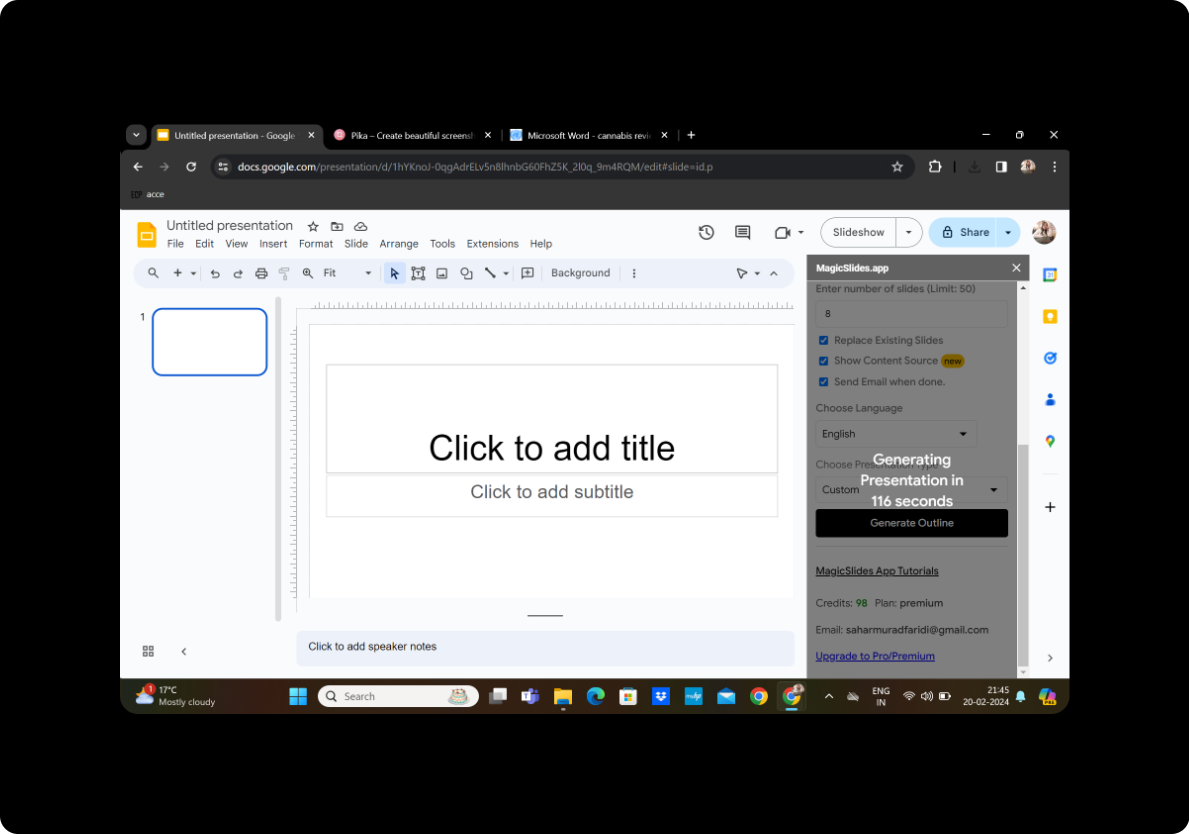
Review the generated outline and, if satisfied, proceed by clicking on 'Generate Presentation.' MagicSlides GPT will transform the philosophy text into a visually appealing PowerPoint format.
Your Presentation is Ready
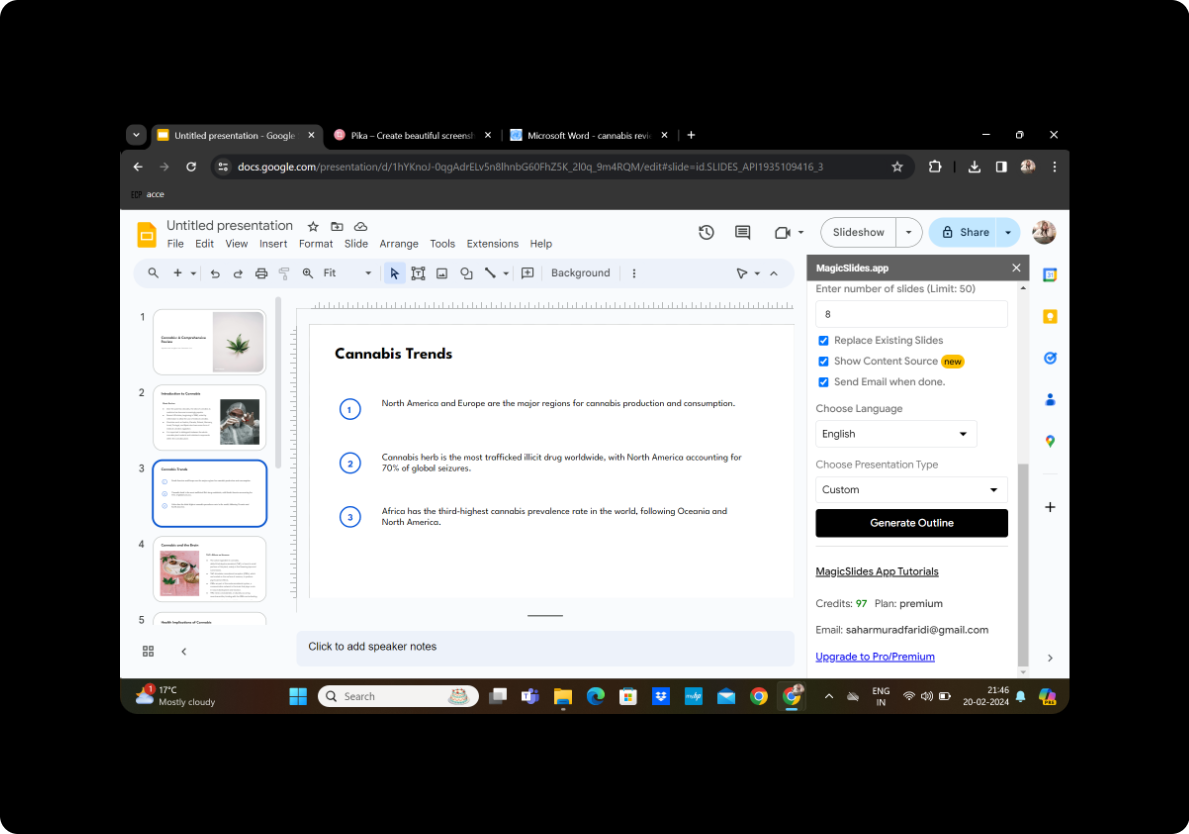
Your meticulously crafted presentation is now ready to captivate your audience with philosophical insights and discussions.
Conclusion
Incorporating philosophy texts into PowerPoint lectures doesn't have to be a cumbersome task. With the seamless integration of Google Slides and the innovative MagicSlides GPT, you can elevate your teaching or presentation style. Create engaging content that not only simplifies complex philosophical concepts but also enhances the overall learning experience.
Frequently Asked Questions
How do I access Google Slides?
Simply visit the Google Slides website, sign in with your Google account, or create one if you don't have an account.
Can I customize the design of my PowerPoint presentation?
Absolutely! Google Slides offers a range of customization options, allowing you to tailor the design to suit your preferences.
Is MagicSlides GPT free to use?
Basic features of MagicSlides GPT are often available for free. However, certain advanced features may require a subscription.
Can I edit the generated slides manually?
Certainly! MagicSlides GPT provides editing features, enabling you to refine and personalize the content as needed.
How do I share the presentation with my audience?
Once your presentation is ready, click on 'Share' in Google Slides, enter the email addresses of your audience, and decide on the level of access they should have.
Enhance your teaching or presentation prowess by transforming philosophy texts into dynamic PowerPoint lectures. Follow these steps and captivate your audience with insightful and visually appealing content.


