How to Create Organisation Chart Using AI: Quickest Method


How to create organization chart using AI in minutes? In this guide, I show how to make organization chart online without any design skills needed.
How to Create Organization Chart Using AI: Beginner-Friendly Walkthrough
In today’s AI-driven world, many repetitive office tasks, like creating charts for meetings or tracking departmental structure, can be fully automated. If you’re here, you’re probably creating organisation charts regularly and want a faster way to do it. That’s why you’re looking for how to create organization chart using AI.
I’m here to guide you through the simplest method to make organization chart using AI with minimal effort.
What is an AI-generated Chart?
An AI-generated chart is a diagram or representation created automatically by artificial intelligence. Instead of making the chart yourself from scratch, simply enter your information, such as roles, numbers, etc, and the AI instantly converts your text into a professional-looking chart in seconds.
AI-generated charts can include:
- Organization charts
- Flowcharts
- Mind maps
- Bar, line, and pie charts
- Process diagrams
- Timelines
For organizational charts specifically, the AI:
- Understands who reports to whom
- Aligns everything neatly
- Adds connectors and spacing
- Uses templates for clean design
This saves time and manual effort, and I’m personally using the AI for creating well-refined charts, and the reasons behind this are listed next.
Why I Use AI to Make Organization Chart?
However, even though I create charts for office use regularly, there are times when I feel stuck and don’t know how to design a fresh-looking chart. That’s when artificial intelligence really helps me:
- No design work needed. I generate a fully professional chart, only with ideas and text.
- Perfect alignment and spacing arrange everything neatly by artificial intelligence.
- Fast updates the text and regenerates the chart.
- Multiple export options such as a PNG, SVG, or PDF etc.
- No design skills needed.
These reasons push me to use AI regularly, not just as chart-generated, but also AI Presentation Creator, or even AI Image Generator.
How to Create Organization Chart Using AI – Step-by-Step
To make office charts, there are numerous AI solutions available online. But now the question is which is best suitable for you?
Personally, I tried over 10+ AI solutions, and I found that MagicChart – AI Chart Generator is reliable among all. It’s fast, and it provides me desired results every time in one go without needing any any design skills. I only need to paste my hierarchy, and the AI automatically turns it into a professional-looking organization chart.
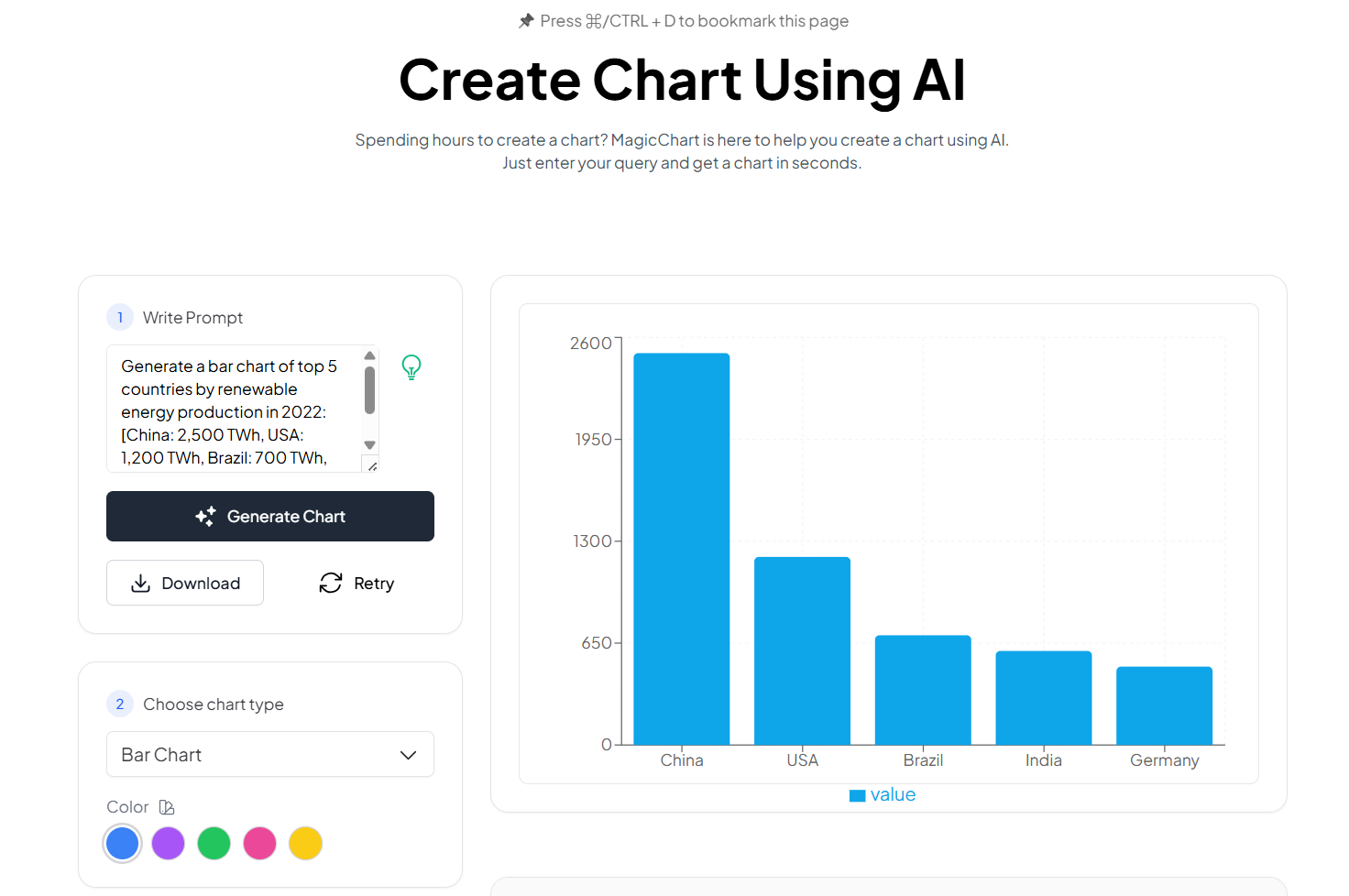
I also recommend trying this for free now to check its reliability and performance.
After signing up for this, follow the steps below to make organization chart:
- Open the solution, and prepare your hierarchy in simple text format, for example:
- CEO
- CTO
- – Development Manager
- — Team Lead A
- In the “Write Prompt” box, enter your prompt (text) and scroll down to “Choose Chart Type”, i.e. Bar Chart, Area Chart, etc.
- Click on the “Generate Chart” button and let the AI process your structure.
- Review the auto-generated chart and make adjustments if needed.
- Once satisfied, download the chart in your preferred format, PNG, SVG, or PDF.
Example Input You Can Use
Here’s a simple hierarchy you can paste directly into MagicChart:
CEO
- CTO
- – Dev Manager
- — Frontend Team
- — Backend Team
- COO
- – Operations Manager
- — Logistics Lead
- — Support Lead
- CFO
- – Finance Manager
It will convert this into a clean, structured org chart automatically.
Author’s Verdict
Now, we learned how to create organization chart using AI step by step. Honestly, creating an organization chart using MagicChart AI Chart Maker has made my workflow faster and more efficient. Instead of spending time arranging shapes and thinking about ideas, I focus only on the structure and let the AI handle the rest.
People Also Ask
Q1. Do I need design skills to use MagicChart?
No. MagicChart handles all formatting, spacing, and layout automatically. Only need to provide a clean text hierarchy.
Q2. Is it possible to edit the chart after generating it?
Yes. I can customise colours, fonts, sizes, and layout styles directly inside it after generation.
Q3. Does it support large organization charts?
Yes. It can generate charts for both small teams and large enterprises, as long as the hierarchy is clearly structured.
Q4. Can I use real employee names safely?
Yes, this solution comes with robust security measures, so you can easily insert any confidential information into it without any doubt.


