How to Create Sales pitches by converting Word documents to PowerPoint presentations?


Transform Word docs into persuasive PowerPoint sales pitches with our step-by-step guide. Elevate your presentations and boost sales effortlessly.
In the fast-paced world of business, a compelling sales pitch can make all the difference. Transforming your carefully crafted Word documents into engaging PowerPoint presentations is now easier than ever, thanks to tools like MagicSlides GPT. Let's walk through the process step by step, from the basics to the final presentation.
How to Create Sales pitches by converting Word documents to PowerPoint presentations?
Visit Google Slides
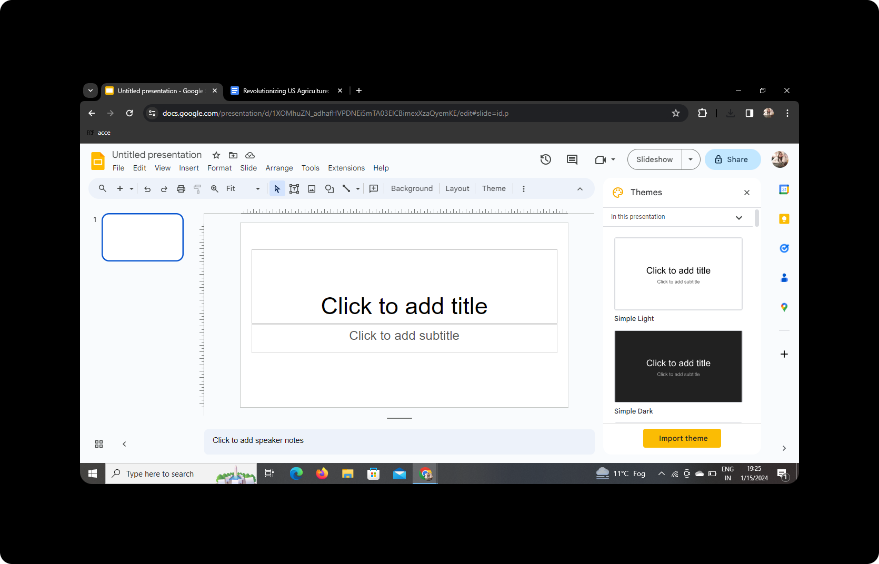
Begin by heading to Google Slides, Google's user-friendly cloud-based presentation platform. If you don't have a Google account, sign up for one. Once logged in, start a new presentation to kick off the transformation process.
Sign in with Google to Google Slides
Click on the "Sign In" button to connect your Google account with Google Slides. This ensures seamless integration and easy access to the presentation tool's features.
In Extensions, Click on MagicSlides GPT (if downloaded)
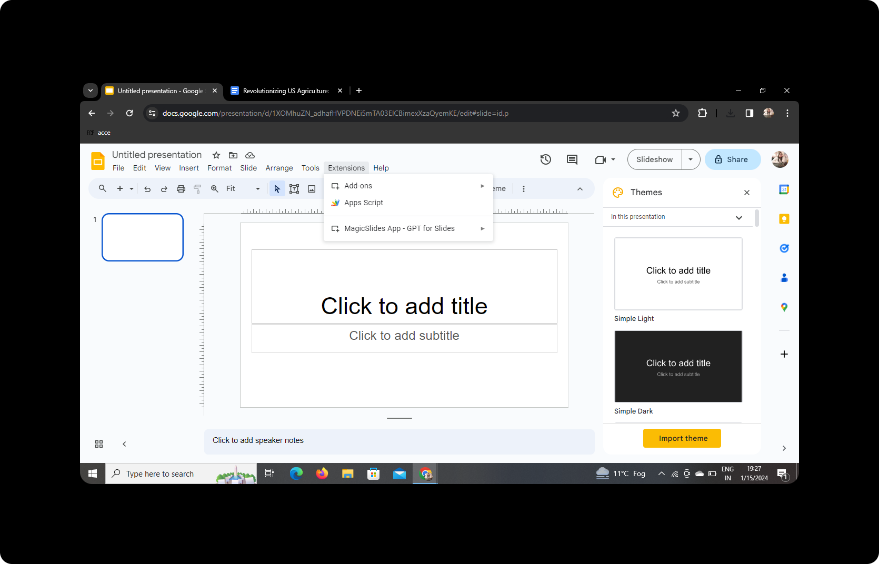
If you've already downloaded the MagicSlides GPT extension, head to the extensions menu and click on MagicSlides GPT to activate the tool.
If Not Downloaded, First Download as an Extension, Then Open
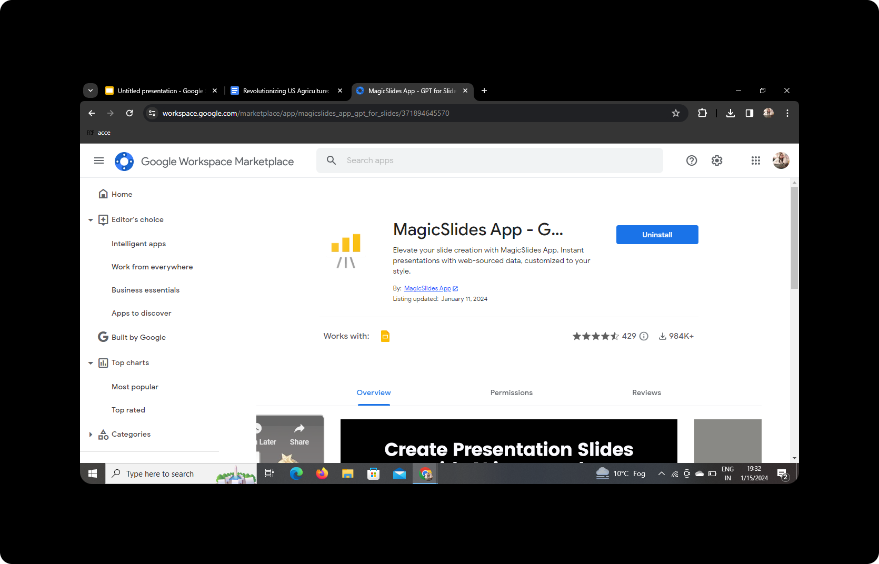
If you haven't downloaded the MagicSlides GPT extension, navigate to the extensions store, find MagicSlides GPT, and download it. Once downloaded, open the extension to integrate it with Google Slides.
Click on PDF/DOCX to PPT in MagicSlides GPT
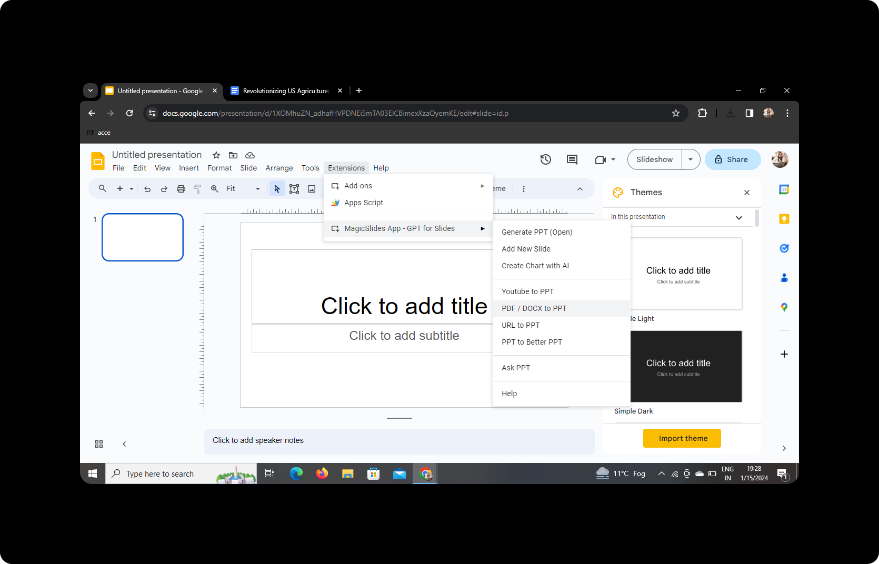
Locate the MagicSlides GPT tab within Google Slides and click on "PDF/DOCX to PPT." This is where the magic begins!
Click on 'Upload PDF/DOCX' Option and Upload Your Content
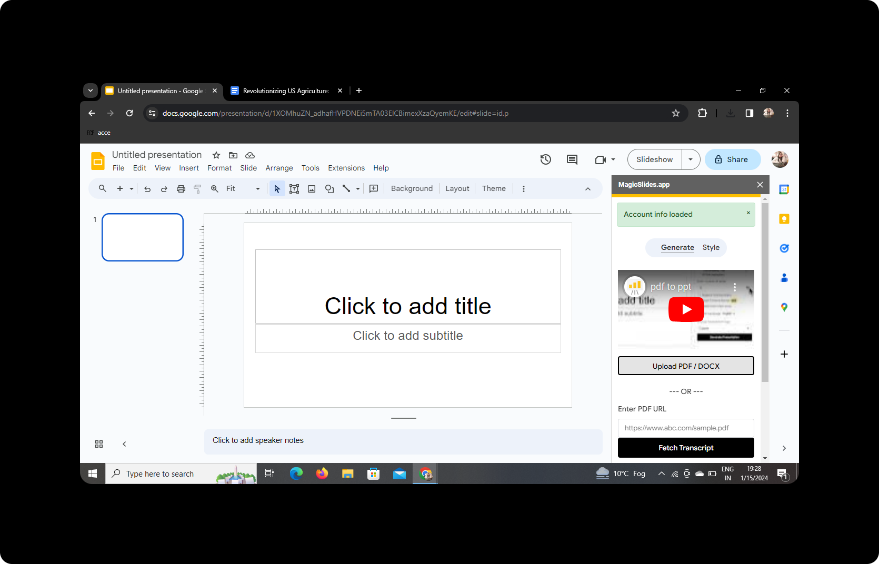
Select the "Upload PDF/DOCX" option within MagicSlides GPT and upload your Word document. The tool will analyze the content to prepare for the conversion.
Select the Number of Slides
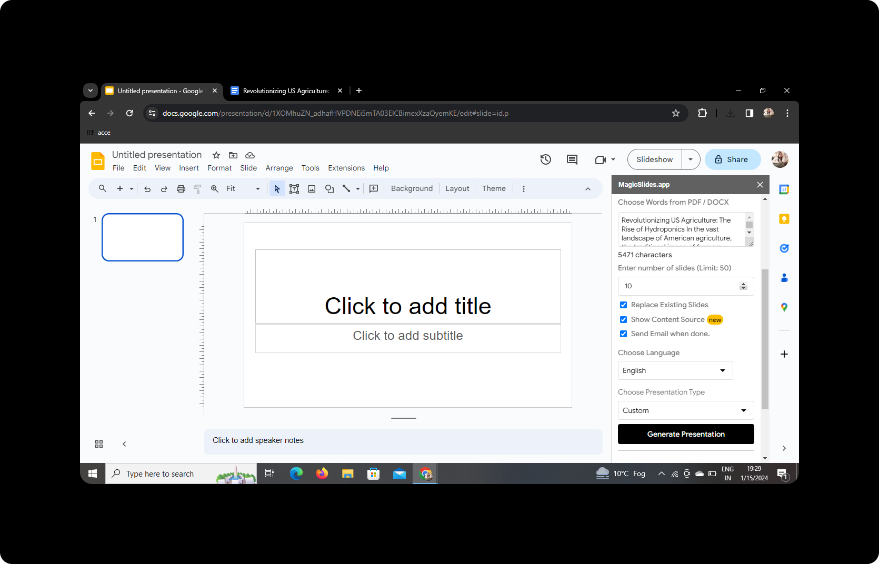
Specify the number of slides you'd like to generate based on your Word document. This customization ensures your presentation aligns with your storytelling strategy.
Click on Generate Presentation
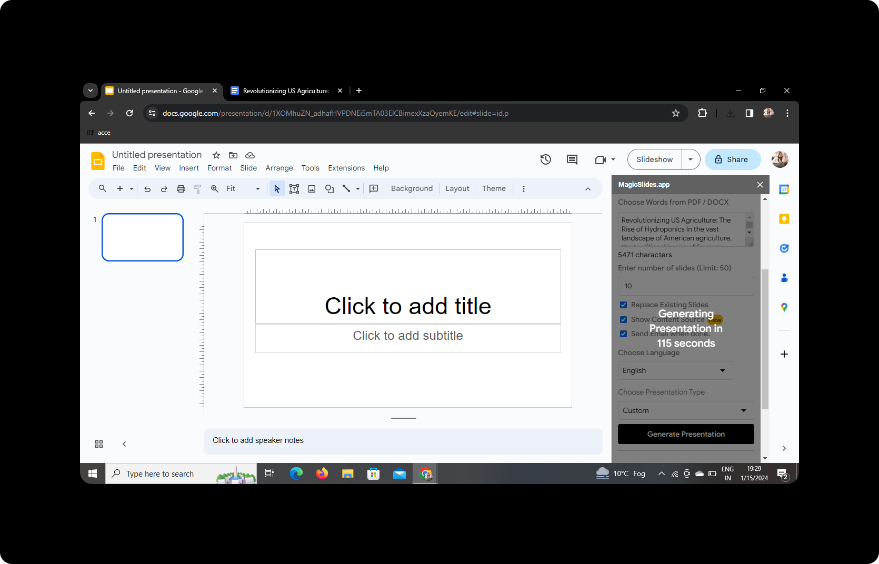
Click the "Generate Presentation" button, letting MagicSlides GPT work its magic. The tool will convert your Word document into a visually appealing PowerPoint presentation.
Your Presentation Is Ready
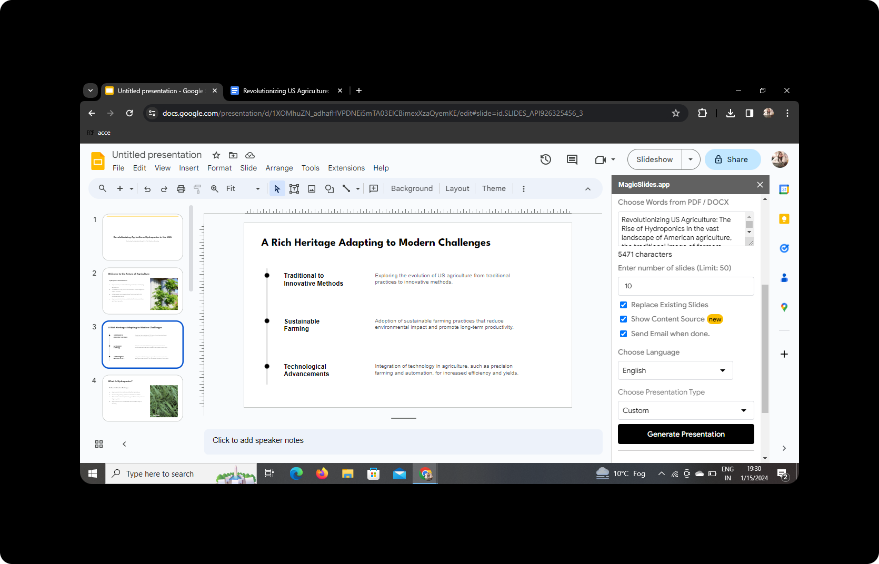
Voila! Your presentation is now ready for review. MagicSlides GPT captures the essence of your Word document, translating it into impactful slides.
Conclusion
In conclusion, turning Word documents into sales-ready PowerPoint presentations has never been more straightforward. With Google Slides and the innovative MagicSlides GPT, you can elevate your pitches and captivate your audience effortlessly.
FAQs: Answers to Your Queries
Is MagicSlides GPT free?
Yes, MagicSlides GPT offers a free version with basic features. However, for advanced functionalities, consider exploring their premium options.
Can I edit the generated slides?
Absolutely! MagicSlides GPT allows you to review and edit the slides as needed, adding a personal touch to your presentation.
Are there limitations on the size of Word documents for conversion?
While there may be some limitations, MagicSlides GPT is designed to handle a variety of document sizes. For optimal results, consider breaking down large documents into manageable sections.
Can I use MagicSlides GPT offline?
Unfortunately, MagicSlides GPT requires an internet connection for optimal performance. Ensure you're connected to the internet during the conversion process.
Is MagicSlides GPT compatible with other file formats?
MagicSlides GPT primarily focuses on converting PDF and DOCX files into PowerPoint presentations. For other formats, explore alternative tools or convert them to compatible formats first.
Now armed with the knowledge of seamlessly converting Word documents into PowerPoint presentations, go ahead and elevate your sales pitches to new heights!


