How to Delete Slack Messages


Dive into Slack's collaborative magic with polls sparking engagement, decisions, and seamless teamwork
Hey there, fellow collaborators! Have you ever wondered how to spice up your Slack conversations and seamlessly make decisions?
Well, you're in for a treat! Today, we're diving into the world of polls in Slack, the game-changer in team interaction.
Whether you're a fan of native features or looking into nifty third-party apps, we've got you covered. Let's explore the fantastic ways polls can enhance your team's communication.
Before we continue, if you want to send a Google form submission to Slack, check out SlackNotify.app
How to Delete Slack Messages
Open your Slack application:
Launch the Slack application on your desktop or open the Slack website.
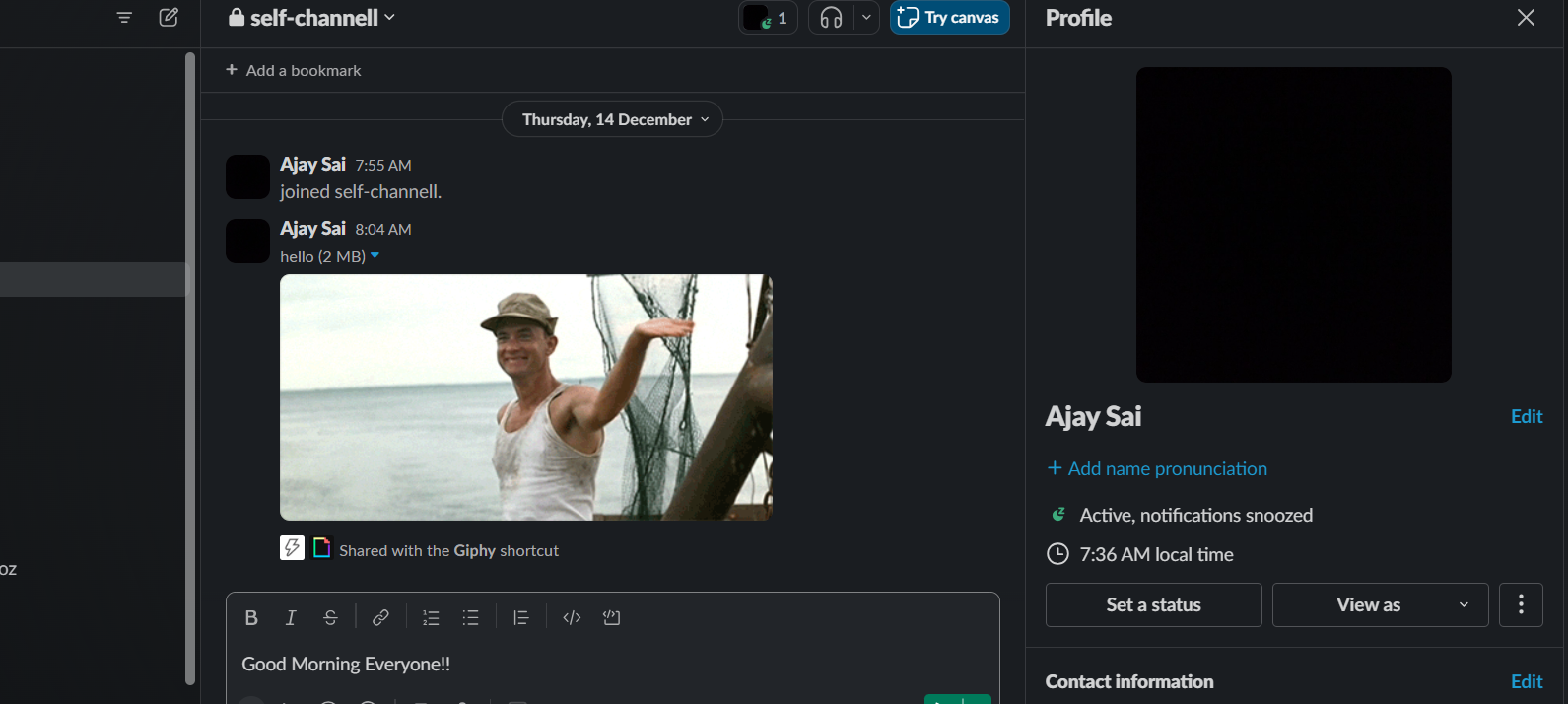
Select the Channel or Direct Message:
Navigate to the channel or direct message where the message you want to delete is located.
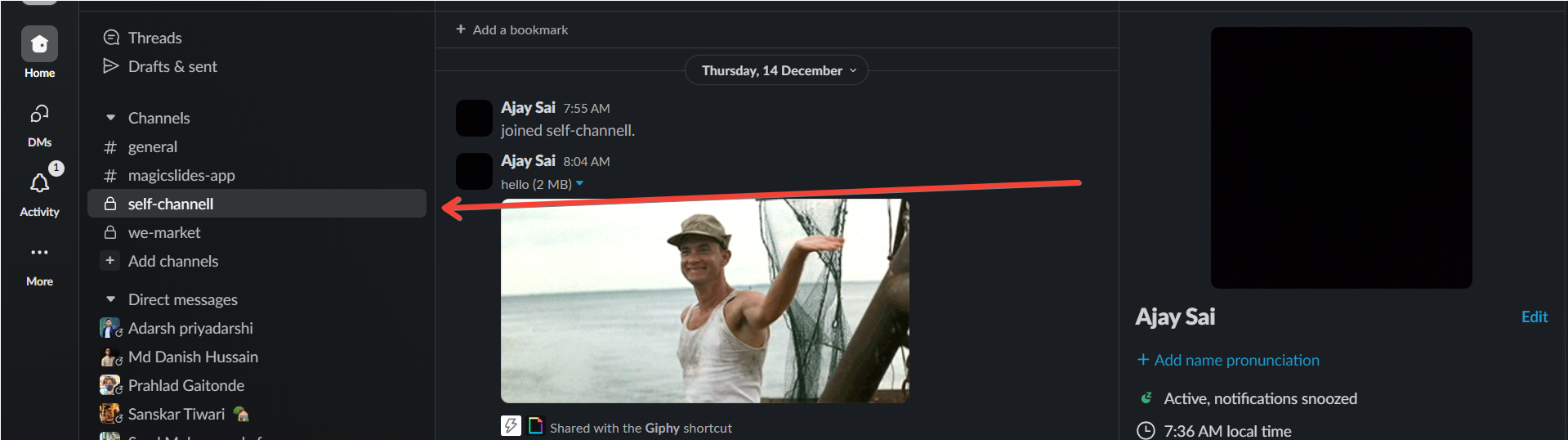
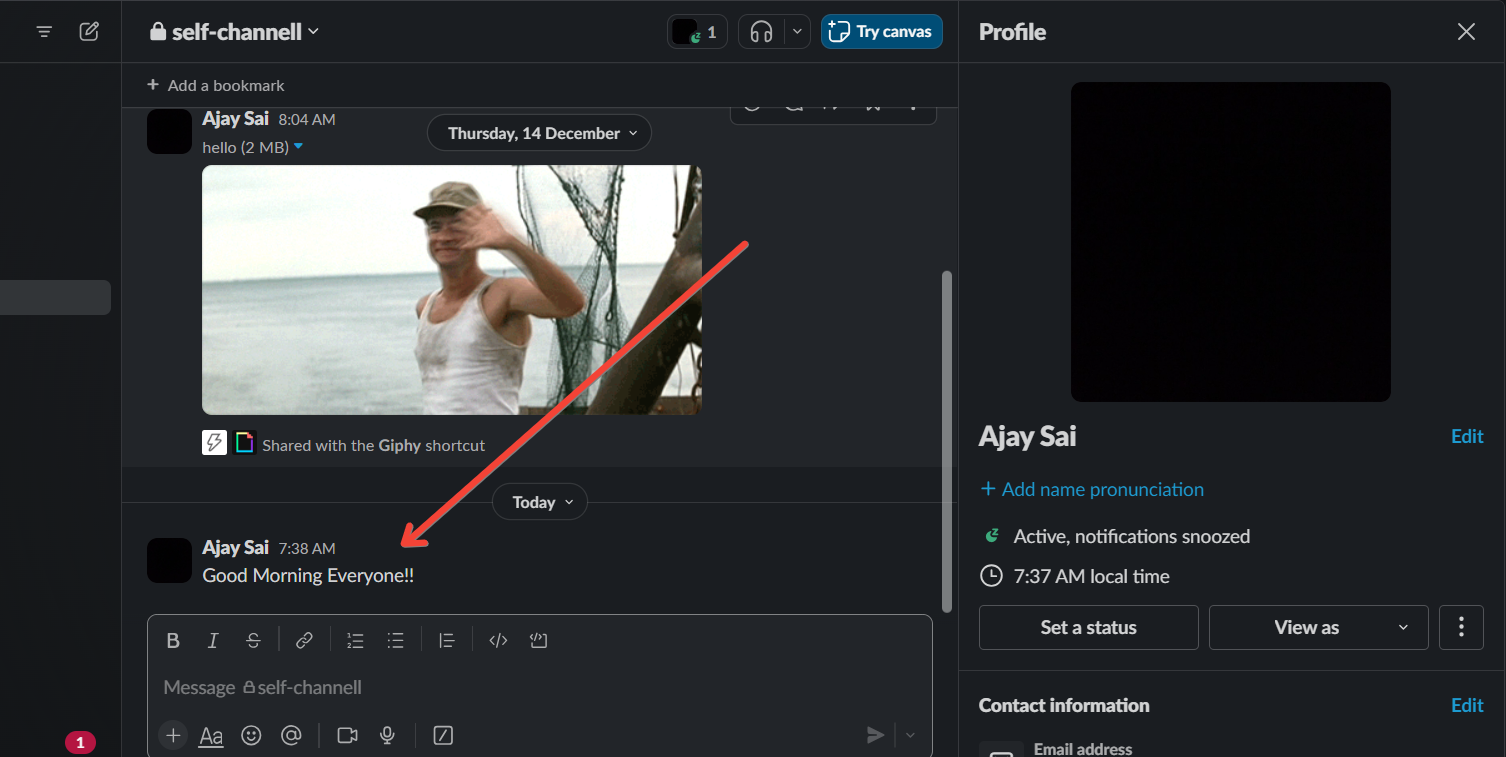
Locate the Message:
Find the specific message you wish to delete within the conversation thread.
Hover Over the Message:
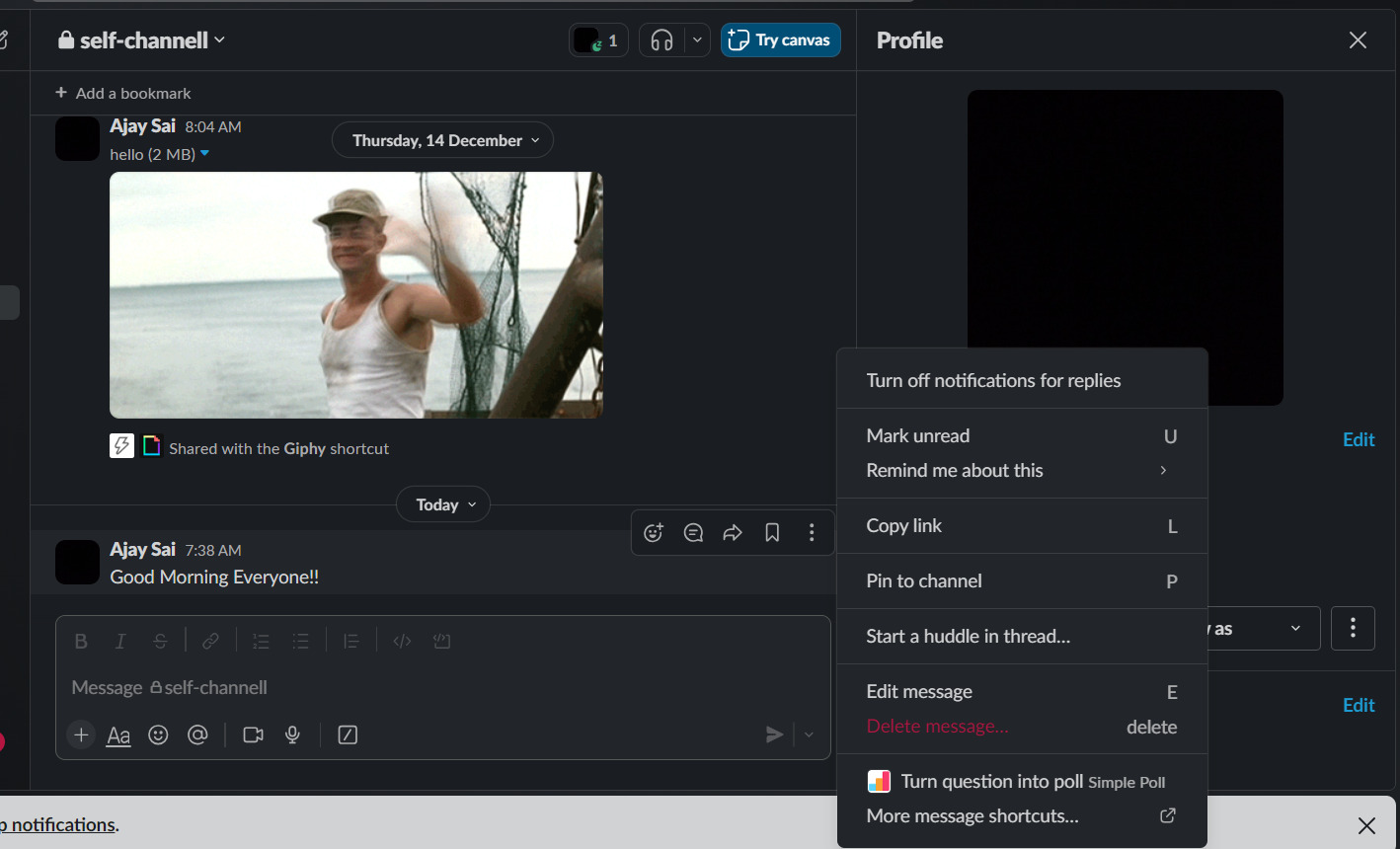
Hover your cursor over the message, and you'll see a "More actions" (three dots) icon appear.
Click "More actions":
Click on the "More actions" icon to reveal a drop down menu.
Choose "Delete Message":
In the dropdown menu, select "Delete message." Confirm the action if prompted.
Message Deletion Confirmation:
Slack will confirm the deletion, and the message will be removed from the conversation.
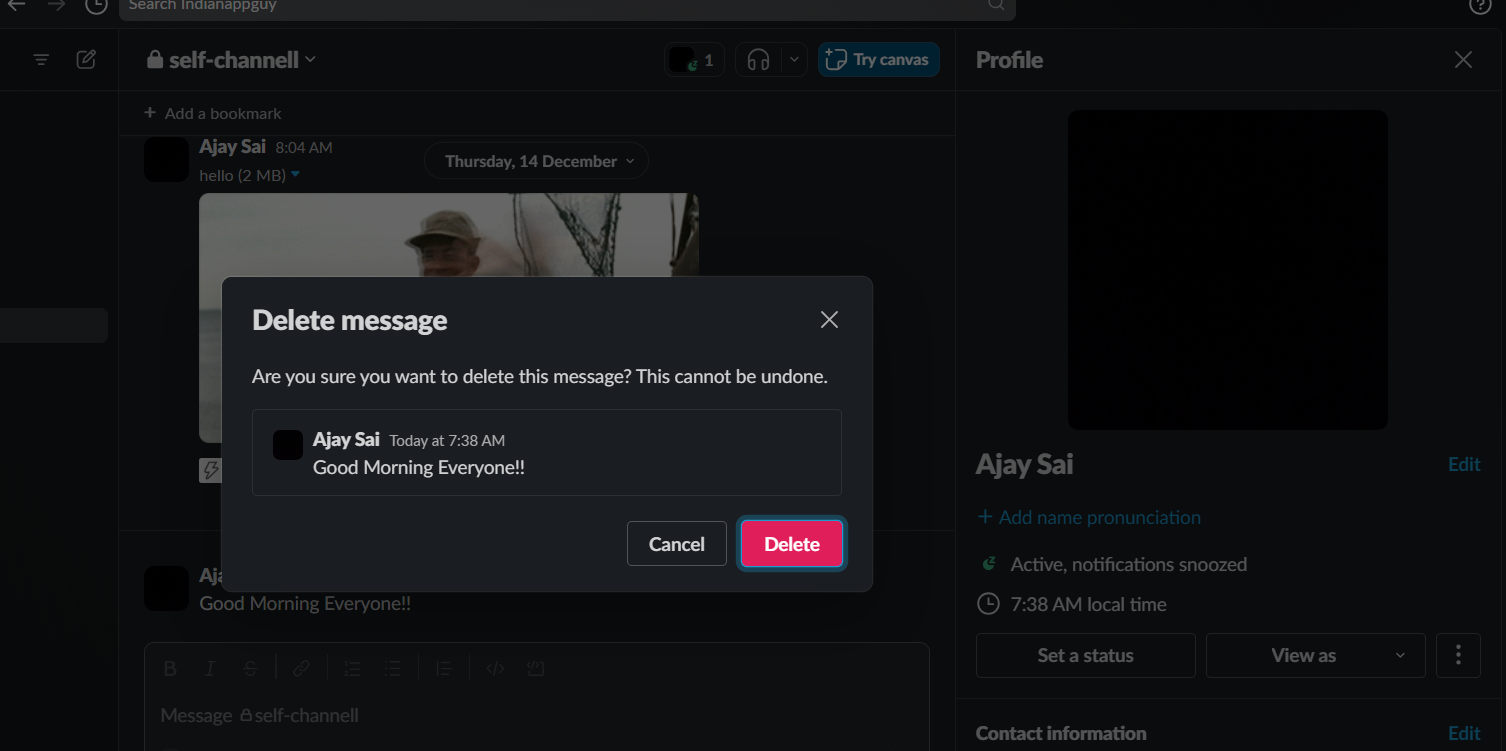
Note: Deleted messages cannot be recovered, so ensure you want to remove the message before confirming the deletion.
When managing and deleting Slack messages, it's helpful to set up Google Form notifications in Slack. This way, you'll receive a Slack alert whenever someone fills out a form, ensuring important information is never lost in the shuffle
Conclusion:
And there you have it, folks! Polls in Slack, not just a checkbox in your to-do list, but a dynamic tool shaping teamwork.
Whether you're a tech wizard or just exploring the features, the ability to gather opinions and make decisions together is pure gold.
So, go ahead, infuse your Slack with collaboration vibes, and let the magic happen. It's not just a chat; it's a collective journey toward productivity and shared success!
Frequently Asked Questions:
How can I create a poll directly in Slack?
It's easy! You can use the built-in feature by typing "/poll" in the message input field. Follow the prompts to craft your question and options.
Are there third-party apps for polling in Slack?
Absolutely! Apps like Polly and Simple Poll provide seamless integration. Install your preferred app, use specific commands, and voila – interactive polls right in Slack.
Can everyone in my Slack workspace participate in the polls?
Certainly! Once you create a poll, it's shared in the chosen channel or as a direct message. Team members can effortlessly vote and contribute to the decision-making process.


