How to Draw on Google Slide in Slideshow Mode


Learn how to draw on Google Slides in slideshow mode using extensions, Jamboard, or annotation tools
How to Draw on Google Slides in Slideshow Mode
Google Slides is a powerful tool for presentations, but it lacks a built-in drawing feature in slideshow mode. However, there are workarounds that allow you to annotate slides while presenting. In this guide, you’ll learn how to draw on Google Slides in slideshow mode using different methods.
Steps to Draw on Google Slides in Slideshow Mode
Step 1: Install a Drawing Extension
Open the Google Chrome Web Store. Search for extensions like Web Paint or Annotate.
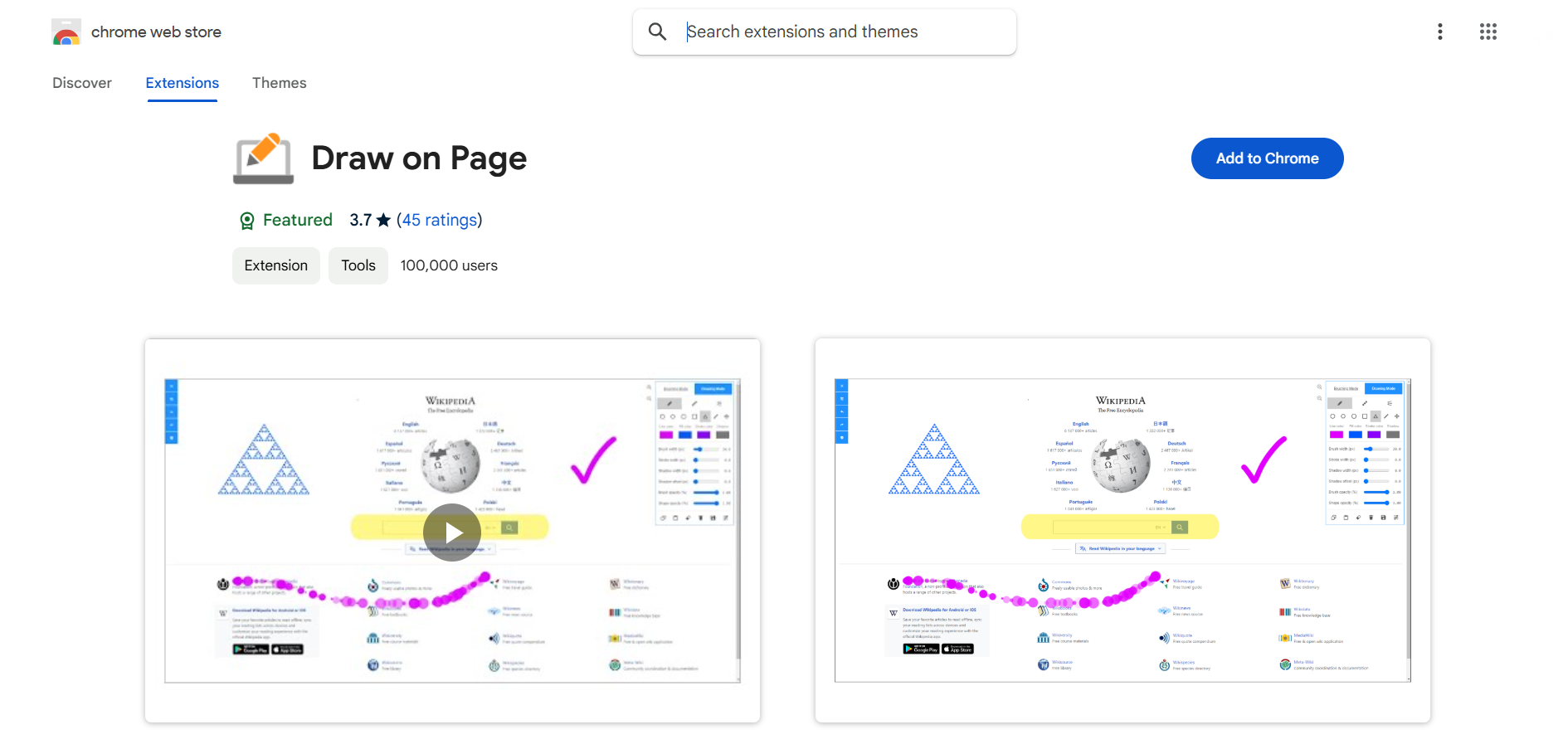
Click Add to Chrome and install the extension.
Step 2: Open Your Google Slides Presentation
Go to Google Slides and open your presentation. Click on Present to enter slideshow mode.
Step 3: Activate the Drawing Tool
Click on the extension icon in the Chrome toolbar. Select the pen tool and adjust the color or thickness.
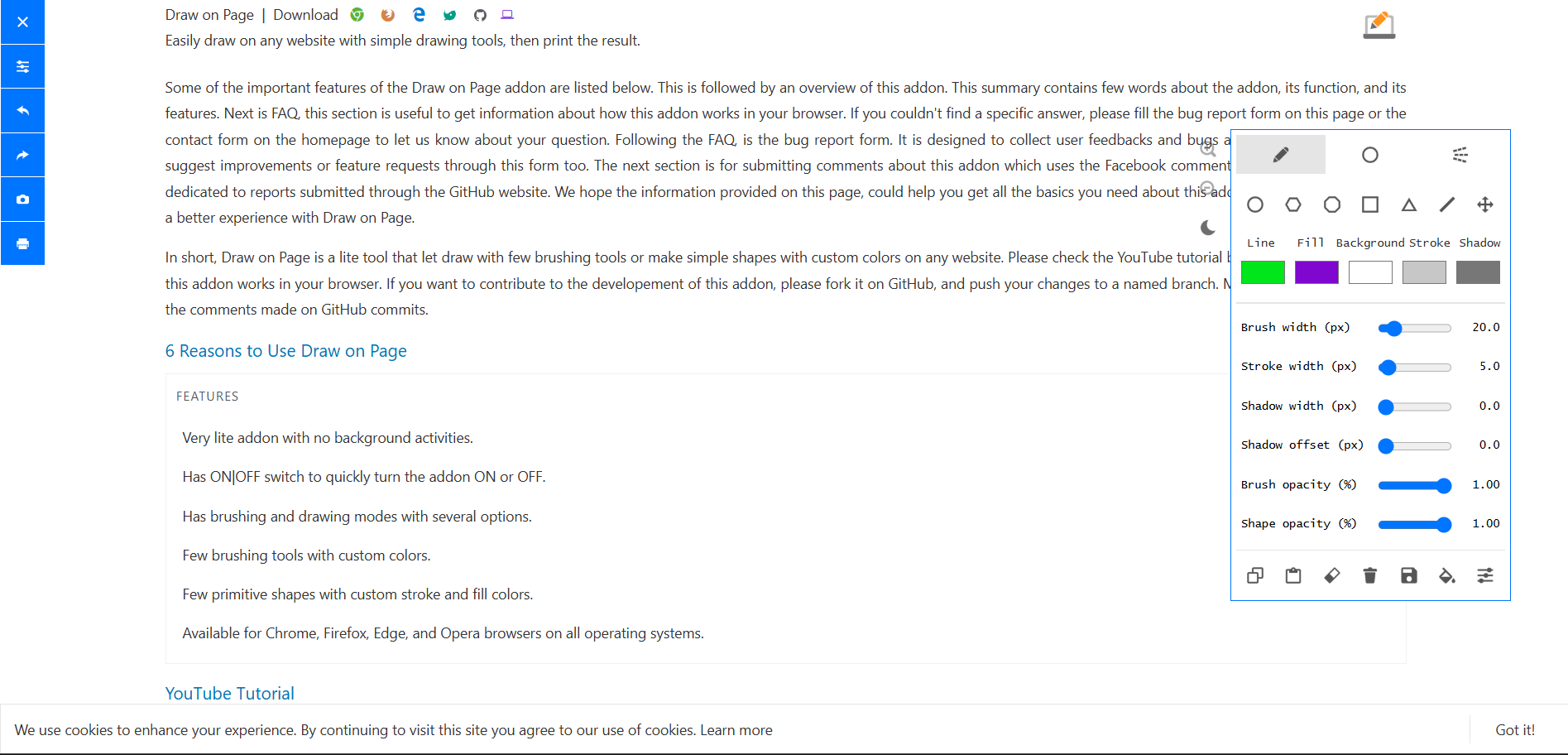
Step 4: Draw on Your Slides
Use your mouse or touchscreen to draw directly on the slides while presenting.
To erase, select the eraser tool or click Clear to remove annotations.
Method #2: Use a Third-Party Screen Annotation Tool
Step 1: Download an Annotation Tool
Install free tools like Epic Pen or ZoomIt for Windows or Ink2Go for Mac.
Step 2: Run the Tool While Presenting
Open the annotation tool before starting your slideshow. Use the pen tool to draw, highlight, or write notes on slides.
Adding drawings to Google Slides makes presentations more engaging. But if you want to create high-quality slides faster, try MagicSlides.app it uses AI to generate stunning, ready-to-use slides from just a topic!
Conclusion
Even though Google Slides doesn’t have a built-in drawing feature in slideshow mode, you can use Chrome extensions, Google Jamboard, or third-party annotation tools to draw on your slides.
These methods help make presentations more interactive and engaging.
FAQs on Drawing in Google Slides Slideshow Mode
Can I draw directly in Google Slides without an extension?
No, Google Slides does not have a built-in drawing tool in slideshow mode. You need an external tool.
Does Google Meet allow me to draw on slides while presenting?
Yes, you can use Google Meet’s whiteboard (Jamboard) or third-party extensions to annotate your slides.
What’s the best free tool for drawing on slides in slideshow mode?
Web Paint (Chrome extension) and Epic Pen (Windows/Mac) are great free options for live annotations.
Now you can easily draw on your Google Slides while presenting to make your lessons or meetings more interactive! 🚀


