How to Fill an Image to Background on Google Slides


Easily fill an image as a background in Google Slides for a polished, professional presentation
How to Fill an Image to Background on Google Slides
Adding an image as a full-background in Google Slides enhances the visual appeal of your presentation.
Instead of manually resizing an image, you can seamlessly set it as the slide background.
Follow these simple steps to fill an image to the background on Google Slides.
Steps to Fill an Image to the Background on Google Slides
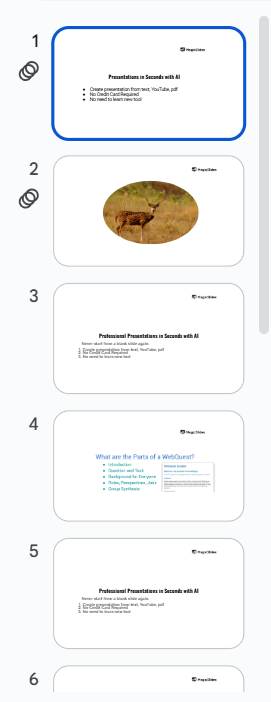
Step 1: Open Google Slides and Select Your Slide
Go to Google Slides and open your presentation. Click on the slide where you want to set the background image.
Step 2: Access the Background Settings
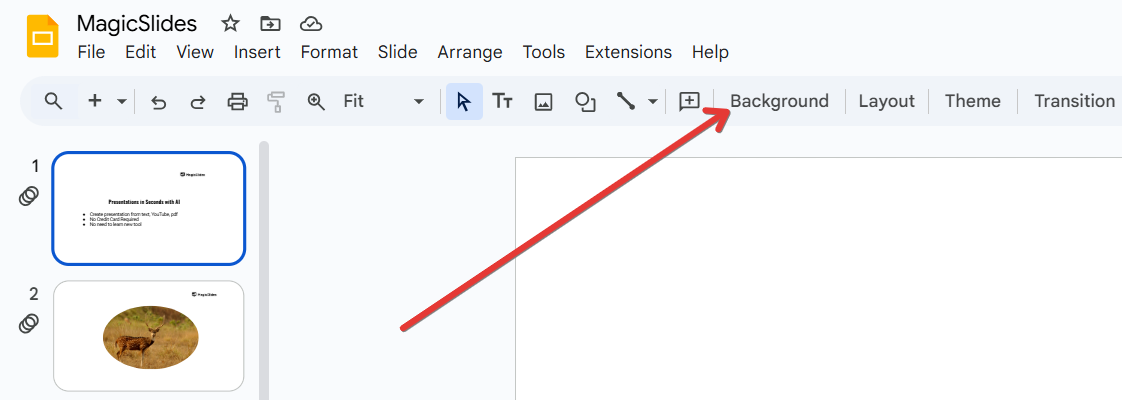
Click on "Background" in the top toolbar. A pop-up window will appear with customization options.
Step 3: Choose an Image as Background
Click on "Choose Image" to upload a picture.
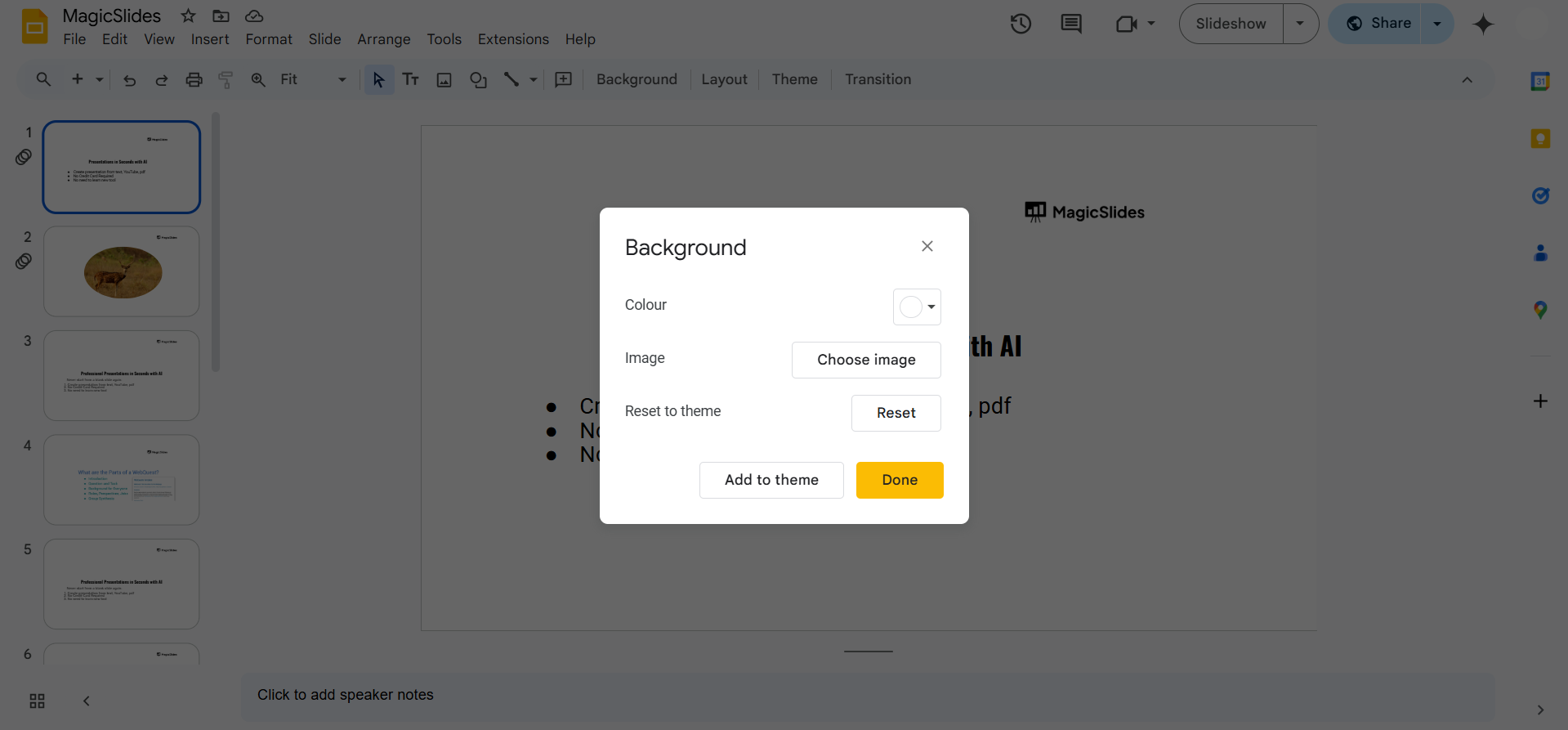
Select an image from your computer, Google Drive, Google Photos, or by URL.
Step 4: Adjust the Image Placement
Google Slides automatically stretches the image to fit the slide.
If the image does not align properly, edit it using external tools before uploading.
Step 5: Click "Done" to Save Changes
Once the image fills the slide background, click "Done" to confirm.
Setting an image as a background in Google Slides enhances visual appeal. For a faster, AI-driven way to create stunning presentations, try MagicSlides.app it generates high-quality slides with perfectly placed backgrounds in seconds!
Conclusion
Setting an image as a background in Google Slides ensures a professional and polished look.
By following these steps, you can easily fill any image to fit your slide seamlessly.
FAQs on Filling an Image to Background in Google Slides
Can I resize the background image after setting it?
No, once an image is set as the background, it cannot be resized. You must edit the image before uploading it.
How do I remove a background image?
Click on "Background", then select "Reset" to remove the background image.
Can I adjust the transparency of the background image?
No, but you can insert an image normally (not as a background) and adjust its transparency using the Format options.
Now you can enhance your Google Slides with beautiful full-background images! 🚀


