How to Format a PowerPoint cover Page APA


Create a professional APA-style PowerPoint cover page by following these simple formatting steps
Creating a professional PowerPoint cover page in APA style ensures your presentation aligns with academic or professional standards.
The APA style provides guidelines for consistency, including elements like the title, author name, institutional affiliation, and date.
This step-by-step guide will help you format a PowerPoint cover page that meets APA requirements.
How to Format a PowerPoint Cover Page in APA Style | Steps to Format a PowerPoint Cover Page in APA Style
Step 1: Choose a Clean Slide Layout
Open PowerPoint and start with a blank presentation. Choose a layout with minimal distractions, such as a blank or title slide.
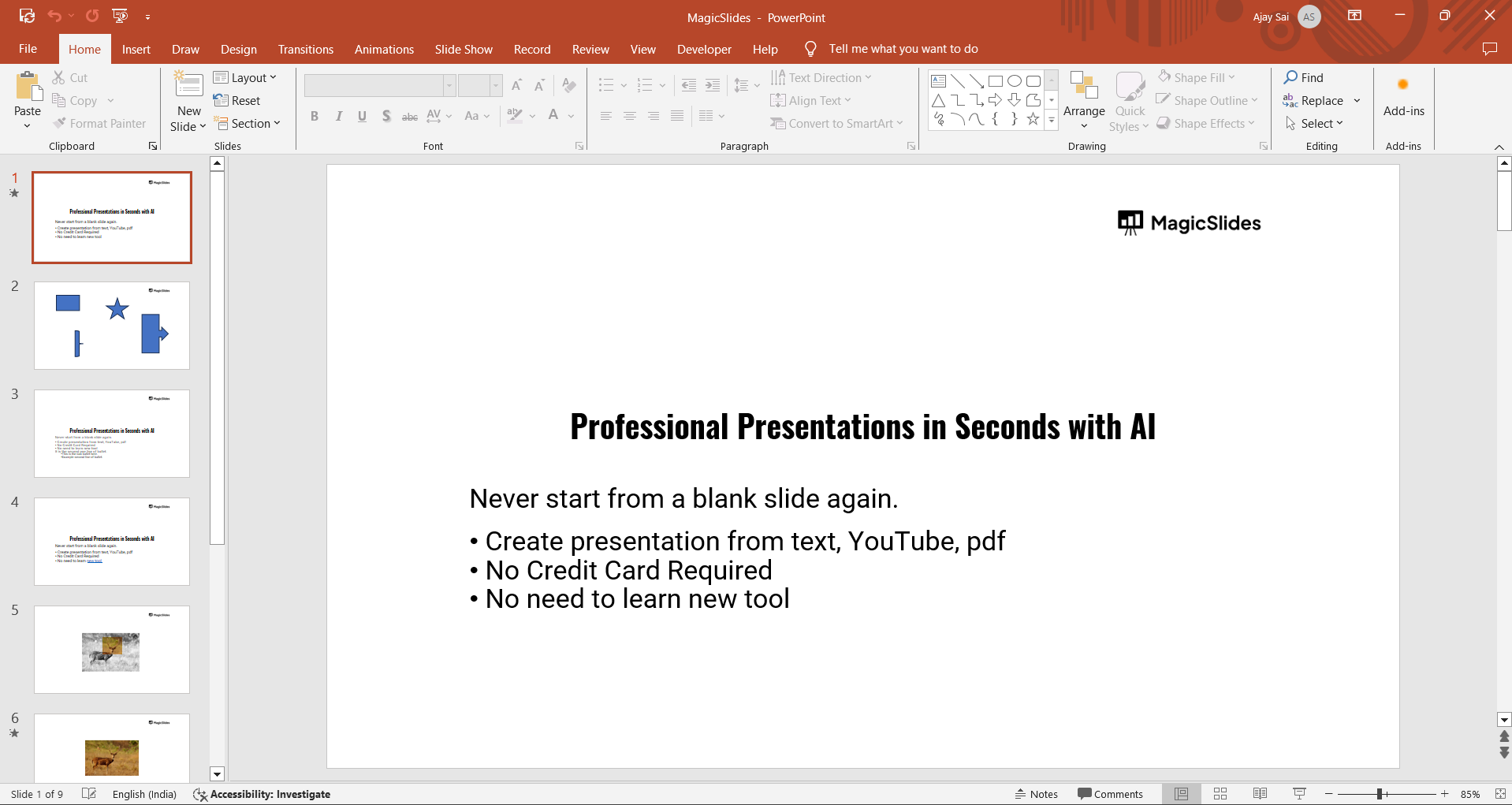
Ensure there’s enough white space to arrange all required elements neatly.
Step 2: Add the Title of Your Presentation
Click on the text box labeled “Title” or insert a new text box. Enter the title of your presentation in bold, centered text.
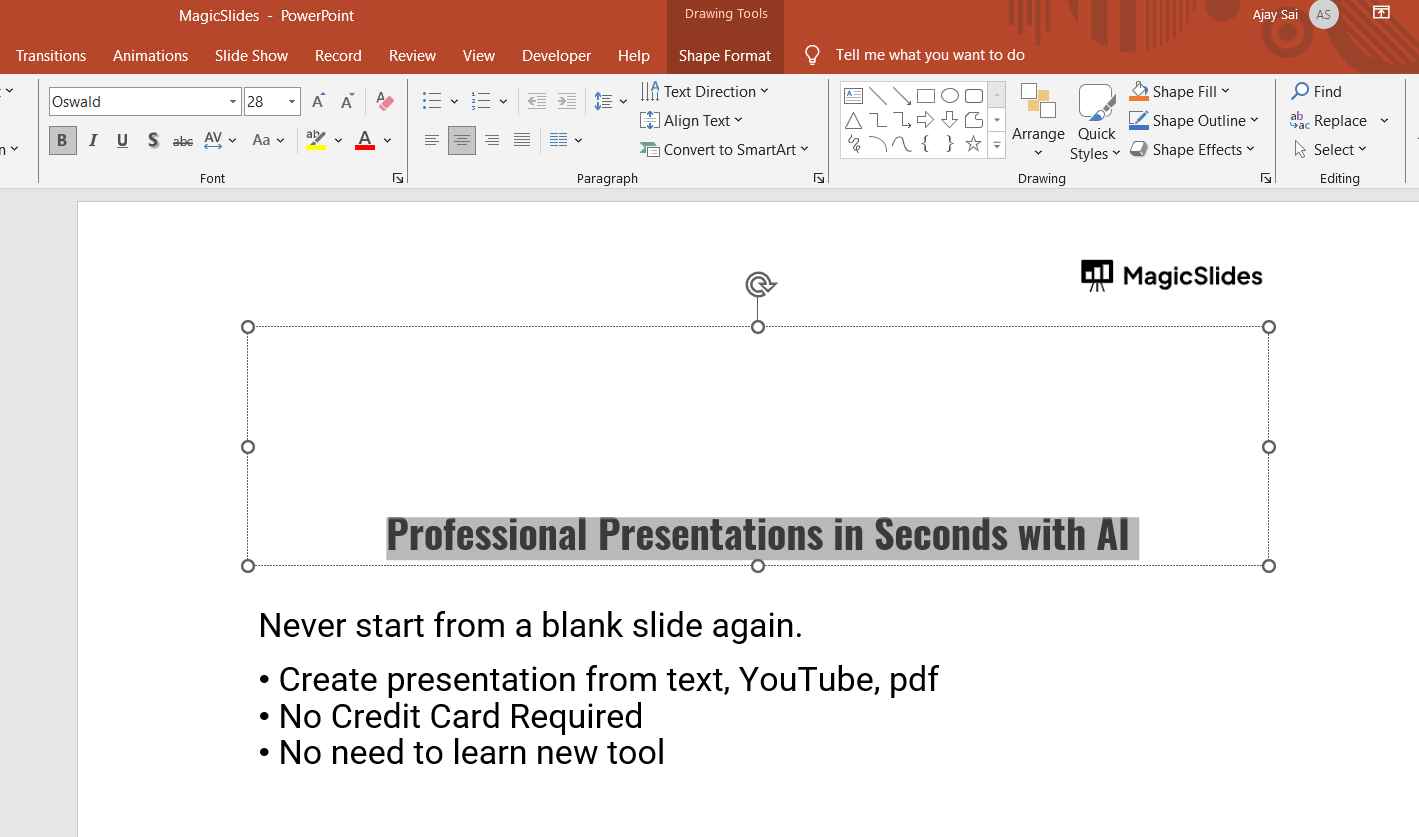
Use Times New Roman, 12-point font, as recommended by APA style.
Step 3: Include Your Name
Below the title, insert your name in regular, centered text.
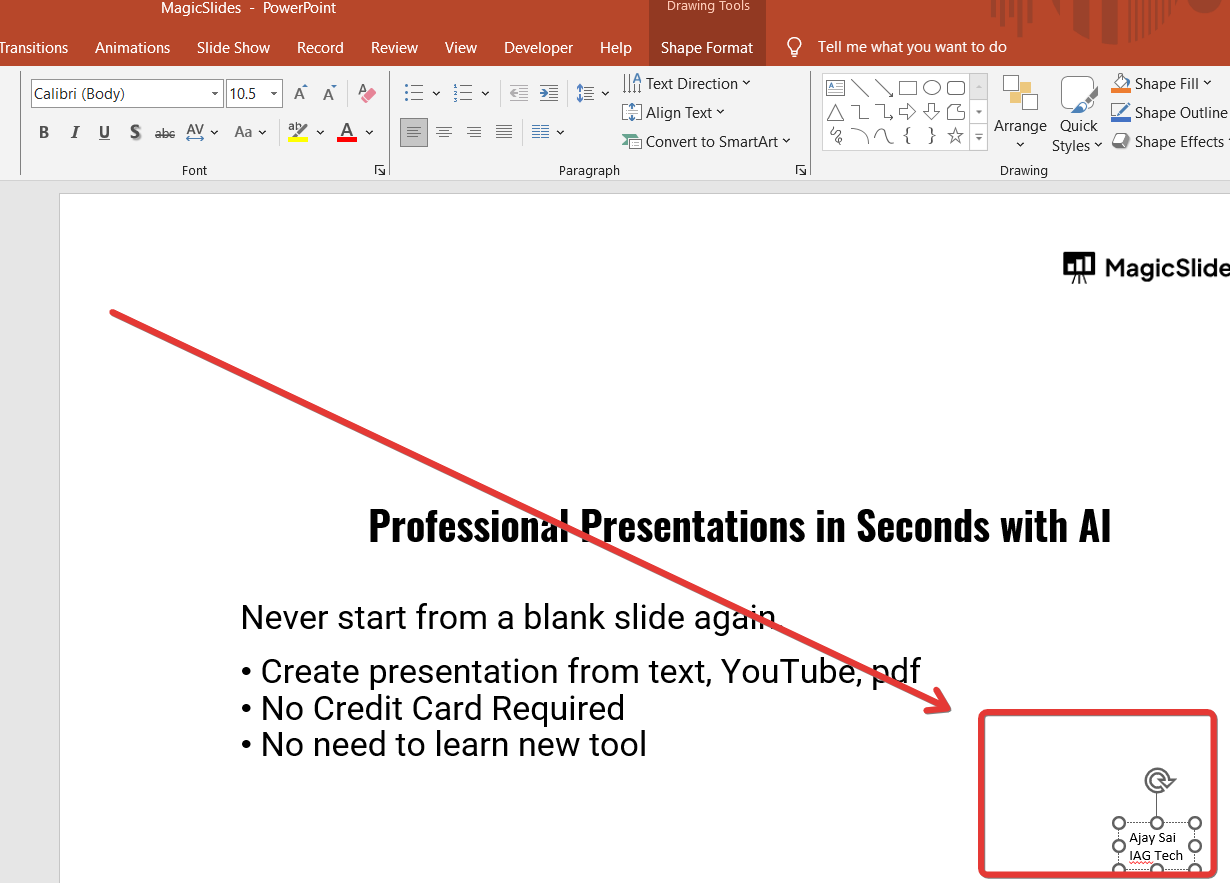
Write your full name without titles (e.g., no "Dr." or "Mr./Ms.").
Step 4: Add Institutional Affiliation
Beneath your name, include your institutional affiliation (e.g., the name of your school or organization).
This should be in regular, centered text.
Step 5: Include the Date
Below the institutional affiliation, add the date of the presentation.
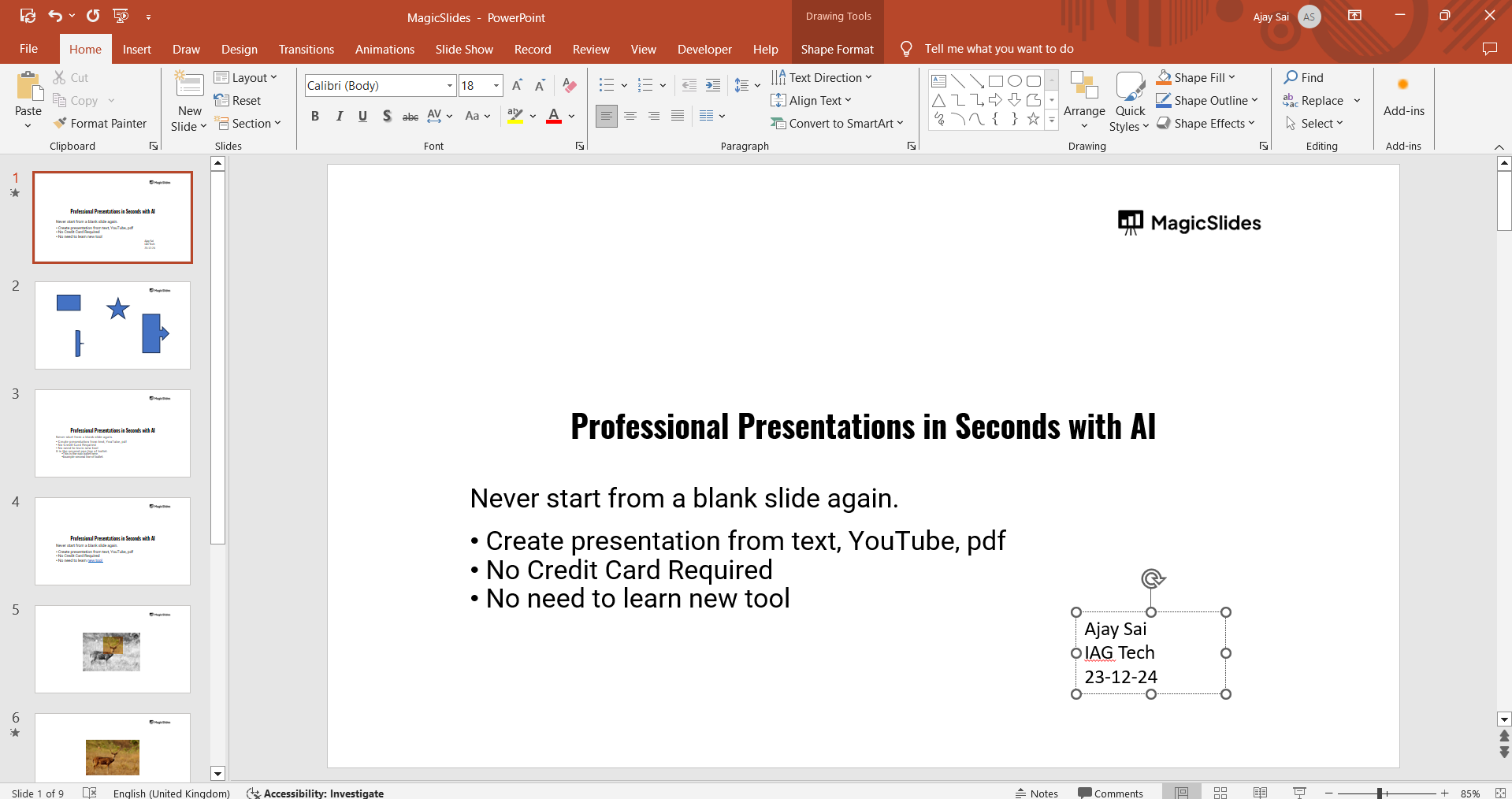
Write the full date in Month Day, Year format (e.g., December 20, 2024).
Step 6: Ensure Proper Alignment and Spacing
Center-align all text on the slide. Use double spacing between each line of text for clarity.
Ensure there are no unnecessary decorative elements that may distract from the information.
Step 7: Review and Save
Double-check for typos and ensure that all elements follow APA style guidelines.
Save your presentation with a descriptive file name, such as “APA_CoverPage_Presentation.pptx.”
Conclusion
Formatting a PowerPoint cover page in APA style ensures professionalism and adherence to academic standards.
By including essential elements like the title, author name, institutional affiliation, and date, you create a polished introduction to your presentation.
Following these steps helps make your presentation visually consistent and credible.
FAQs on Formatting a PowerPoint Cover Page in APA Style
What font and size should I use for an APA-style cover page?
Use Times New Roman, 12-point font for all text, including the title, name, and other details.
Can I include images or logos on the cover page?
APA guidelines don’t specifically address logos or images, but for academic presentations, it’s best to keep the design simple and professional.
Is it mandatory to use double spacing on the cover page?
Yes, double spacing is required between elements on an APA-style cover page for clarity and readability.
By following these guidelines, you’ll create a clean and professional APA-style cover page for your PowerPoint presentation!


