How to Generate Daily News Briefs in PowerPoint from News Summaries


Create engaging PowerPoint daily news briefs effortlessly with our guide. Transform news summaries into dynamic presentations. Elevate your communication skills
In our fast-paced world, staying informed is crucial. Converting daily news summaries into engaging PowerPoint presentations can be a game-changer for professionals, educators, or anyone seeking to share curated information effectively. With the help of innovative tools like MagicSlides GPT, this process becomes not only efficient but also captivating. Follow these steps to generate your daily news briefs seamlessly.
How to Generate Daily News Briefs in PowerPoint from News Summaries
Before diving into the steps, ensure you have a Google account for access to Google Slides, a dynamic cloud-based presentation tool. If you don't have one, sign up—it's free!
Step 1: Visit Google Slides
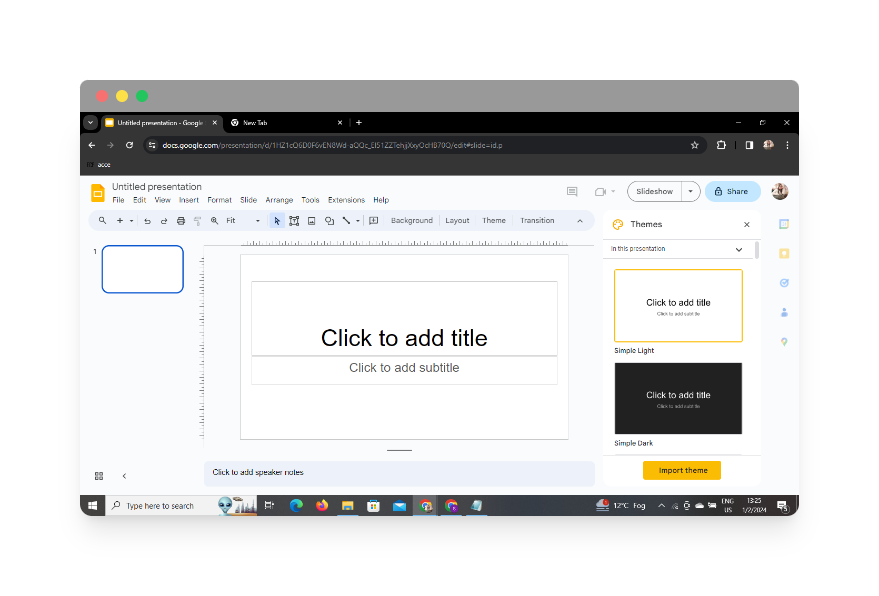
Open your preferred web browser and navigate to Google Slides. Log in with your Google account credentials to access the platform.
Step 2: Sign In with Google to Google Slides
Once on the Google Slides platform, sign in with your Google account if you haven't already. This step is crucial for seamless integration and collaboration.
Step 3: In Extensions, Click on MagicSlides GPT (if downloaded)
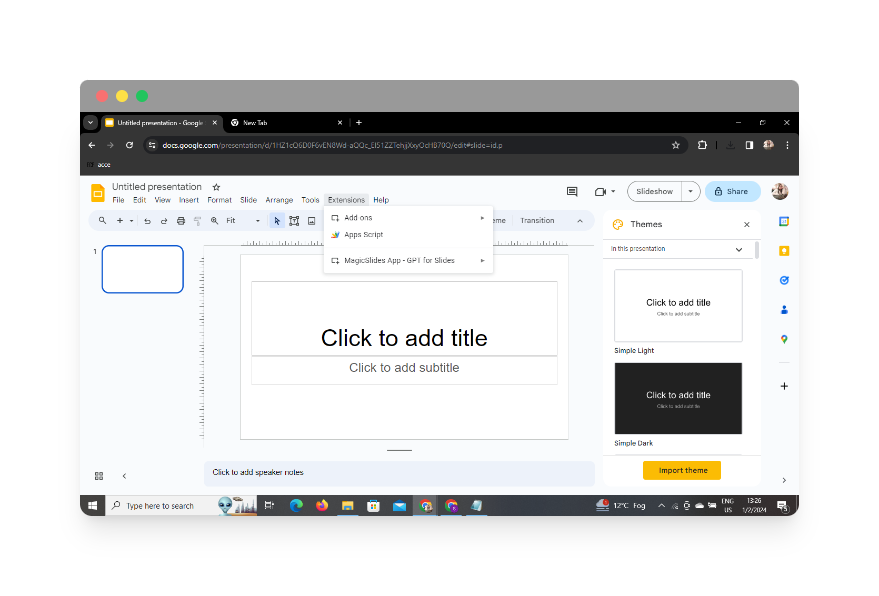
If you've already downloaded the MagicSlides GPT extension, locate it in the extensions menu within Google Slides. Click on it to activate the MagicSlides tool.
Step 4: If Not Downloaded, First Download MagicSlides GPT as an Extension, Then Open
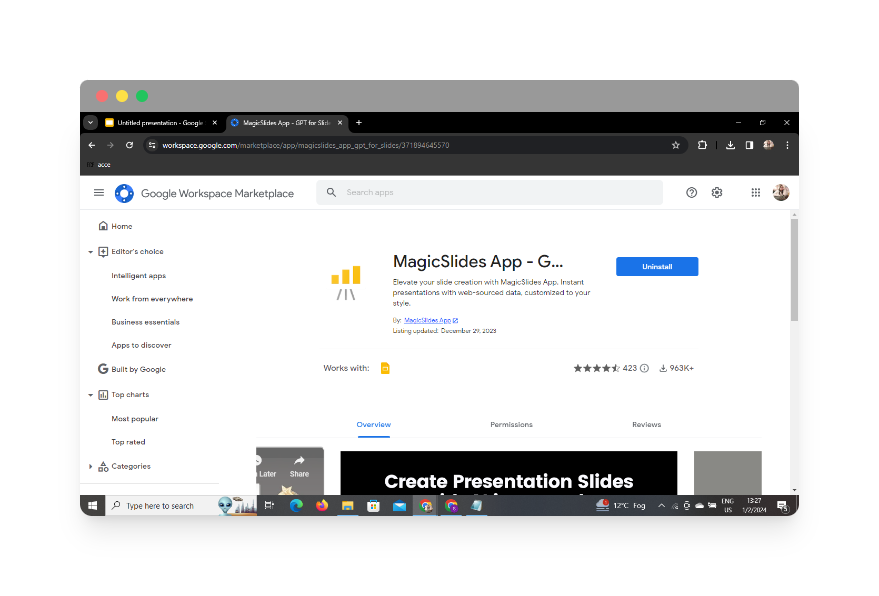
If MagicSlides GPT isn't part of your extensions yet, don't worry. Download it as an extension, and once installed, open the extension within Google Slides.
Step 5: Click on 'Generate PPT' in MagicSlides GPT
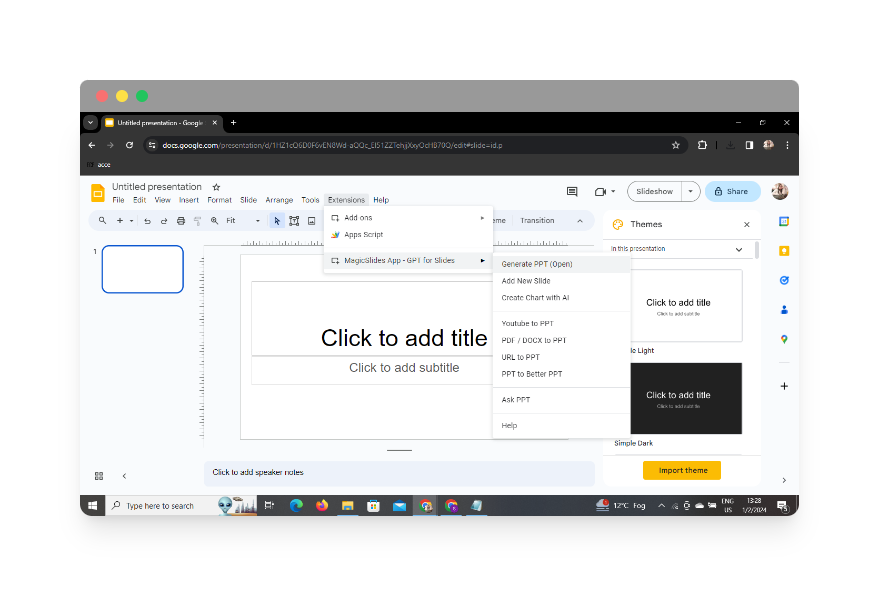
Once MagicSlides GPT is activated, look for the 'Generate PPT' option. Click on it to begin the process of transforming your news summaries into PowerPoint slides.
Step 6: Click on 'Summarize' Option
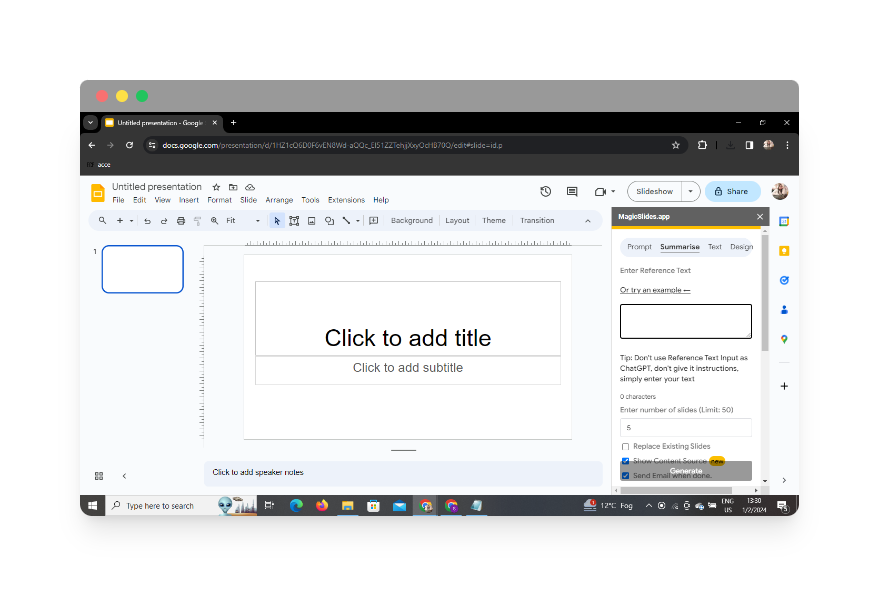
MagicSlides GPT offers a 'Summarize' feature. Click on it to prepare the tool for digesting your daily news content.
Step 7: Paste Your Daily News

Paste the text or content of your daily news summary into the designated area within MagicSlides GPT. Ensure the information is well-organized for optimal slide generation.
Step 8: Select the Number of Slides

Specify the number of slides you want in your presentation. This step allows you to control the granularity and depth of information on each slide.
Step 9: Click on 'Generate Presentation'
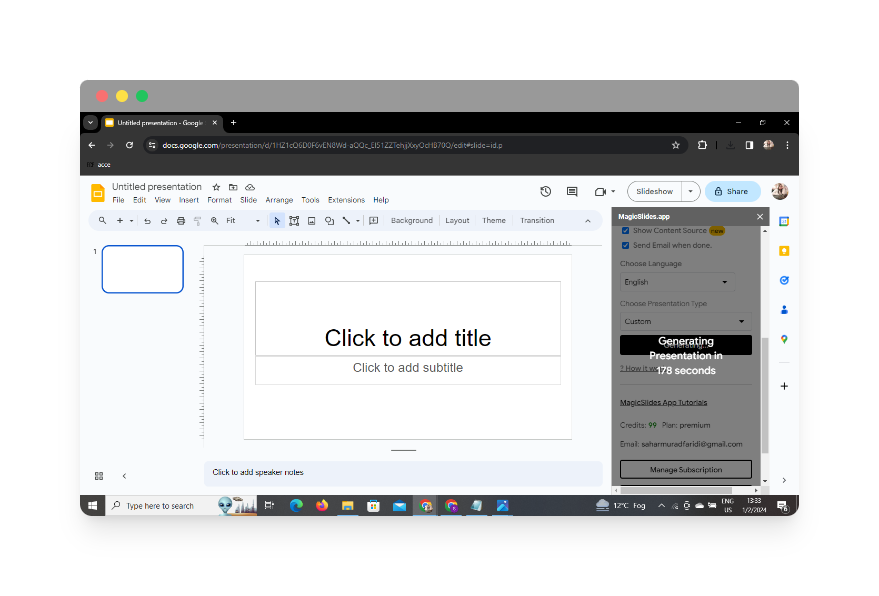
Hit the 'Generate Presentation' button to let MagicSlides GPT work its magic. The tool will analyze the content and automatically generate a presentation with visually appealing slides.
Step 10: Your Presentation is Ready!
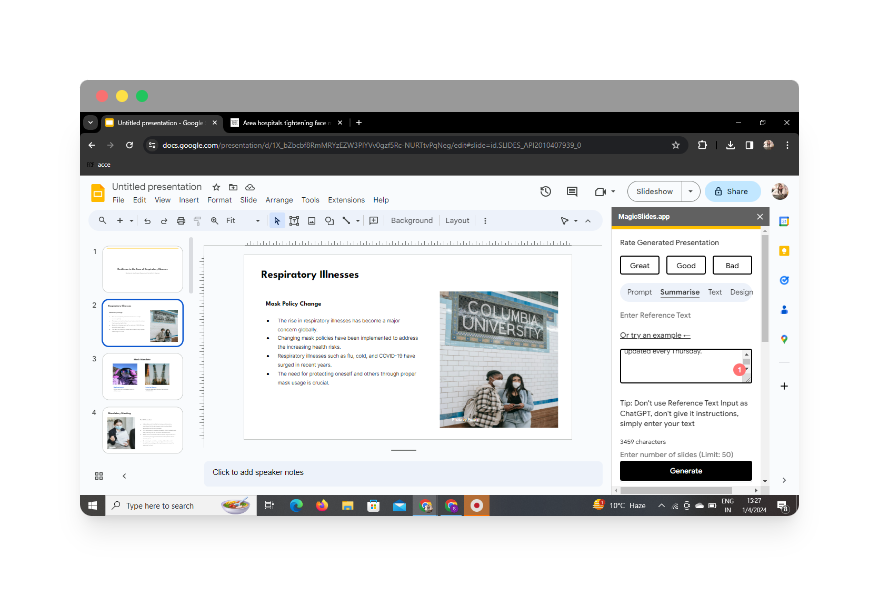
Congratulations! Your daily news briefs have been transformed into a compelling PowerPoint presentation. Save your work, and you're ready to share valuable insights with your audience.
Bottom Line
Incorporate this efficient process into your routine, and elevate the way you share daily news updates. MagicSlides GPT streamlines the conversion process, allowing you to focus on delivering impactful presentations. Stay informed, stay engaged!
FAQs:
Can I use MagicSlides GPT for other types of content?
Yes, MagicSlides GPT is versatile and can be used to convert various types of content into PowerPoint presentations.
Is MagicSlides GPT free to use?
MagicSlides GPT offers both free and premium versions. The free version has basic functionalities, while the premium version provides additional features.
Can I edit the slides generated by MagicSlides GPT?
Absolutely! After the generation process, review and edit the slides as needed to ensure they align with your preferences.
Is MagicSlides GPT compatible with other presentation tools?
Currently, MagicSlides GPT is designed for integration with Google Slides.
How secure is MagicSlides GPT with my Google account?
MagicSlides GPT follows Google's security protocols, ensuring the safety of your account information during usage.


