how to link slides in google slides


linking slides in google slides has never been this easier let’s see how to link slides in google slides here
Effective presentations are like compelling stories. They need to flow smoothly from one chapter to the next, engaging the audience and guiding them through a narrative.
Google Slides, a powerful presentation tool, enables you to create these stories by linking slides. In this step-by-step guide, we'll walk you through the process of linking slides in Google Slides, allowing you to craft a coherent and captivating presentation.
Linking Slides in Google Slides: A Step-by-Step Guide
Step 1: Open Your Presentation
Start by opening the Google Slides presentation you're working on. Make sure you're logged into your Google account and have access to the file.
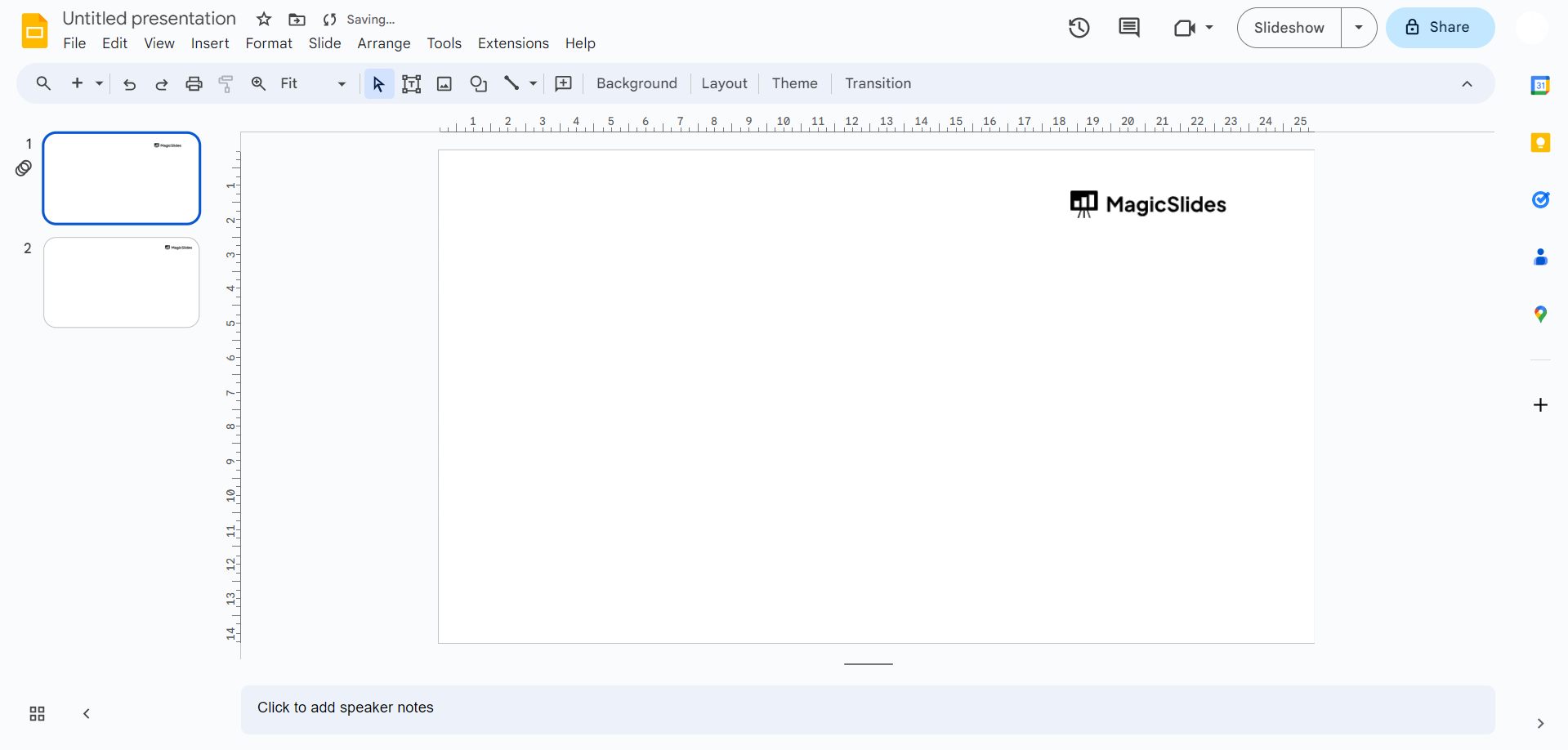
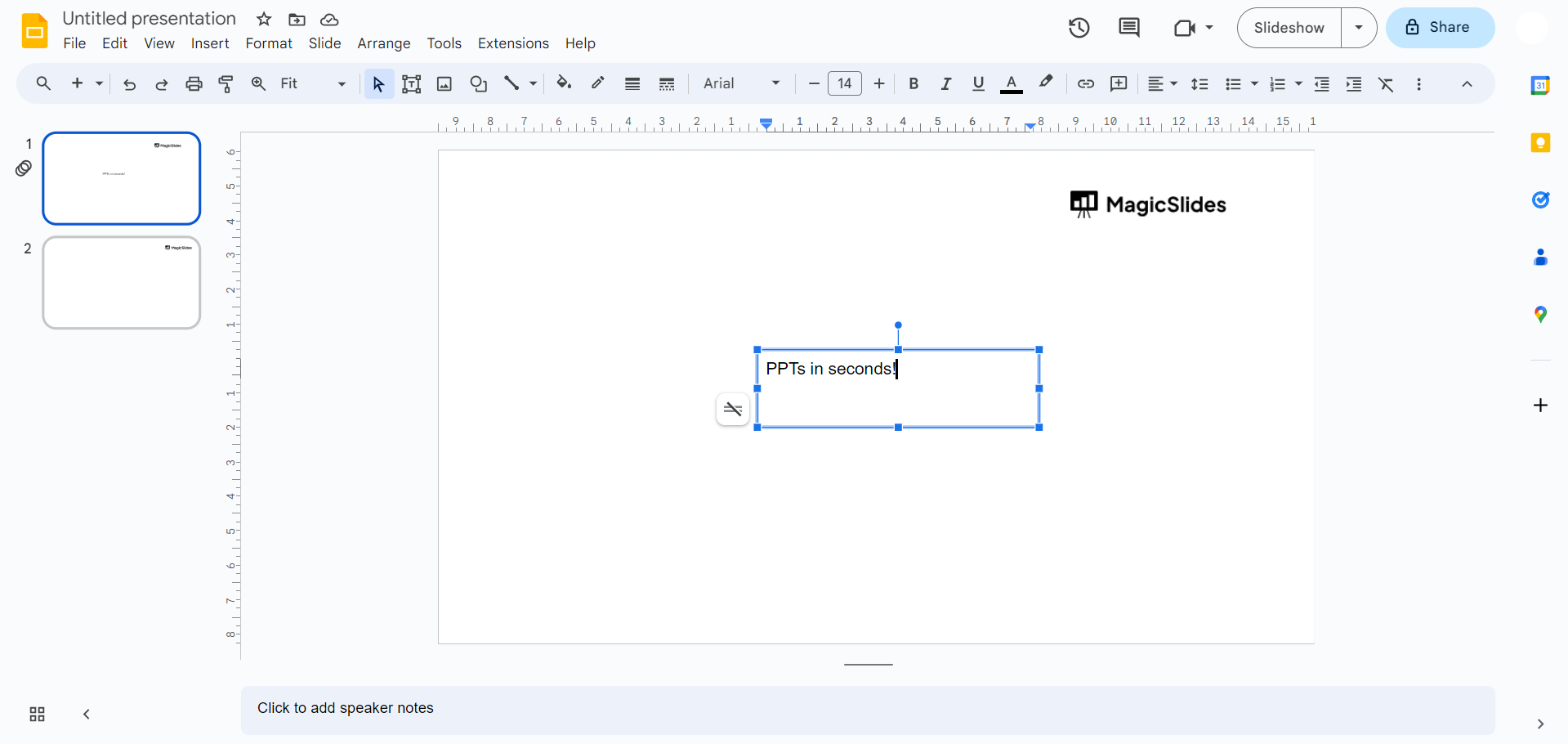
Step 2: Write the Text
Write and organize your text content within the slides as needed.
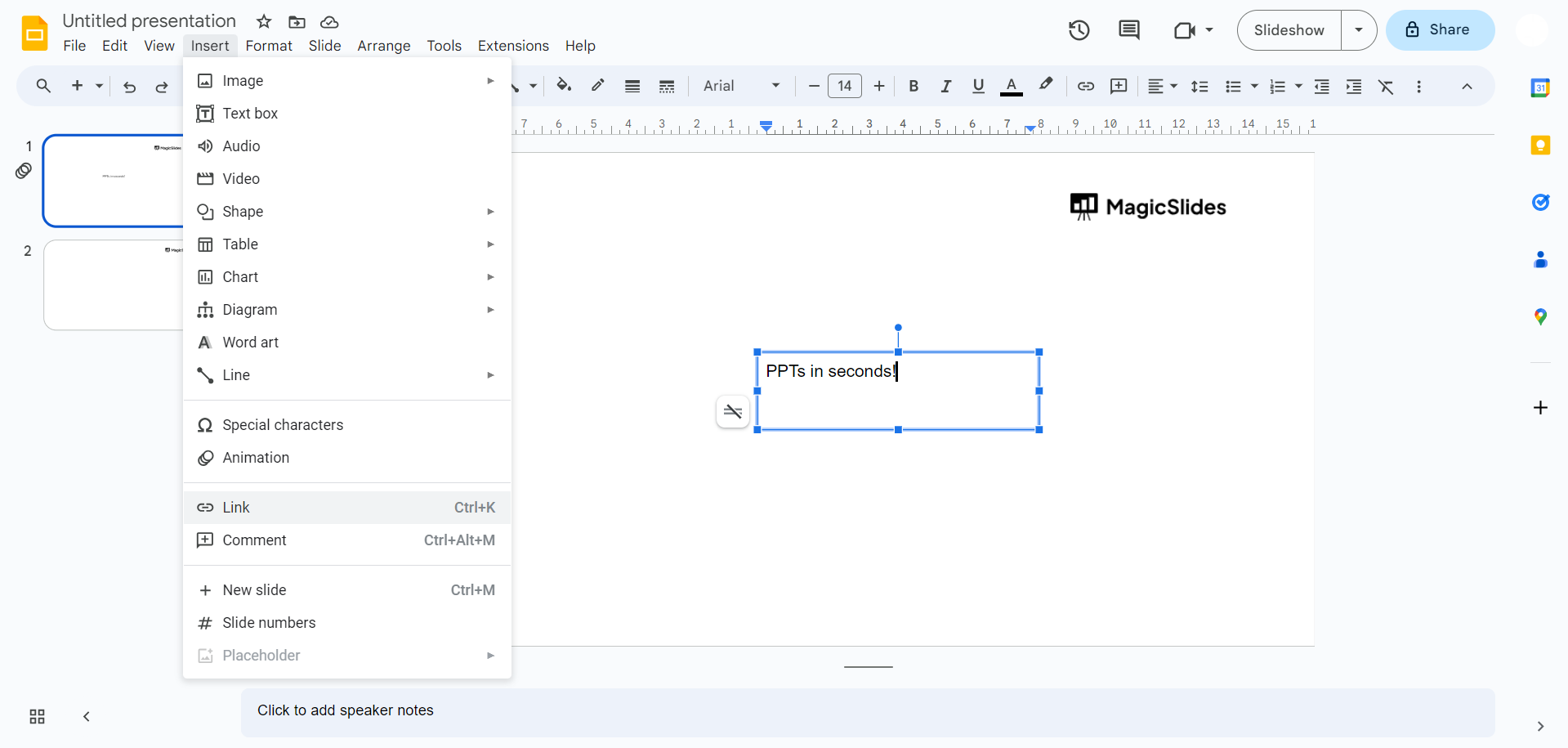
Step 3: Click on "Insert"
In the top menu, click on "Insert" to access various elements and options for enhancing your slides.
Step 4: Choose Another Presentation
From the "Insert" menu, choose "Slides from another presentation."
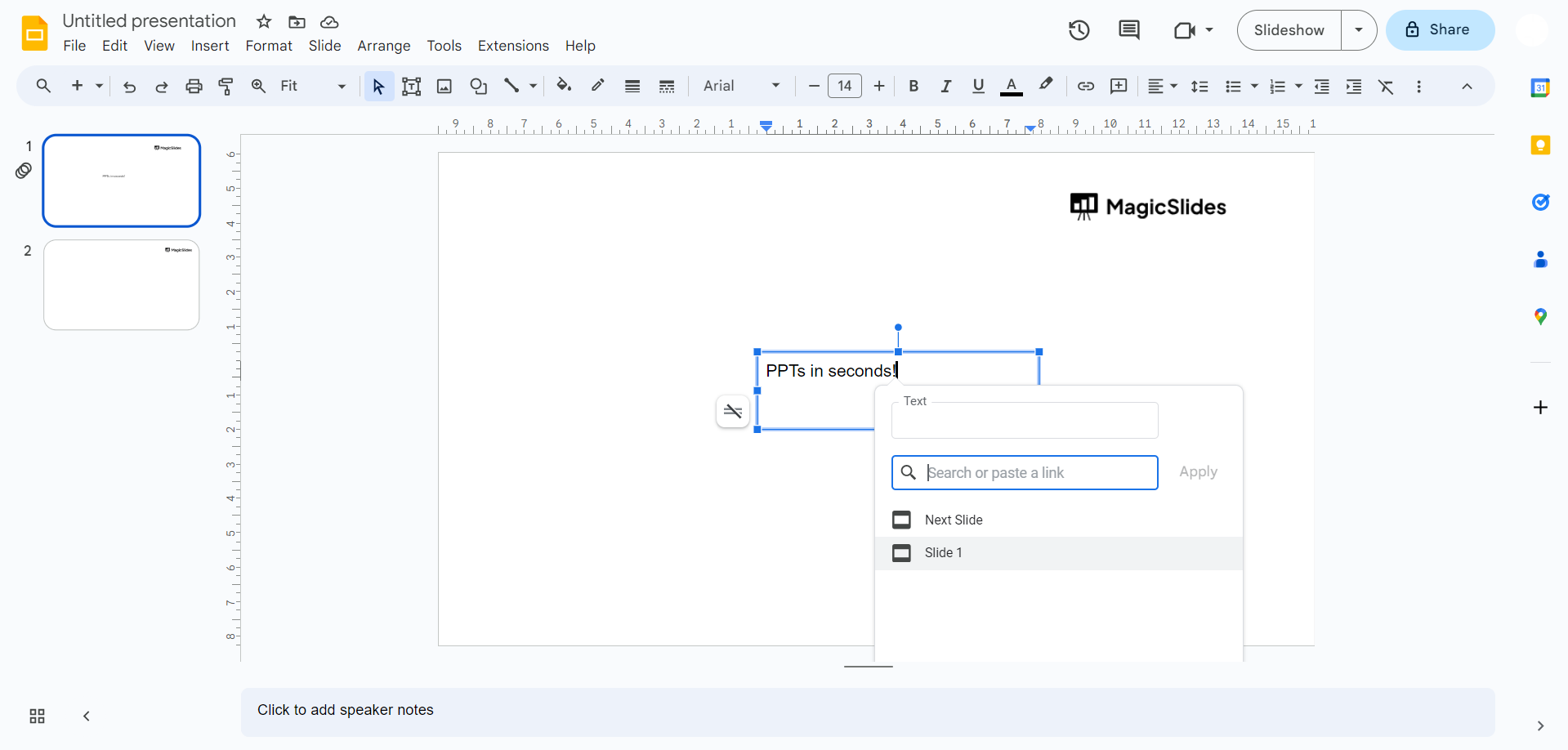
Step 5: Link the Slides Presentation
A window will open, allowing you to select the presentation that contains the slides you want to link. Choose the presentation, and then select the specific slides you wish to include.
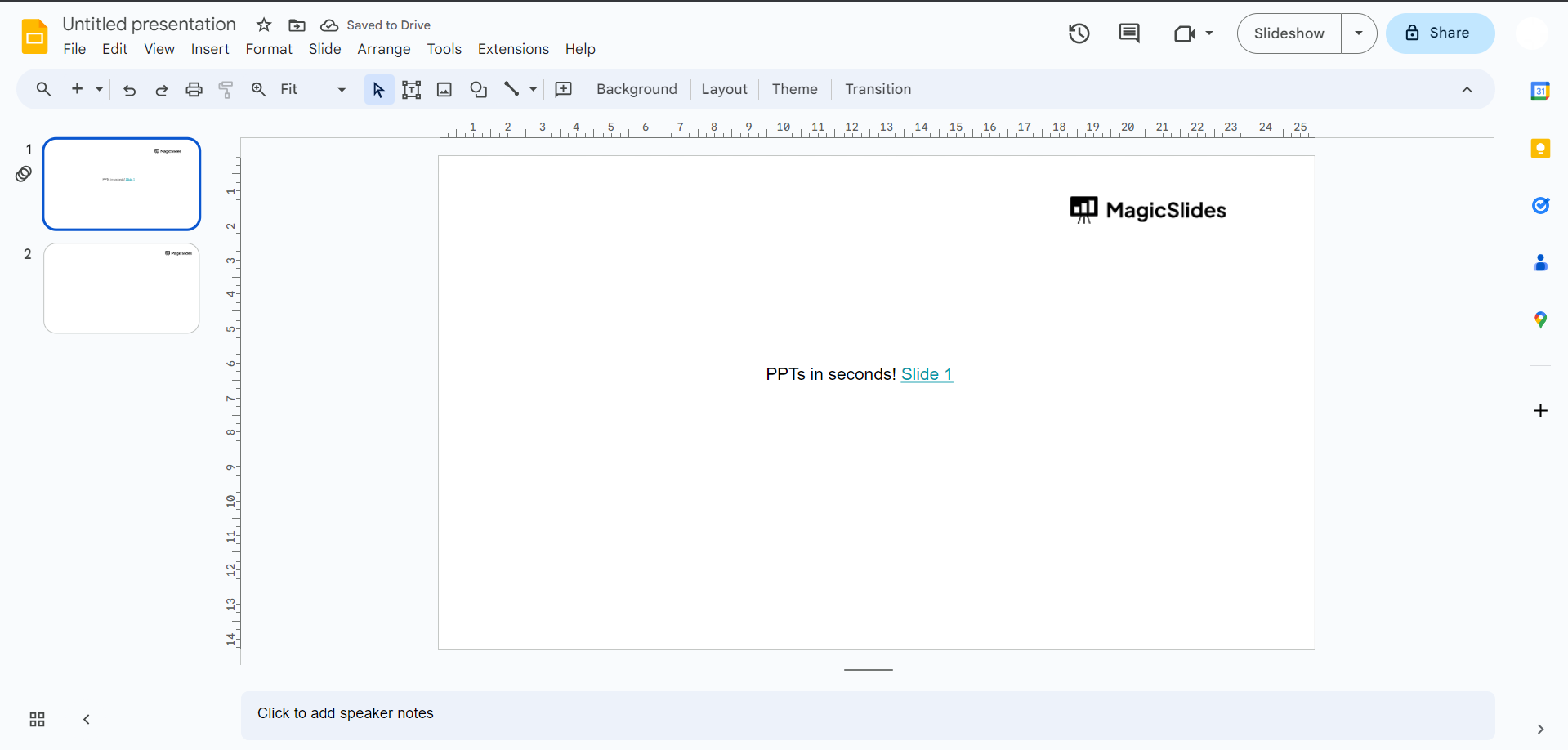
Step 6: Save Your Presentation
After integrating the selected slides, don't forget to save your presentation. Click "File" and select "Save" or "Save As" to ensure your changes are preserved.
Conclusion:
As you've seen in this guide, it's a straightforward process that enhances the storytelling aspect of your slideshows, allowing you to guide your audience through your content with ease.
Whether you're a business professional, educator, or creative storyteller, mastering this skill can help you deliver more captivating presentations. By following the steps outlined in this article, you'll be well on your way to crafting seamless narratives that leave a lasting impression.


