Addon google slides iconPPT with AISlide TemplatesPPT TemplatesPricingBlog
    PPT with AISlide TemplatesPPT TemplatesPricingBlog
    1. Home
    2. Blog
    3. How to loop a powerpoint


    How to loop a powerpoint

    magicslides app

    Published By

    magicslides app
    Mohit Kumar Jha

    Approved By

    Mohit Kumar Jha

    Published On

    July 23th, 2024

    Reading Time

    2 min read

    Elevate your presentations by mastering the art of looping in PowerPoint for a seamless experience.

    Engaging your audience effectively often requires seamless presentation flow. One way to achieve this is by looping your PowerPoint presentation, allowing it to continuously play. Whether you're running a kiosk display, creating an interactive exhibit, or simply want a hands-free experience, looping your presentation can make a significant impact. In this guide, we'll explore the steps to effortlessly loop your PowerPoint presentation for a captivating and uninterrupted viewer experience.

    Steps to Loop a PowerPoint Presentation:

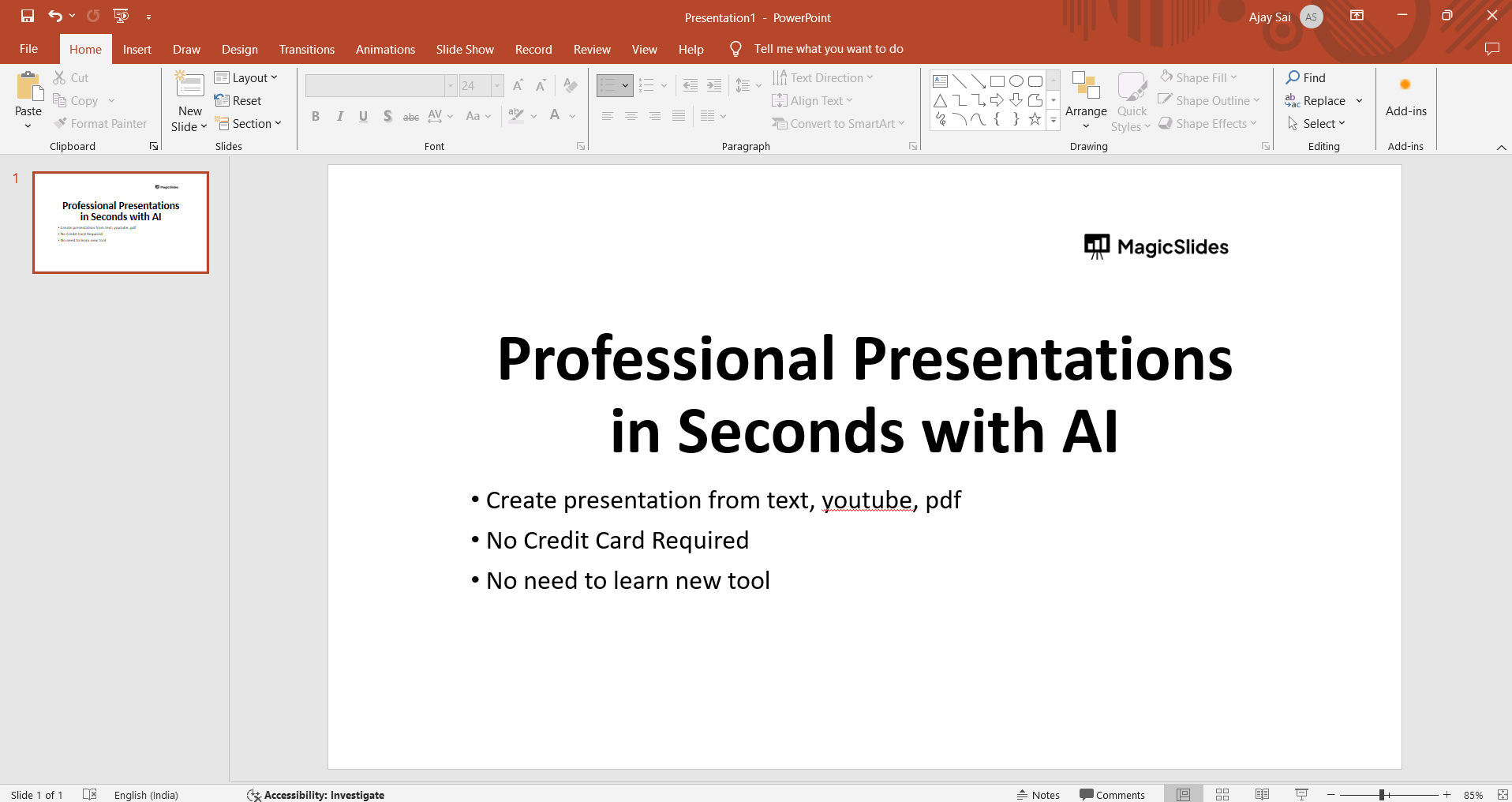
    Open Your Presentation:

    Launch PowerPoint and open the presentation you want to loop.
    notion image

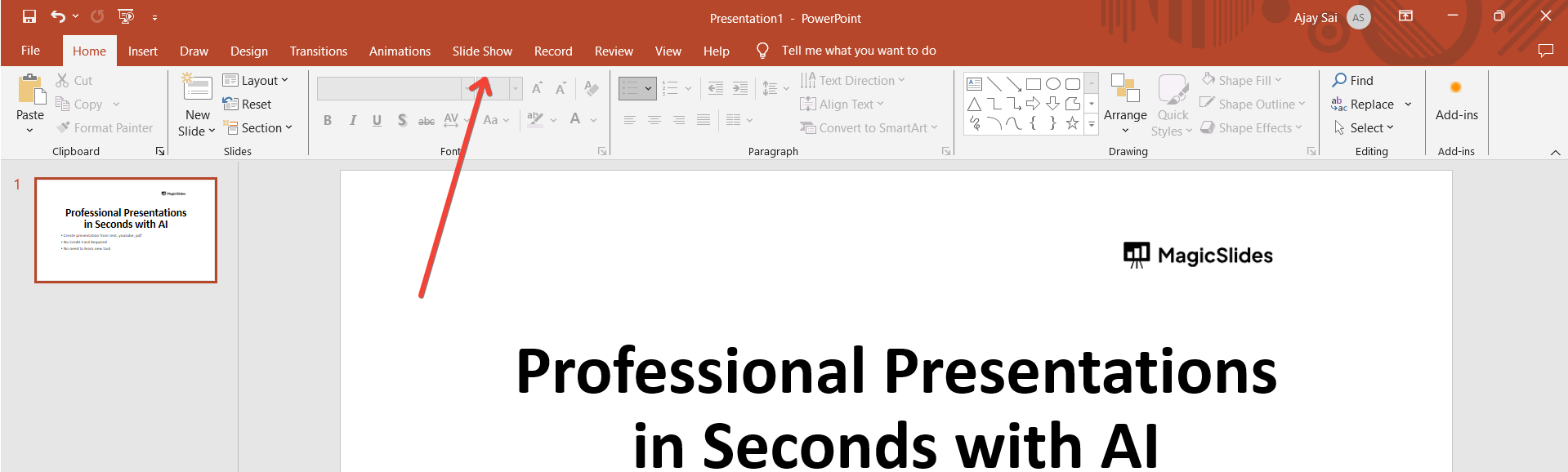
    Access Slide Show Settings:

    Navigate to the "Slide Show" tab in the PowerPoint ribbon.
    notion image

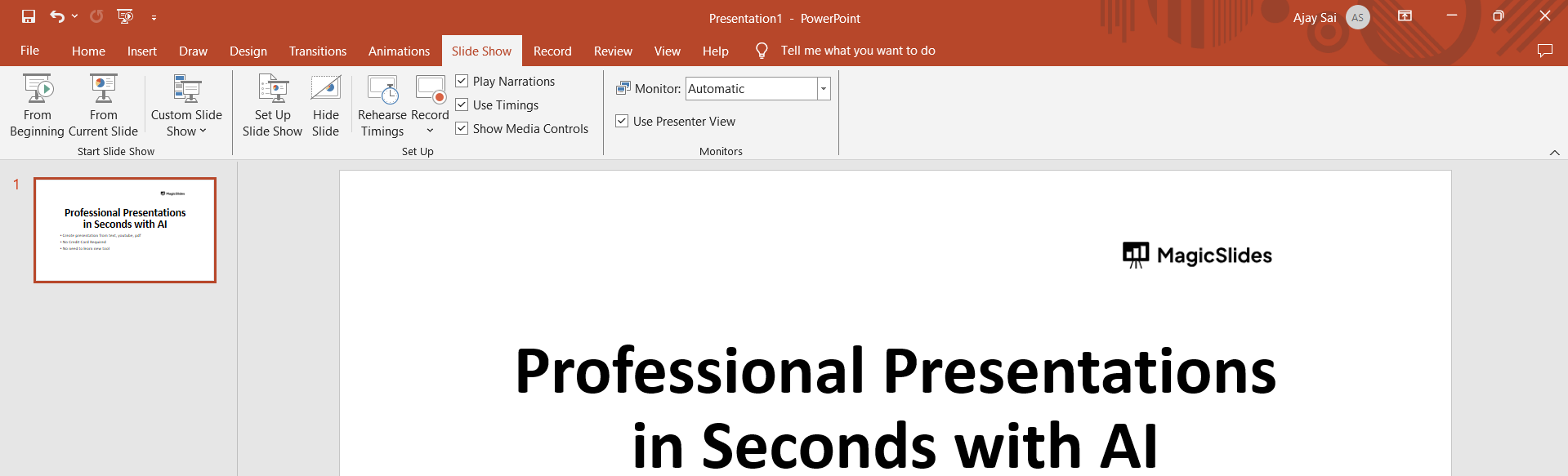
    Set Up Slide Show Options:

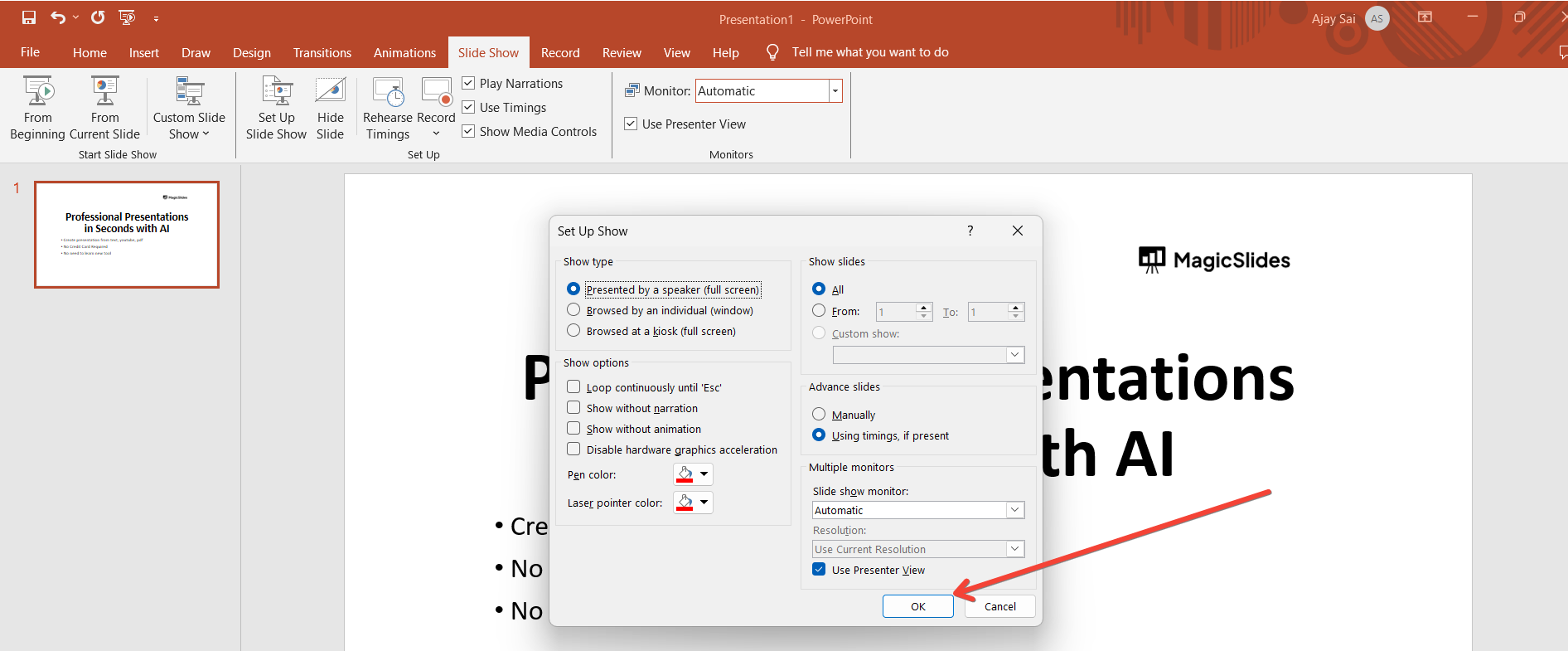
    Click on the "Set Up Slide Show" button to access the Slide Show setup dialog box.
    notion image

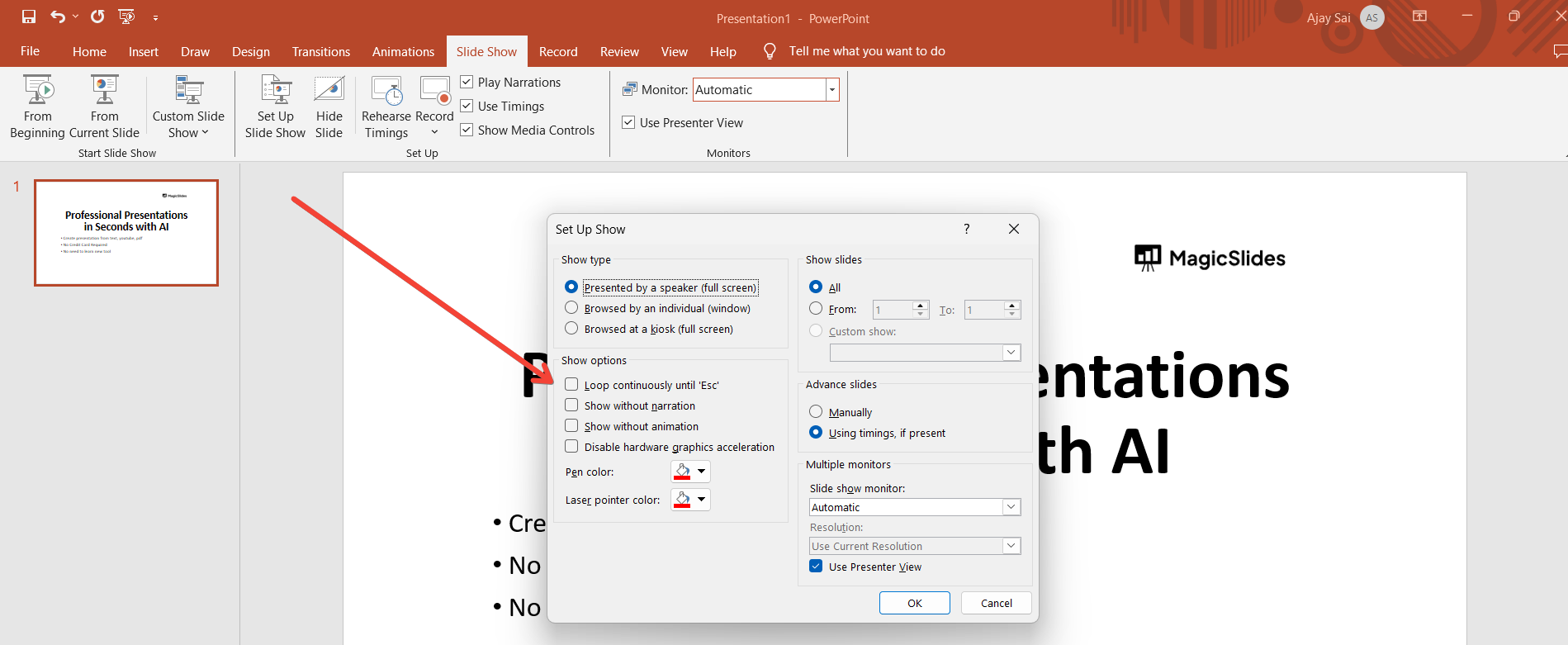
    Choose Looping Options:

    In the Slide Show setup dialog box, under the "Show options," select the "Loop continuously until 'Esc'" checkbox.
    notion image

    Confirm and Save:

    Click "OK" to confirm your looping settings.
    notion image

    Start the Presentation:

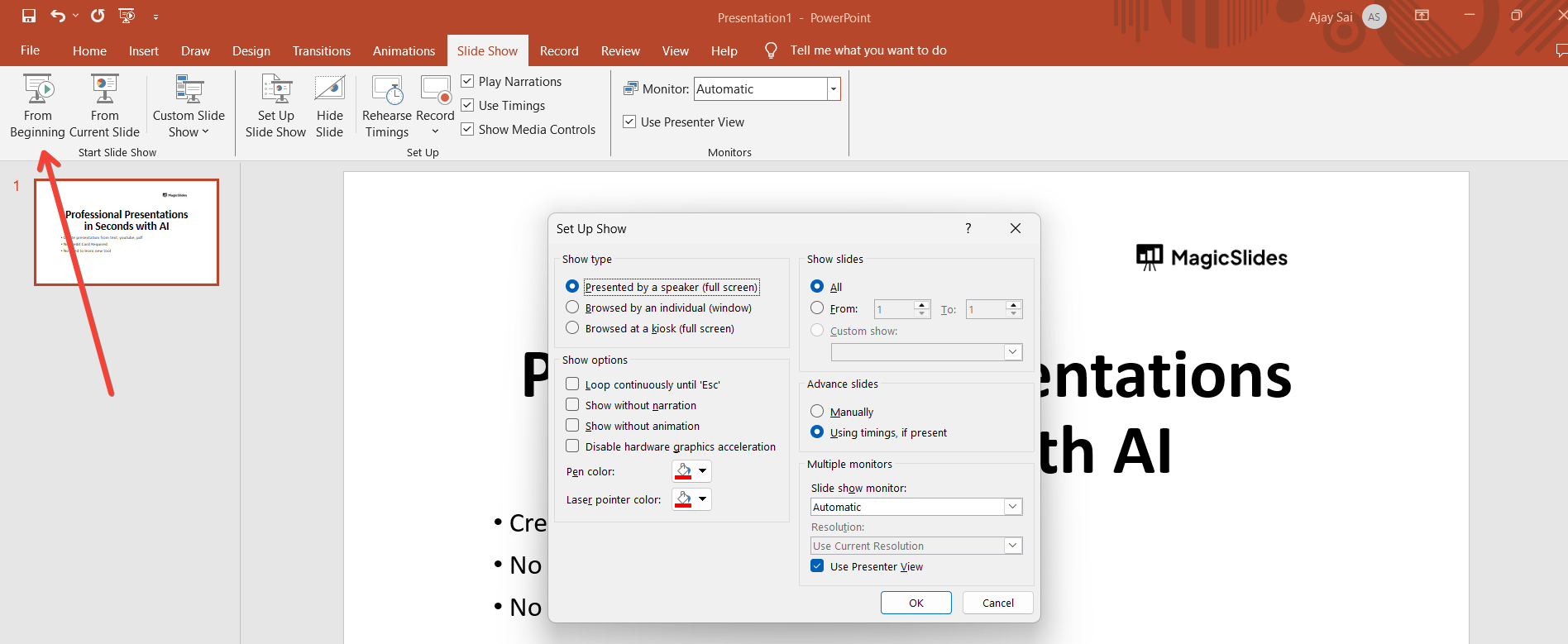
    Initiate the presentation as you normally would, either by pressing F5 or selecting "From Beginning" in the Slide Show tab.
    notion image

    End the Loop:

    To exit the loop, press the "Esc" key at any time during the presentation.

    Conclusion:

    Looping your PowerPoint presentation can be a game-changer, providing a seamless and hands-free experience for your audience. With just a few simple steps, you can set up your presentation to continuously play, making it ideal for events, exhibits, or situations where you want to engage viewers without manual intervention. Enhance your presentation delivery, captivate your audience, and create a lasting impression by incorporating looping into your PowerPoint repertoire. It's a small adjustment with a big impact on the overall viewer experience.

    Frequently Asked Questions:

    Can I customize the duration each slide displays during the looping presentation?
    Yes, you can set individual slide timings in the Transitions tab for a personalized looping experience.
    Does looping work when sharing my PowerPoint file with others or on different devices?
    Absolutely, the looping settings are retained, ensuring a consistent experience across various platforms and devices.
    Can I loop a specific section of my presentation rather than the entire slideshow?
    While PowerPoint doesn't have a built-in feature for looping sections, you can duplicate and arrange slides accordingly.
    Is it possible to add transitions or animations to slides in a looping presentation?
    Yes, you can enhance the visual appeal by incorporating transitions and animations into your looping PowerPoint presentation.

    Share on socials

    About the author

    Sanskar Tiwari profile photo
    Sanskar Tiwari— Founder at MagicSlides

    Sanskar is Founder at IAG Tech, For the past 3 years sanskar have build more than 24+ products, taught 100k students how to code.

    More from Sanskar

    More from the blog

      250+ Good Morning Messages for Her (Romantic, Deep, Cute & Sweet)

      30 January 2026

      200+ Heart Touching Birthday Wishes for Sister (Short, Funny and More)

      29 January 2026

      50+ History Presentation Topics For 2026

      28 January 2026

      How to Add Music to Your Canva Presentation: A Step-by-Step Guide

      27 January 2026

      15 Quick Tips To Use ChatGpt At Work

      22 January 2026

      11 Best AI Tools for Business in 2025

      22 January 2026

      How to Create an Infographic That Clearly Communicates Your Message

      20 January 2026

      How to Create a Sales Presentation Template in Google Sheets

      20 January 2026

      How to Make a Pie Chart on Google Slides in Simple Steps

      19 January 2026

    Table of Contents

    Create Presentations in Seconds

    Transform your ideas into professional presentations with AI. No design skills needed.

    Try MagicSlides Free

    Create Stunning Presentations with AI in Seconds ✨

    Transform any topic, text, YouTube video, PDF or URL into beautiful presentations instantly with MagicSlides AI.

    Try MagicSlides AI Presentation Maker
    MagicSlides AI Presentation

    Footer

    Solutions

    • MagicSlides App
    • Google Slides Add-on
    • MagicSlides in Chrome
    • MagicSlides in Figma
    • MagicSlides in ChatGPT
    • MagicSlides in Telegram
    • MagicSlides in Zapier
    • MagicSlides in Figma Slides

    Tools

    • AI PPT Tools
    • QR Code Generator
    • Design Tools
    • PPT Templates
    • Slide Templates
    • PDF Tools

    Examples

    • AI Presentations
    • PPT by MagicSlides
    • Quizzes
    • Charts
    • Coloring Pages

    Resources

    • Changelog
    • Documentation
    • API Docs

    Top Blogs

    • How to Create Presentation Using ChatGPT
    • 100+ Best Seminar Topics for Students in 2025

    Company

    • Help
    • MCP
    • Blog
    • Pricing
    • Affiliate Program
    • Manage Subscription
    • Privacy Policy
    • Contact Us
    • Terms & Conditions
    • Refund & Cancellation Policy

    We also built

    • SheetAI - GPT For Sheets
    • MagicForm - GPT For Google Forms
    • SecondBrain.fyi
    • BlogBee - Free Blogging Platform

    © 2026 IndianAppGuy Tech Pvt Ltd. All rights reserved.