How to loop a PowerPoint slideshow


Learn how to make your PowerPoint presentation loop seamlessly with these simple steps.
Looping a PowerPoint slideshow can be incredibly useful for scenarios like digital signage, continuous presentations at events, or when you want your presentation to keep running seamlessly without manual intervention. In this step-by-step guide, we will explore how to set up your PowerPoint presentation to loop continuously, ensuring your content is always on display.
How to loop a PowerPoint slideshow
Step 1: Open Your PowerPoint Presentation
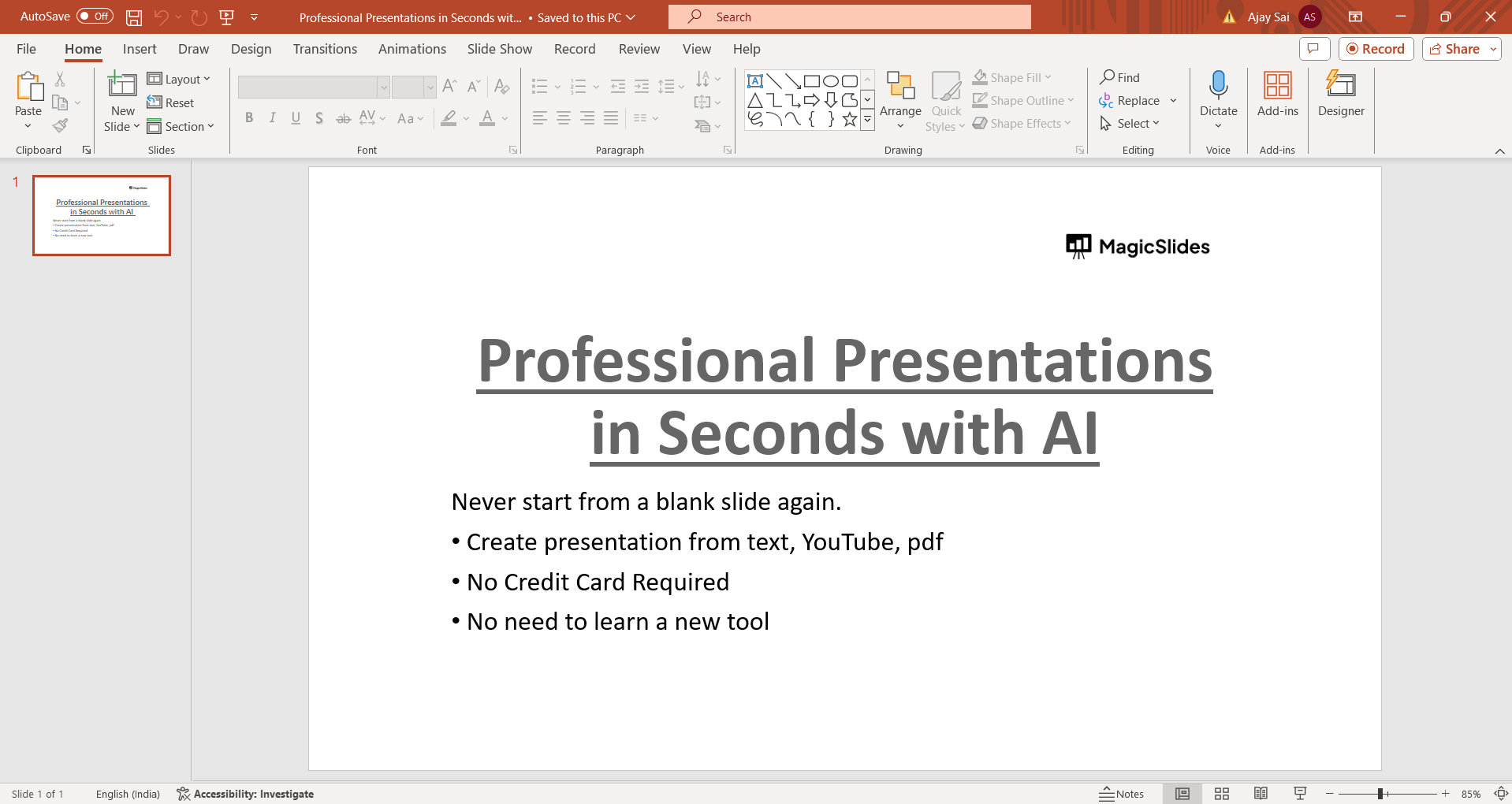
Begin by opening the PowerPoint presentation that you want to loop continuously.
Step 2: Access Slide Show Settings
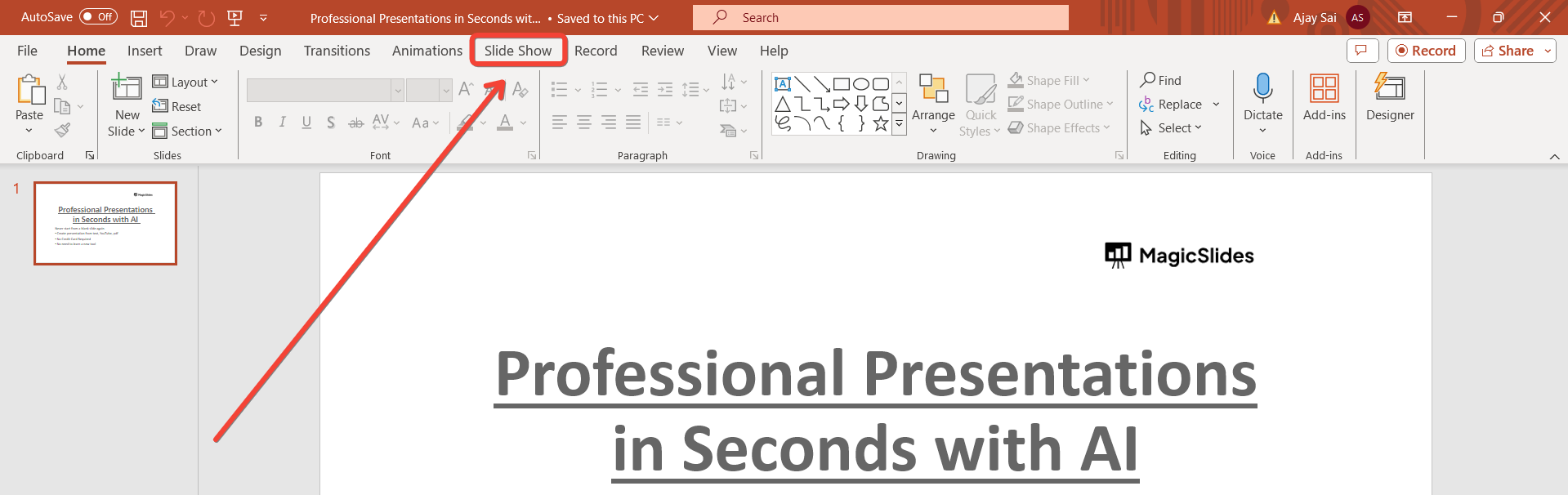
Go to the "Slide Show" tab on the PowerPoint ribbon at the top of the screen.
Step 3: Set Up Slide Show Options
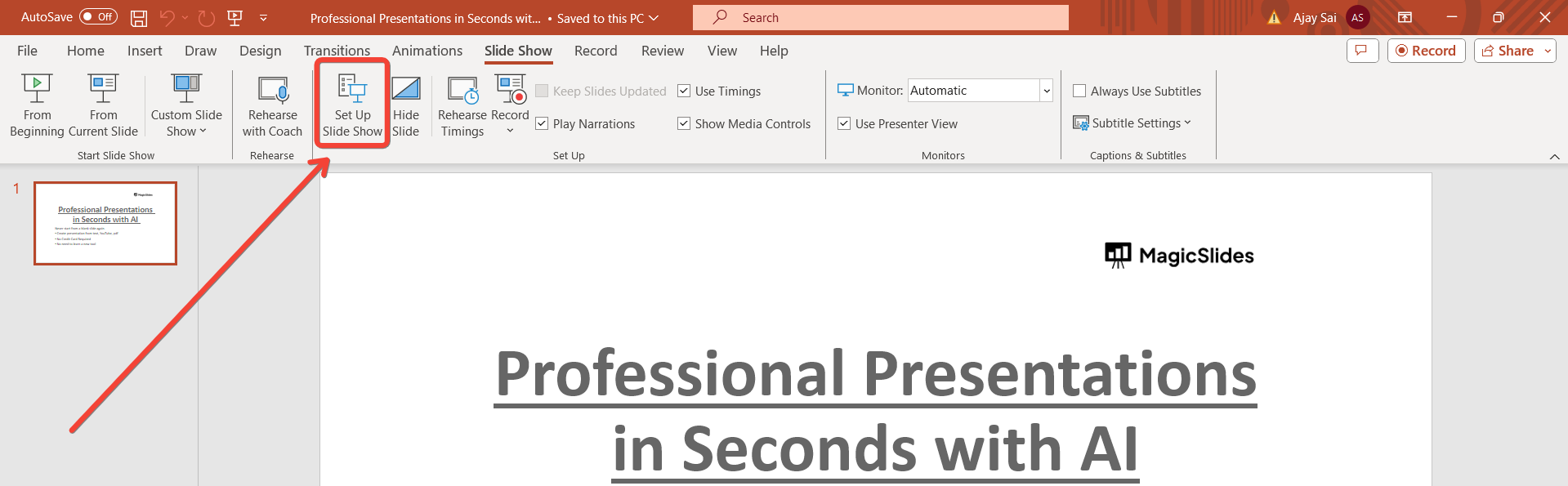
In the Slide Show tab, click on the "Set Up Slide Show" option in the Set Up group. This will open the Set Up Show dialog box.
Step 4: Choose Loop Options
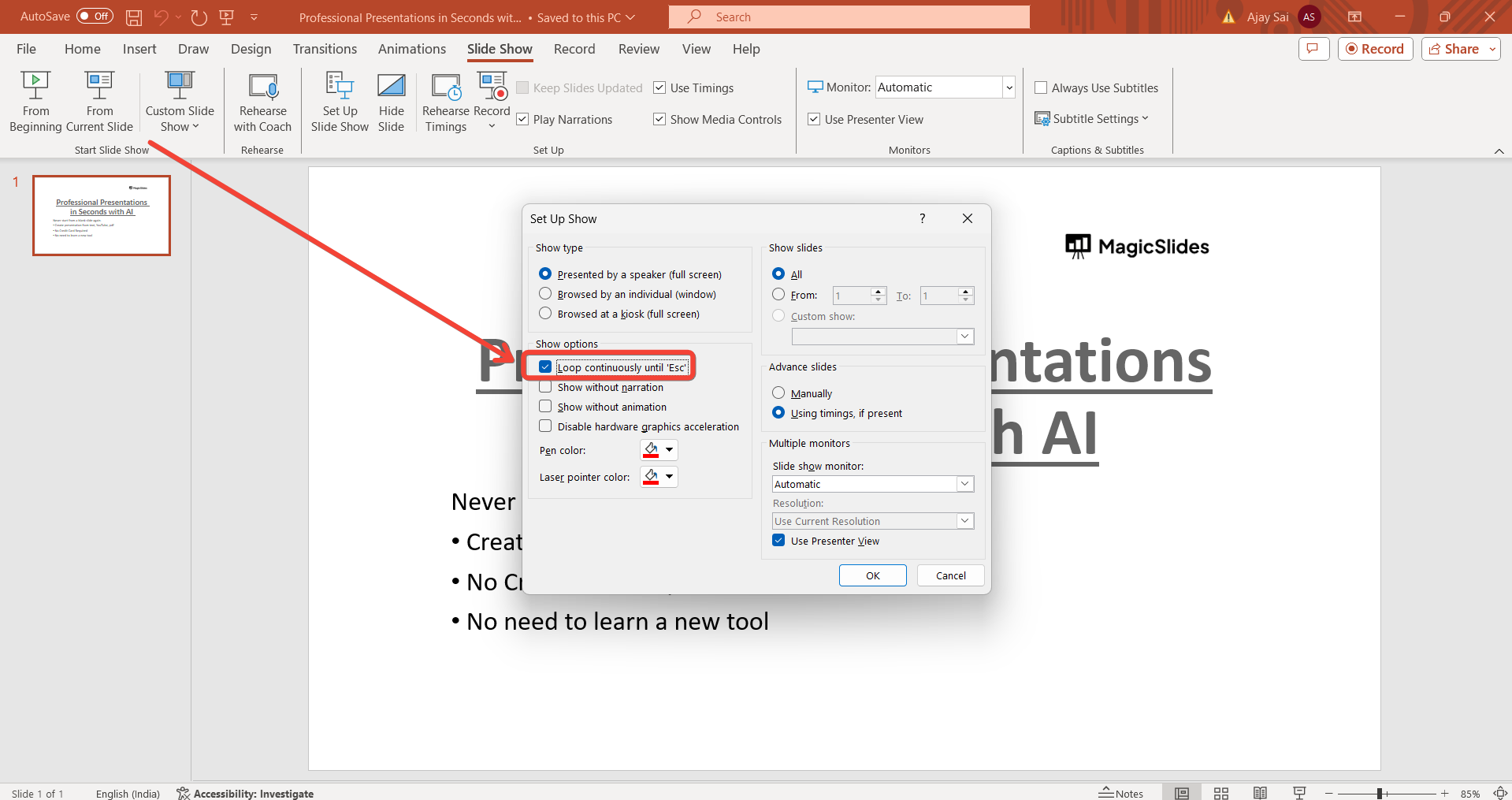
In the Set Up Show dialog box, under the Show options, check the box next to "Loop continuously until 'Esc'" to enable the looping feature.
Step 5: Confirm and Apply
Once you've selected the loop option, click "OK" to apply the settings and close the dialog box.
Step 6: Start Your Looping Slideshow
Now, start your slideshow as you normally would by clicking on the "Slide Show" button in the bottom-right corner of the PowerPoint window. Your presentation will now loop continuously until you press the "Esc" key to exit.
Conclusion:
Looping a PowerPoint slideshow can streamline your presentations and ensure that your content remains on display without interruptions. Whether you're using it for digital signage or continuous presentations, setting up a looping slideshow is a straightforward process that can greatly enhance your audience's experience. By following this step-by-step guide, you can easily configure your PowerPoint presentation to loop continuously, providing a seamless viewing experience for your audience.
Frequently Asked Questions:
Can I loop only a specific section of my PowerPoint presentation?
Yes, you can. Set up a custom slide show with the desired slides and then set it to loop.
Will animations and transitions continue to work in a looping slideshow?
Yes, animations and transitions will work as usual in a looping slideshow.
How do I stop the looping presentation during playback?
Press the "Esc" key on your keyboard to exit the looping presentation at any time.
Can I set a specific time interval for each slide in a looping slideshow?
PowerPoint doesn't have built-in options for timed slides in a looping presentation.


