Addon google slides iconPPT with AISlide TemplatesPPT TemplatesPricingBlog
    PPT with AISlide TemplatesPPT TemplatesPricingBlog
    MagicSlides
    1. Home
    2. Blog
    3. How to make a Data Analytics PPT


    How to make a Data Analytics PPT

    Ajay Sai

    Published By

    Ajay Sai

    Approved By

    Admin

    Published On

    August 24th, 2025

    Reading Time

    2 min read

    Create stunning Data Analytics presentations in minutes using AI-powered MagicSlides no design skills needed

    How to Make a Data Analytics PPT Using MagicSlides

    Creating a Data Analytics PowerPoint presentation can be a time-consuming task, especially when you're focused on insights, charts, and communicating complex data clearly. But what if you could automate the process and still end up with a polished, professional-looking deck?
    That’s where MagicSlides Web App comes into play. It’s an AI-powered tool that helps you turn your input into a complete presentation perfect for analysts, consultants, or students preparing reports or presentations. With just a few clicks, you can save hours and generate a high-quality Data Analytics PPT.

    Step-by-Step Guide: How to Make a Data Analytics PPT with MagicSlides

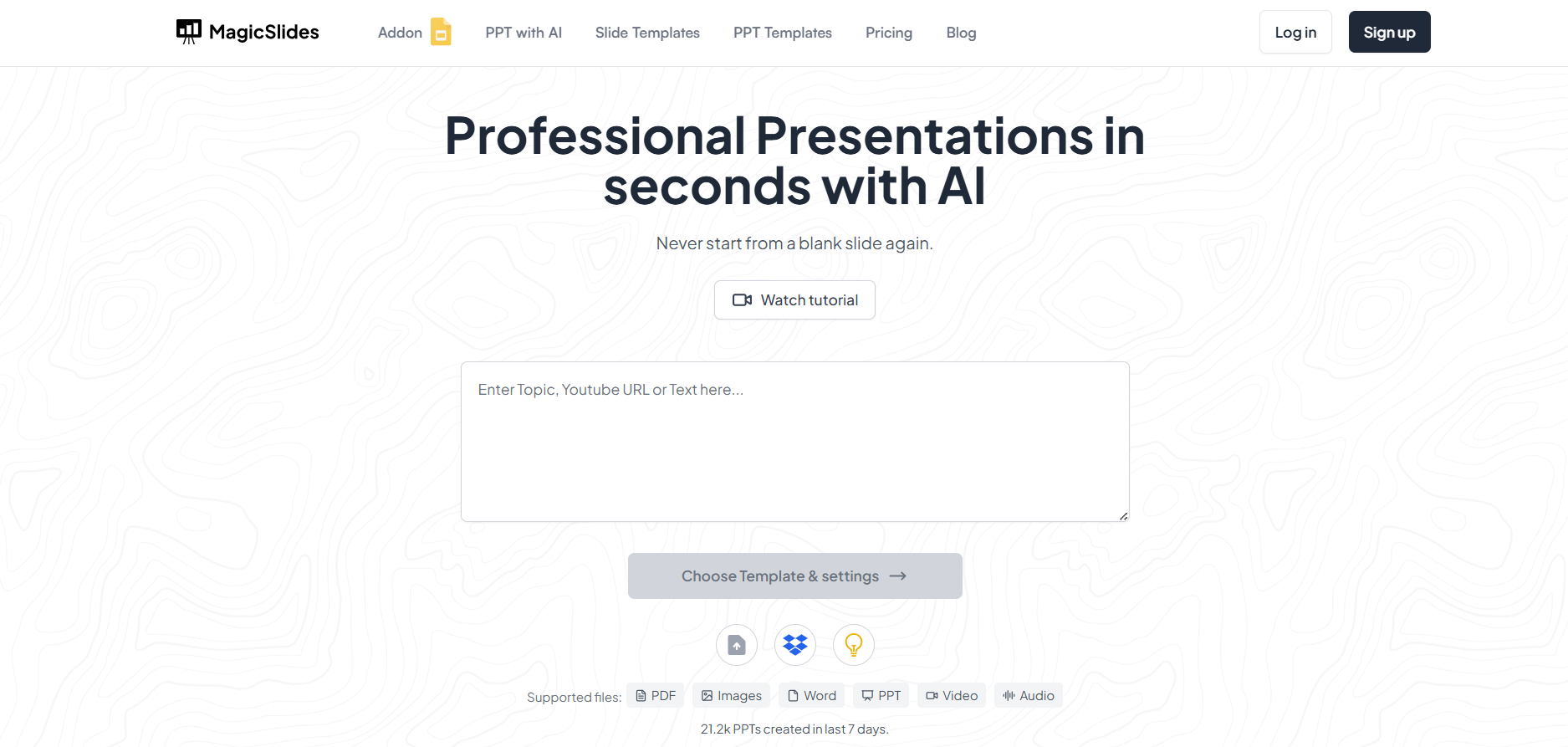
    Step 1: Visit MagicSlides Web App

    Head over to MagicSlides.app using your browser.
    notion image

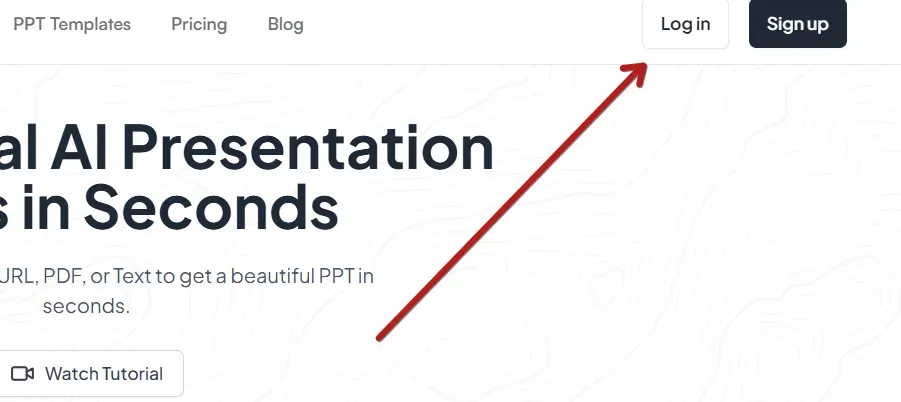
    Step 2: Enter Your Topic or Prompt

    In the input field, type something like:
    notion image
    “Create a PowerPoint on Data Analytics for E-commerce Business”
    You can also specify key points like:
    • Types of data analytics (descriptive, diagnostic, predictive, prescriptive)
    • Use cases in business
    • Tools used (Power BI, Tableau, Python, etc.)
    • Real-world examples or case studies

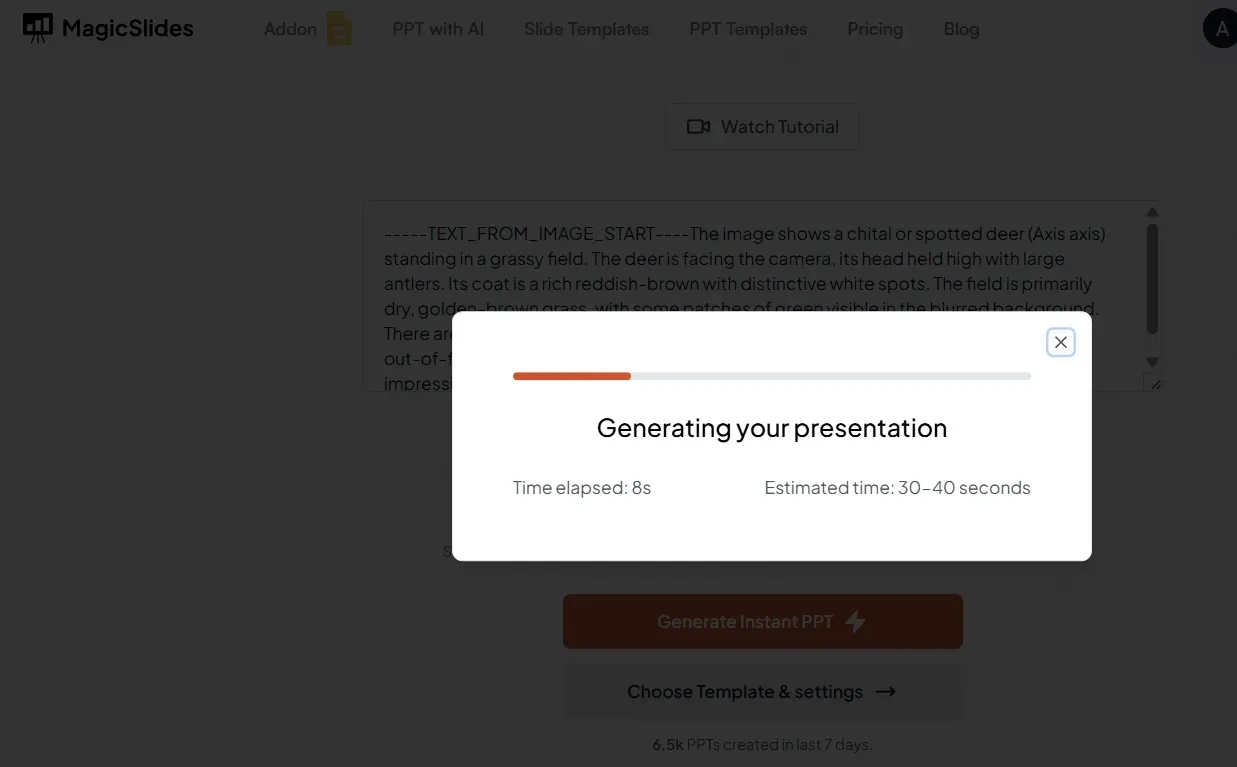
    Step 3: Click “Generate Presentation”

    The AI will process your prompt and create a full slide deck, including headings, bullet points, and sometimes even chart placeholders.
    notion image

    Step 4: Review and Make Edits (Optional)

    Go through the generated presentation and make any changes as needed. Add your charts, graphs, or brand elements.

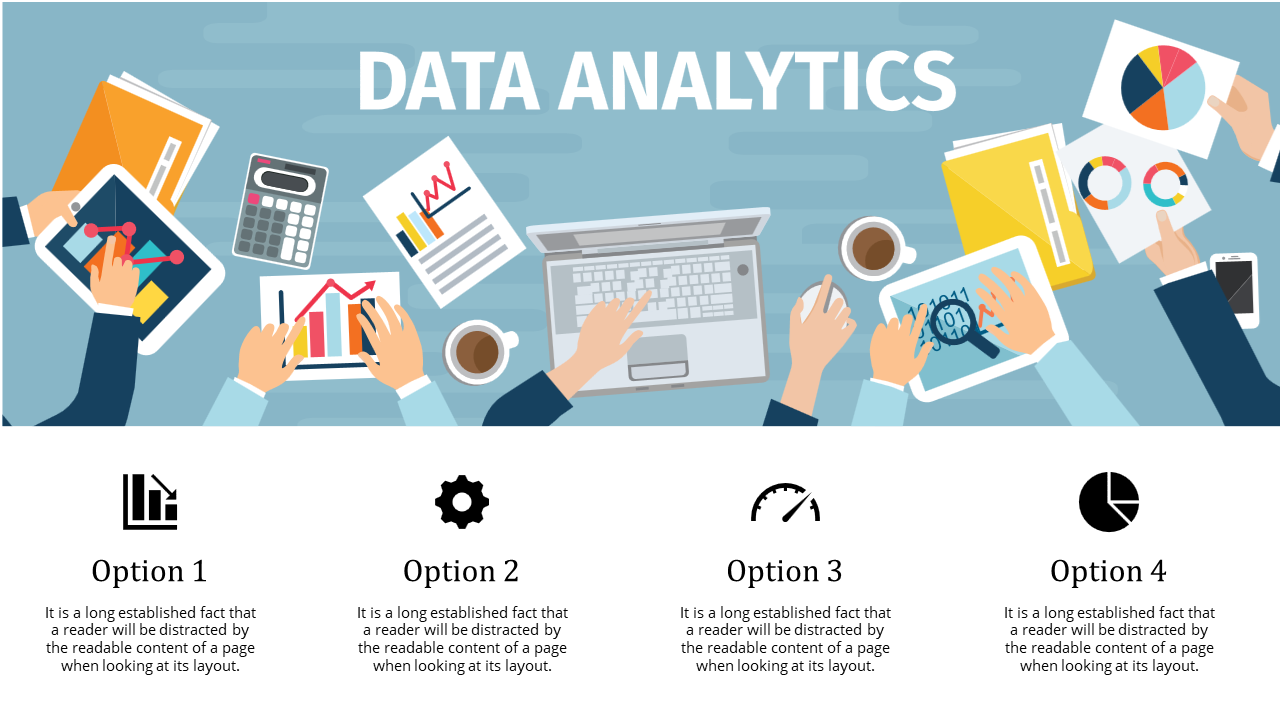
    Step 5: Download Your PPT

    Once you’re satisfied, download the .pptx file. You can open it in Microsoft PowerPoint, Google Slides, or any presentation software.
    notion image

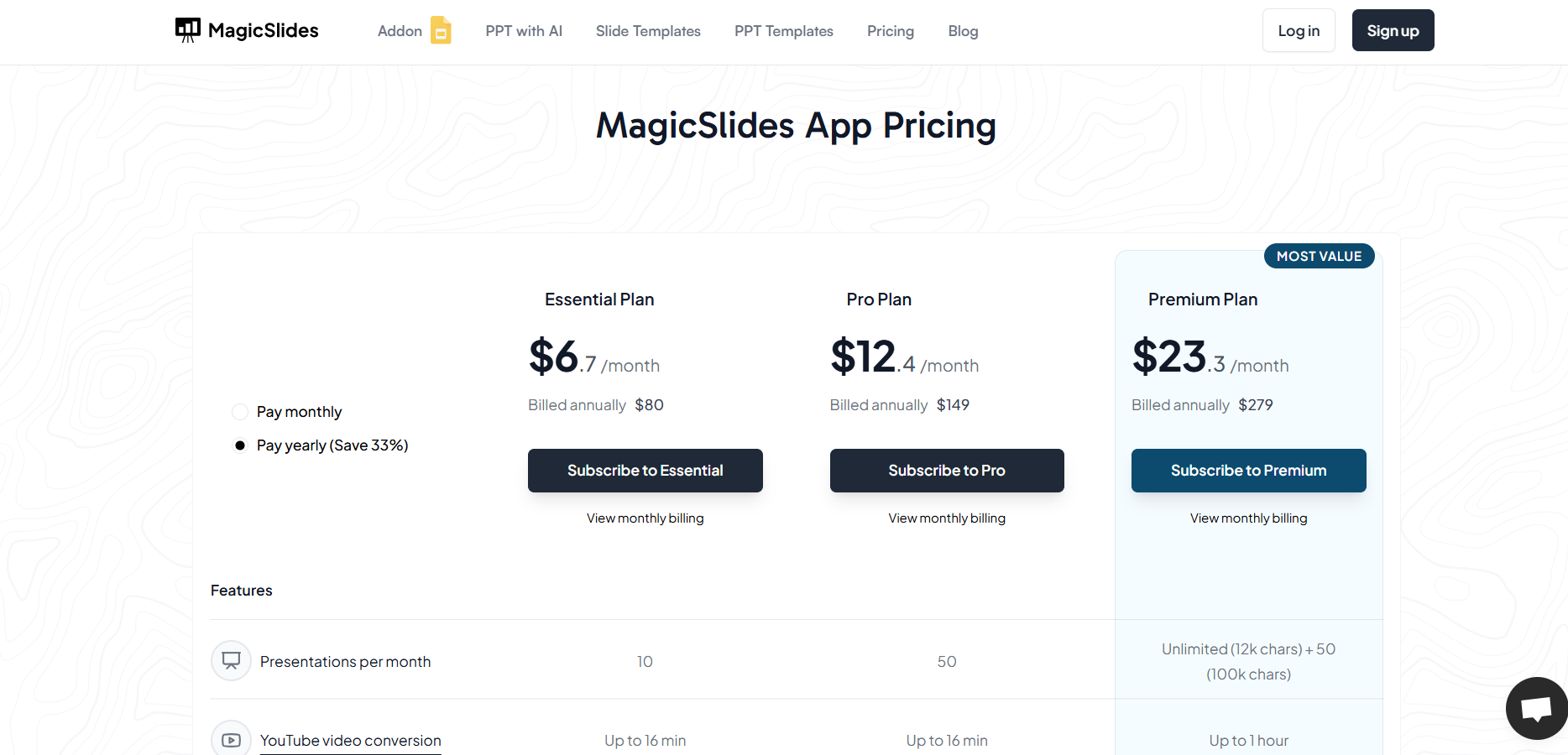
    Step 6: Consider Upgrading for More Features

    If you're working on multiple presentations or need access to premium slide themes and longer outputs, you can upgrade your MagicSlides account for enhanced capabilities.
    notion image

    Conclusion

    Data storytelling is as important as the analysis itself. Using MagicSlides to create your Data Analytics presentation not only saves valuable time but also enhances the visual appeal of your work.
    Whether you're presenting to stakeholders, a classroom, or at a conference, MagicSlides ensures you focus on insights, while it takes care of the design.

    Share on socials

    About the author

    Ajay Sai profile photo
    Ajay Sai— writer at MagicSlides.app

    Ajay have been a techincal writer for more than 2+ years. from coding tutorials to using day to day apps he have helped 100k+ visitors with their various queries

    More from Ajay

    More from the blog

      250+ Good Morning Messages for Her (Romantic, Deep, Cute & Sweet)

      28 January 2026

      50+ History Presentation Topics For 2026

      28 January 2026

      How to Add Music to Your Canva Presentation: A Step-by-Step Guide

      27 January 2026

      15 Quick Tips To Use ChatGpt At Work

      22 January 2026

      11 Best AI Tools for Business in 2025

      22 January 2026

      How to Create an Infographic That Clearly Communicates Your Message

      20 January 2026

      How to Create a Sales Presentation Template in Google Sheets

      20 January 2026

      How to Make a Pie Chart on Google Slides in Simple Steps

      19 January 2026

      How to Change Slide Size in PowerPoint in 5 Steps

      15 January 2026

    Table of Contents

    Create Presentations in Seconds

    Transform your ideas into professional presentations with AI. No design skills needed.

    Try MagicSlides Free

    Create Stunning Presentations with AI in Seconds ✨

    Transform any topic, text, YouTube video, PDF or URL into beautiful presentations instantly with MagicSlides AI.

    Try MagicSlides AI Presentation Maker
    MagicSlides AI Presentation

    Footer

    Solutions

    • MagicSlides App
    • Google Slides Add-on
    • MagicSlides in Chrome
    • MagicSlides in Figma
    • MagicSlides in ChatGPT
    • MagicSlides in Telegram
    • MagicSlides in Zapier
    • MagicSlides in Figma Slides

    Tools

    • AI PPT Tools
    • QR Code Generator
    • Design Tools
    • PPT Templates
    • Slide Templates
    • PDF Tools

    Examples

    • AI Presentations
    • PPT by MagicSlides
    • Quizzes
    • Charts
    • Coloring Pages

    Resources

    • Changelog
    • Documentation
    • API Docs

    Top Blogs

    • How to Create Presentation Using ChatGPT
    • 100+ Best Seminar Topics for Students in 2025

    Company

    • Help
    • MCP
    • Blog
    • Pricing
    • Affiliate Program
    • Manage Subscription
    • Privacy Policy
    • Contact Us
    • Terms & Conditions
    • Refund & Cancellation Policy

    We also built

    • SheetAI - GPT For Sheets
    • MagicForm - GPT For Google Forms
    • SecondBrain.fyi
    • BlogBee - Free Blogging Platform

    © 2026 IndianAppGuy Tech Pvt Ltd. All rights reserved.