How to make a PPT from School Lessons Word Document?


Transform school lessons into engaging presentations! Learn how to create a dynamic PowerPoint from your Word documents with ease.
Creating a PowerPoint presentation from a school lessons Word document has never been more accessible, thanks to innovative tools like MagicSlides GPT. In this step-by-step guide, we'll walk you through the entire process – from the basics to the final presentation.
How to make a PPT from School Lessons Word Document
Step 1: Visit Google Slides
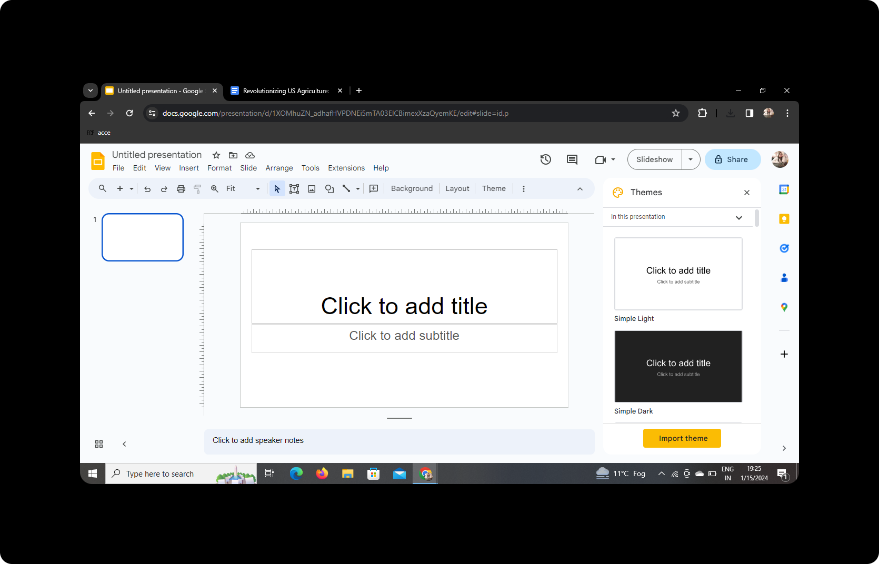
Begin by visiting Google Slides, Google's user-friendly cloud-based presentation platform. If you don't have a Google account, take a moment to create one. Once logged in, you're ready to embark on the journey of transforming your school lessons into a dynamic presentation.
Step 2: Sign in with Google to Google Slides
To utilize the full potential of Google Slides, ensure you are signed in with your Google account. This step is crucial for saving and accessing your presentation seamlessly.
Step 3: Check for MagicSlides GPT Extension
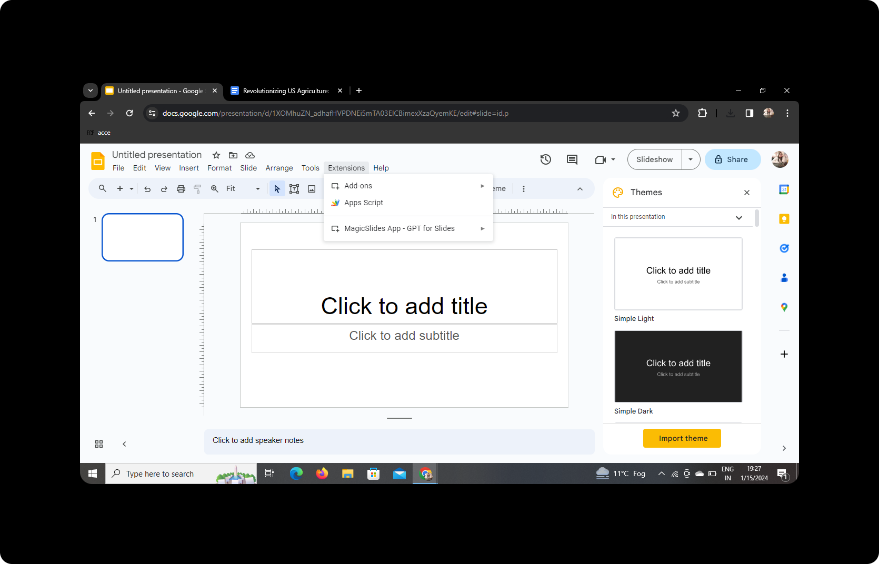
If you have MagicSlides GPT already installed as an extension, proceed to the next step. If not, download it from the extension store and open it in Google Slides.
Step 4: Click on PDF/DOCX to PPT in MagicSlides GPT
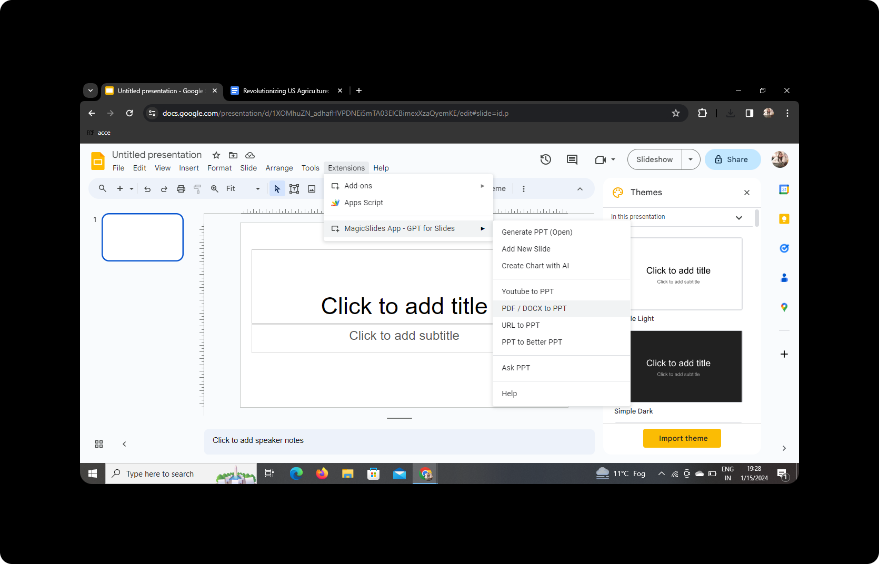
Once inside Google Slides, navigate to the MagicSlides GPT extension. Look for the 'PDF/DOCX to PPT' feature – the gateway to transforming your school lessons into a captivating presentation.
Step 5: Click on 'Upload PDF/DOCX' Option
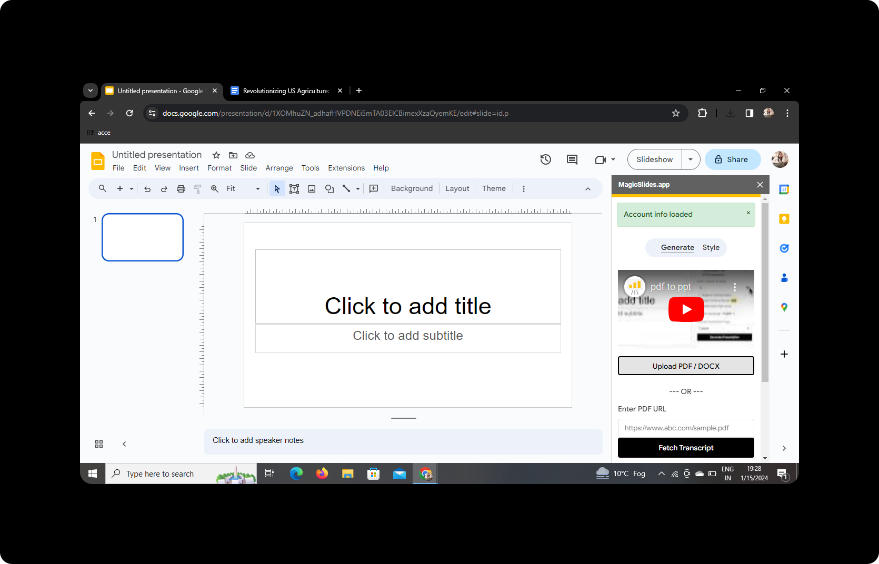
In the MagicSlides GPT extension, click on the 'Upload PDF/DOCX' option. This action will prompt you to upload your school lessons Word document.
Step 6: Upload Your Word Content
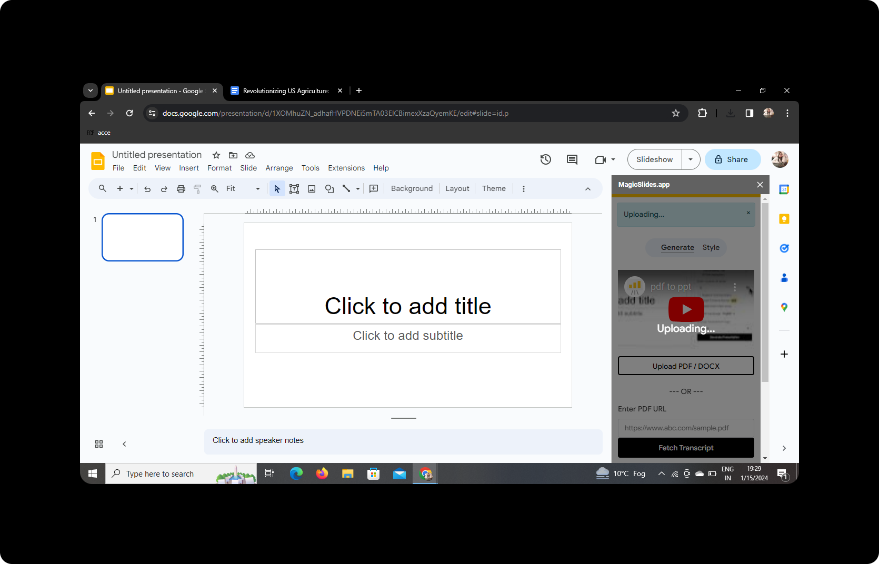
Select your Word document containing the school lessons. MagicSlides GPT will process the content, preparing it for transformation into PowerPoint slides.
Step 7: Select the Number of Slides
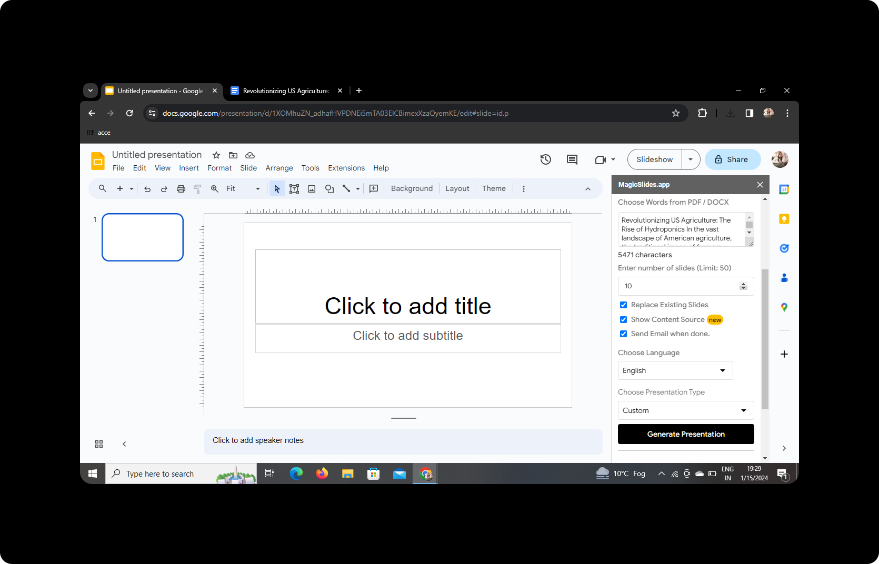
Customize your presentation by choosing the number of slides you desire. Tailor this setting to match the flow and structure of your school lessons.
Step 8: Click on Generate Presentation
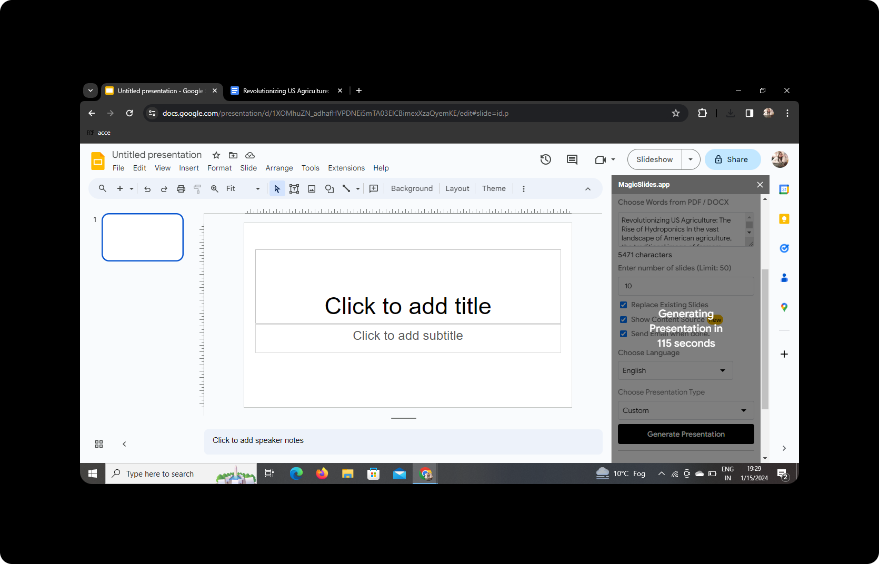
With your preferences in place, click on the 'Generate Presentation' button. MagicSlides GPT will work its magic, converting your Word document into a dynamic PowerPoint presentation.
Conclusion: Your Presentation Is Ready!
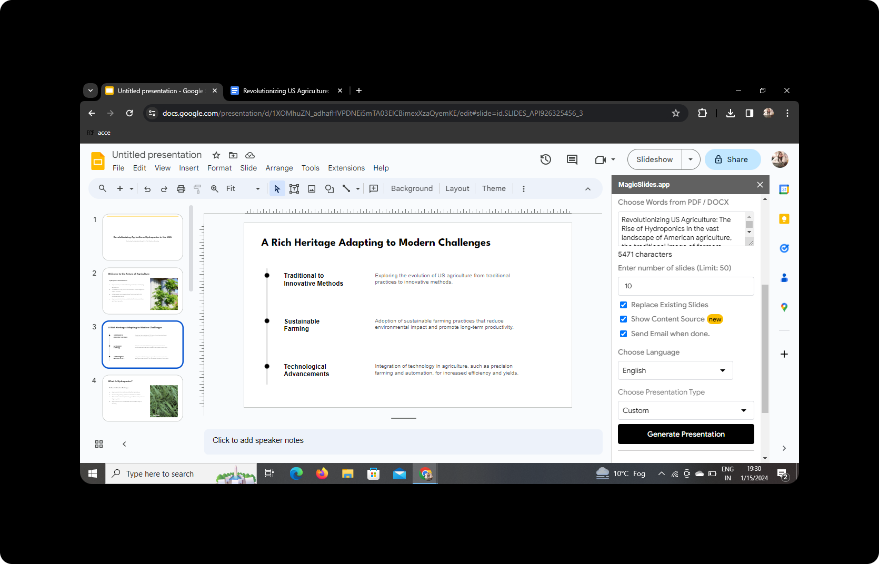
Your presentation is now ready for use! The seamless integration of Google Slides and the MagicSlides GPT extension has simplified the process, allowing you to focus on delivering impactful content.
Frequently Asked Questions (FAQs)
Q1: Can I use MagicSlides GPT on other platforms? MagicSlides GPT is currently designed for use exclusively within the Google Slides environment.
Q2: Is there a limit to the size of the Word document I can convert? While there is a file size limit, it is generally suitable for most standard school lessons documents.
Q3: Can I edit the generated slides after conversion? Absolutely! MagicSlides GPT provides editing features within Google Slides for further customization.
Q4: Is MagicSlides GPT free to use? MagicSlides GPT may offer both free and premium versions. Check the extension store for details.
Q5: Can I use this tool for business presentations? Certainly! MagicSlides GPT is versatile and can be employed for various presentation needs.
In conclusion, the combination of Google Slides and MagicSlides GPT offers a user-friendly and efficient solution for transforming school lessons into engaging PowerPoint presentations. With just a few clicks, you can elevate your presentations to new heights!


