how to make a video on google slides


Enhance your Google Slides presentations by learning how to seamlessly integrate dynamic videos. Engage and impress!
Visual content is the cornerstone of effective communication, and Google Slides is a popular tool for crafting engaging presentations. But did you know that you can take your Google Slides to the next level by incorporating videos into your slideshows?
In this blog post, we'll explore how to seamlessly create and embed videos in Google Slides, transforming your static presentations into dynamic, interactive experiences.
Whether you're an educator looking to enhance your lessons or a professional aiming to captivate your audience, mastering video integration is a game-changer. Join us on this journey to discover how to make your Google Slides truly come alive with the magic of video.
Creating Videos in Google Slides:
To create and embed videos in Google Slides, follow these steps:
→ Prepare Your Video: First, you need the video you want to include in your presentation. Ensure it's edited and ready for presentation.
→ Open Google Slides: Access your Google Slides presentation or create a new one if you haven't already.
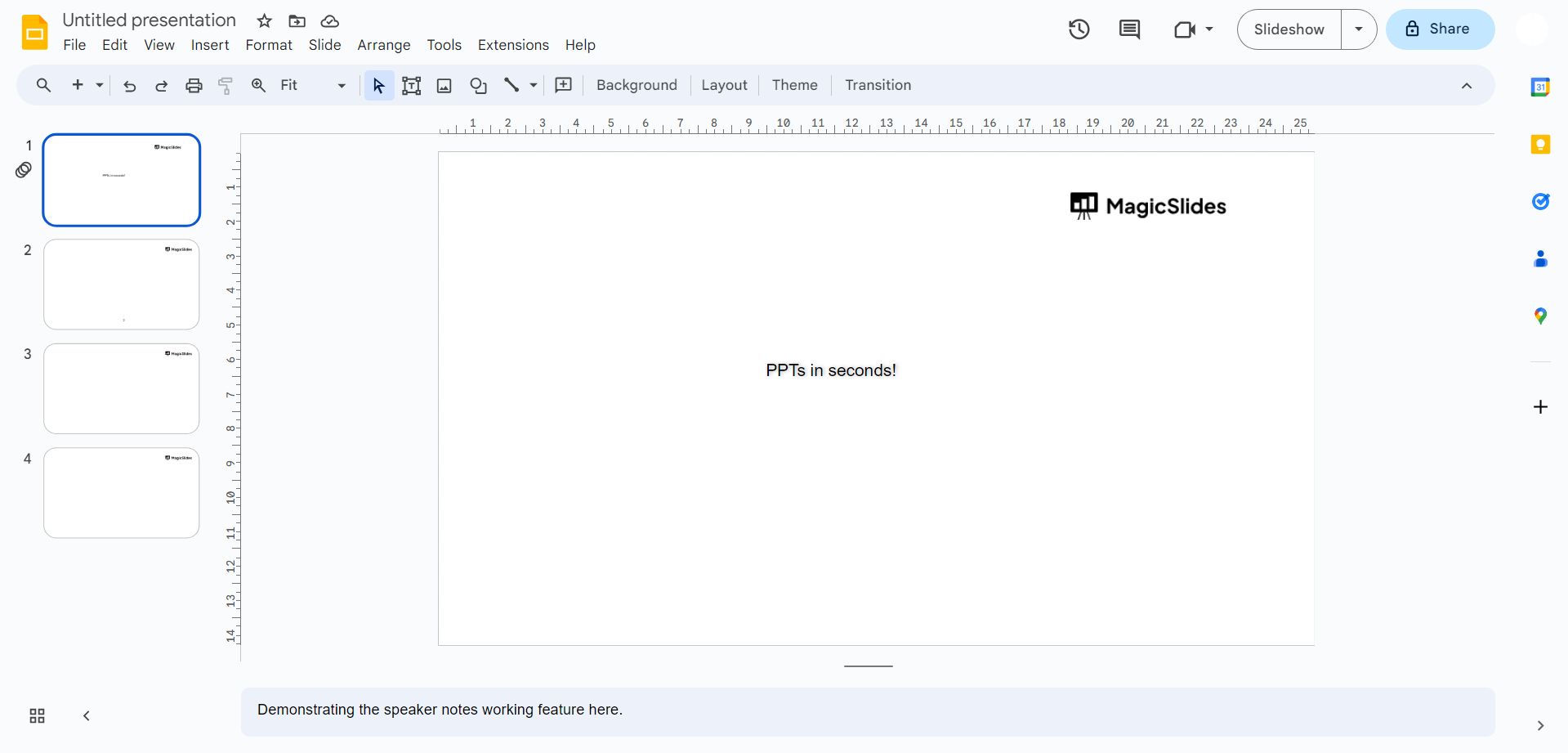
→ Select the Slide: Choose the slide where you want to insert the video.
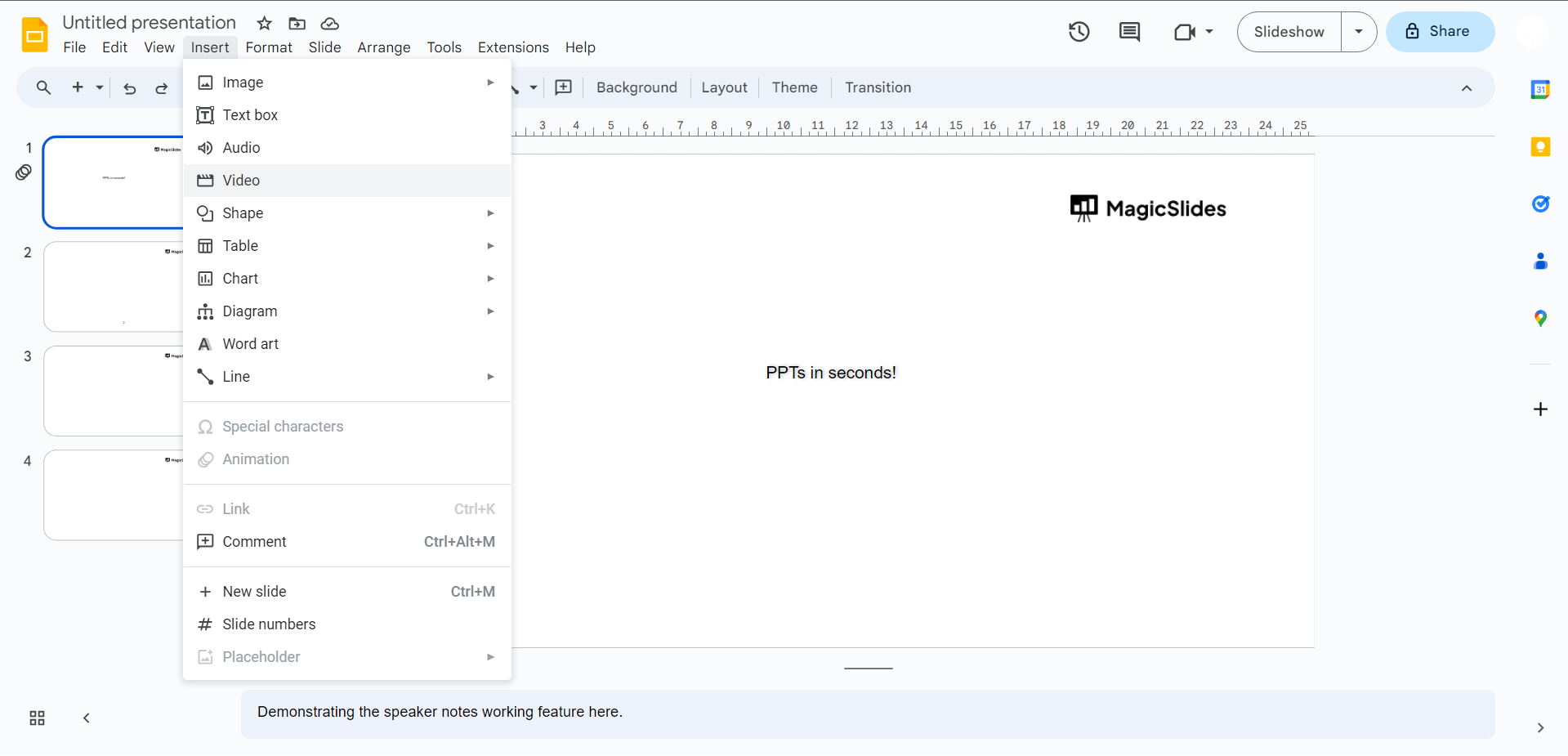
- Insert Video: Click on "Insert" in the top menu and then select "Video."
→ Choose Video Source:
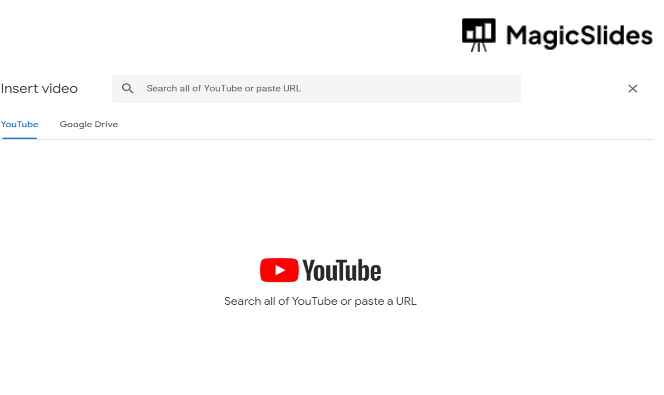
a. Google Drive: If your video is saved in your Google Drive, select "Google Drive" and locate your video file.
b. YouTube: To add a video from YouTube, select "By URL" and paste the video's URL.
→ Insert Video: Click "Select" or "Insert" to add the video to your slide.
→ Position and Resize: Adjust the video's position and size on the slide by dragging the corners and sides.
Conclusion
Incorporating videos into your Google Slides presentations is a fantastic way to breathe life into your content and engage your audience. Whether you're delivering a sales pitch, educational lecture, or sharing your creative work, videos add a dynamic element that captivates and informs.
This guide has walked you through the process, from inserting a video to customizing its playback options, ensuring a seamless and visually compelling experience for your audience.
With the power to embed videos directly from Google Drive or YouTube, you can create presentations that leave a lasting impact. So, next time you're preparing a Google Slides presentation, remember the magic of video.
Use it to enhance your storytelling, clarify complex concepts, and make your content unforgettable. Elevate your presentations to new heights and let your message shine with the captivating inclusion of videos in Google Slides.


