How to mirror an image in PowerPoint


Enhance your PowerPoint slides by learning how to mirror images for added visual impact
Mirroring an image can add a unique visual element to your PowerPoint presentations, making your slides more dynamic and engaging. Whether you want to create reflections, flip images horizontally or vertically, PowerPoint provides easy tools to achieve these effects. In this step-by-step guide, we'll walk through the process of mirroring an image in PowerPoint, helping you enhance the visual impact of your presentations.
How to mirror an image in PowerPoint
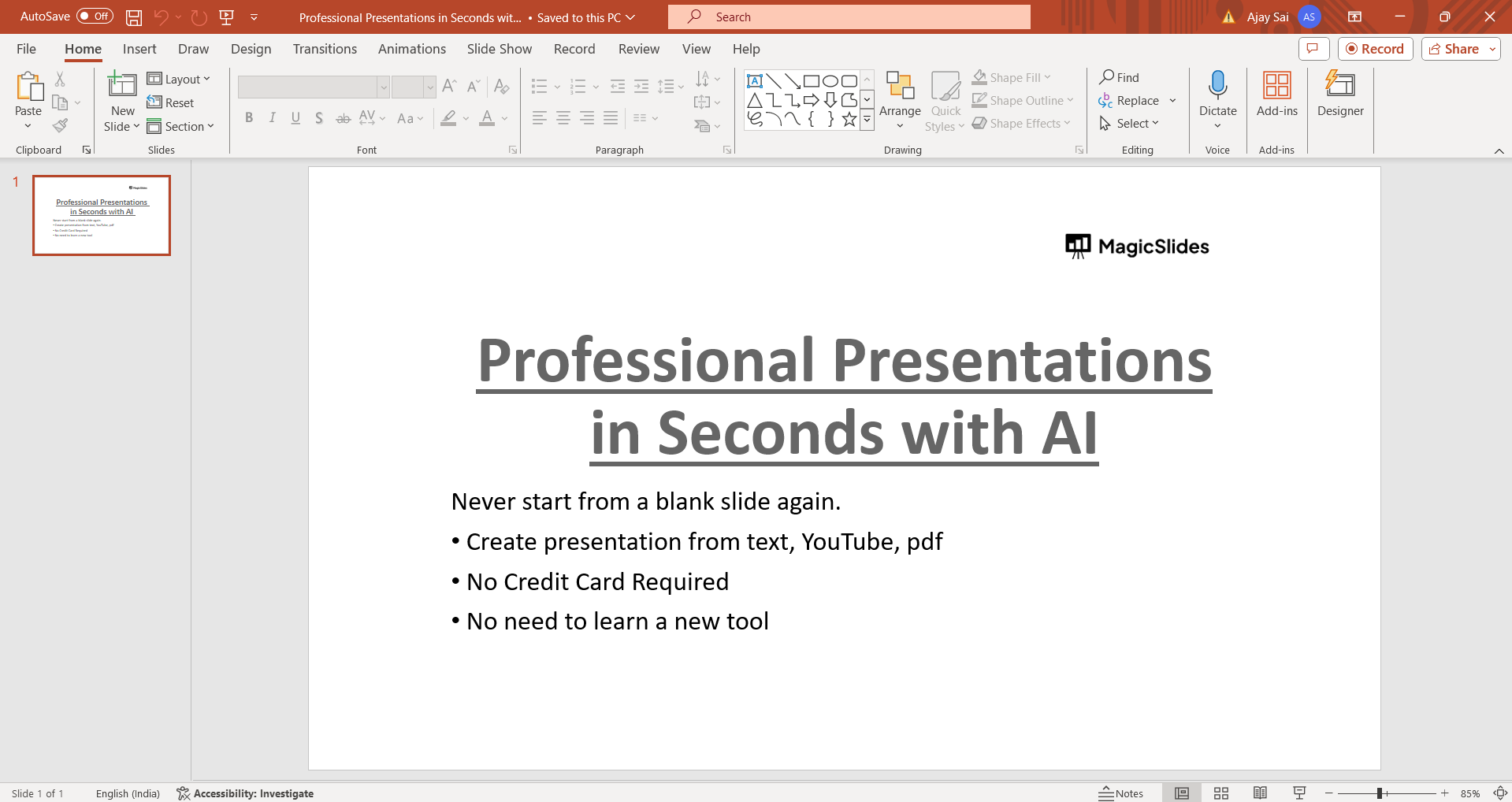
Step 1: Open Your PowerPoint Presentation
Begin by opening the PowerPoint presentation containing the image you want to mirror. Navigate to the slide where the image is located.
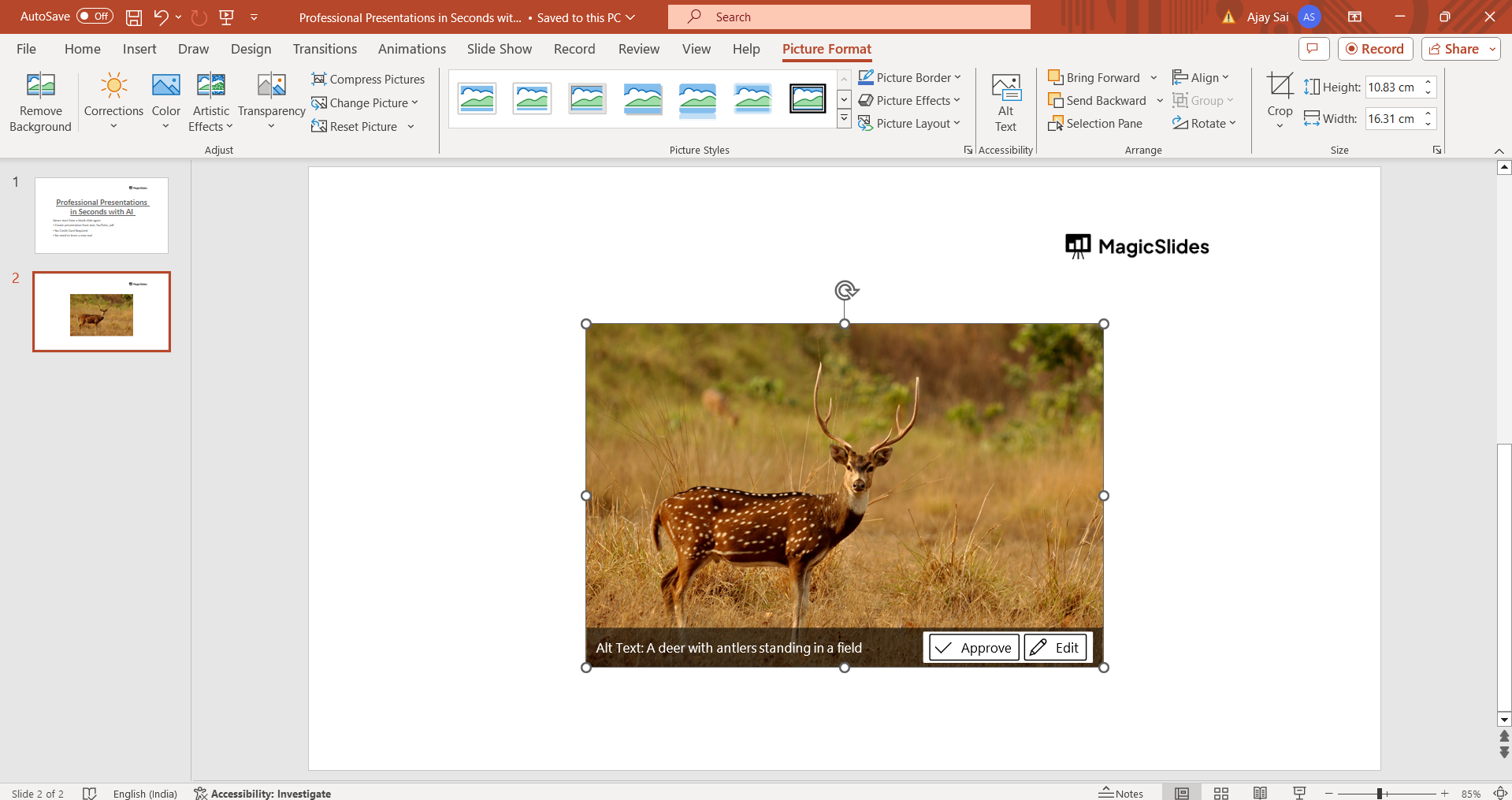
Step 2: Select the Image
Click on the image you want to mirror to select it. You should see selection handles around the image indicating that it is selected.
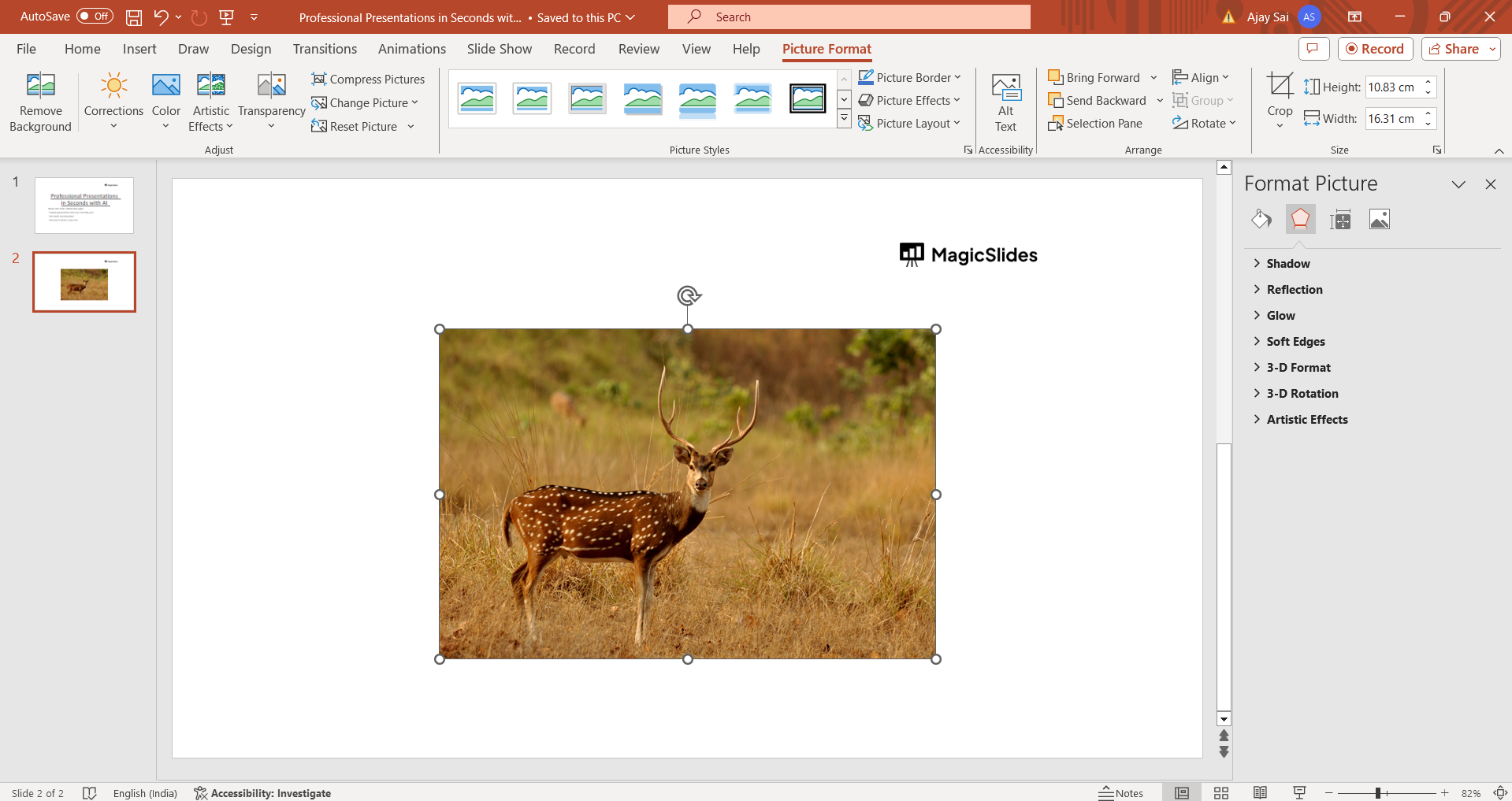
Step 3: Access the Format Picture Options
With the image selected, go to the "Format" tab on the PowerPoint ribbon. In the "Adjust" group, you'll find the "Rotate" option. Click on the small arrow next to "Rotate" to open additional rotation options.
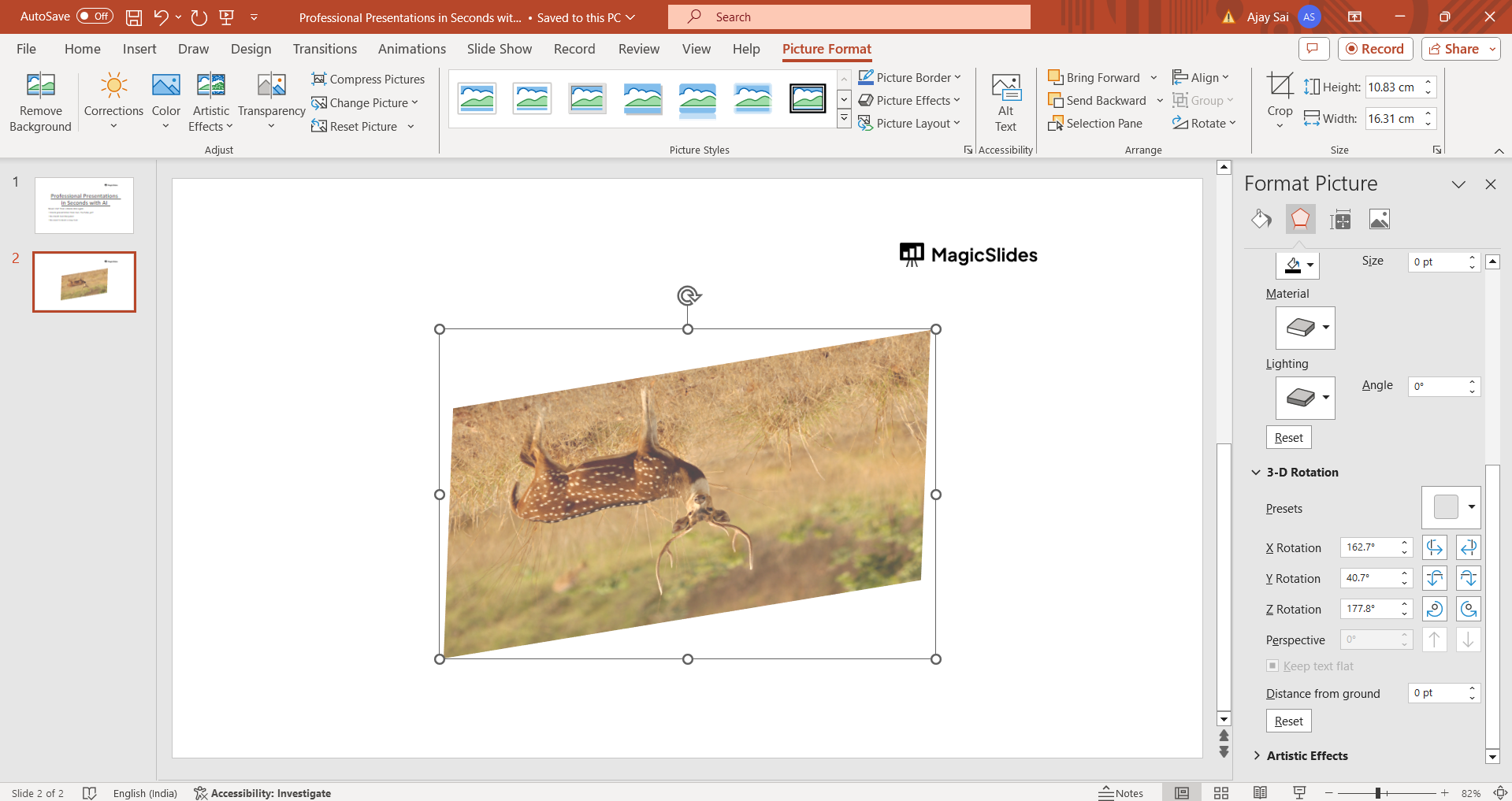
Step 4: Choose the Mirror Option
In the drop-down menu under the "Rotate" option, you'll find various rotation options. To mirror the image horizontally or vertically, select either "Flip Horizontal" or "Flip Vertical" as per your preference. The image will instantly mirror based on your selection. Depending upon your need of mirroring you can adjust the picture to your desired format, here the picture is mirrored upside down.
Step 5: Save Your Changes
Once you are satisfied with the mirrored image placement and orientation, remember to save your PowerPoint presentation to retain the changes.
Conclusion:
Mirroring an image in PowerPoint can significantly enhance the visual appeal of your slides, creating eye-catching effects and adding depth to your presentations. By following the simple steps outlined in this guide, you can easily mirror images horizontally or vertically, allowing you to customize your slides and create impactful presentations. Incorporating mirrored images creatively can help you capture your audience's attention and convey your message with greater visual impact, making your presentations more memorable and engaging.
Frequently Asked Questions:
Can I mirror multiple images at once in PowerPoint?
Yes, you can select and mirror multiple images simultaneously by grouping them before applying the mirror effect.
Does mirroring an image affect its quality or resolution?
No, mirroring an image in PowerPoint does not alter its quality or resolution. It only changes its orientation.
Can I undo the mirror effect if I'm not satisfied with the result?
Yes, you can easily undo the mirror effect by pressing Ctrl + Z on your keyboard or using the "Undo" option in the PowerPoint toolbar.
Are there any other ways to mirror images in PowerPoint?
Besides using the "Rotate" options, you can also right-click on an image, choose "Format Picture," go to the "Size & Properties" tab, and use the "Flip" options to mirror the image horizontally or vertically.


