how to print a power point presentation


After creating a stellar presentation you might want to printit so let’s explore how to print a power point presentation.
Creating a stunning PowerPoint presentation is just one part of the equation. Sometimes, you need to share your work in a physical format, whether it's for a meeting, a workshop, or to keep as a hard copy reference. Printing your PowerPoint slides is a practical way to ensure your audience can follow along and retain the information presented.
In this step-by-step guide, we'll walk you through the process of printing a PowerPoint presentation, making sure your visuals look as good on paper as they do on the screen.
Step 1: Open Your PowerPoint Presentation
Start by opening your PowerPoint presentation on your computer. Make any final adjustments or edits if necessary before proceeding to print.
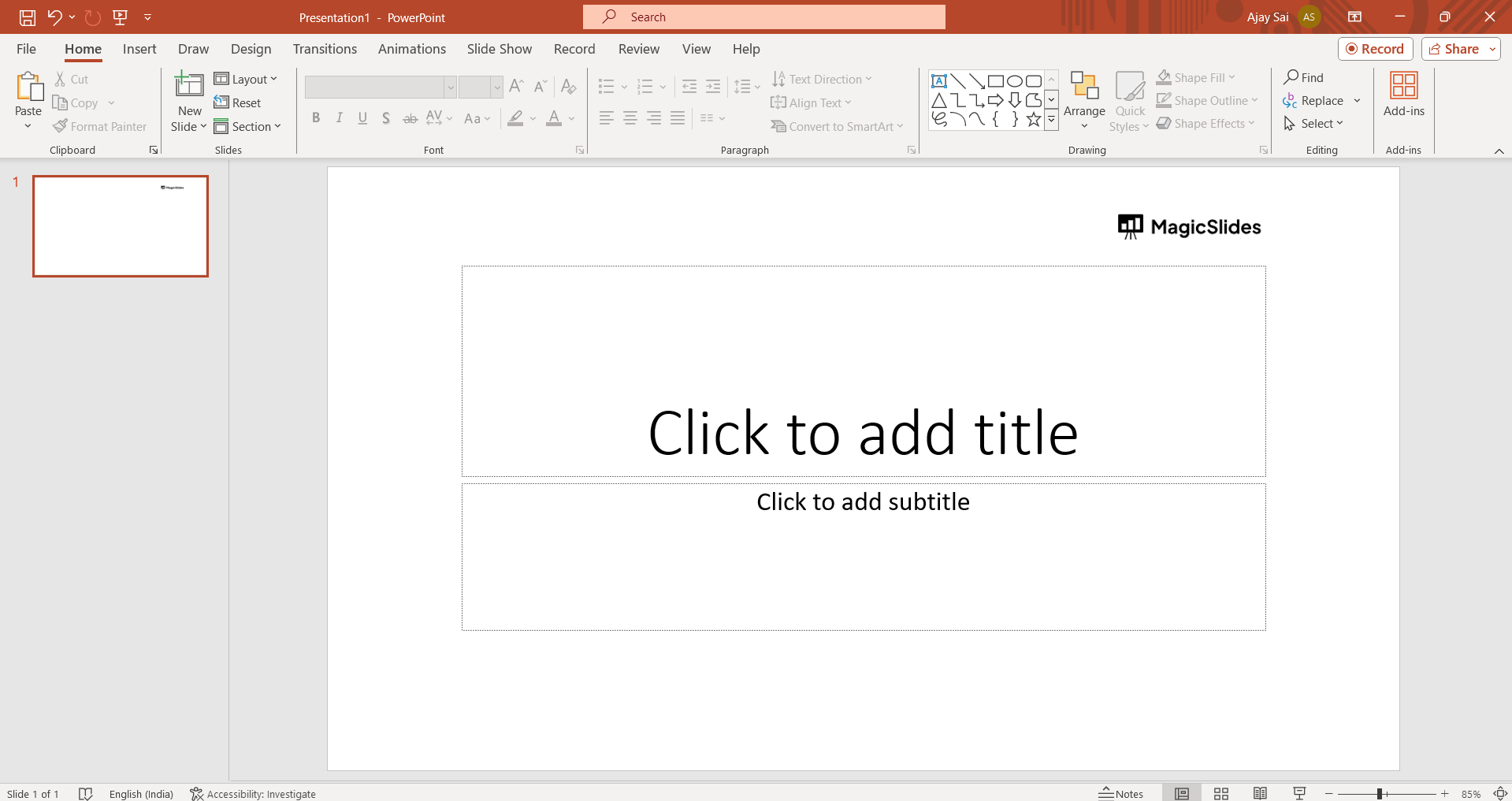
Step 2: Click on "File"
In the upper left corner of the PowerPoint window, you'll find the "File" tab. Click on it to access the File menu.
Step 3: Select "Print"
In the File menu, locate and select the "Print" option. This will open the Print settings.
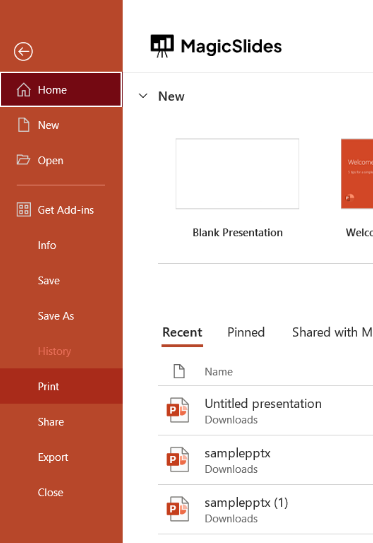
Step 4: Choose Your Printer
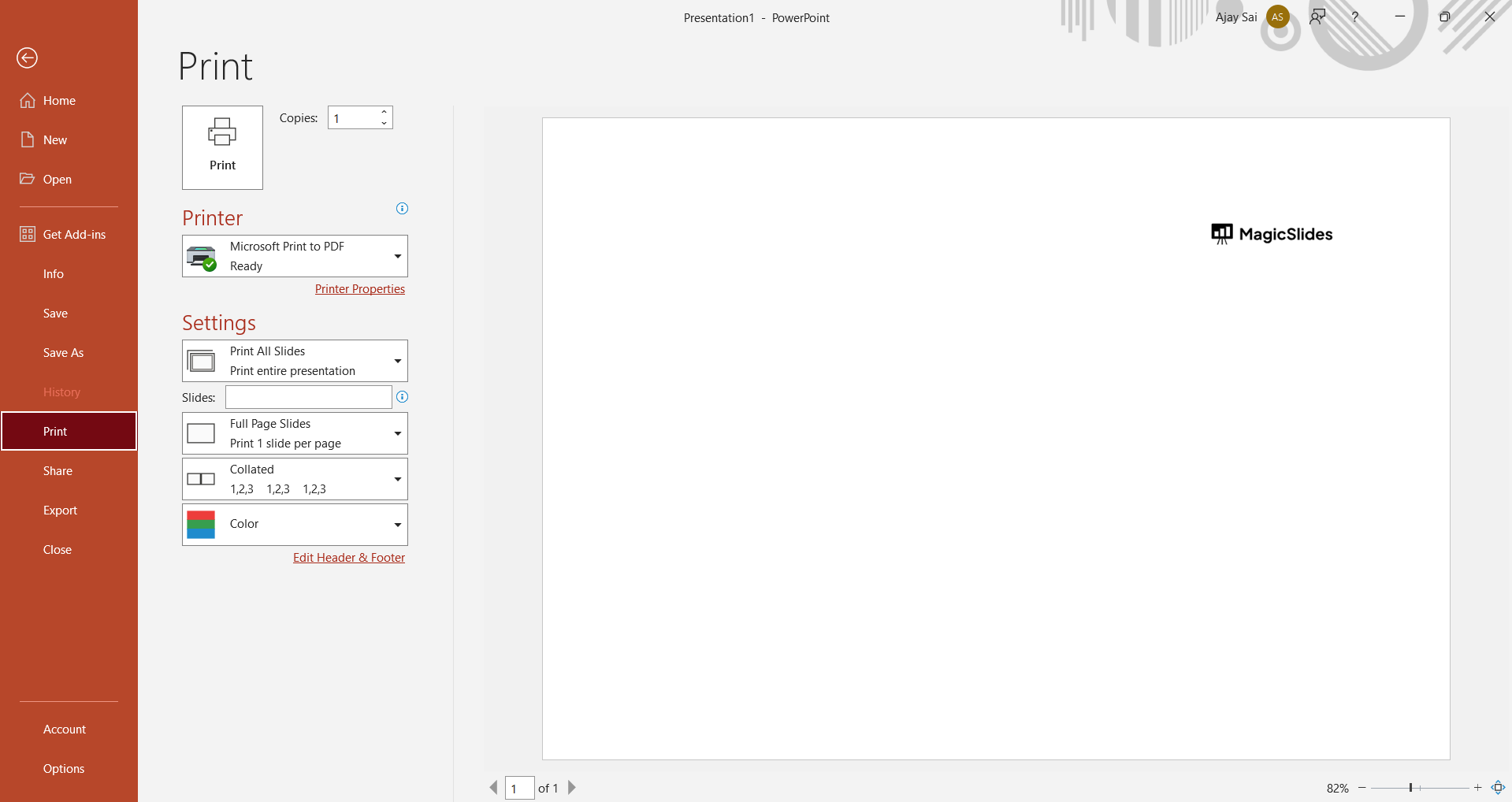
From the Print settings, you can select the printer you want to use. If you have multiple printers available, ensure you choose the one you want to use for your presentation.
Step 5: Select the Print Layout
Under the Settings section, you'll find various print layout options. Choose the one that suits your needs. Here are some common choices:
- Full Page Slides: Prints one slide per page, ideal for handouts or detailed reference.
- Notes Pages: Prints the slide along with any speaker notes you've added.
- Handouts: Allows you to print multiple slides per page, which is great for sharing presentation materials with the audience.
- Outline View: Prints a text-based outline of your presentation.
Step 6: Preview Your Presentation
Before hitting the "Print" button, take a moment to preview your presentation. This allows you to ensure that everything looks as expected and make any last-minute adjustments.
Step 7: Click "Print"
Once you're satisfied with the preview, click the "Print" button to start the printing process. Depending on the complexity of your presentation and the settings you've chosen, it may take a moment to complete.
Conclusion
Printing your PowerPoint presentation can be a valuable step in sharing your insights and ideas with your audience effectively. Whether you need hard copies for a meeting, handouts for a workshop, or simply want a physical reference, following these steps will ensure your PowerPoint slides are ready to shine on paper.
So, the next time you're preparing to present, remember that with a few simple clicks, you can bring your digital creation into the physical world for all to see and appreciate.


