How to Put a Arcgis Map on a PowerPoint


Easily add an ArcGIS map to PowerPoint using a static image or an interactive link
How to Put an ArcGIS Map on a PowerPoint
Adding an ArcGIS map to a PowerPoint presentation can make your slides more informative and visually engaging.
Whether you're presenting geographic data, locations, or spatial analysis, integrating ArcGIS into PowerPoint is simple.
Follow this step-by-step guide to seamlessly insert an ArcGIS map into your presentation.
Step-by-Step Guide
Step 1: Open ArcGIS and Prepare Your Map
Open ArcGIS Online or ArcGIS Pro and navigate to the map you want to add.

Customize the layers, labels, and features to highlight the necessary details.
Make sure the map is fully loaded and appears as you want in the final presentation.
Step 2: Capture a Screenshot of the Map
If you are using ArcGIS Online, take a screenshot of the map using Snipping Tool (Windows) or Cmd + Shift + 4 (Mac).
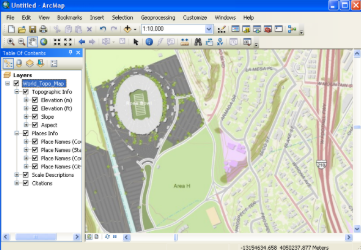
If you are using ArcGIS Pro, you can export the map as an image:
- Click Share > Export Map
- Choose a format like PNG, JPEG, or PDF
- Save the file to your computer
Step 3: Insert the Map into PowerPoint
Open your PowerPoint presentation and navigate to the slide where you want to add the map.
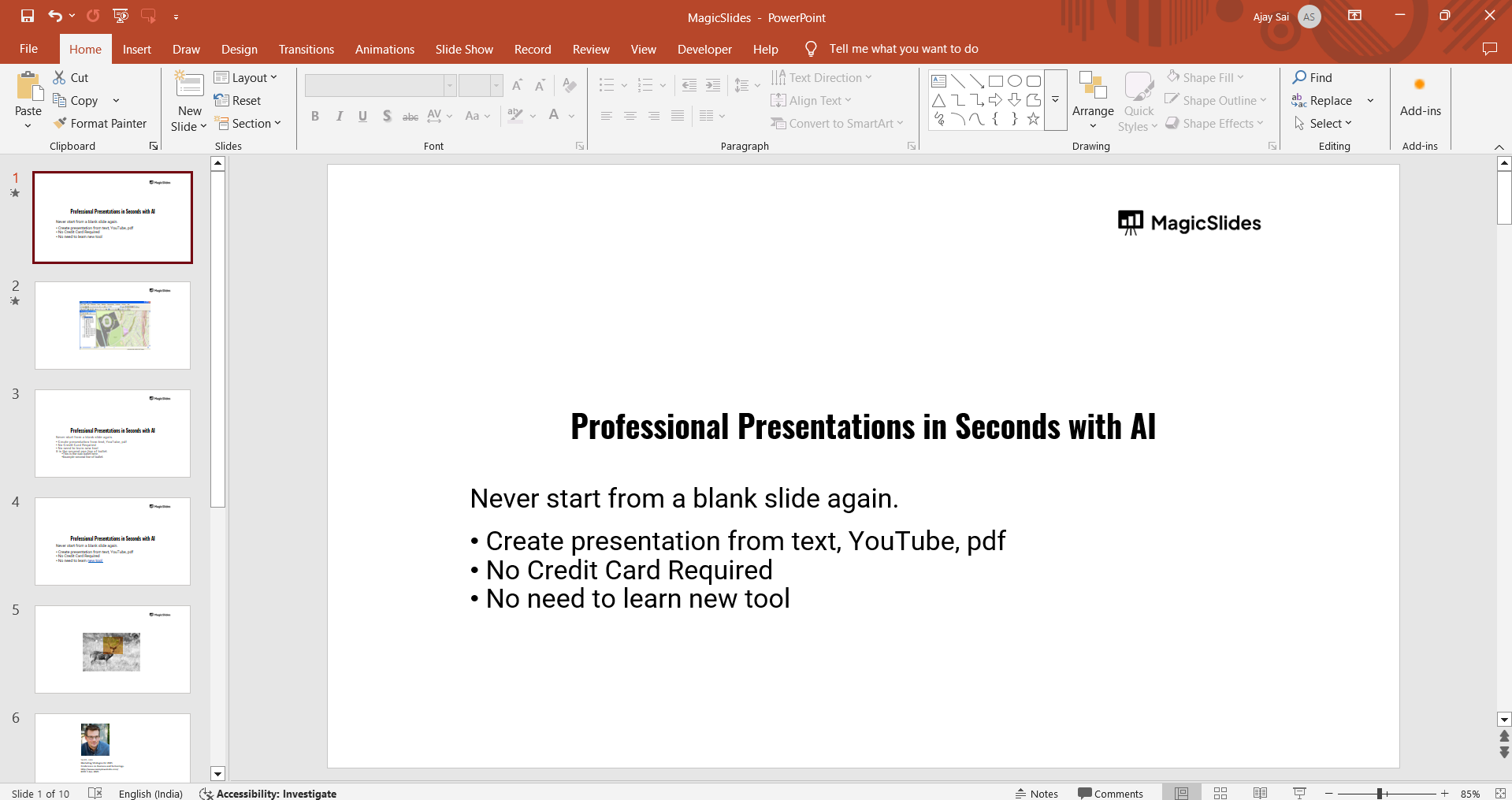
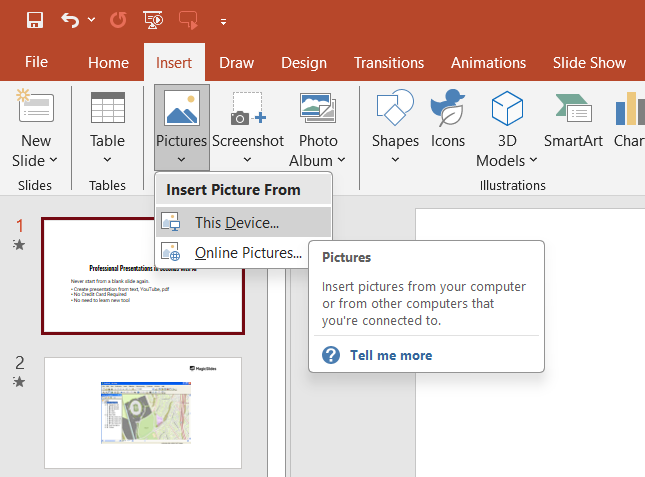
Click on Insert > Pictures > This Device and select the saved map image. Resize and position the image to fit the slide layout.
Step 4: Add Interactive ArcGIS Map (Optional)
If you want to embed an interactive map instead of a static image, follow these steps:
In ArcGIS Online, click Share > Embed in Website and copy the provided HTML code.
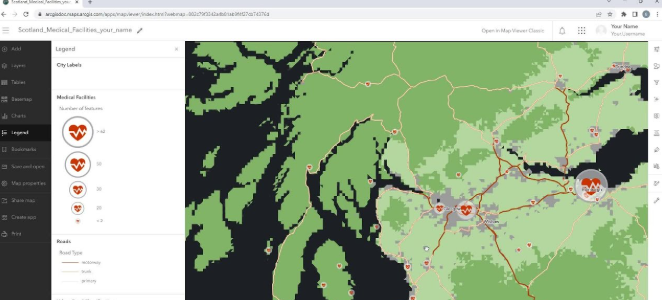
Open PowerPoint, go to Insert > Link and paste the ArcGIS map URL.
When presenting, click the link to open the interactive map in a web browser.
Step 5: Customize and Finalize the Slide
Add a title or description to explain the map’s purpose. Use PowerPoint’s Crop tool to remove unnecessary parts of the image.
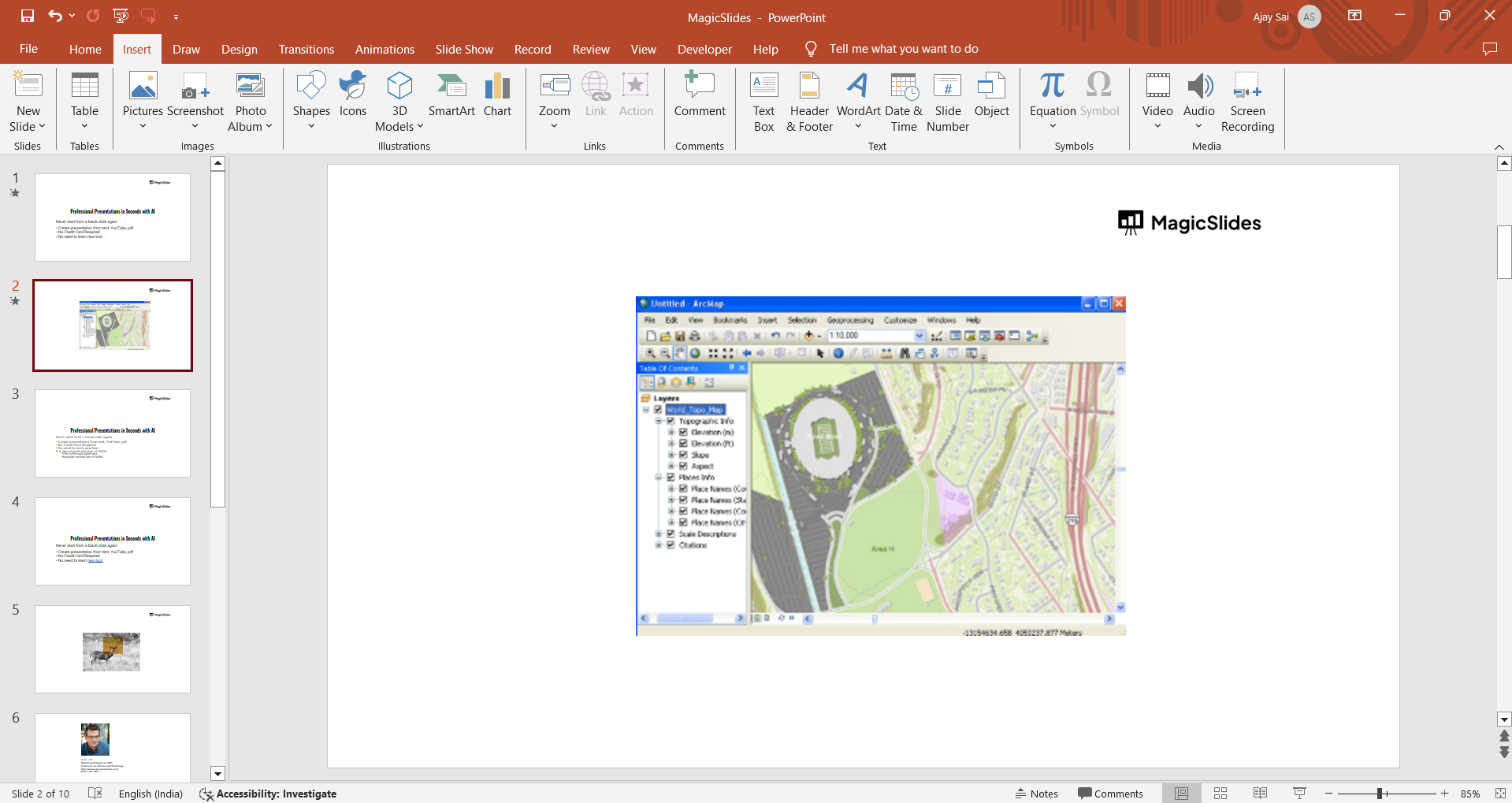
Apply borders, shadows, or annotations for better visualization.
Adding an ArcGIS map to PowerPoint helps visualize geographic data. Want an even easier way to generate data-driven slides? Try MagicSlides.app, the AI-powered tool that creates professional presentations instantly!
Conclusion
Adding an ArcGIS map to PowerPoint enhances your presentation with spatial insights and geospatial data.
Whether you use a static image or an interactive link, this integration helps convey location-based information effectively.
Adding an ArcGIS map to PowerPoint helps visualize geographic data. Want an even easier way to generate data-driven slides? Try MagicSlides.app, the AI-powered tool that creates professional presentations instantly!
Frequently Asked Questions (FAQs)
Can I update the map in PowerPoint after inserting it?
No, once you insert an image, it remains static. To update, you need to take a new screenshot.
How do I make an embedded ArcGIS map interactive in PowerPoint?
Use the Insert Link feature to add a URL that opens the interactive map in a browser.
What file format should I use for the best quality map image?
PNG or JPEG files provide high-quality images while keeping the file size manageable.


