How to Remove Background on Google Slides


Elevate your Google Slides presentations by mastering the art of effortless background removal. Learn how!
Unleash the full potential of your Google Slides presentations by learning how to remove backgrounds effortlessly. Whether you want to highlight a subject or create a professional look, this step-by-step guide will walk you through the process, transforming your slides into polished and visually striking presentations.
How to remove background on Google Slides
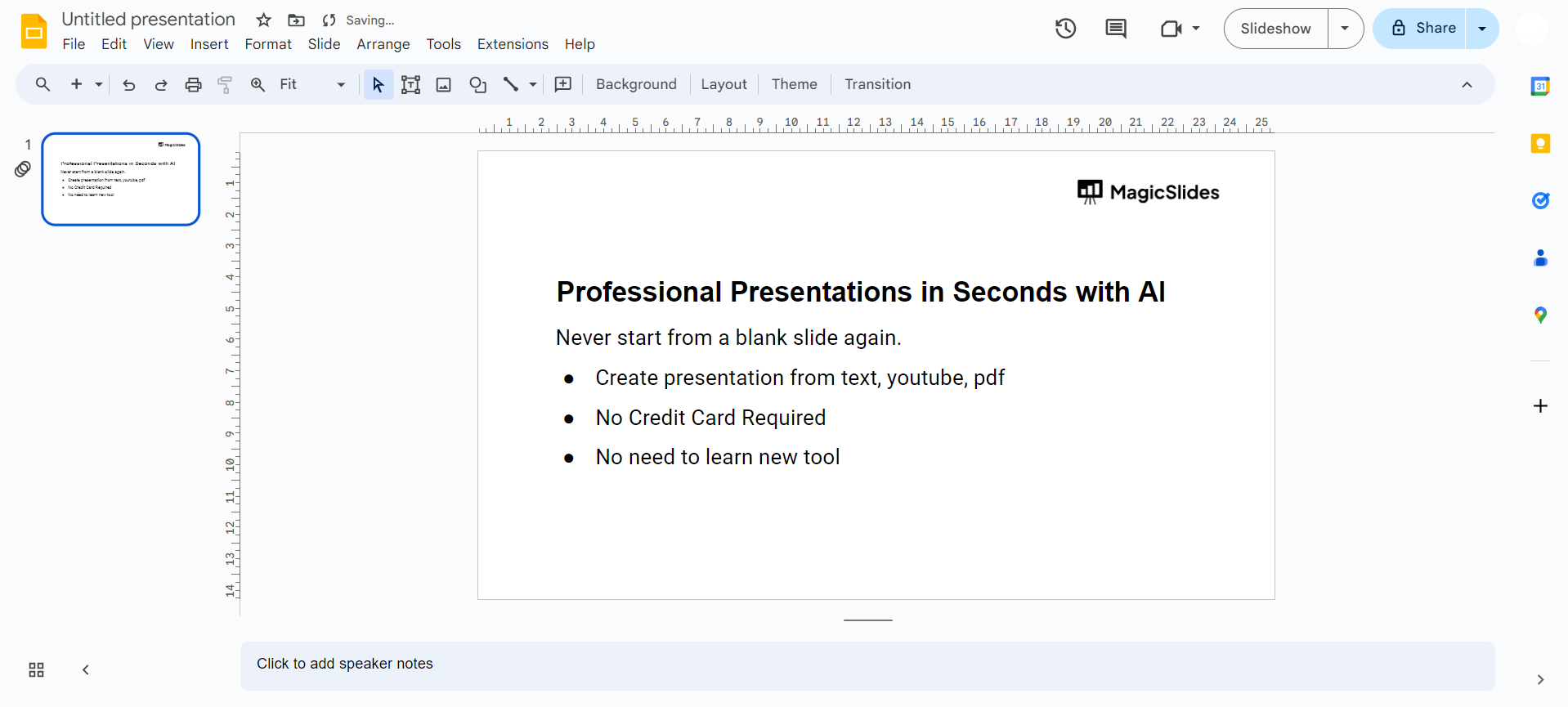
Step 1: Open Google Slides
Begin by opening your Google Slides presentation. If you're starting a new project, click on the "+ New" button and choose "Google Slides."
Step 2: Select a Slide
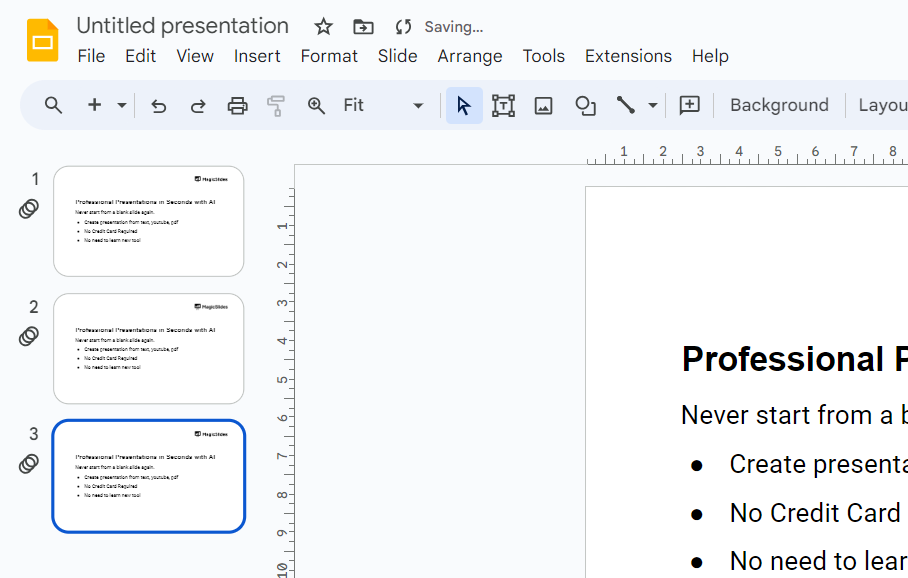
Navigate to the slide where you want to remove the background. Click on the desired slide's thumbnail on the left side of the screen.
Step 3: Choose "Slide" from the Menu
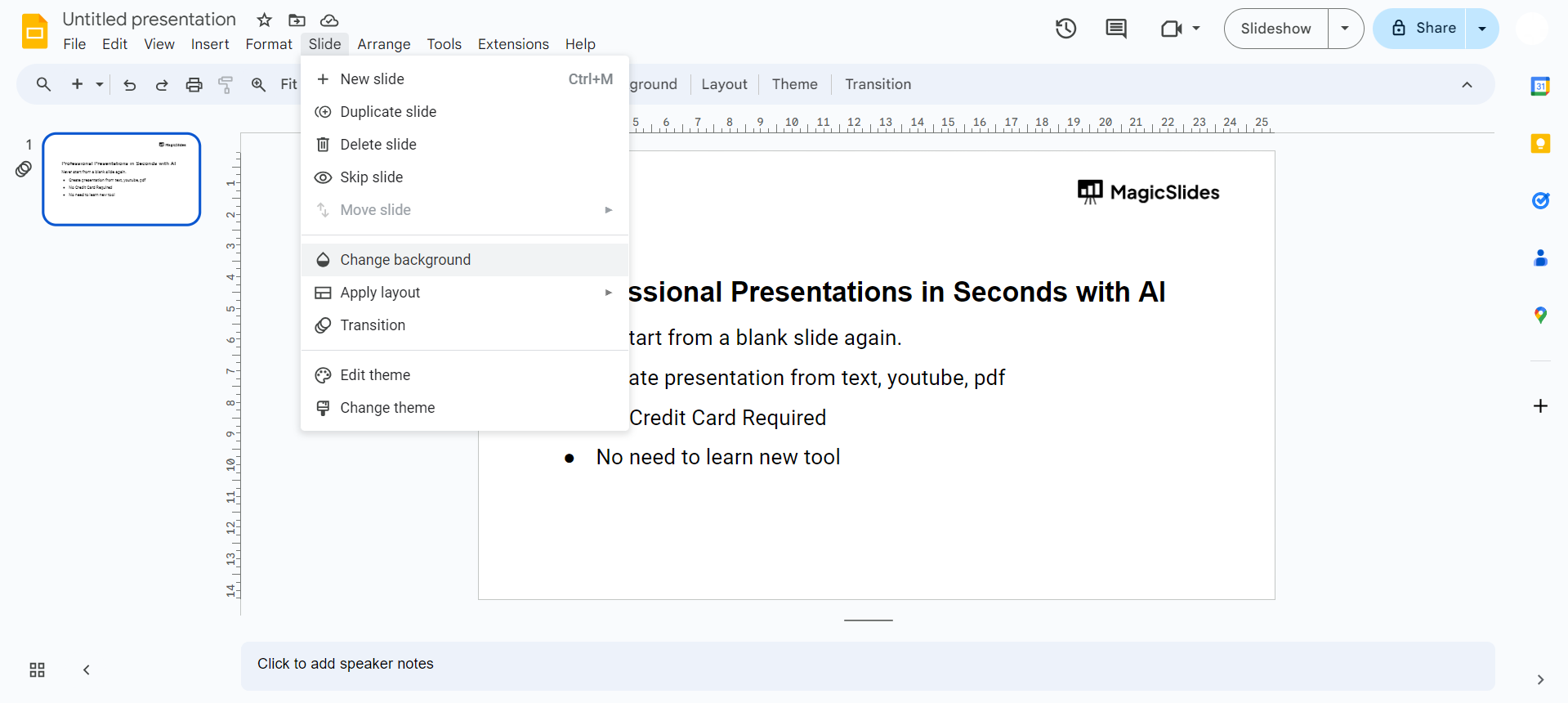
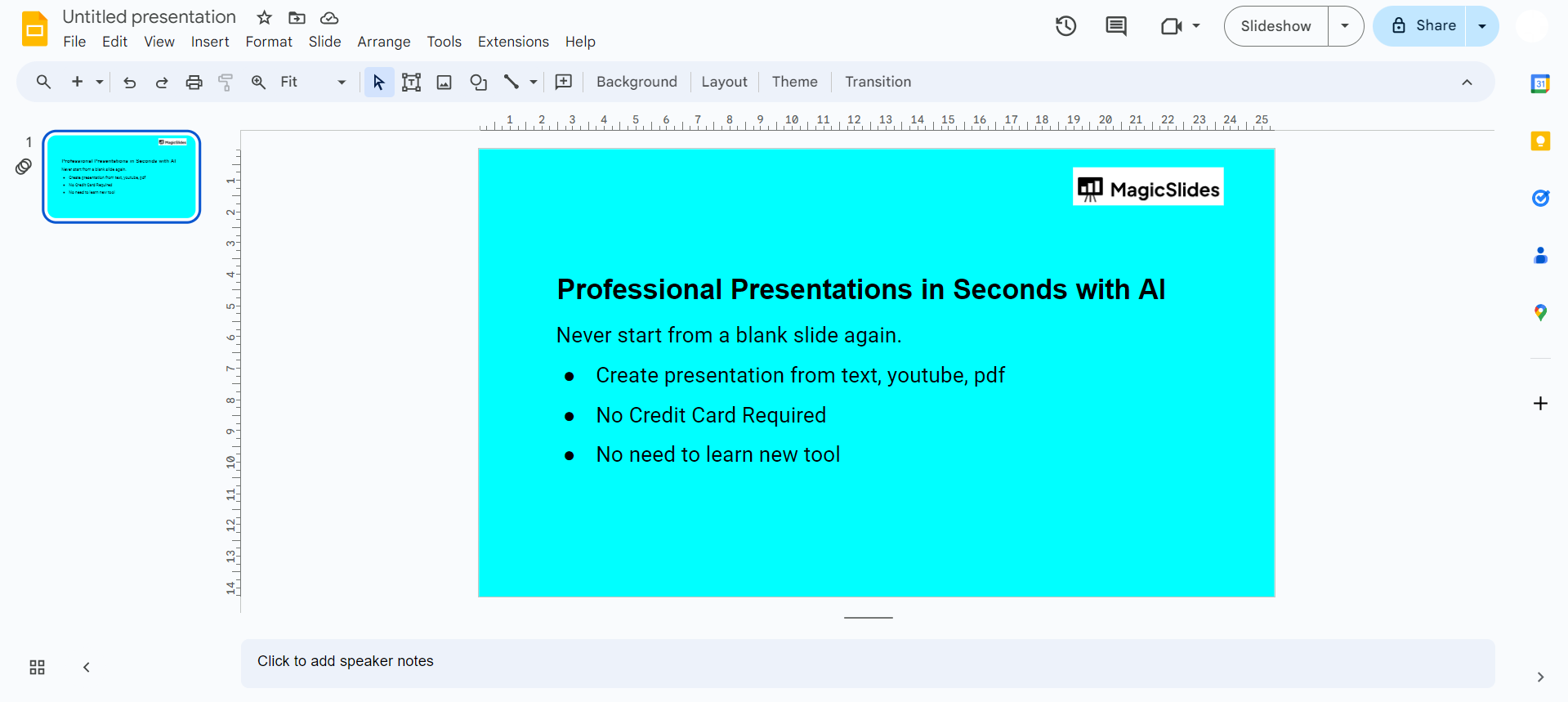
In the top menu, select "Slide" and then click on "Background."
Step 4: Click on "Choose image" or "Color"
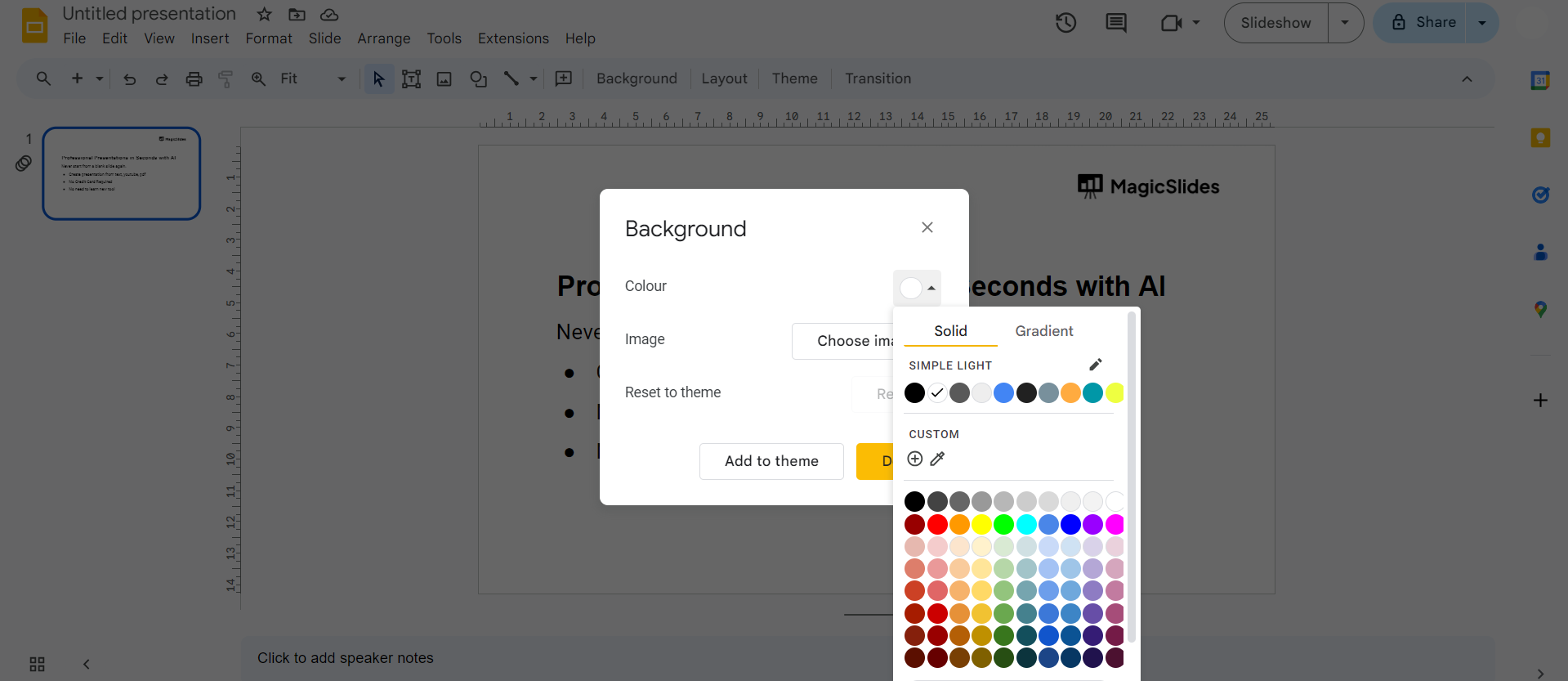
You have two options for background removal. Click on "Choose image" to upload a new image or "Color" to select a solid color as your background.
Step 5: Upload or Choose an Image
If you chose "Choose image," upload your desired image. Google Slides will automatically remove the background, leaving only the subject.
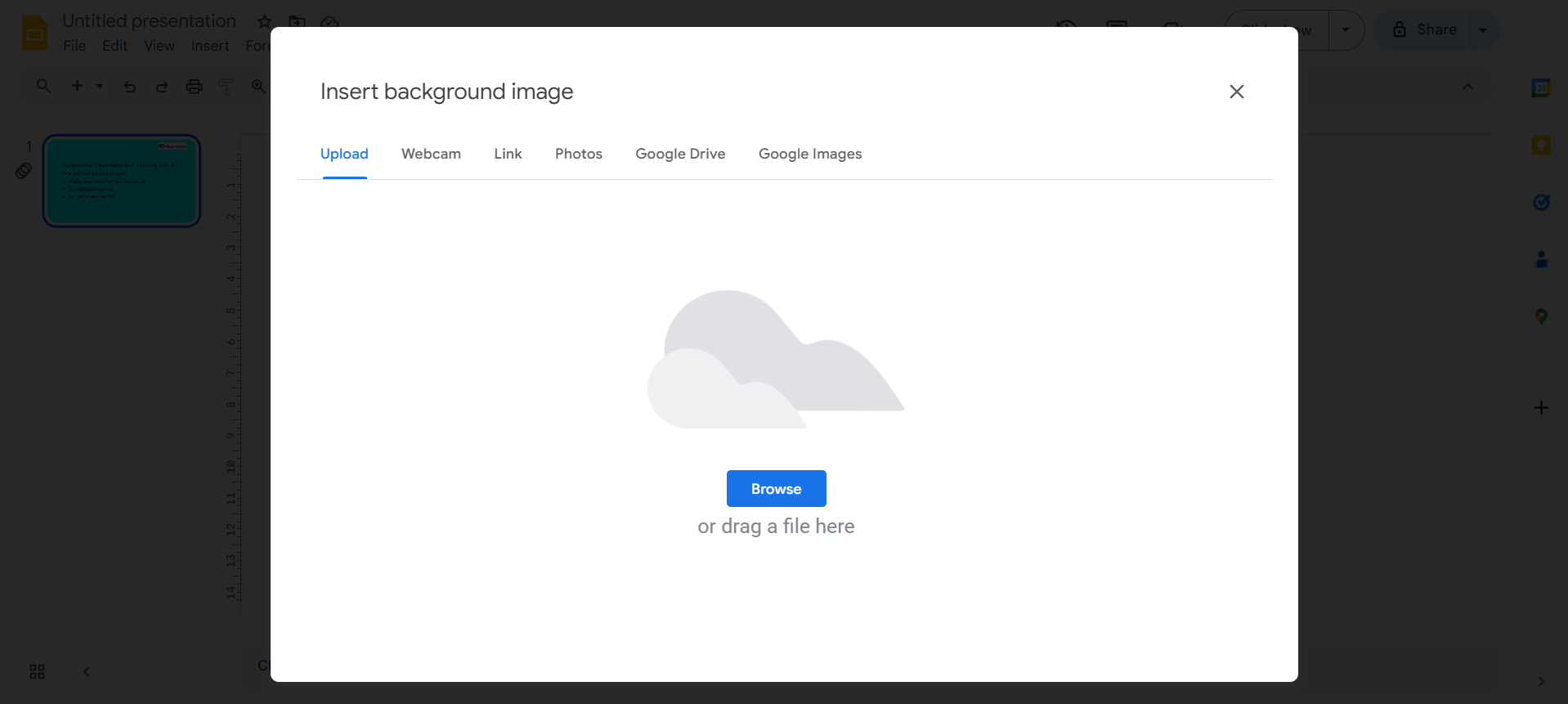
Step 6: Adjust Transparency
Fine-tune your background removal by adjusting the transparency. Click on "Image options" and move the transparency slider until you achieve the desired effect.
Step 7: Apply Changes
Once satisfied, click "Done" to apply the changes to your selected slide. Repeat the process for additional slides if needed.
Conclusion:
Mastering background removal on Google Slides adds a professional touch to your presentations, emphasizing key elements and enhancing visual appeal. Whether you're a student, educator, or business professional, the ability to remove backgrounds efficiently opens up creative possibilities for creating impactful slides. Follow these simple steps to elevate your presentations and captivate your audience with a seamless, polished look that sets your content apart. Experiment with different images and transparency levels to find the perfect balance for your unique presentation style. With this newfound skill, you'll transform your slides into visually stunning showcases of information and ideas.
Frequently Asked Questions:
Can I remove the background from an existing image in Google Slides?
Yes, upload the image, click on "Image options," and adjust transparency to remove the background.
Is it possible to remove backgrounds from multiple slides simultaneously?
Unfortunately, Google Slides currently doesn't offer a feature to remove backgrounds from multiple slides at once.
Can I revert changes if I'm not satisfied with the background removal?
Yes, simply navigate to "Slide" > "Background" > "Choose image" or "Color" and make necessary adjustments.
Does background removal affect the image's quality in Google Slides?
Adjusting transparency may slightly impact image quality, so use it judiciously for optimal results.


