How To Save Google Docs Word .DOCX?


Discover the ultimate guide on saving Google Docs as Word DOCX effortlessly. Master the steps for seamless document conversion now!
In today's digital age, efficient collaboration and seamless document sharing are imperative. Google Docs has become a staple for many users, but what if you need to share your work with someone using Microsoft Word? Fear not, for we have a step-by-step guide on how to save your Google Docs as Word (.docx) files. Let's dive into the process and ensure a smooth transition.
How To Save Google Docs Word .DOCX
Before we embark on the journey of saving Google Docs as Word files, let's briefly understand the terrain.
Google Docs
Google Docs is a cloud-based word processing platform that allows collaborative editing and real-time sharing of documents. It's a convenient tool for individuals and teams alike.
Microsoft Word (.docx)
Microsoft Word is a widely used word processing software that comes with the Microsoft Office suite. Documents saved in the .docx format are compatible with various word processing applications, providing flexibility in sharing and editing.
Step-by-Step Guide: Saving Google Docs as Word (.docx)
Let's get down to business with a simple and straightforward process.
Step 1: Open Google Docs
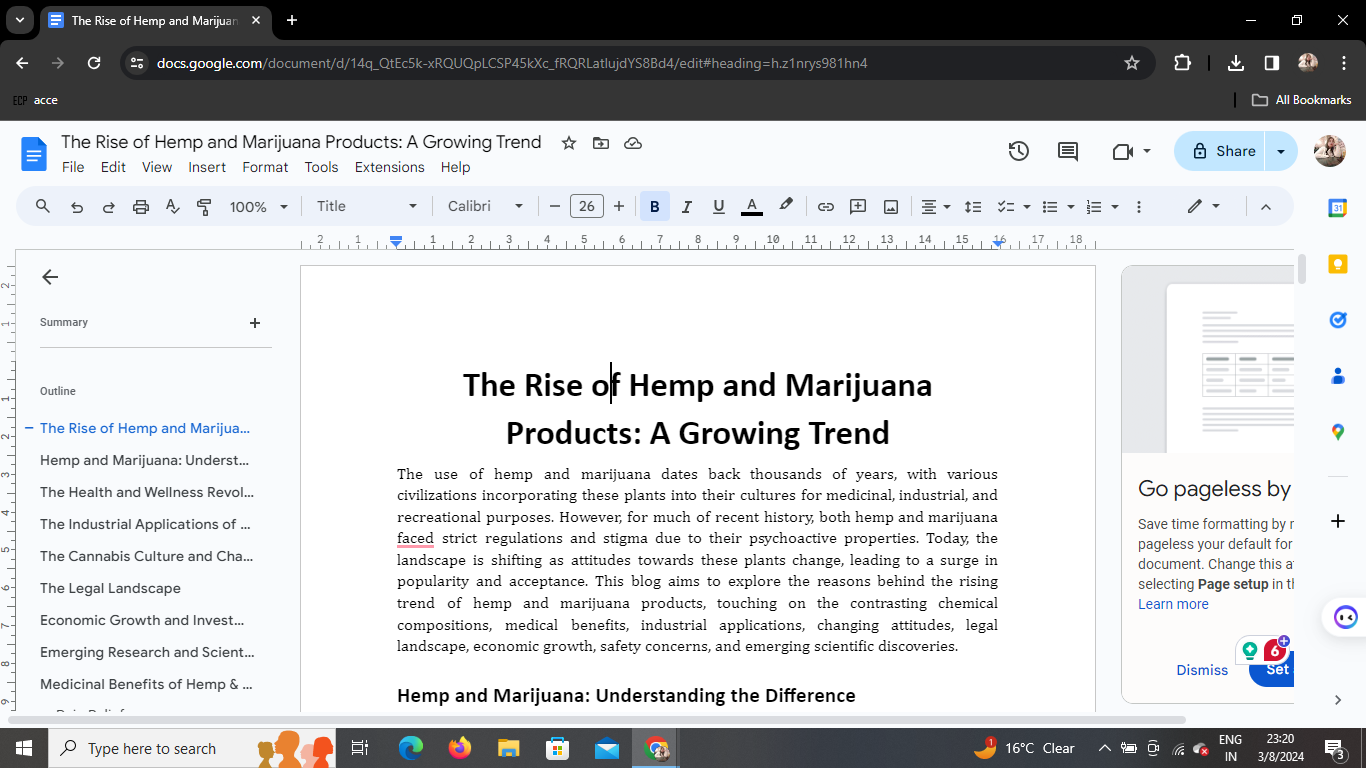
- Launch your web browser and navigate to Google Docs (docs.google.com).
- Sign in with your Google account if you're not already logged in.
Step 2: Access the File Menu
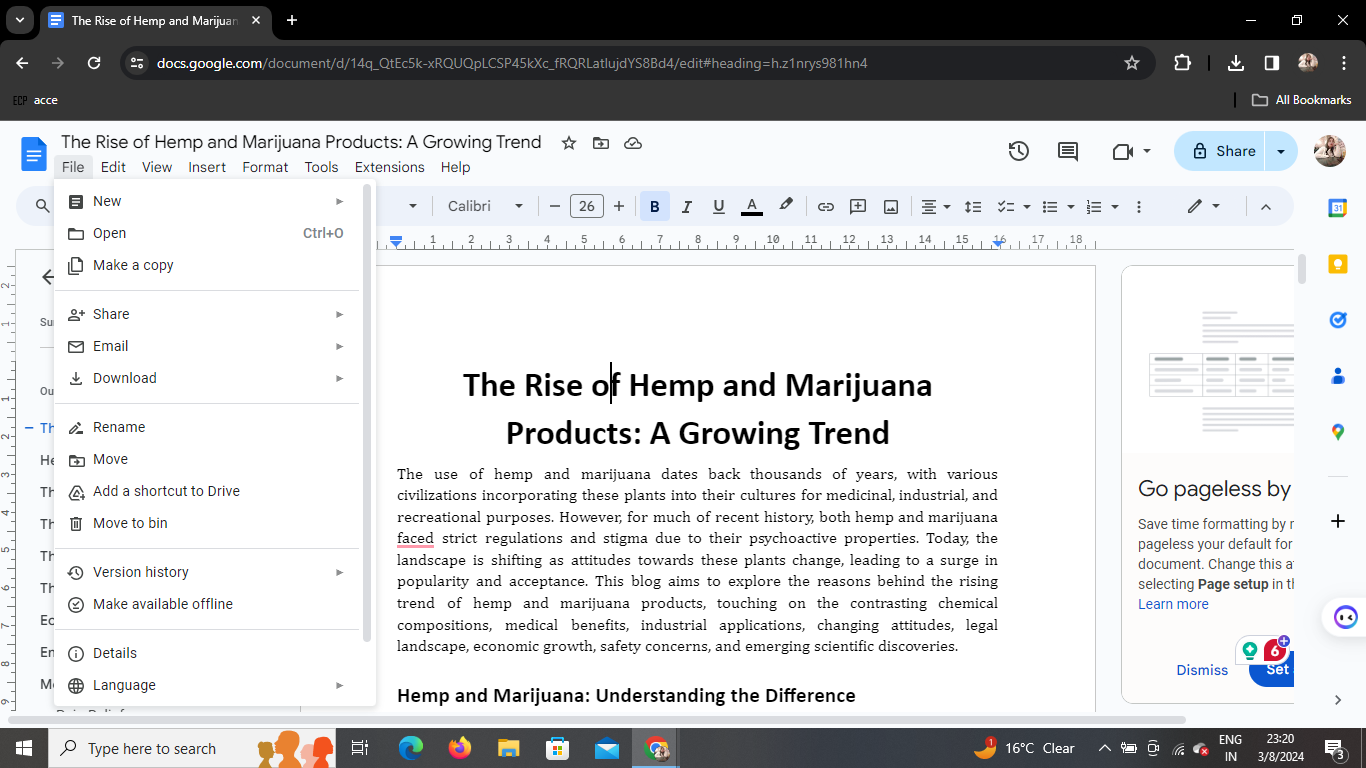
- Open the document you want to save as a Word file.
- Look for the "File" option in the upper-left corner of the screen.
Step 3: Click on Download
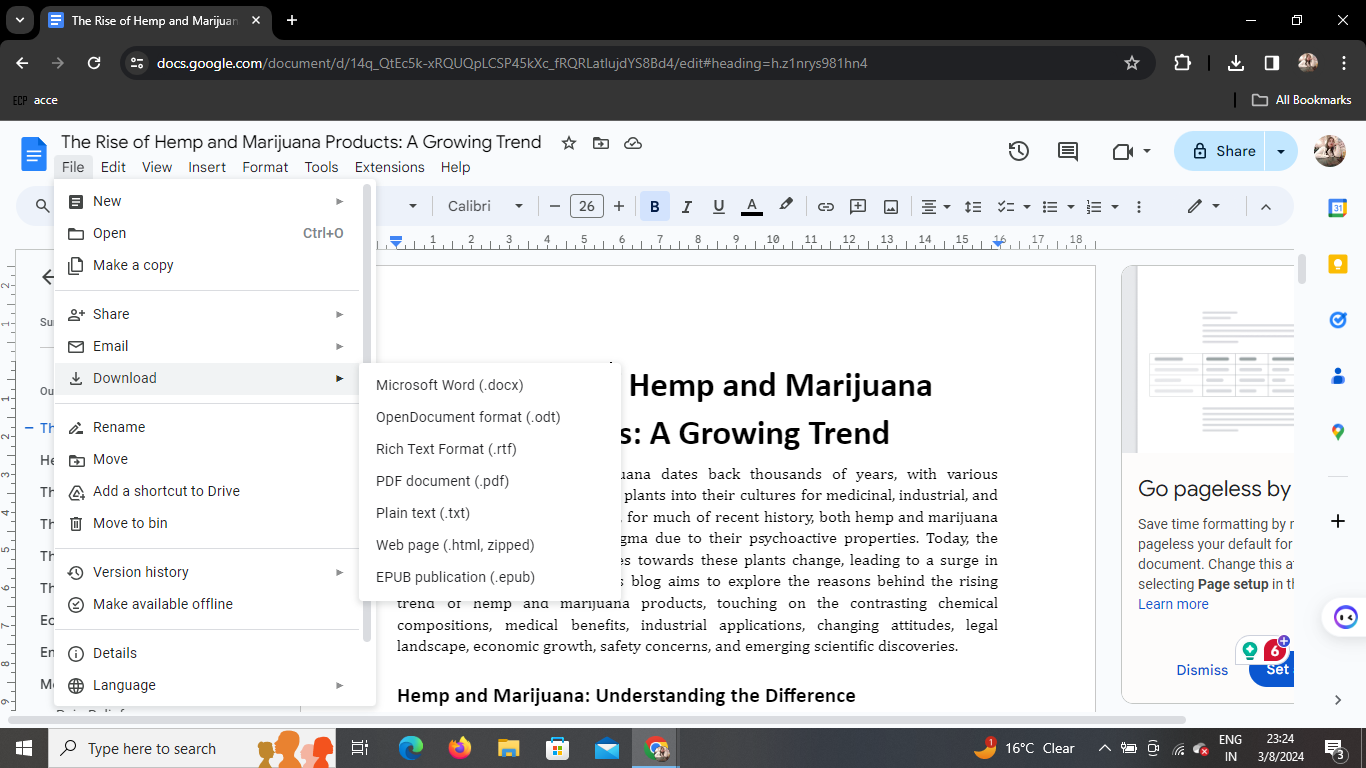
- Hover over "File," and a dropdown menu will appear.
- From the menu, select "Download."
Step 4: Choose Word (.docx)
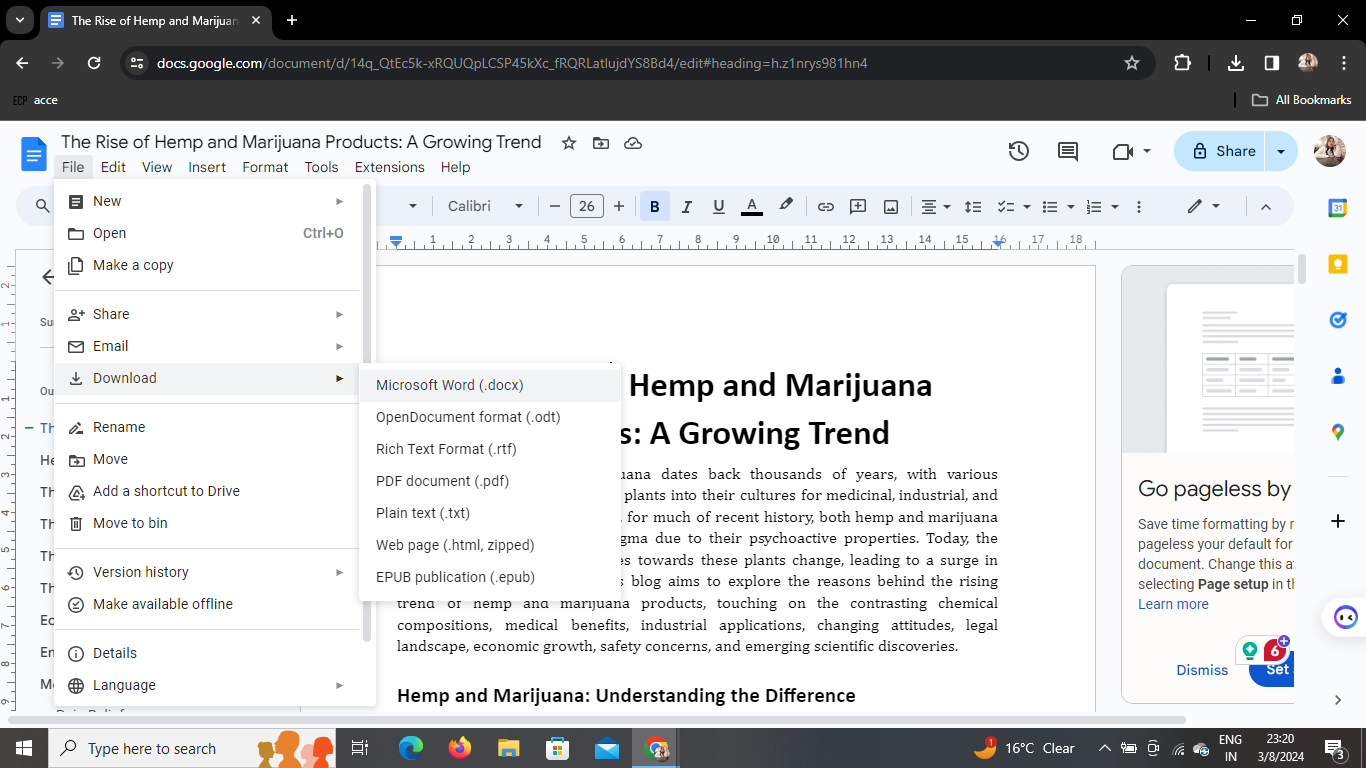
- Another submenu will appear; choose the "Microsoft Word (.docx)" option.
Step 5: Your .docx File is Downloaded
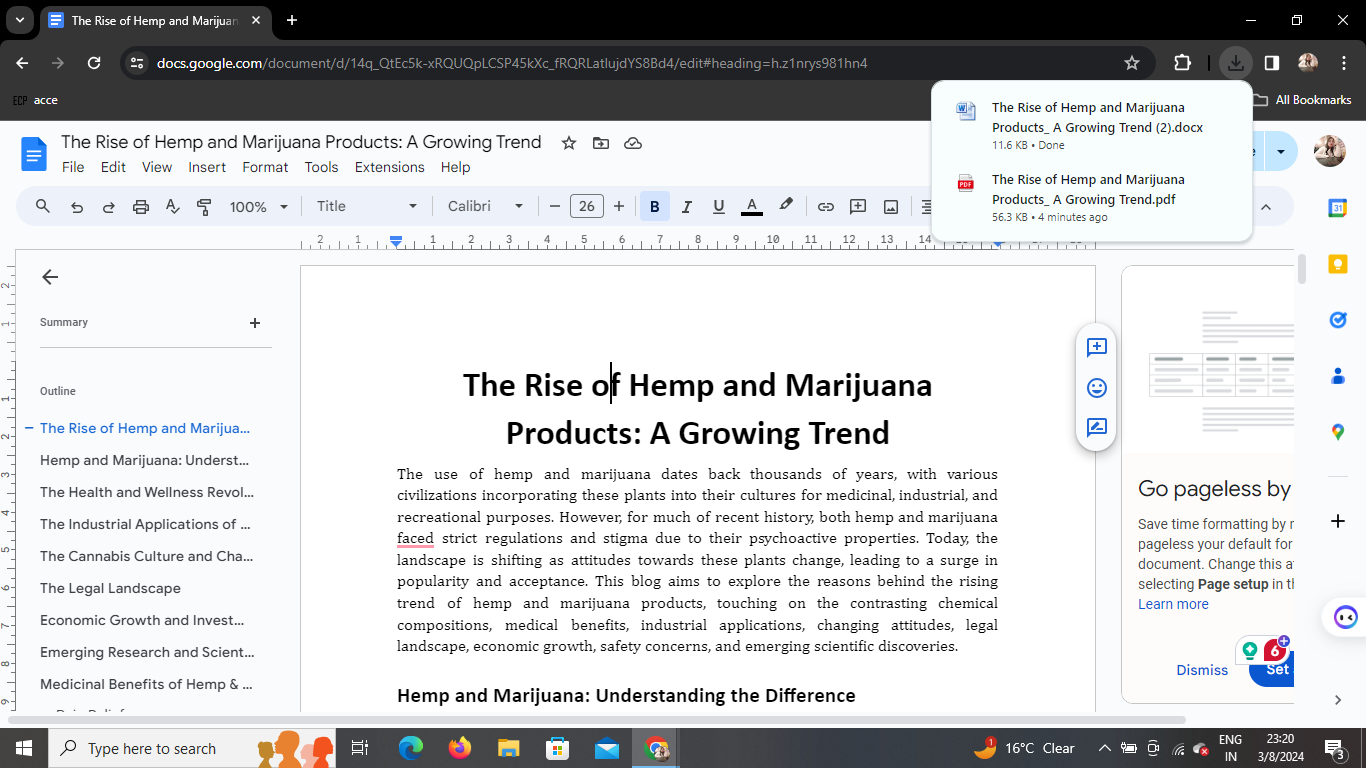
- Once selected, Google Docs will automatically convert and download your document in the .docx format.
Now, you have successfully saved your Google Docs document as a Word file, making it compatible with Microsoft Word and other word processors.
Conclusion: Bridging the Gap
This straightforward process allows for seamless integration between Google Docs and Microsoft Word, facilitating efficient collaboration and document sharing across different platforms.
Frequently Asked Questions
Can I edit the .docx file in Google Docs after saving it?
Yes, you can. The .docx file retains its compatibility with Google Docs, allowing for further edits.
Are there any formatting issues when converting to .docx?
In most cases, the conversion is smooth. However, complex formatting may require additional adjustments.
Do I need a Microsoft Word subscription to open .docx files?
No, various free word processing tools support the .docx format. Microsoft Word Online is one such option.
Can I save multiple Google Docs as .docx files simultaneously?
Unfortunately, Google Docs doesn't offer a batch conversion feature. You need to save each document individually.
Are there any size limitations for converting to .docx?
While Google Docs handles large documents well, it's advisable to check the converted .docx file for any unexpected formatting or content issues.
Now armed with this knowledge, you can effortlessly navigate between Google Docs and Microsoft Word, ensuring a smooth collaborative experience. Happy writing!


