How to Stretch Fan out Image in PowerPoint


Create stunning visuals in PowerPoint by learning how to stretch and fan out your images effectively
Creating dynamic visuals in PowerPoint can greatly enhance your presentations.
A "fan-out" effect for images is one such technique that can make your slides visually engaging and appealing.
This step-by-step guide will show you how to stretch and fan out an image in PowerPoint, helping you deliver a polished and professional presentation.
How to Stretch Fan Out an Image in PowerPoint | Steps to Stretch and Fan Out an Image in PowerPoint
Step 1: Open PowerPoint and Insert Images
Open your PowerPoint presentation or create a new slide.
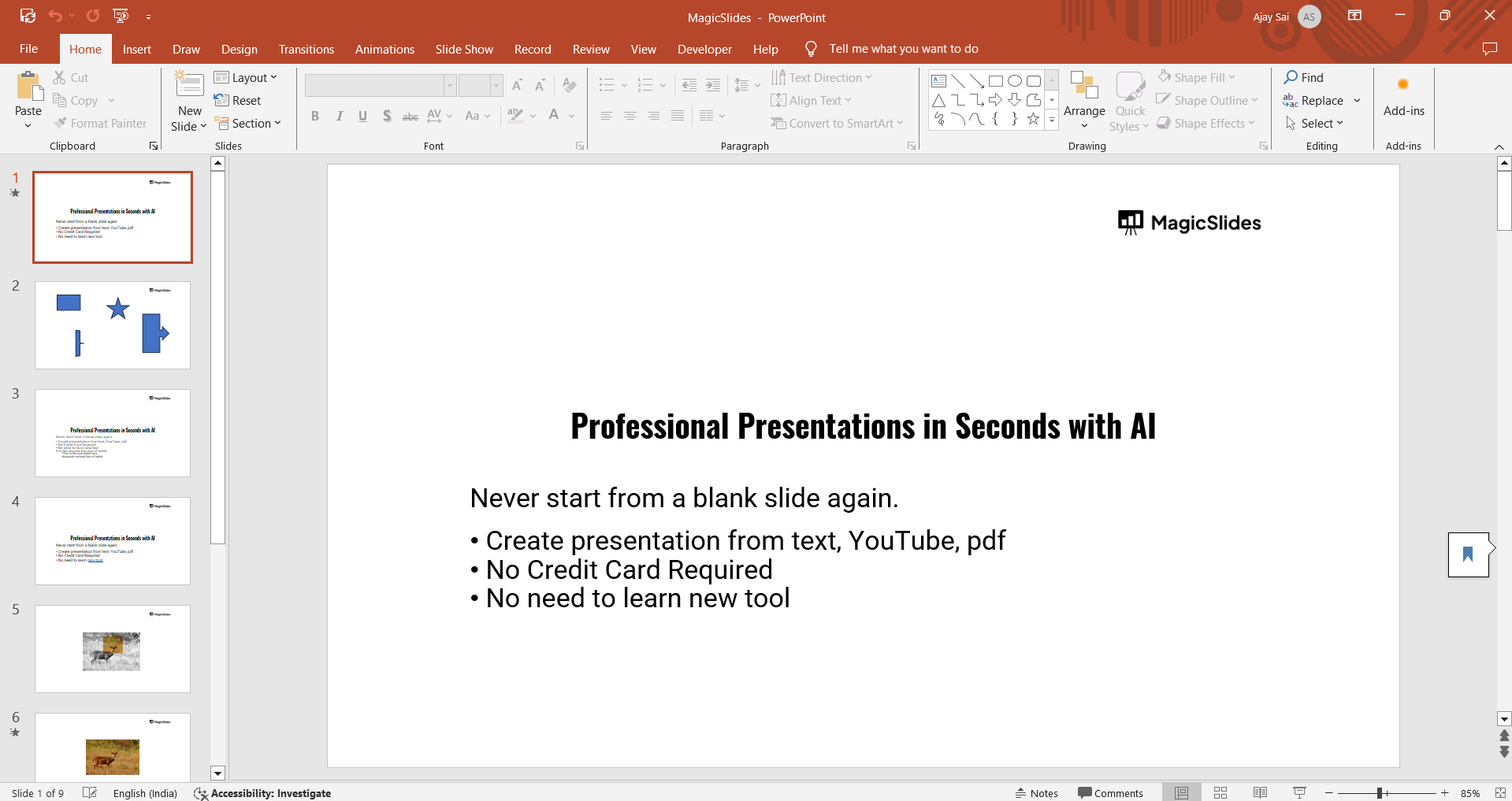
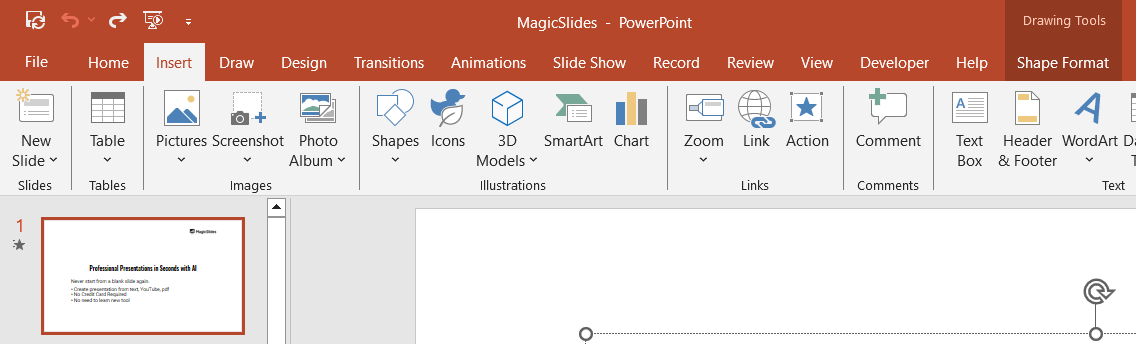
Click on the Insert tab in the toolbar and select Pictures to add the images you want to fan out.
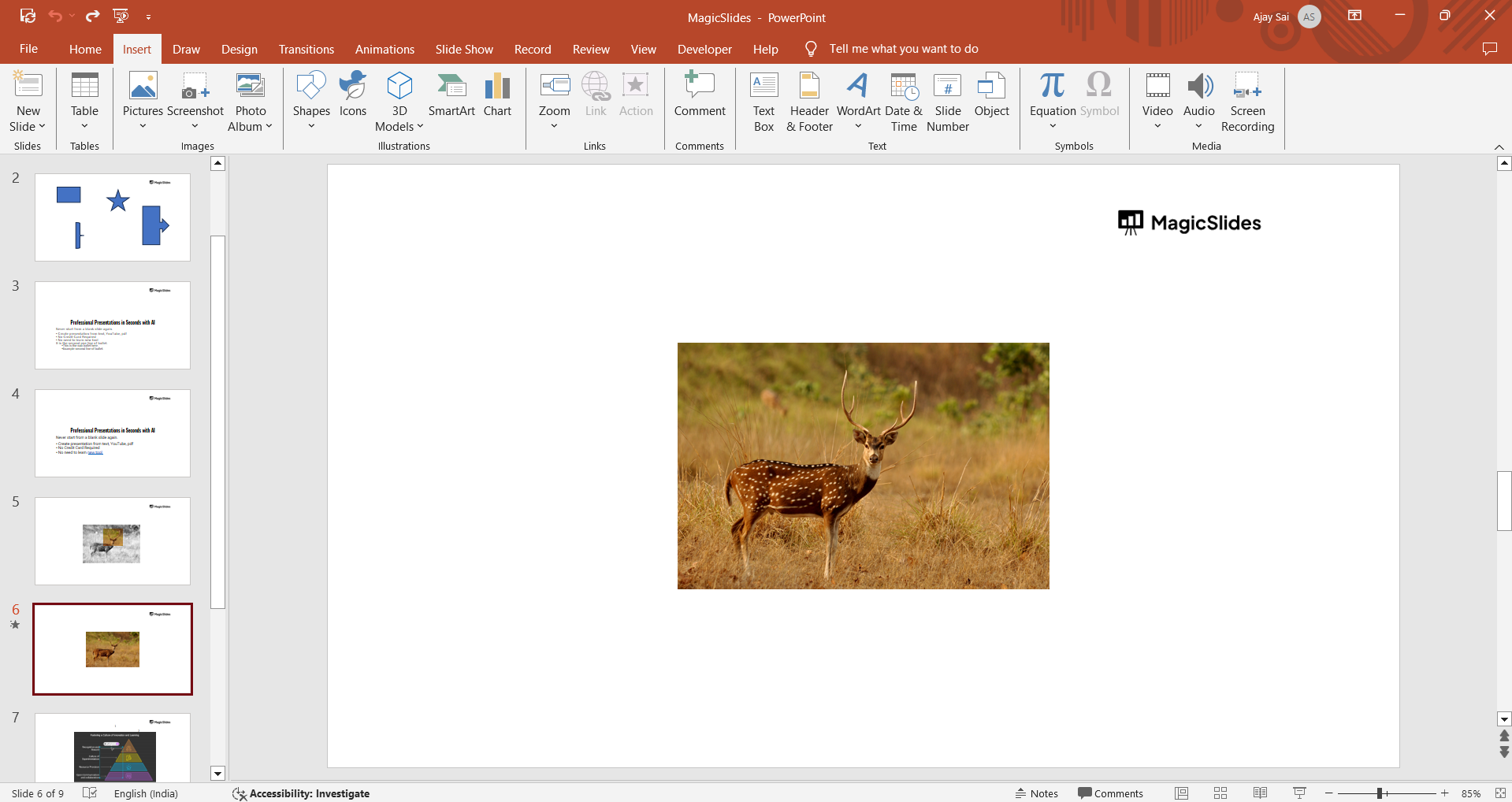
Place the images on the slide, ensuring they overlap slightly for a cohesive fan-out effect.
Step 2: Arrange the Images
Select the first image and drag it to its desired position on the slide. For the subsequent images, slightly offset each one to create a fanning effect.
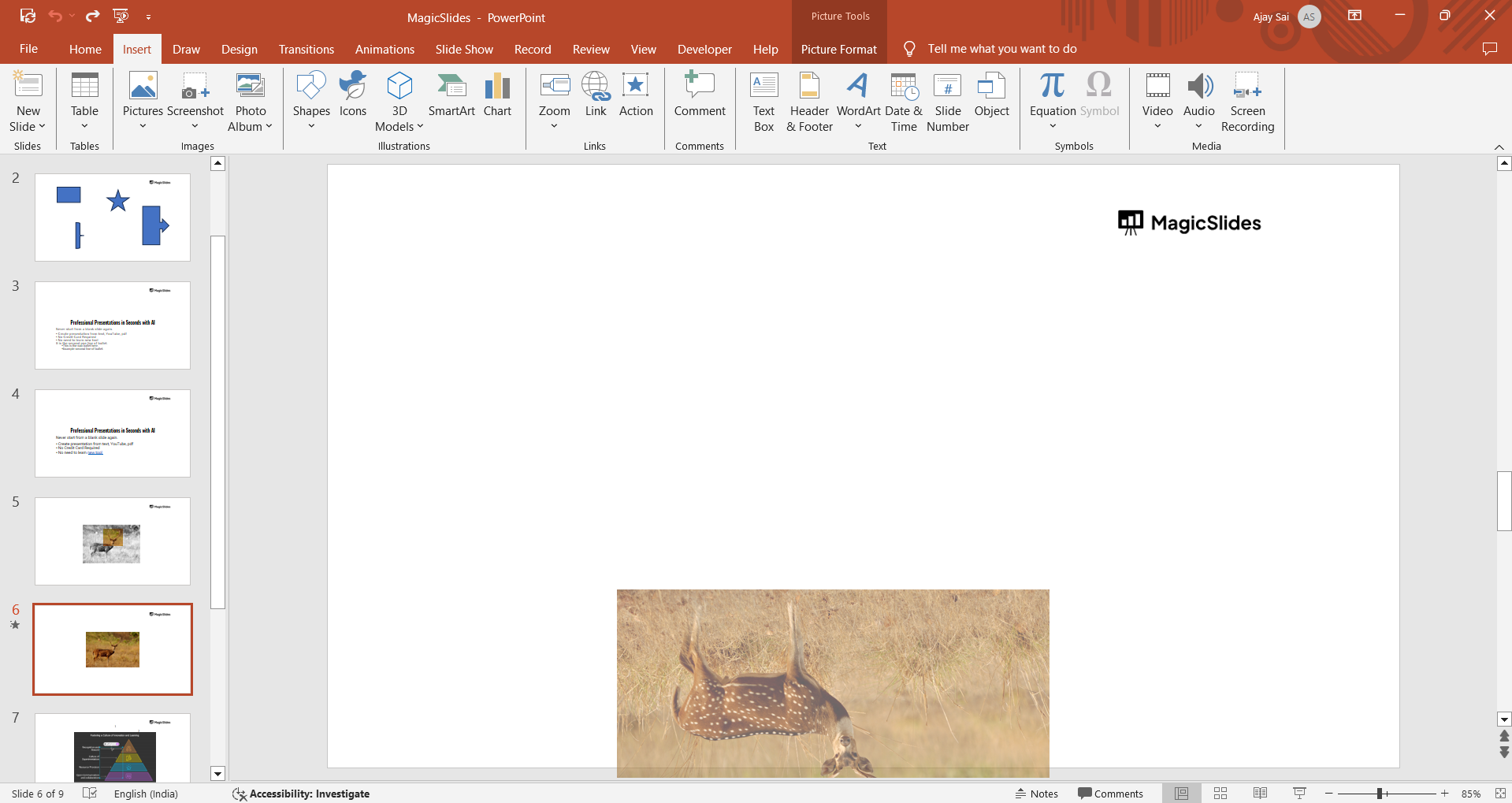
Use the Rotate handle at the top of each image to tilt them at different angles, mimicking a fan.
Step 3: Resize the Images for Perspective
Click on an image, then drag its corner handle inward or outward to resize it.
Gradually decrease or increase the size of each image as you move them across the slide to create depth.
Step 4: Add Shadows or Borders (Optional)
Highlight all images by holding down the Shift key and selecting them.
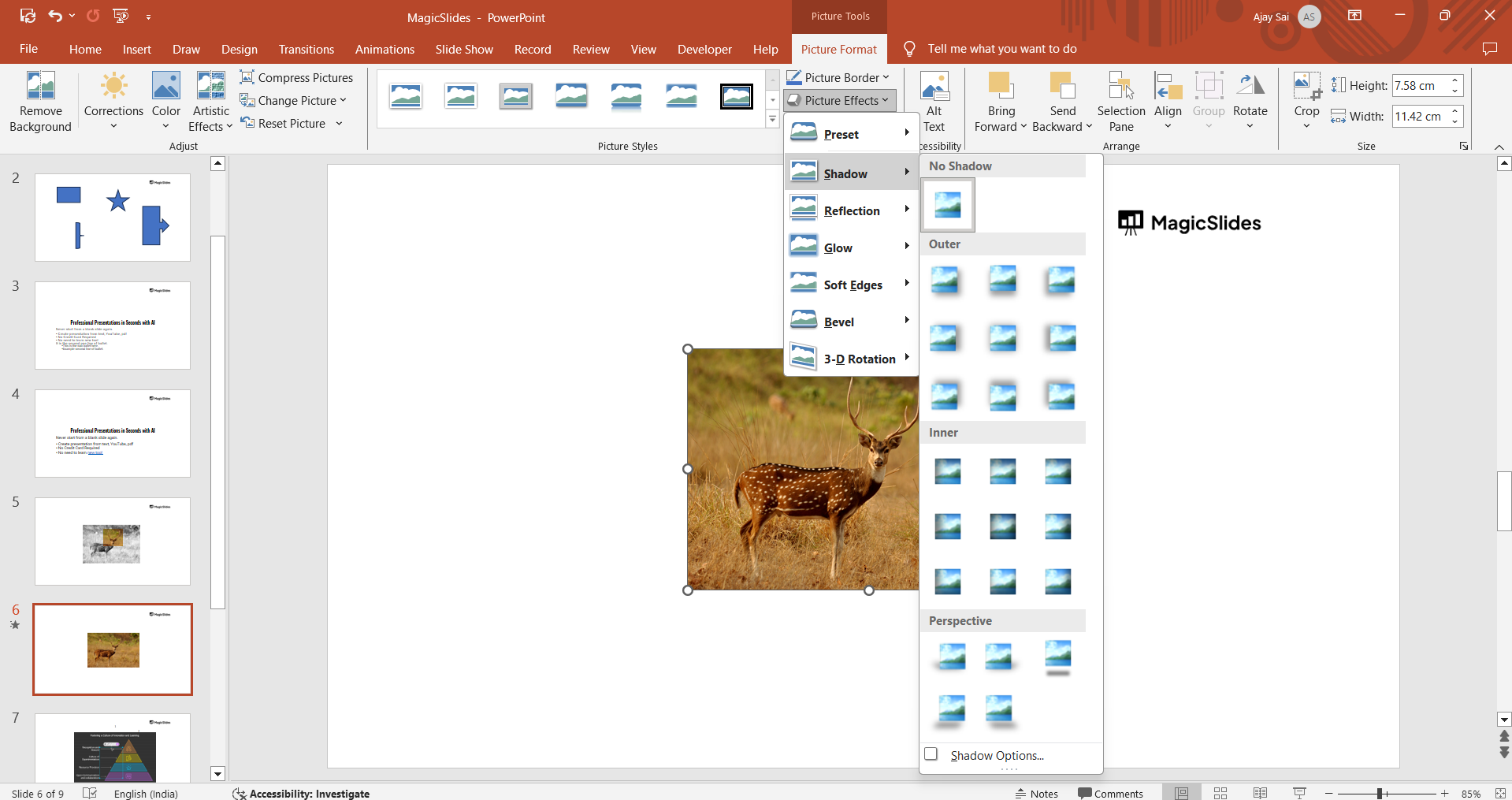
Navigate to the Picture Format tab and choose Picture Effects > Shadow to add a shadow. Alternatively, add borders for a cleaner, outlined look.
Step 5: Final Adjustments
Check the alignment and spacing between the images for a polished appearance.
Make any final tweaks to the rotation, size, or placement.
Conclusion
Stretching and fanning out images in PowerPoint is a great way to make your presentation visually appealing.
By following these simple steps, you can create a captivating arrangement that draws attention and highlights your creativity.
Experiment with angles, sizes, and effects to customize the fan-out look for your project.
FAQs on Stretching Fan-Out Images in PowerPoint
Can I apply the fan-out effect to text instead of images?
Yes, you can follow a similar process with text boxes, adjusting their angles and positions.
Is it possible to animate the fan-out effect?
Absolutely! Use the Animation tab to add effects like "Fly In" or "Appear" for a dynamic presentation.
How do I align the images perfectly?
Use the Align option in the Arrange group under the Home tab to ensure precise positioning.
Mastering this technique allows you to create stunning slides that leave a lasting impression!


