How to Turn historical documents into PowerPoint summaries?


Unlock the past with ease! Learn how to transform historical documents into engaging PowerPoint summaries effortlessly. History comes alive in slides!
In today's fast-paced world, summarizing historical documents for presentations has never been easier. With the help of tools like MagicSlides GPT, you can seamlessly transform lengthy documents into engaging PowerPoint summaries. Follow this step-by-step guide to simplify the process.
How to Turn historical documents into PowerPoint summaries
To begin, open your web browser and visit Google Slides. If you don't have a Google account, you'll need to sign up. Once signed in, you're ready to embark on the journey of turning historical documents into dynamic PowerPoint presentations.
Step 1: Sign In with Google to Google Slides
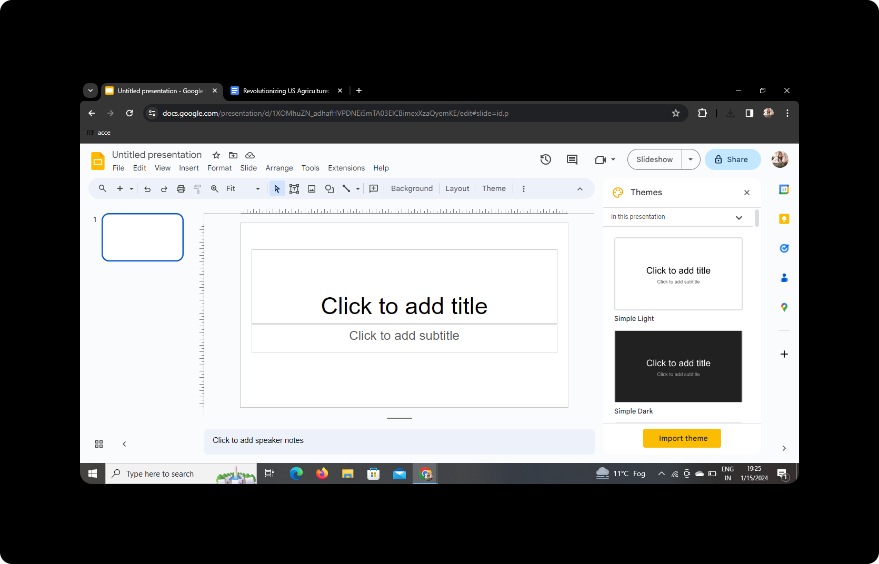
In the top right corner of your screen, locate the "Sign In" option. Click on it and enter your Google credentials. This step is crucial for saving and accessing your work seamlessly.
Step 2: Download MagicSlides GPT
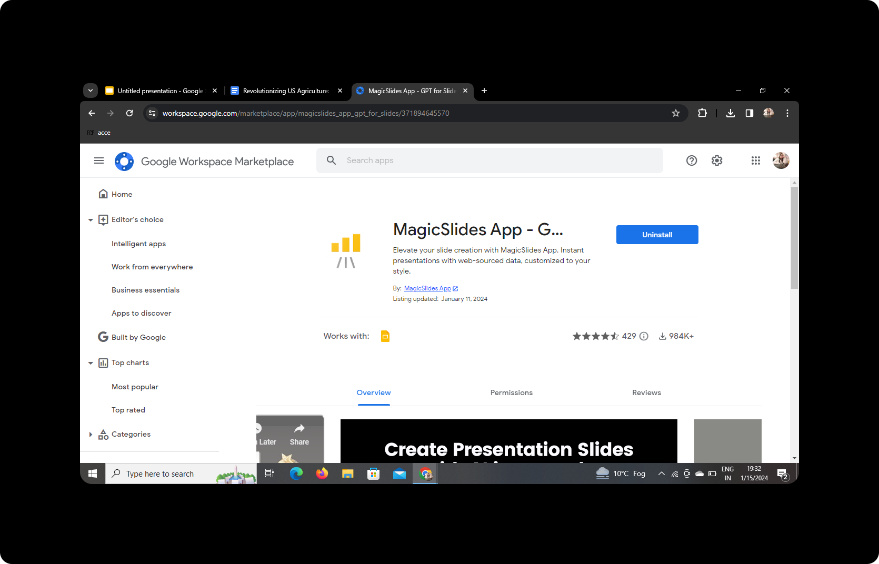
If you haven't downloaded MagicSlides GPT as an extension, it's time to do so. Head to the Google Chrome Web Store, search for "MagicSlides GPT," and click "Add to Chrome." Once installed, you'll find the extension icon in the top right corner of your browser.
Step 3: Open MagicSlides GPT
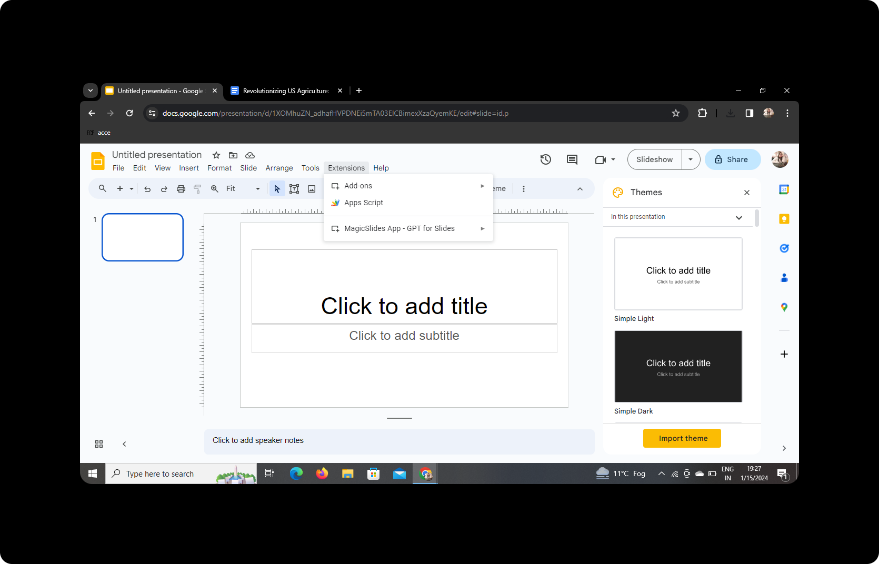
Click on the MagicSlides GPT icon in your extensions. If you've just downloaded it, make sure to refresh your Google Slides page to activate the extension.
Step 4: Click on PDF/DOCX to PPT in MagicSlides GPT
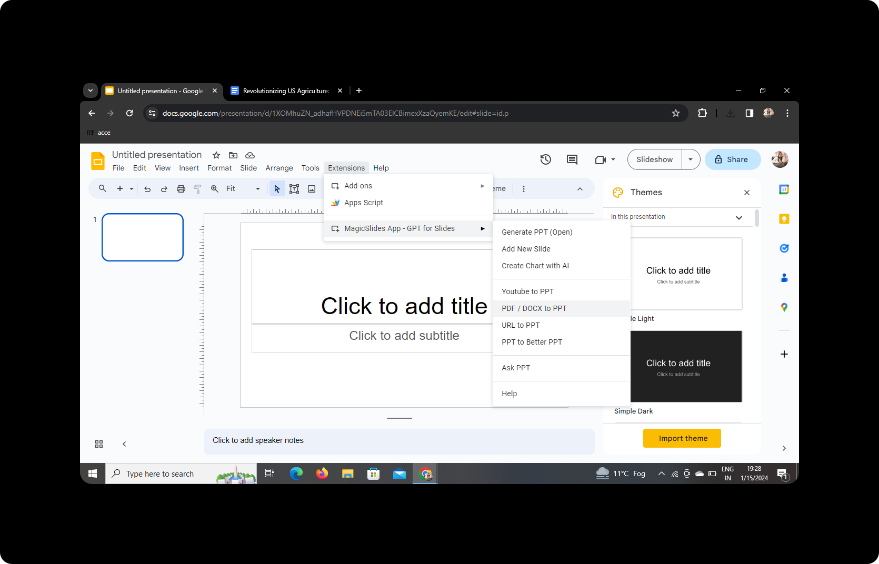
In the MagicSlides GPT menu, click on the "PDF/DOCX to PPT" option. This feature streamlines the conversion process.
Step 5: Upload Your Historical Document
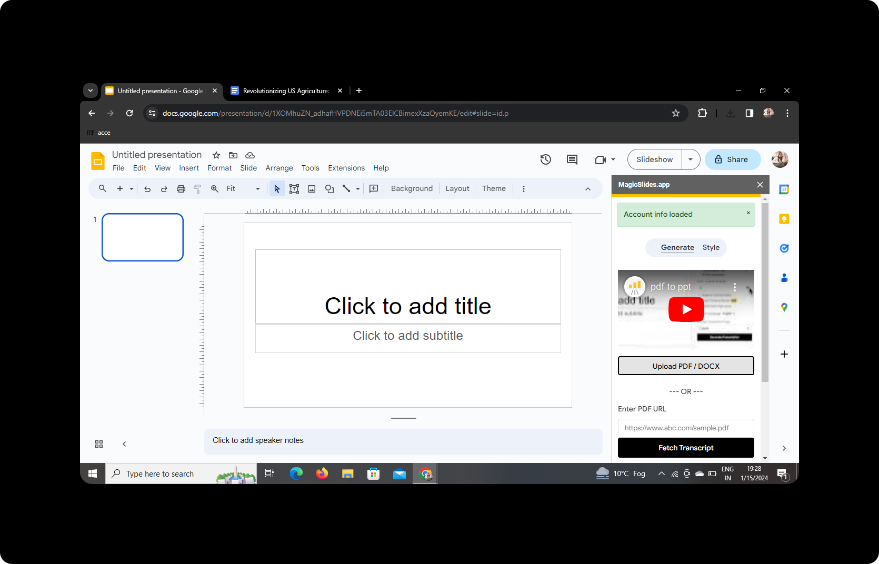
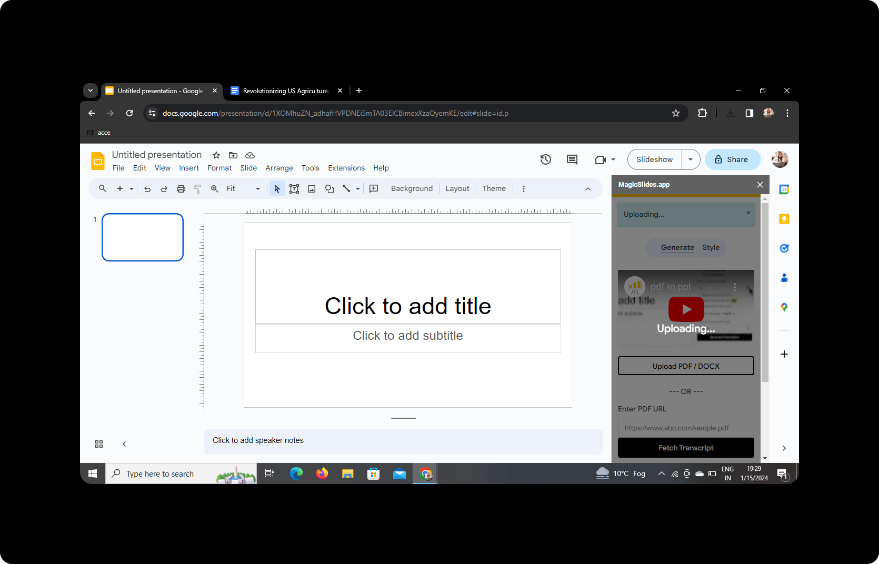
Click on 'Upload PDF/DOCX' and select the historical document you want to summarize. MagicSlides GPT will automatically analyze the text and prepare it for presentation.
Step 6: Select the Number of Slides
Customize your presentation by selecting the number of slides you want MagicSlides GPT to generate. This step allows you to control the granularity of your summary.
Step 7: Click on Generate Presentation
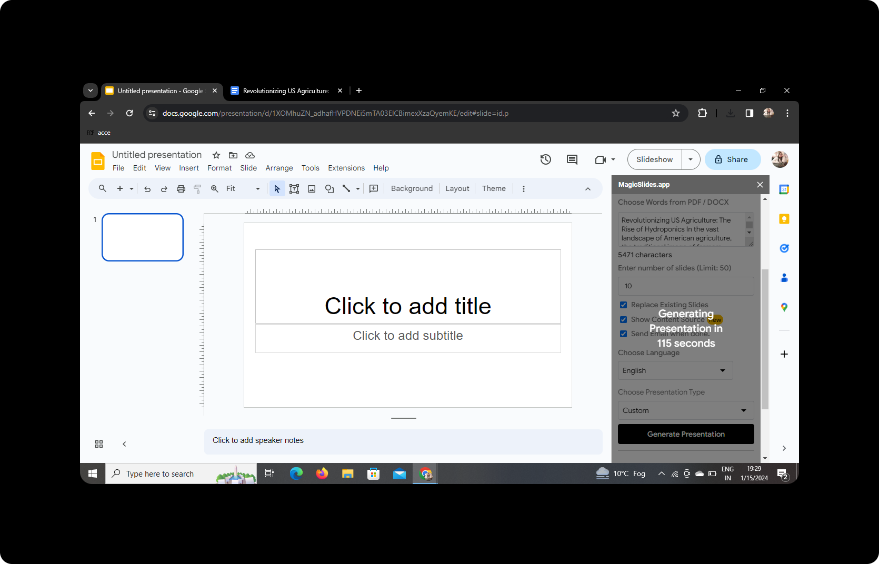
With all parameters set, click on the "Generate Presentation" button. MagicSlides GPT will work its magic, condensing the historical document into a concise PowerPoint summary.
Step 8: Your Presentation Is Ready
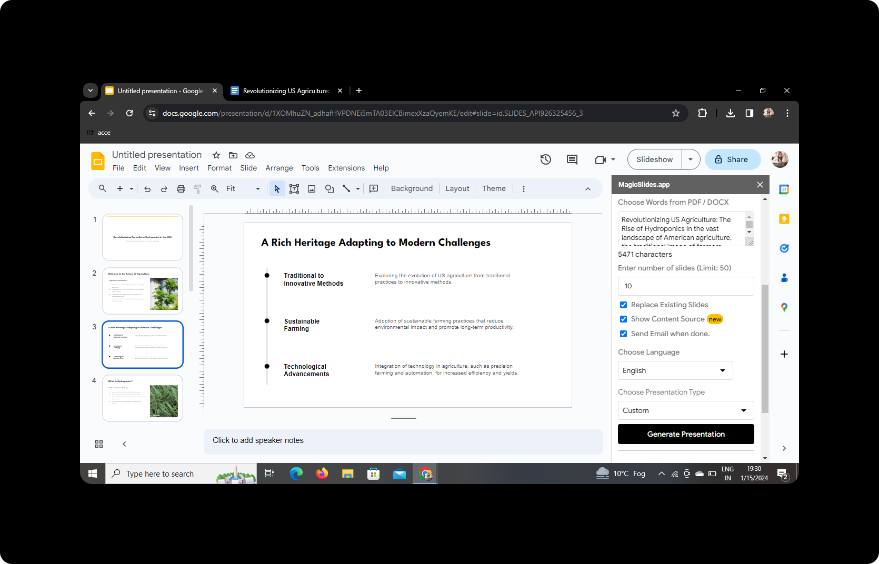
Once the process is complete, your presentation is ready for review. MagicSlides GPT generates a visually appealing PowerPoint that captures the essence of the historical document.
Conclusion
In conclusion, turning historical documents into PowerPoint summaries is now more accessible than ever, thanks to tools like MagicSlides GPT. This streamlined process allows you to present information in an engaging and efficient manner, making it ideal for educational, professional, or personal use.
Frequently Asked Questions (FAQs)
Can I use MagicSlides GPT on other browsers? Currently, MagicSlides GPT is available as a Google Chrome extension. Ensure you are using Google Chrome for optimal performance.
Is MagicSlides GPT free to use? Yes, MagicSlides GPT offers a free version with essential features. However, there may be premium options for advanced functionality.
Can I edit the generated PowerPoint slides? Absolutely! Once the presentation is generated, you can further customize it by adding, removing, or editing slides to suit your preferences.
Are there limitations on the document size I can upload? While there may be limitations, MagicSlides GPT can handle reasonably large documents. It's advisable to check the extension's guidelines for specific details.
How can I share the generated presentation with others? Share your presentation by clicking on the "Share" button in Google Slides. You can invite collaborators or generate a shareable link for easy access.


