How to Turn PDF Catalogs into PowerPoint Presentations: Art Edition


Transform artistic PDF catalogs into captivating PowerPoint presentations with our step-by-step guide. Elevate your art presentations effortlessly. Dive in now!
In the digital age, repurposing PDF catalogs into visually appealing PowerPoint presentations has become a creative way to showcase art. This guide will take you through the process, leveraging the powerful combination of Google Slides and MagicSlides GPT.
How to Turn PDF Catalogs into PowerPoint Presentations: Art Edition
Step 1: Open Google Slides and a Blank Presentation
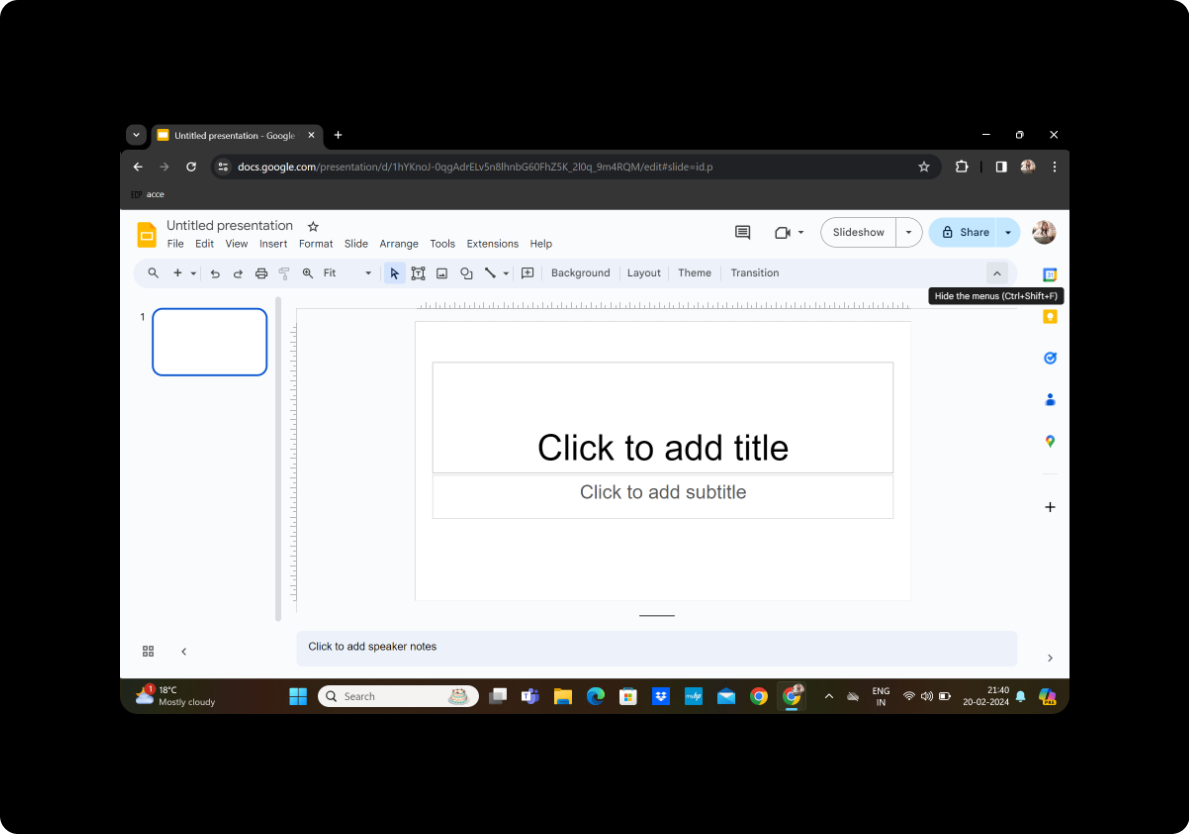
Begin by opening Google Slides and creating a new presentation. Ensure you're signed in to your Google account.
Step 2: Click on Extensions and MagicSlides GPT
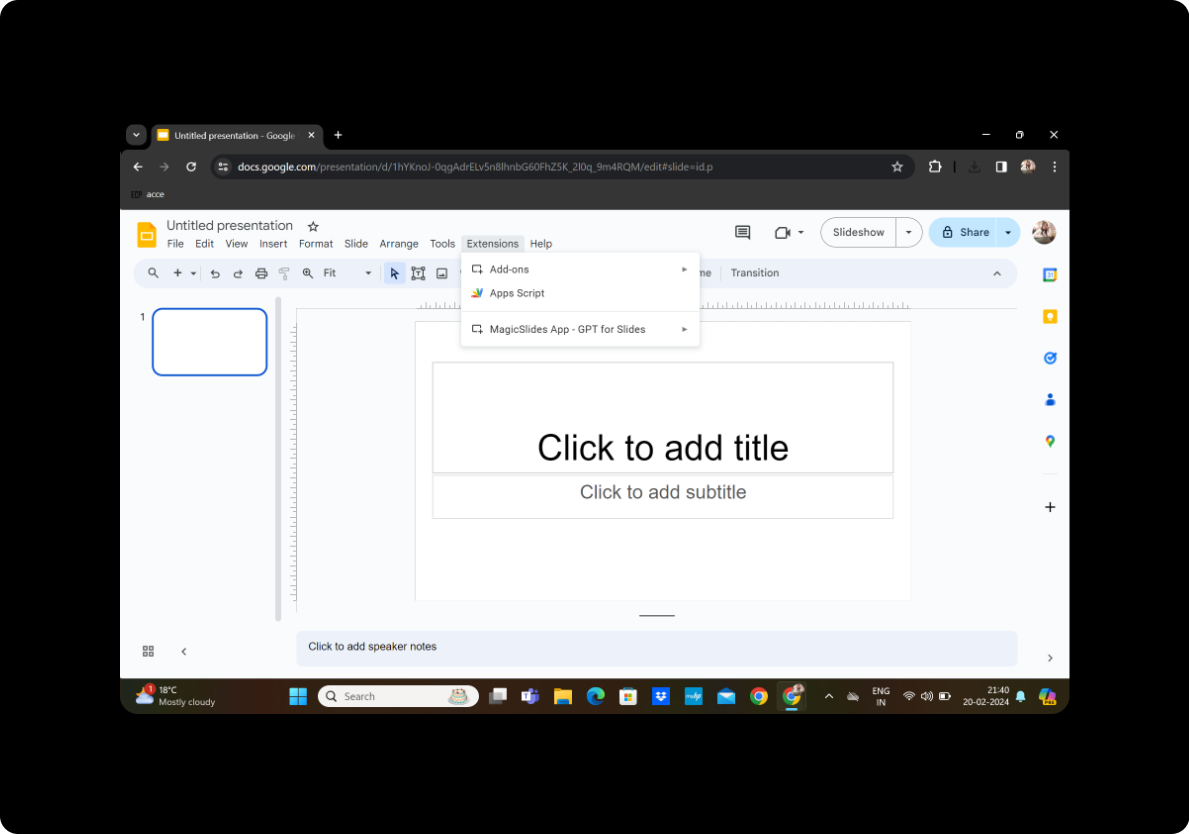
Locate the "Extensions" tab in Google Slides and click on "MagicSlides GPT." This powerful tool will streamline the conversion process.
Step 3: Click on 'PDF/DOCX to PPT'
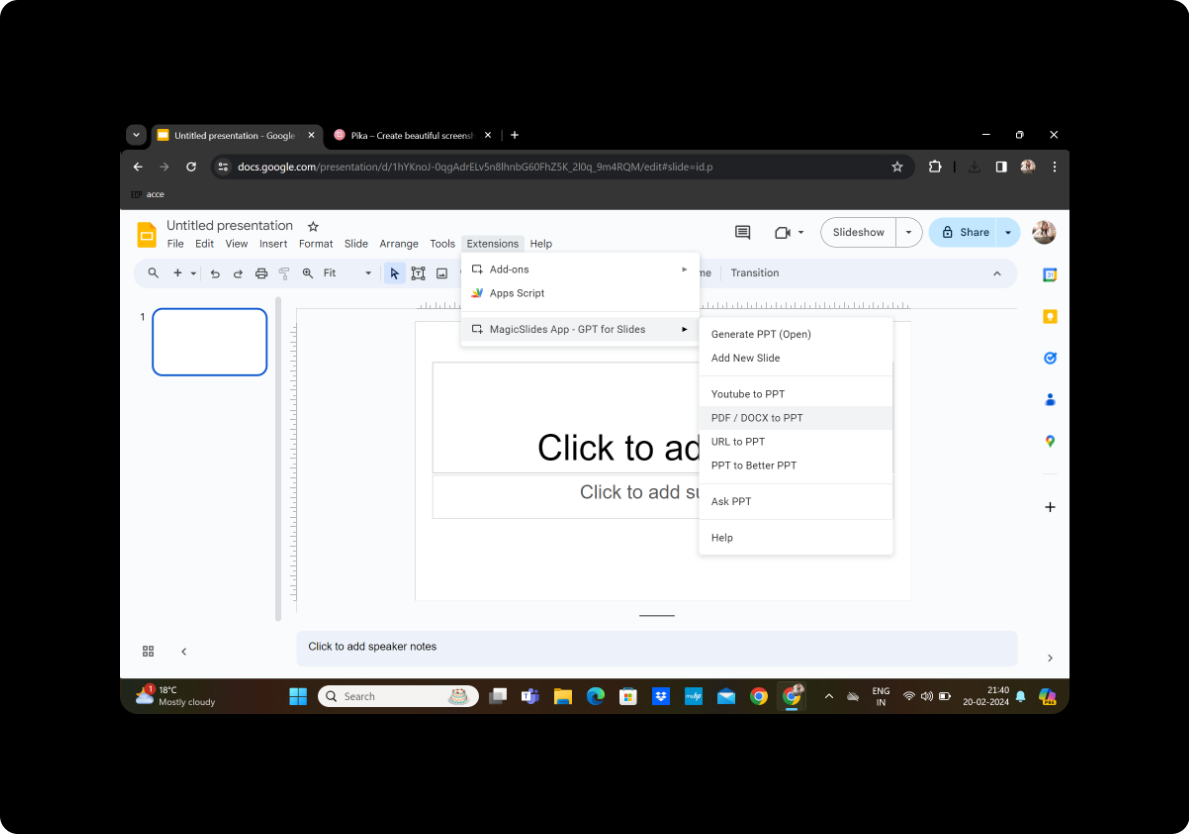
Within the MagicSlides GPT interface, find the 'PDF/DOCX to PPT' option. Click on it to initiate the conversion process.
Step 4: Upload the PDF and Click on Fetch Transcript
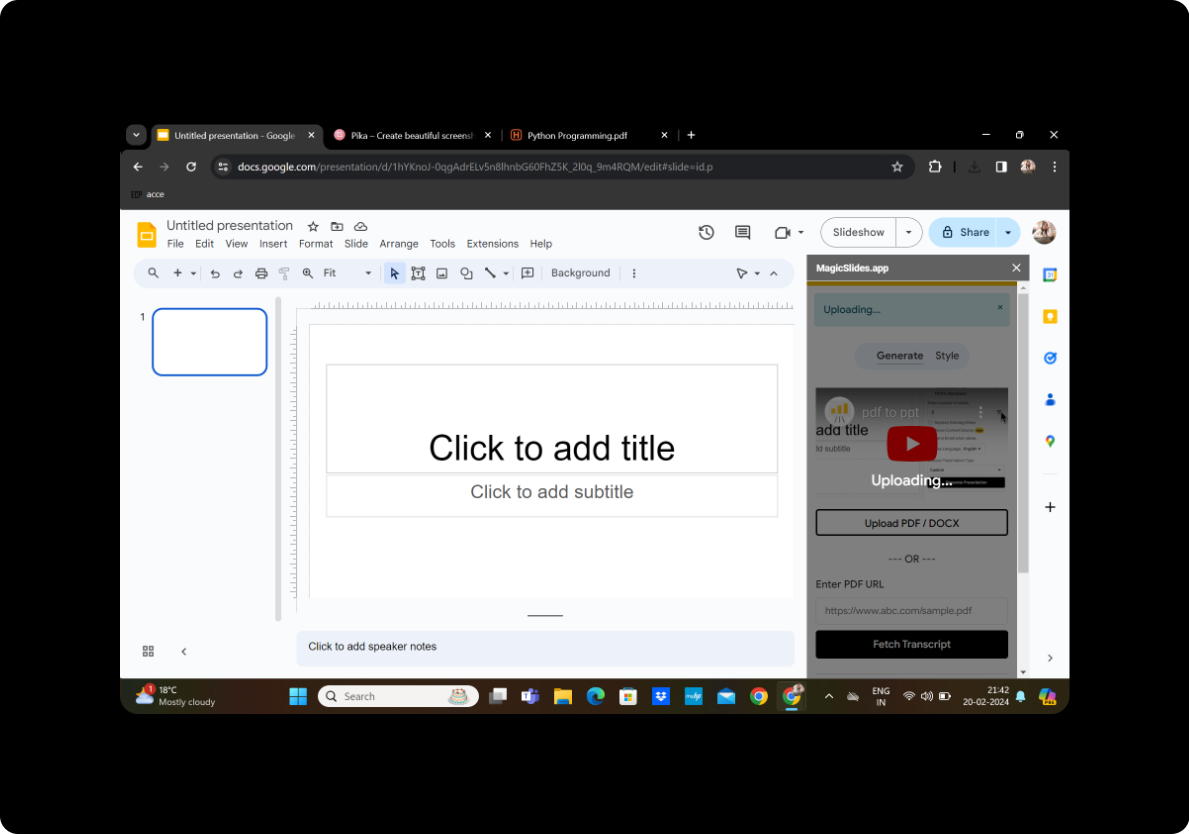
Upload your PDF catalog and click on 'Fetch Transcript.' MagicSlides GPT will analyze the content to generate a transcript for your PowerPoint presentation.
Step 5: Select the Number of Slides
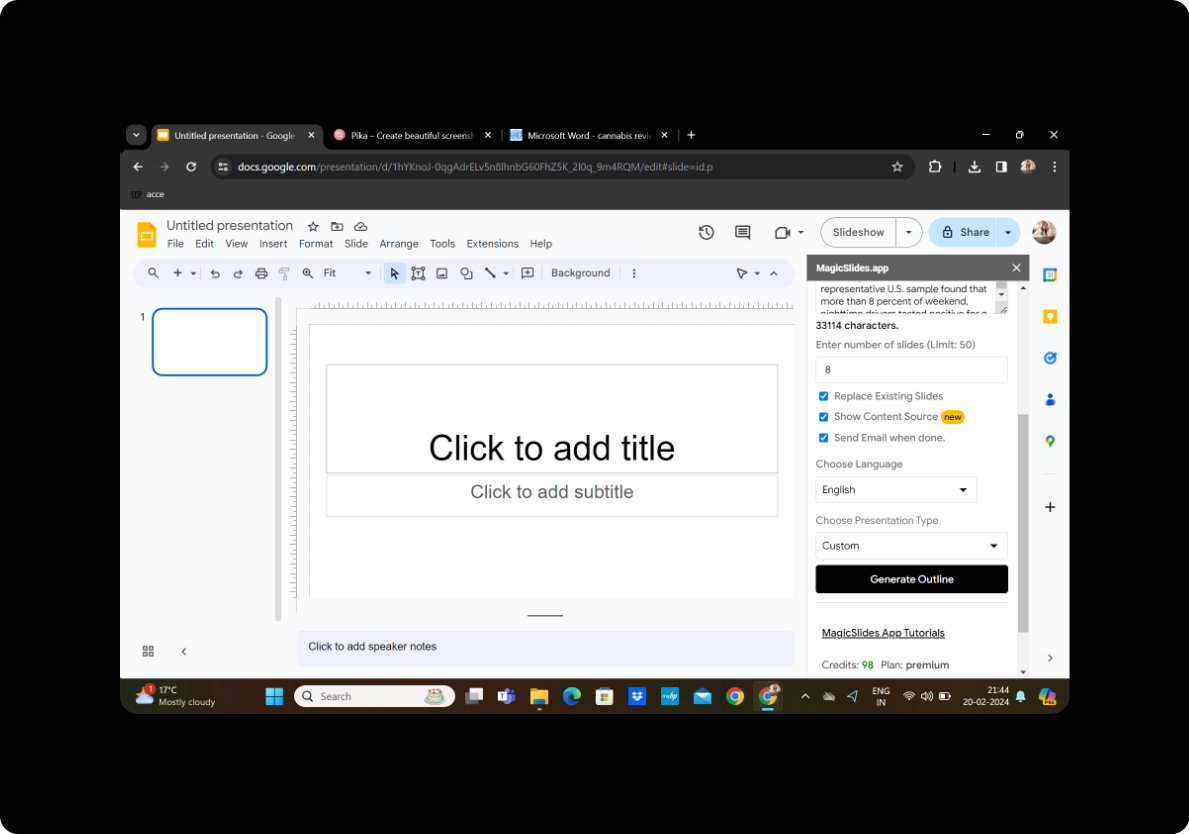
Customize the conversion by selecting the number of slides you want for your presentation. This step allows you to control the granularity of content.
Step 6: Click on Generate Outline
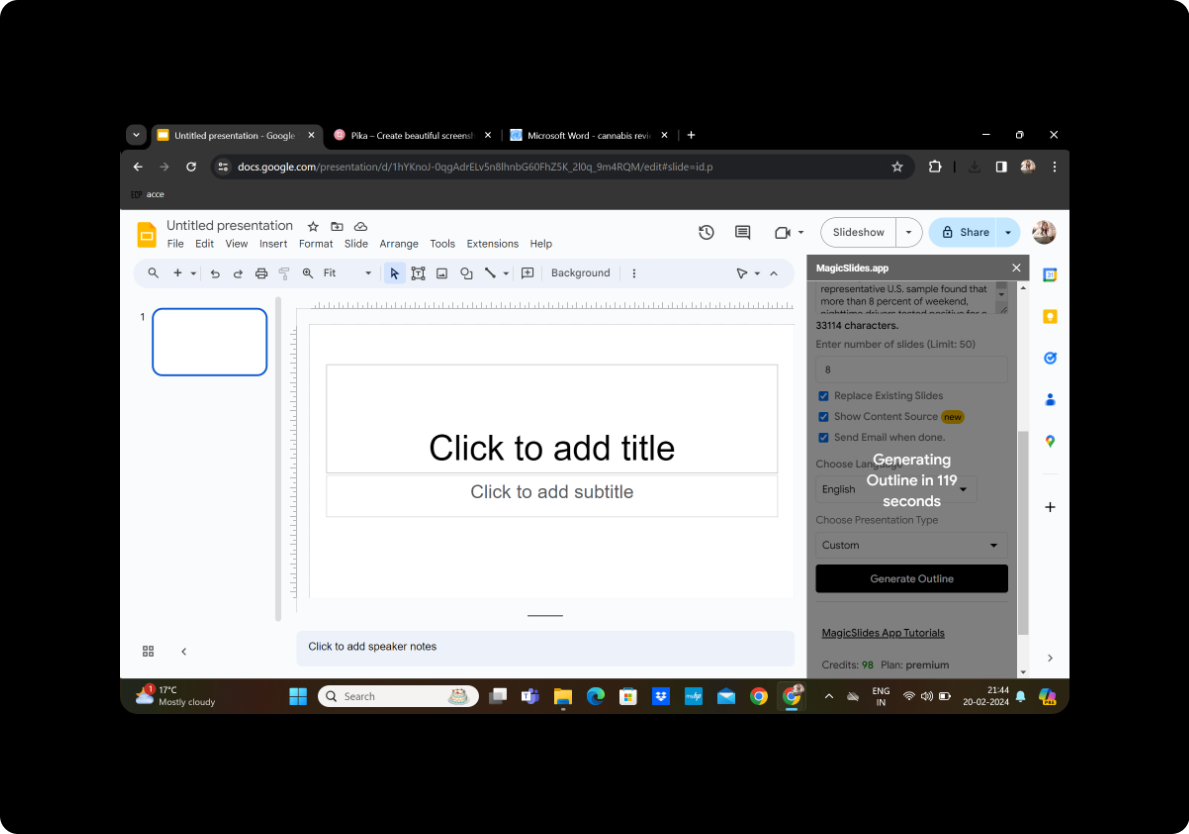
Once you've set the parameters, click on 'Generate Outline.' MagicSlides GPT will create a preliminary outline based on the content of your PDF catalog.
Step 7: Generate Presentation
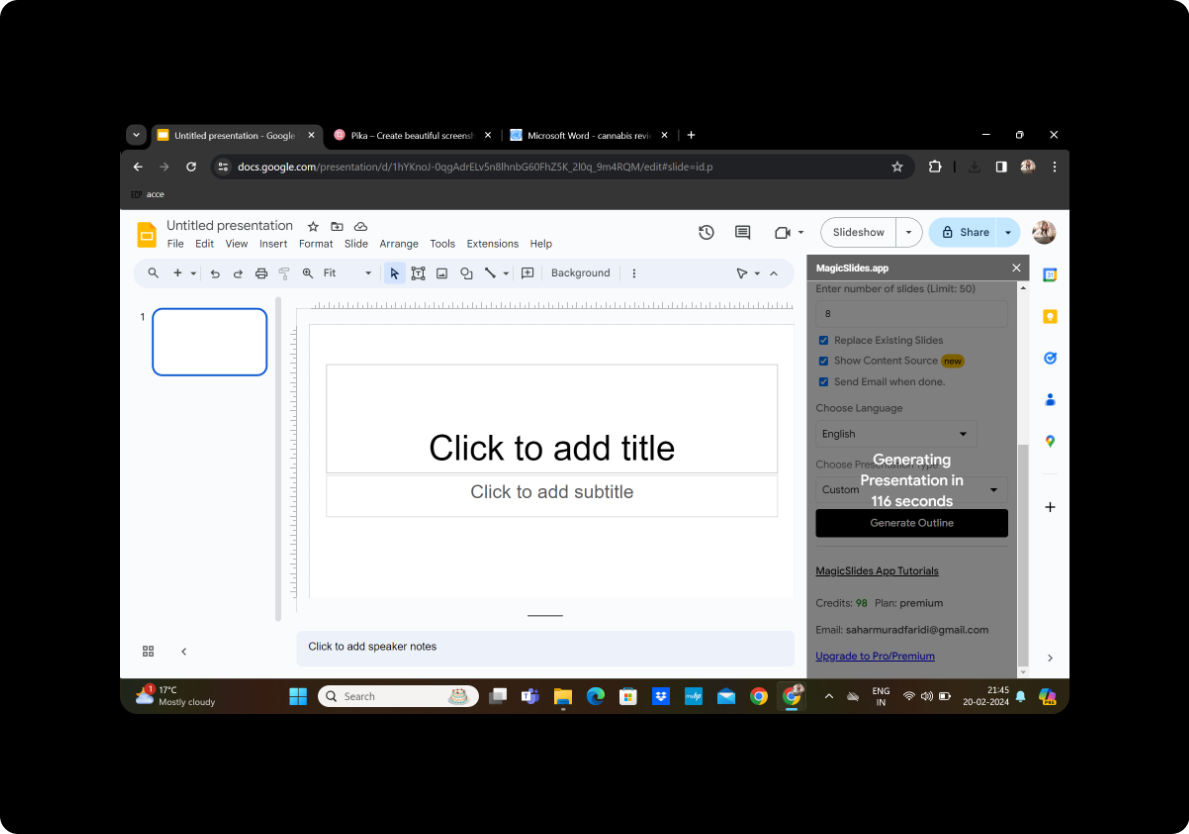
Review the generated outline and, if satisfied, proceed by clicking on 'Generate Presentation.' MagicSlides GPT will transform the content into a visually appealing PowerPoint format.
Step 8: Your Presentation is Ready
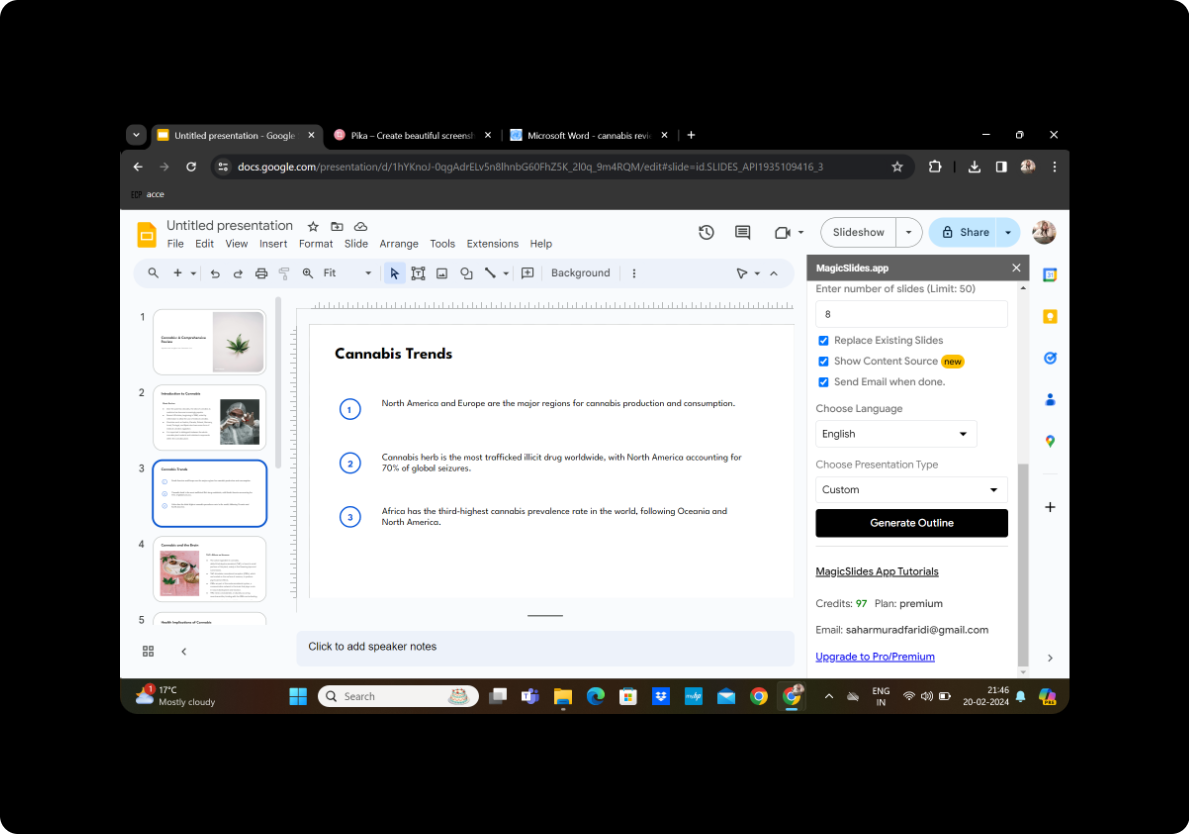
Congratulations! Your art-centric PowerPoint presentation is now ready for use. Customize it further, if necessary, to align with your artistic vision.
Conclusion
Repurposing PDF catalogs into PowerPoint presentations has never been easier. The seamless integration of Google Slides and MagicSlides GPT empowers artists and creators to showcase their work in an engaging and dynamic manner. Enhance your art presentations effortlessly with this innovative approach.
Frequently Asked Questions
How accurate is the MagicSlides GPT conversion process? MagicSlides GPT utilizes advanced algorithms for accurate content analysis, ensuring a reliable conversion process.
Can I customize the design of my PowerPoint presentation after using MagicSlides GPT? Absolutely! MagicSlides GPT provides a solid foundation, and you can further customize the design to suit your artistic preferences.
Is there a limit to the size of the PDF catalog I can convert? MagicSlides GPT can handle a variety of PDF sizes; however, very large files may require additional processing time.
Can I share the converted presentation with others? Yes, once your presentation is generated, you can easily share it with others by saving it to your preferred cloud storage or directly through Google Slides.
Are there any privacy concerns with using MagicSlides GPT? MagicSlides GPT prioritizes user privacy and confidentiality. Your uploaded content is processed securely, and no data is stored beyond the conversion process.


