How to turn Word-based scientific posters into PowerPoint presentations?


Transform scientific posters into dynamic PowerPoint presentations effortlessly with our step-by-step guide. Elevate your research visuals for impactful presentations!
Scientific posters play a crucial role in conveying research findings, but transforming them into dynamic PowerPoint presentations can enhance their impact. In this step-by-step guide, we'll walk you through the process using the MagicSlides GPT extension for Google Slides.
How to turn Word-based scientific posters into PowerPoint presentations?
Before diving into the steps, ensure you have a Google account for seamless access to Google Slides. If you don't have one, sign up—it's quick and free.
Step 1: Visit Google Slides
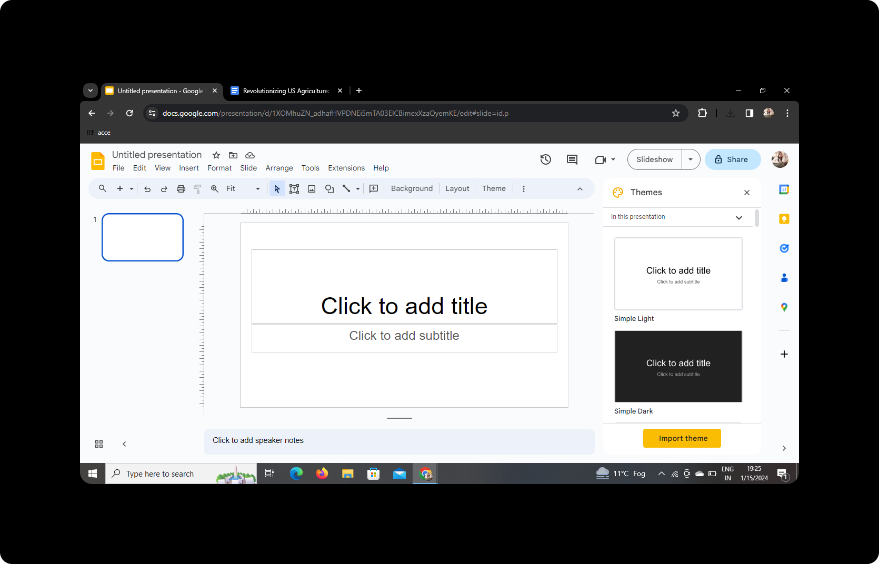
Open your web browser and go to Google Slides. If you're not already signed in, sign in with your Google account.
Step 2: Sign in with Google to Google Slides
Ensure you are signed in to Google Slides to make the process smoother. Click on the "Sign In" button and enter your Google credentials.
Step 3: Install MagicSlides GPT Extension
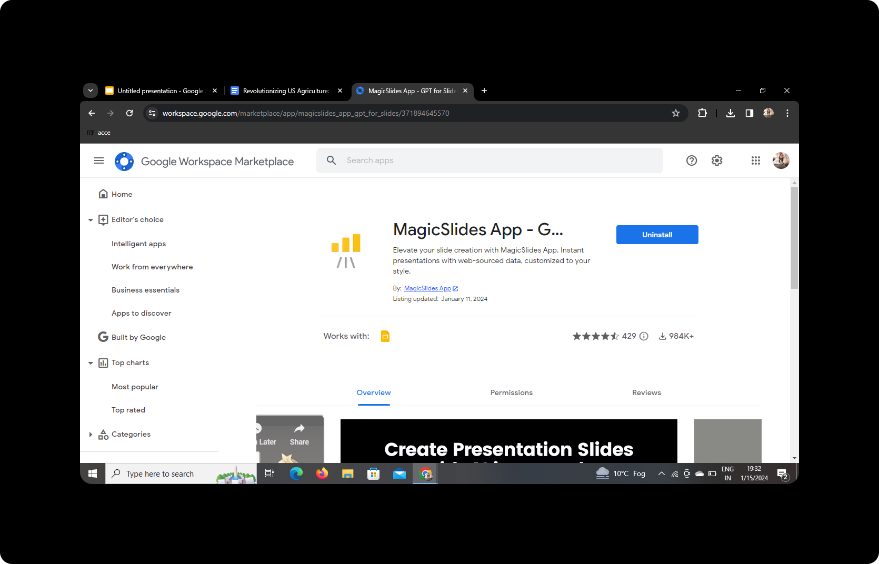
If you've already installed the MagicSlides GPT extension, great! If not, don't worry. You can easily download it as an extension for your browser. Once downloaded, click on the extension icon to open it.
Step 4: Open MagicSlides GPT
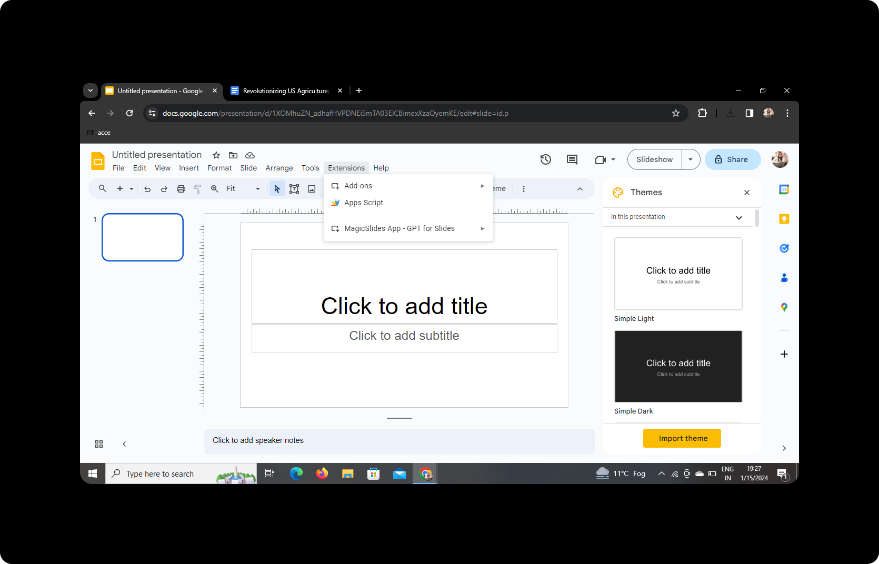
If you've downloaded the extension, it will open directly. If not, click on the "Open" option after downloading to access the MagicSlides GPT tool.
Step 5: Click on PDF/DOCX to PPT in MagicSlides GPT
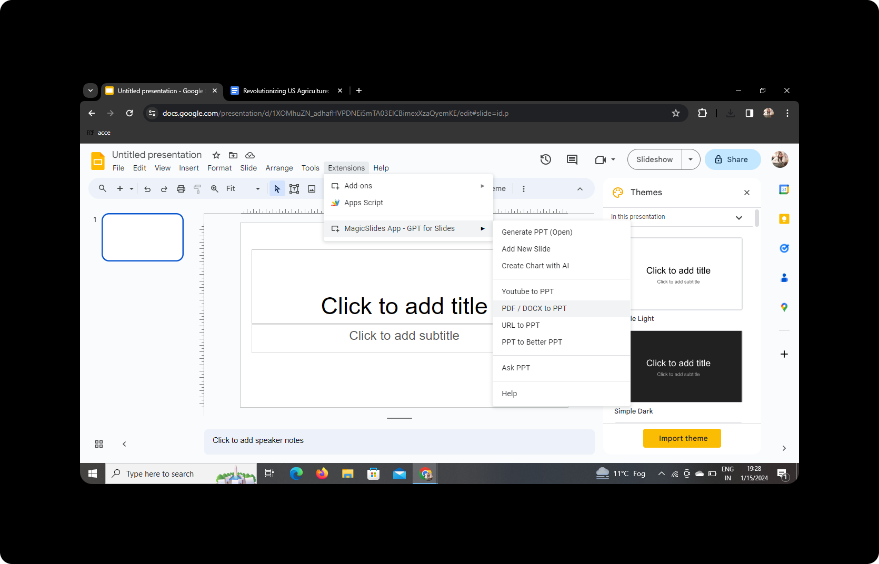
Within the MagicSlides GPT extension, find the option labeled "PDF/DOCX to PPT" and click on it to initiate the conversion process.
Step 6: Click on 'Upload PDF/DOCX' Option and Upload Your Content
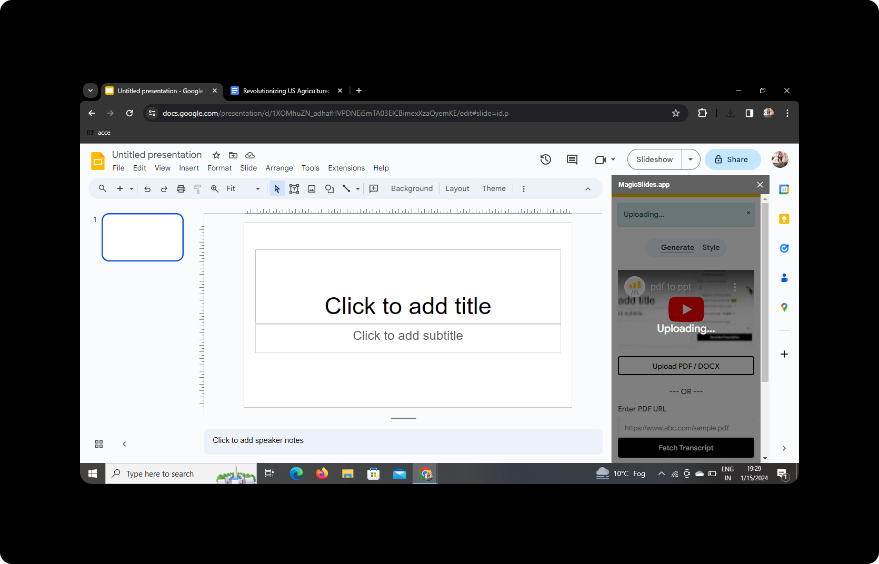
Click on the "Upload PDF/DOCX" option within MagicSlides GPT. Select your Word-based scientific poster file and upload it to the platform.
Step 7: Select the Number of Slides
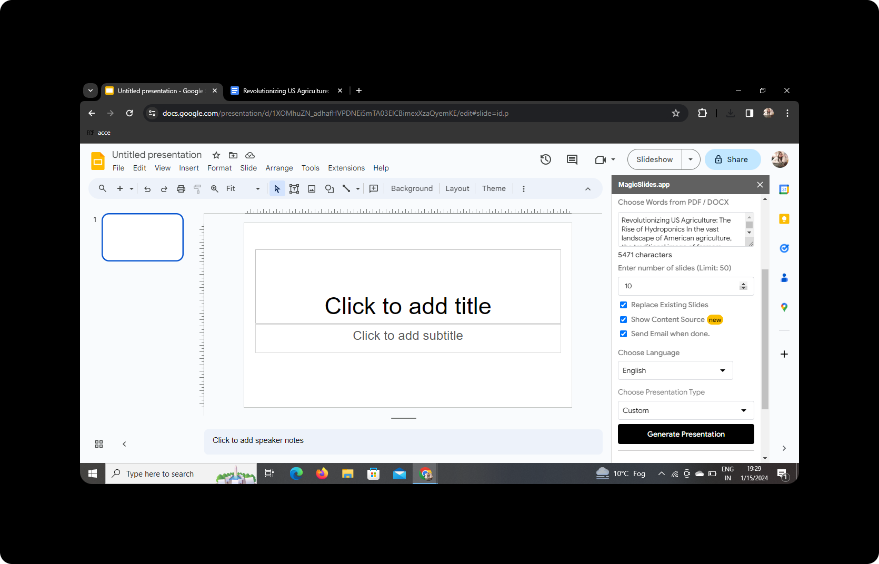
Specify the desired number of slides for your PowerPoint presentation. MagicSlides GPT allows you to customize the presentation length according to your preferences.
Step 8: Click on Generate Presentation
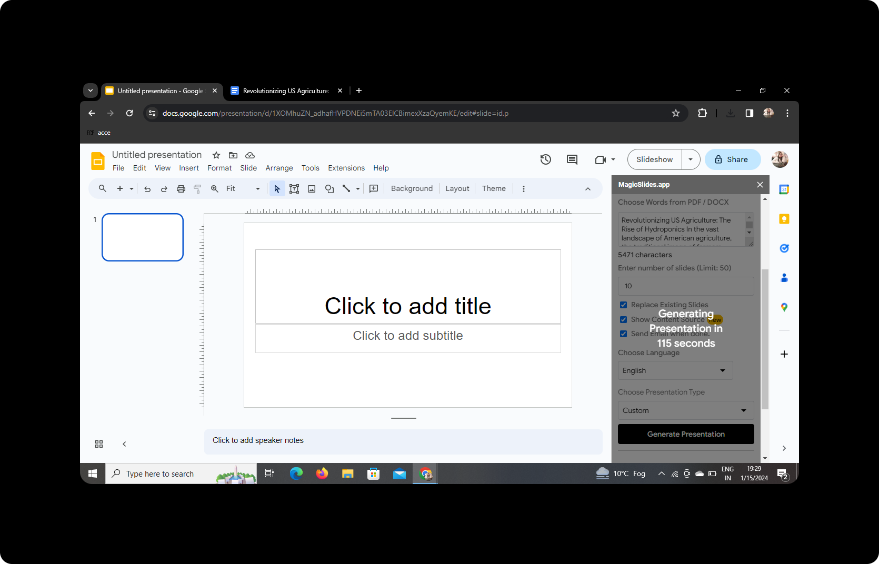
Once you've uploaded your content and set the parameters, click on the "Generate Presentation" button. MagicSlides GPT will process the information and create a dynamic PowerPoint presentation.
Your Presentation Is Ready!
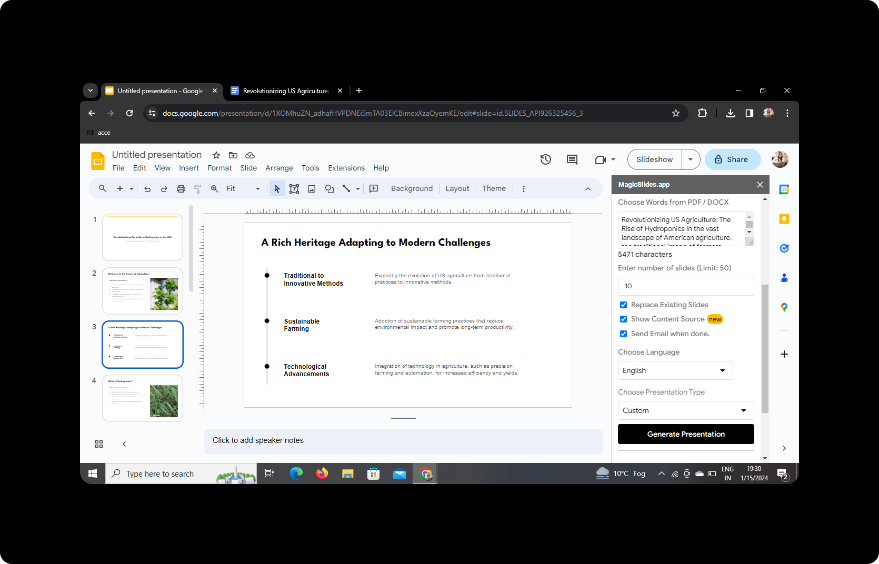
In no time, your PowerPoint presentation will be ready for use. Download it to your device or directly access it through Google Slides.
Conclusion
Turning Word-based scientific posters into PowerPoint presentations has never been easier. With the intuitive MagicSlides GPT extension, you can effortlessly transform static content into dynamic presentations, enhancing the visual appeal of your research findings.
FAQs
Q: Can I use MagicSlides GPT without installing the extension? A: No, the extension is necessary for seamless integration with Google Slides.
Q: Is MagicSlides GPT compatible with all browsers? A: Yes, MagicSlides GPT is designed to work with popular browsers like Chrome and Firefox.
Q: Can I edit the slides after the conversion? A: Certainly! MagicSlides GPT provides editing options within Google Slides for further customization.
Q: What file formats does MagicSlides GPT support? A: MagicSlides GPT supports PDF and DOCX file formats for conversion.
Q: Is MagicSlides GPT free to use? A: Yes, MagicSlides GPT is a free tool available as a browser extension.


