How to Use Format Painter in PowerPoint


Format Painter in PowerPoint helps you quickly copy and apply formatting to multiple objects effortlessly
The Format Painter tool in PowerPoint is a powerful feature that helps you quickly copy formatting from one object and apply it to another, saving you time and ensuring a consistent look throughout your presentation.
Whether you want to replicate text styles, shapes, or other formatting, Format Painter makes the process simple and efficient.
Follow these steps to use Format Painter in PowerPoint effectively.
How to Use Format Painter in PowerPoint: A Step-by-Step Guide
Step 1: Open Your PowerPoint Presentation
Start by opening your PowerPoint presentation and navigate to the slide that contains the formatting you want to copy.
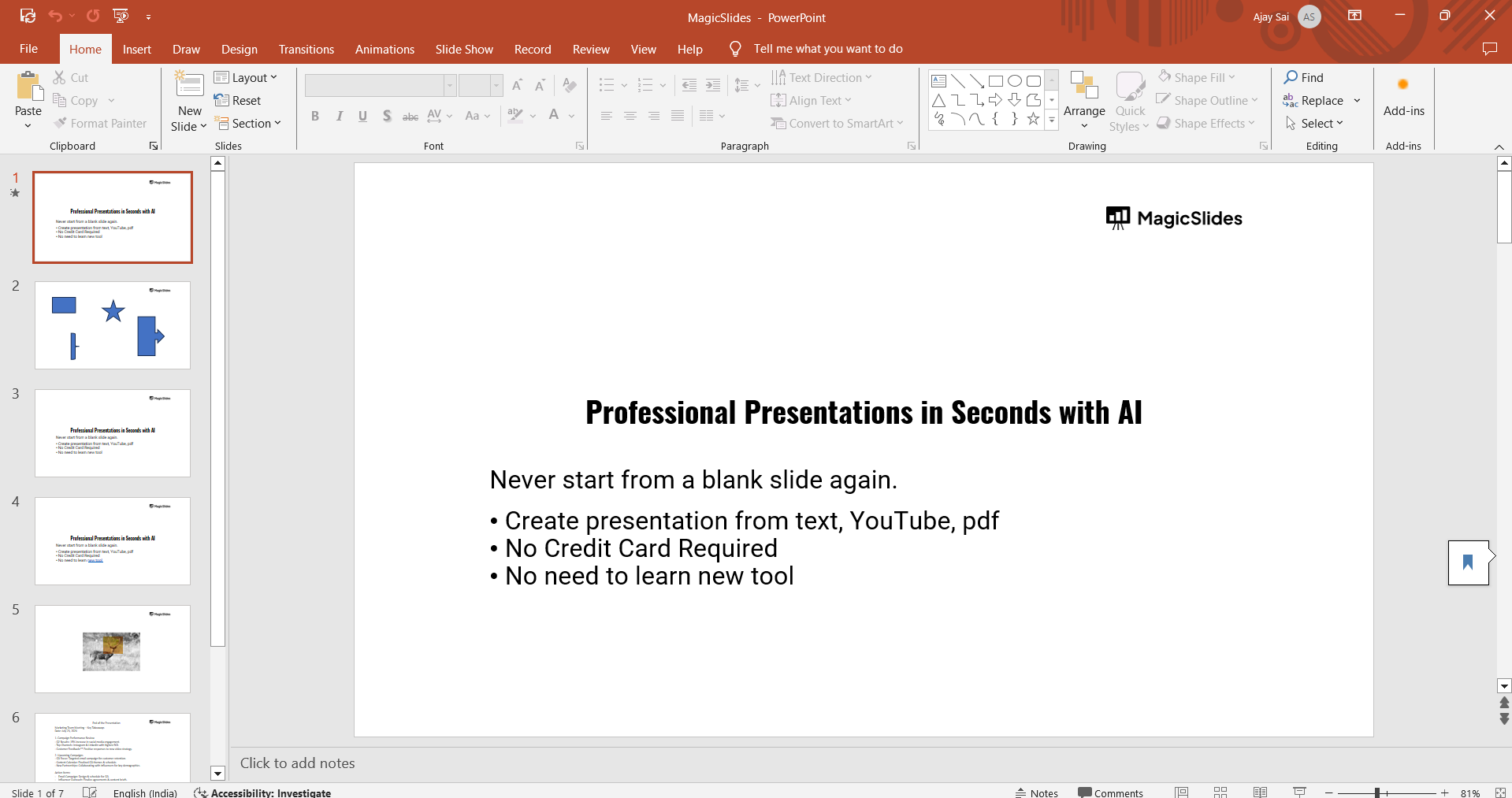
Ensure that you have both the source object (the one with the desired formatting) and the target object (where you want to apply the formatting) on your slide.
Step 2: Select the Object with the Desired Formatting
Click on the object whose formatting you want to copy.
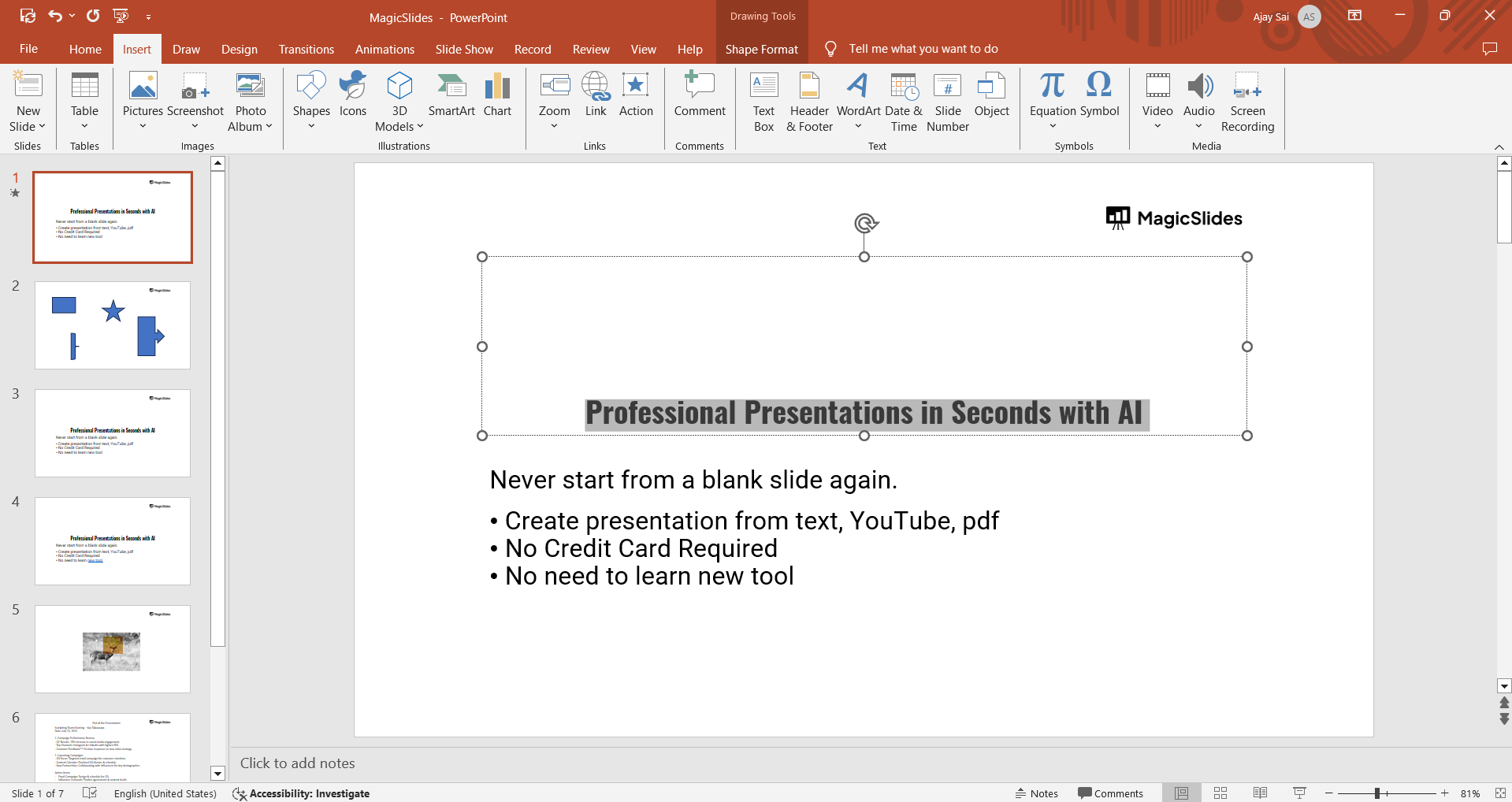
This could be a text box, shape, image, or any other element with specific formatting that you want to replicate.
Step 3: Click the Format Painter Icon
With the object selected, go to the "Home" tab on the PowerPoint ribbon.
Click on the “Format Painter” icon in the “Clipboard” group, which looks like a paintbrush.
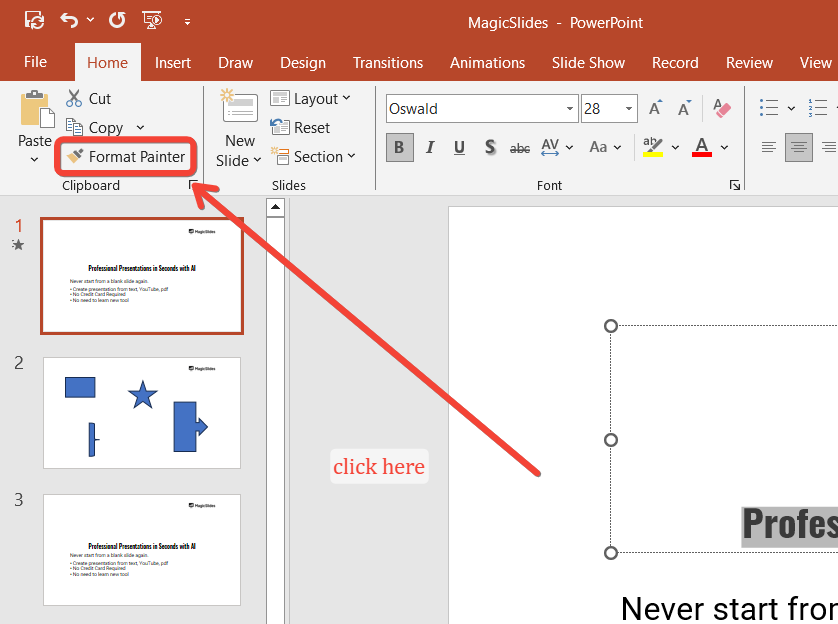
Once clicked, your cursor will change to a paintbrush icon, indicating that the Format Painter is active.
Step 4: Apply the Formatting to the Target Object
While the paintbrush icon is visible, click on the object you want to apply the copied formatting to.
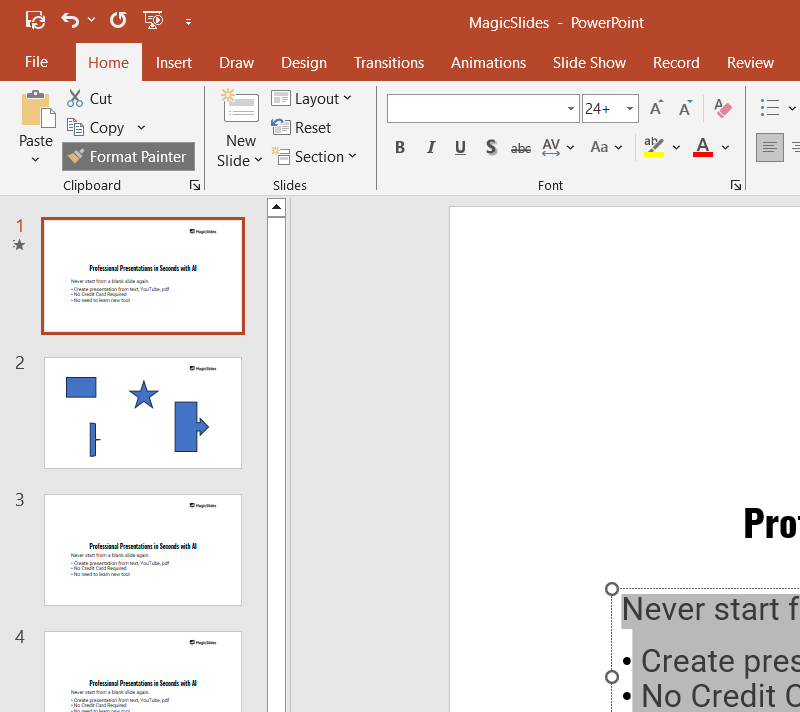
The formatting from the original object will instantly be transferred to the target object. If you want to apply the formatting to multiple objects, double-click the Format Painter icon instead.
This allows you to keep using the tool until you deactivate it by pressing the “Esc” key.
Now that you've learned how to use Format Painter in PowerPoint, check out how to create a presentation using ChatGPT, which helps you save time when making presentations
Conclusion
Using the Format Painter in PowerPoint is a simple yet highly effective way to maintain design consistency across your slides.
By following these steps, you can easily copy and apply formatting to multiple objects, saving time and effort.
Experiment with Format Painter to streamline your PowerPoint design process and keep your presentations looking polished and professional!
FAQs can take you forward!
Can Format Painter be used on multiple objects at once?
Yes, double-click the Format Painter icon to apply formatting to multiple objects consecutively until you deactivate it.
Does Format Painter work on text and shapes alike?
Yes, Format Painter works on text, shapes, images, charts, and other formatted elements within your slides.
How do I turn off Format Painter after using it?
Press the “Esc” key or click the Format Painter icon again to deactivate the tool.


