In a presentation, where can the style and layout of a slide be customized?


Discover how to effortlessly customize PowerPoint slide styles and layouts with this step-by-step guide.
In PowerPoint, customizing the style and layout of your slides is crucial for creating visually appealing and cohesive presentations.
Whether you're preparing for a business meeting, an academic lecture, or a project proposal, tailoring your slides to match your content and audience can significantly enhance your presentation's impact.
This guide will walk you through the various steps to customize the style and layout of your slides effectively.
Style and layout of a slide customization, Step by Step Process:
Step 1: Access the Slide Master View
The Slide Master View allows you to make universal changes to your presentation's style and layout:
Open Slide Master: Go to the "View" tab on the ribbon and click on "Slide Master." This opens the Slide Master view, where you can edit the master slide and layout slides.
Select Master Slide: The master slide at the top controls the overall theme, while the slides beneath it control individual layouts.
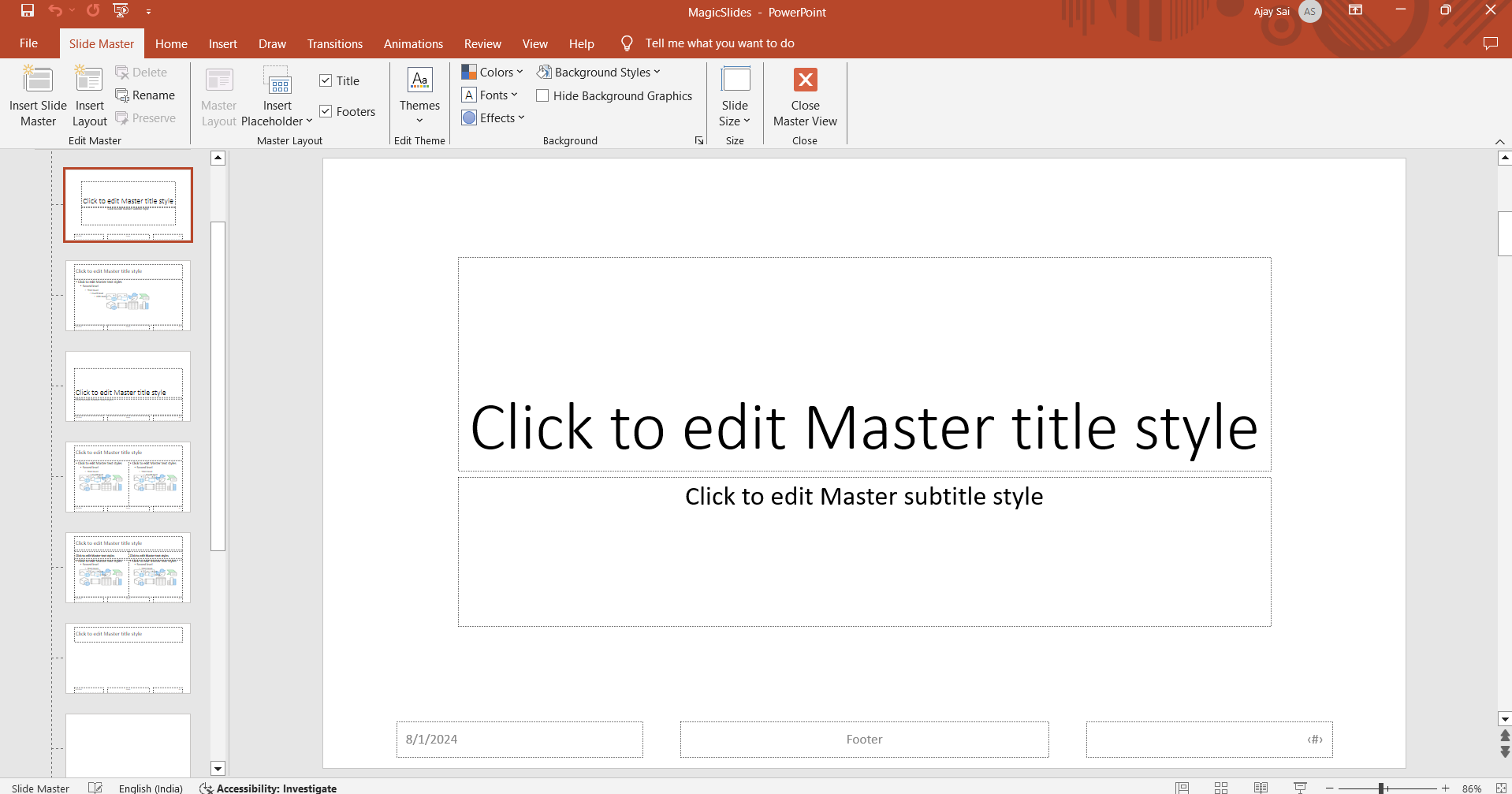
Step 2: Customize the Theme
Choosing and customizing a theme sets the foundation for your presentation's style:
Apply a Theme: Go to the "Design" tab and select a theme from the gallery. This applies a consistent design across all slides.
Customize Colors: Click on "Variants" and then "Colors" to choose or customize the color scheme.

Adjust Fonts: Under "Variants," select "Fonts" to choose or customize the fonts for your presentation.
Step 3: Modify Slide Layouts
Adjusting the layout of your slides helps organize your content effectively:
Choose Layouts: In Slide Master view, click on a layout slide (e.g., Title Slide, Title and Content) to customize it.
Edit Placeholders: Add, remove, or resize placeholders for titles, text, images, charts, and other content types.
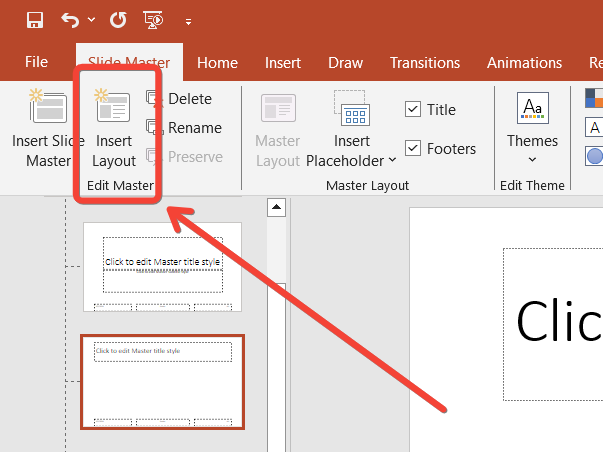
Rearrange Elements: Drag and drop placeholders to rearrange them as needed.
Step 4: Customize Backgrounds
Setting a unique background can enhance the visual appeal of your slides:
Change Background: Go to the "Slide Master" tab, click on "Background Styles," and select a style or choose "Format Background" to customize it.
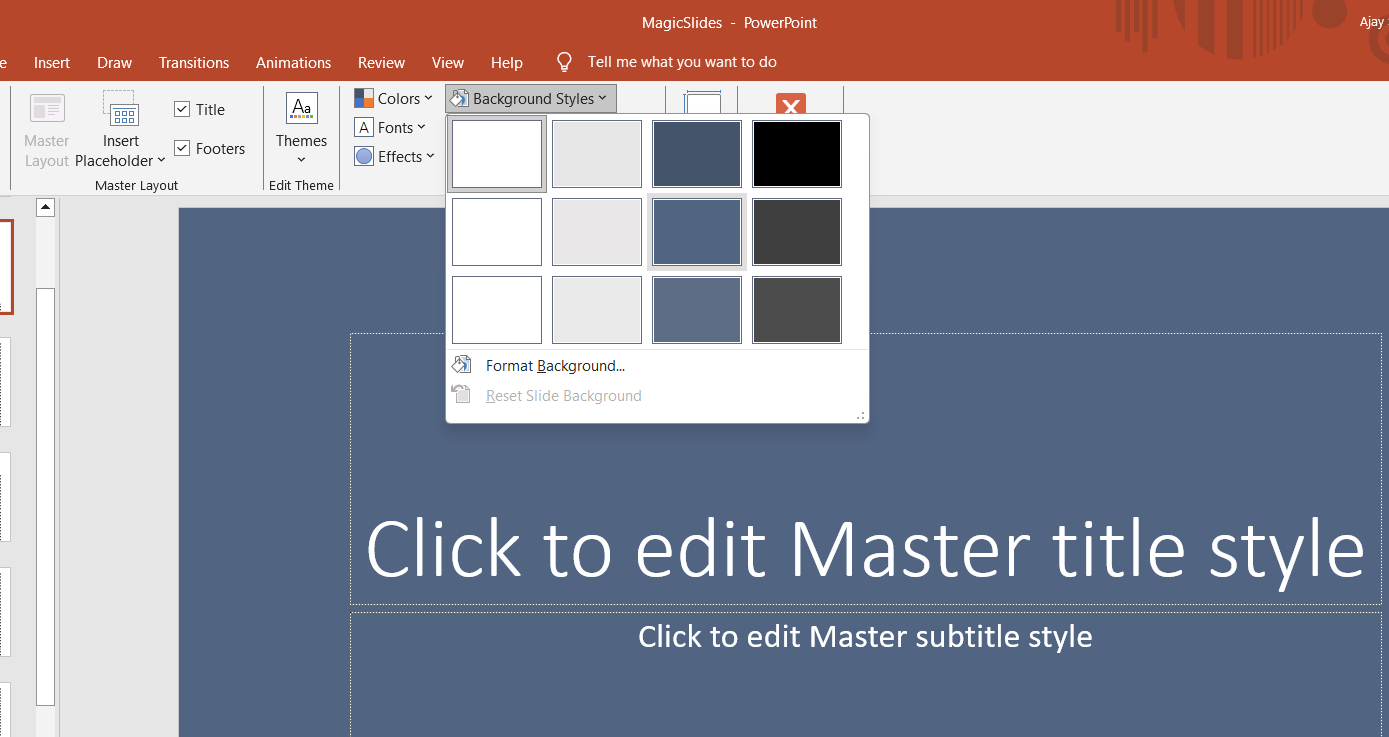
Apply to All Slides: To apply the background to all slides, click "Apply to All" in the "Format Background" pane.
Step 5: Add and Customize Slide Elements
Incorporating various elements can enrich your presentation:
Insert Elements: Add images, shapes, icons, charts, and SmartArt by going to the "Insert" tab.
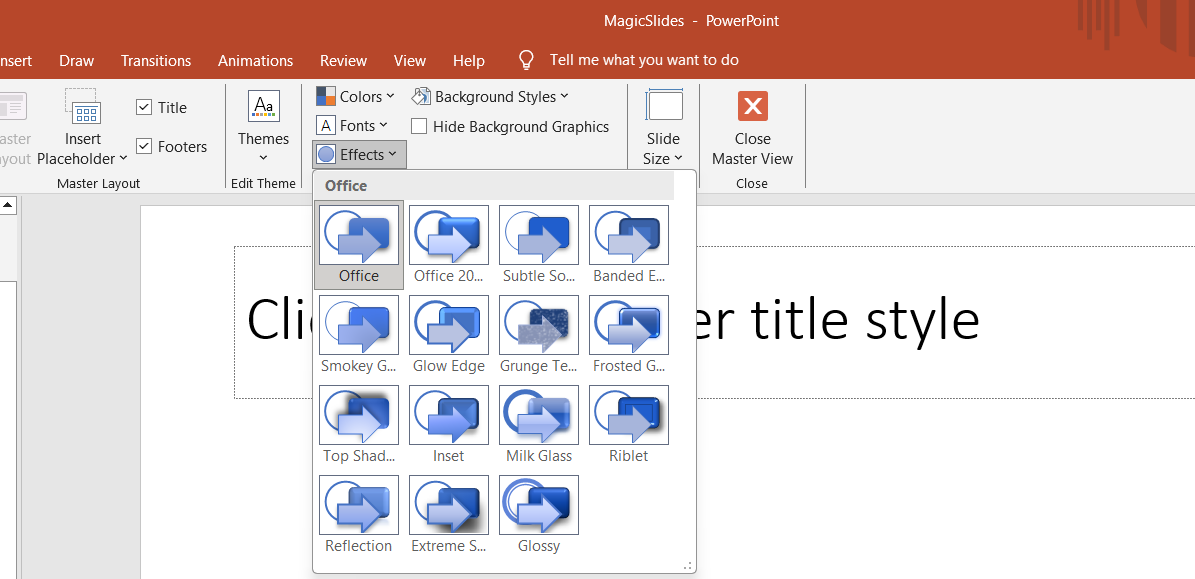
Format Elements: Click on the inserted element to access formatting options. Use the "Format" tab to adjust size, color, style, and effects.
Step 6: Save and Apply Changes
Ensure your customizations are saved and applied throughout your presentation:
Save Slide Master: Click "Close Master View" to return to the normal presentation view.
Apply Layouts: In the normal view, right-click on a slide, choose "Layout," and select the desired layout to apply your customizations.
Conclusion
Customizing the style and layout of your PowerPoint slides is a vital step in creating an effective presentation.
By accessing the Slide Master view, customizing themes, modifying layouts, setting unique backgrounds, and adding and formatting various elements, you can ensure your slides are visually appealing and well-organized.
These customizations not only enhance the aesthetic quality of your presentation but also help in conveying your message more clearly and professionally. Happy presenting!
FAQs that might help!
What is the Slide Master view, and why is it important?
The Slide Master view allows you to make universal changes to the style and layout of all slides in your presentation, ensuring consistency and saving time.
How can I change the theme of my presentation?
Go to the "Design" tab, select a theme from the gallery, and customize it using the "Variants" options for colors and fonts.
Can I customize individual slide layouts?
Yes, in the Slide Master view, you can select and customize individual layout slides by adjusting placeholders and rearranging elements.
How do I apply a customized background to all slides?
In the Slide Master view, go to "Background Styles," choose or customize a background, and click "Apply to All" in the "Format Background" pane.


