How to Use the Presenter View in Google Slides in few steps


Presenter View in Google Slides provides speaker notes, slide control, and private viewing for smoother, more informative presentations.
Google Slides' Presenter View is a game-changer for presenters, offering a private preview of upcoming slides, speaker notes, and additional tools, all while showcasing only the current slide to your audience. Let's delve into the steps to harness the full potential of this feature.
How to Use the Presenter View in Google Slides
Step 1: Open Your Presentation:
Begin by opening your Google Slides presentation. Click on the "Present" button to enter the full-screen mode.
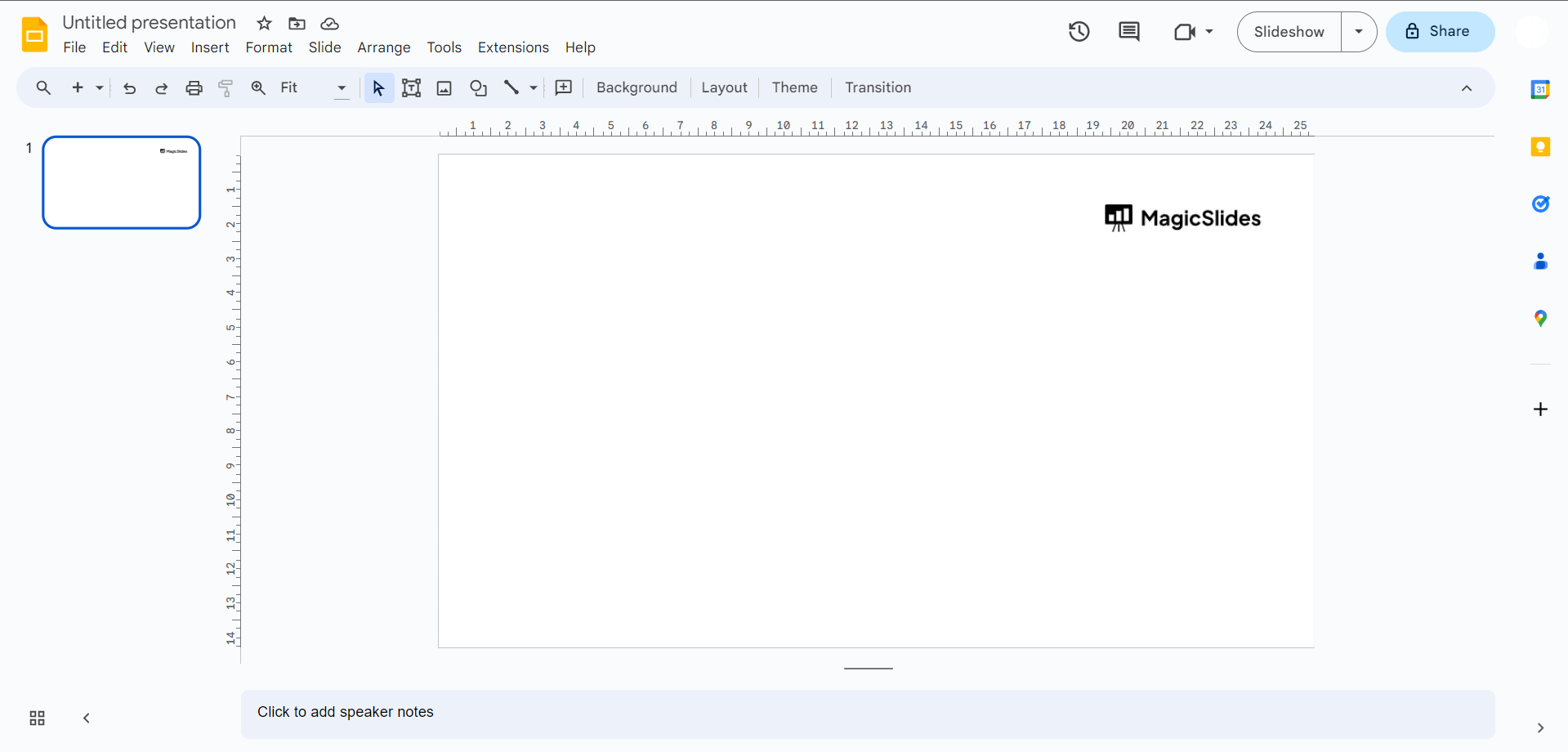
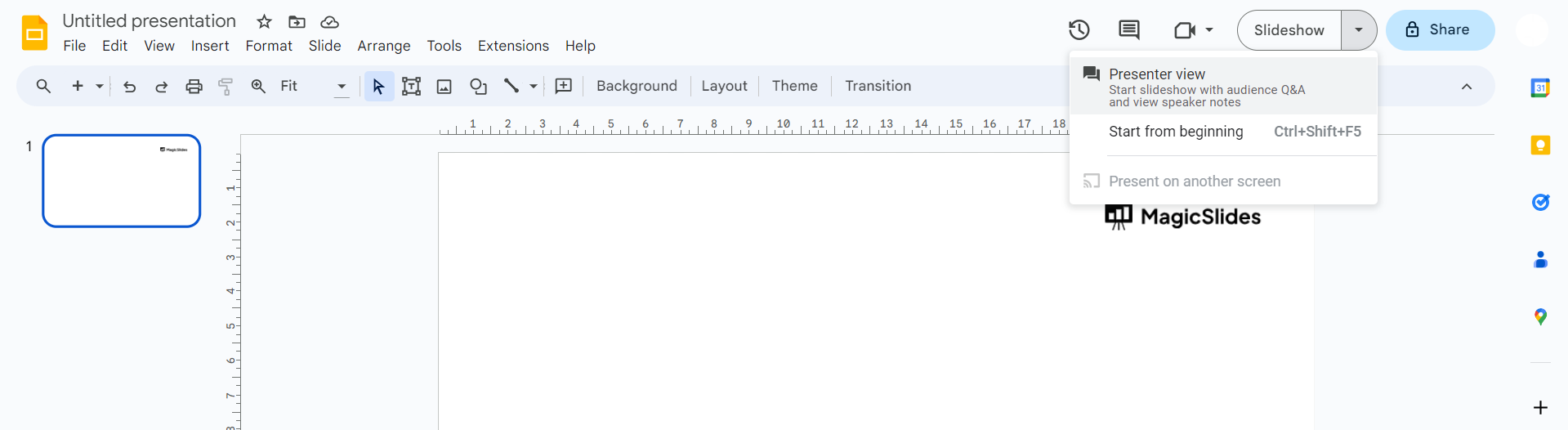
Step 2: Activate Presenter View:
Navigate to the toolbar and select the "Presenter View" option. This will open a new window, transforming your primary screen into the presentation screen and providing a separate window with the Presenter View tools.
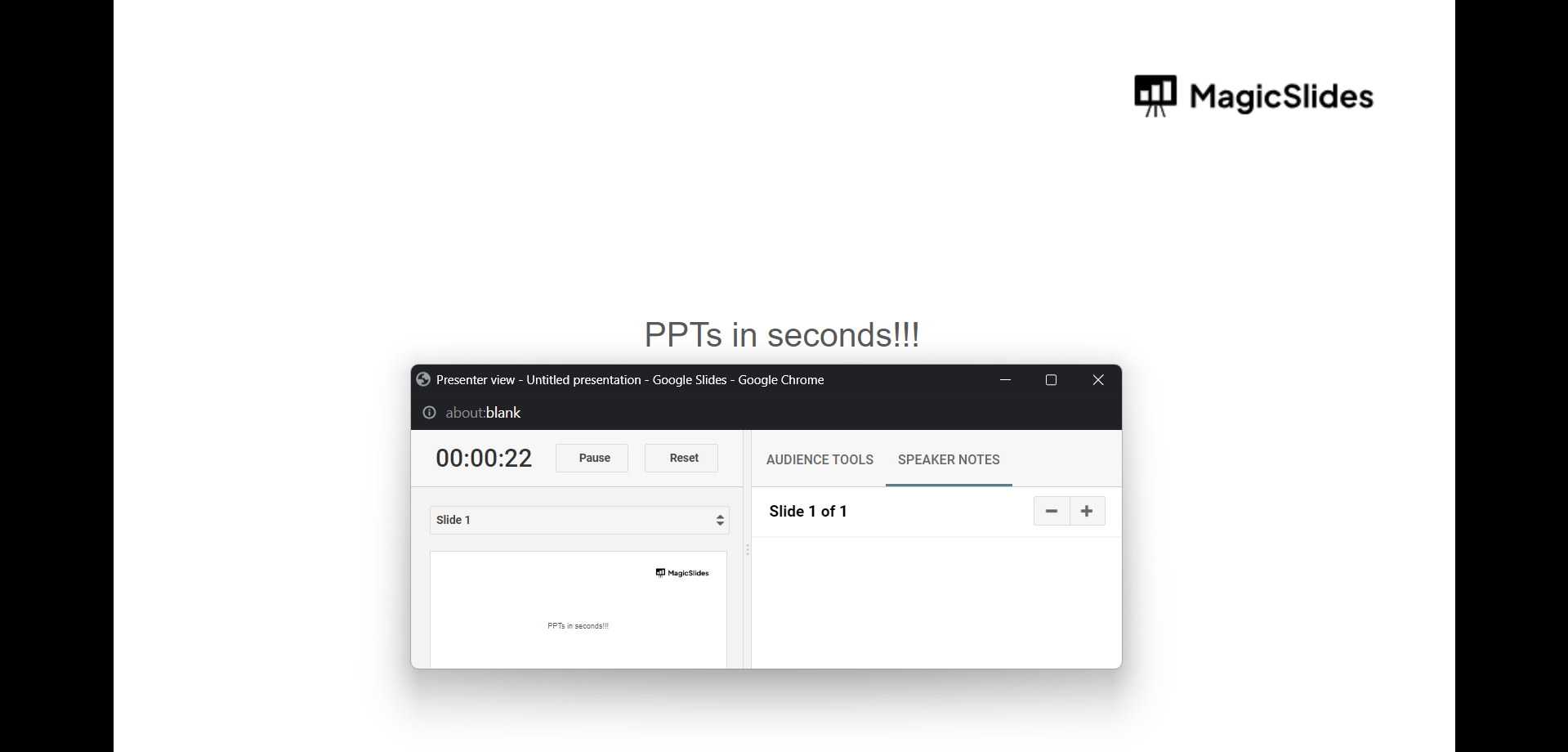
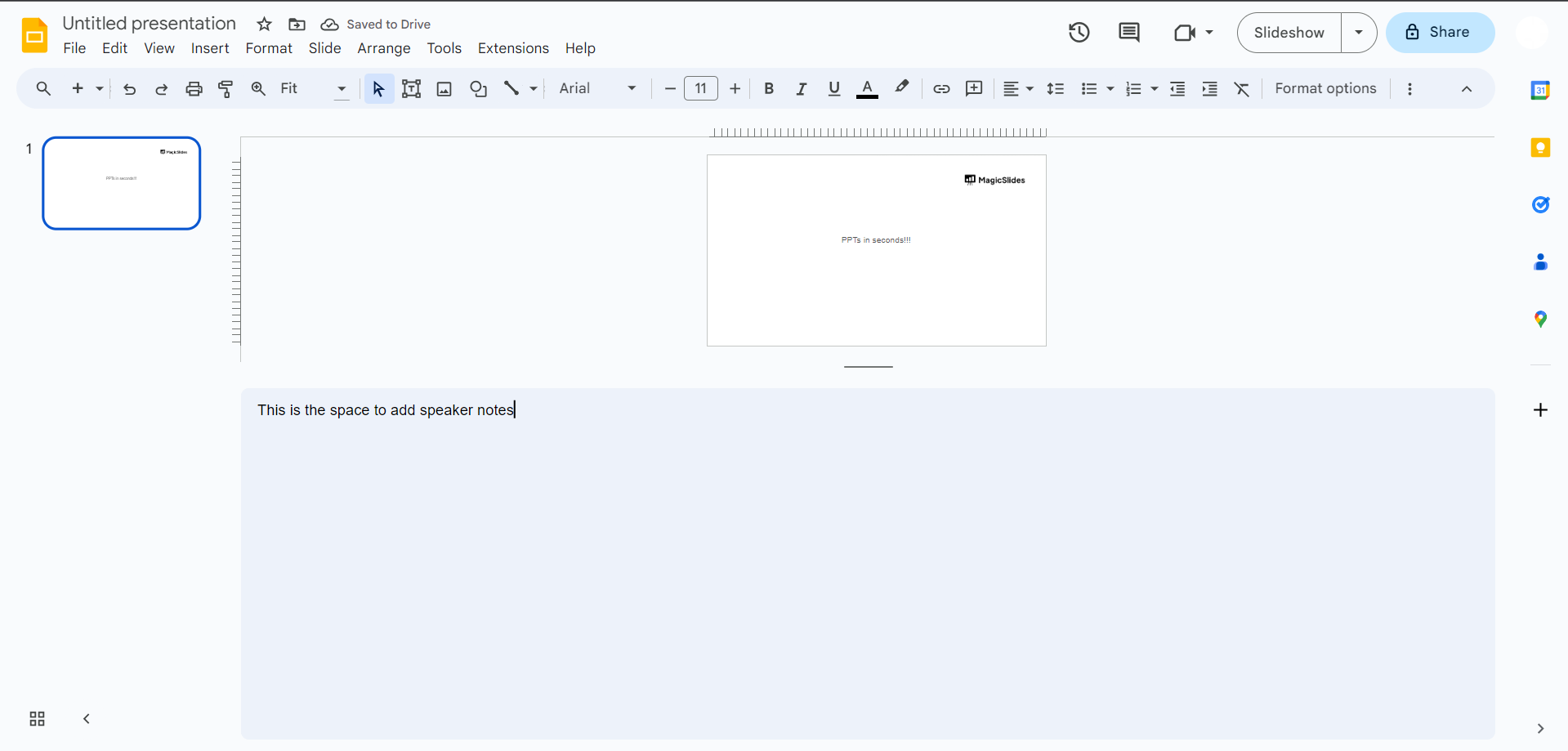
Step 3: Utilize Slide Preview and Speaker Notes:
Enjoy a sneak peek of upcoming slides with the slide preview feature. Concurrently, access the speaker notes section to guide your narration and keep the flow of your presentation smooth and coherent.
Step 4: Interact with Audience Tools:
Enhance audience engagement with tools like laser pointers and annotation features available in Presenter View. Direct attention to specific elements on your slides, adding an interactive dimension to your presentation.
Step 5: Navigate Seamlessly:
Navigate through your slides effortlessly with the Next and Previous buttons. This allows you to maintain control over the pace of your presentation without disrupting the flow.
Step 6: End with Confidence:
As you approach the conclusion of your presentation, confidently wrap up your talk using the tools provided in Presenter View. This ensures a professional and polished finish.
Conclusion:
Mastering Google Slides' Presenter View is the key to delivering impactful presentations. Whether you're a seasoned speaker or just starting, incorporating this feature will undoubtedly elevate your presentation game. Embrace the tools, stay in control, and captivate your audience with a seamlessly orchestrated presentation experience.
Frequently Asked Questions:
Can I use Presenter View in Google Slides on any device?
A: Yes, Presenter View is accessible on various devices, including computers, laptops, and tablets, ensuring flexibility in presentation delivery.
Are speaker notes visible to the audience during the presentation?
A: No, speaker notes are private and only visible to the presenter in the Presenter View, maintaining a polished and professional display for the audience.
Can I customize the tools available in Presenter View to suit my presentation style?
A: While Presenter View offers standard tools, customization options are limited. However, its built-in tools cater to diverse presentation needs effectively.


