Where is the Explore tool in Google Slides


The Explore tool in Google Slides helps enhance slide design with smart suggestions and web searches
The Explore tool in Google Slides is a helpful feature that assists in designing your slides by offering layout suggestions, image searches, and other smart design options based on your content.
It enhances the creativity and efficiency of slide creation by allowing you to browse images, research topics, and adjust layouts without leaving the app.
You can also checkout this comprehensive video guide on the new explore tool in Google Slides by team LAT EdTech.
https://www.youtube.com/watch?app=desktop&v=Fc6EDLQaOGQ
Steps to Find and Use the Explore Tool in Google Slides:
Step 1: Open Google Slides
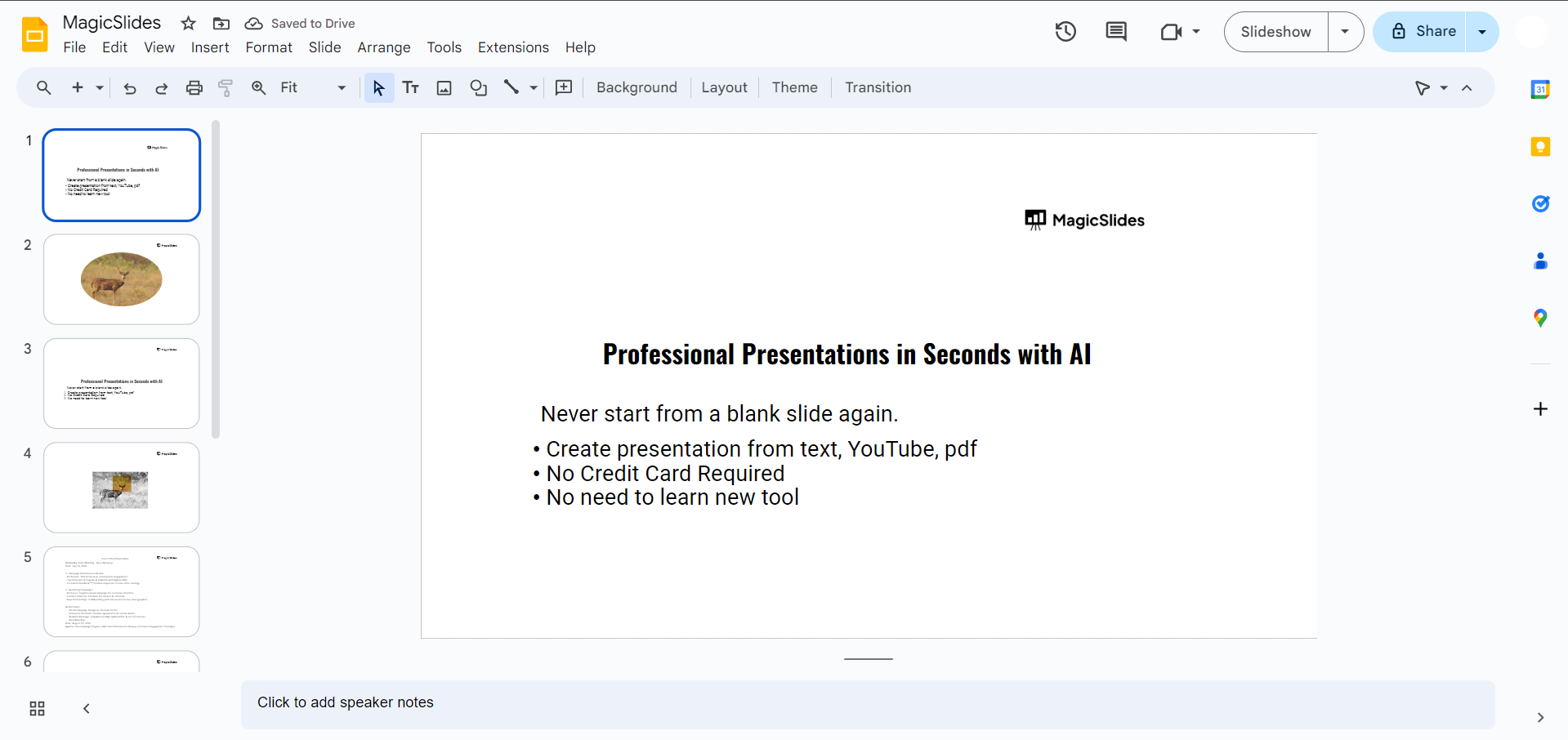
First, open Google Slides and select the presentation you want to work on, or create a new one by clicking on "Blank" or choosing a template from the available options.
Step 2: Access the Explore Tool
Once your presentation is open, navigate to the bottom-right corner of the Google Slides window.
You’ll see a small icon that looks like a starburst or lightbulb; this is the Explore tool.
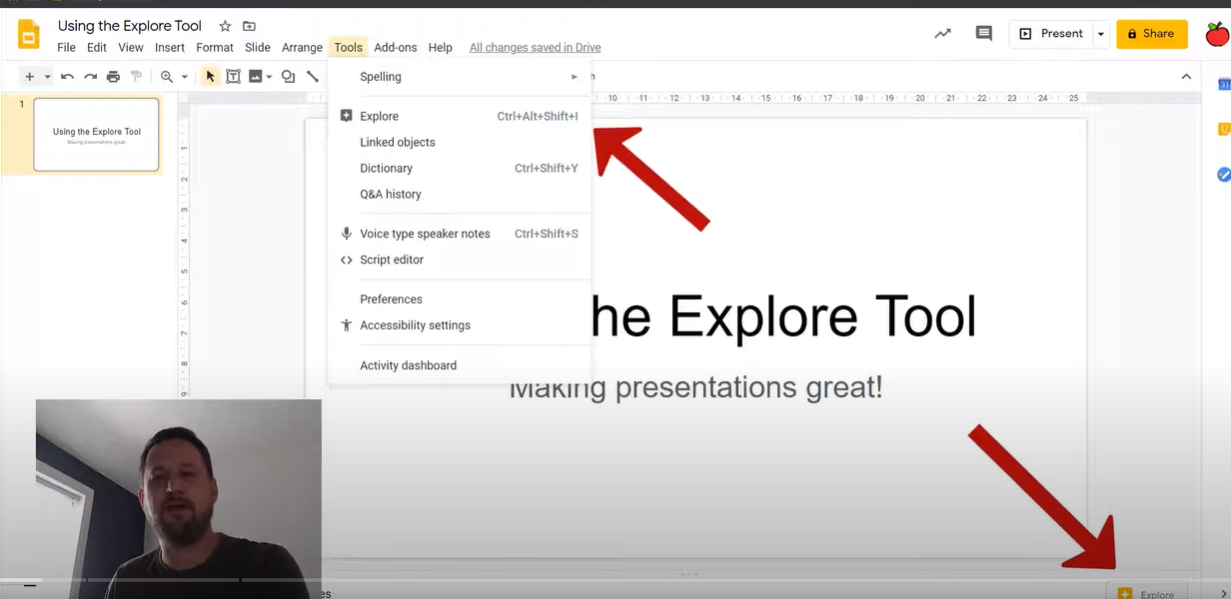
You can also open it by clicking on "Tools" from the top menu and selecting "Explore," or simply press "Ctrl + Alt + Shift + I" (on Windows) or "Cmd + Option + Shift + I" (on Mac) for a quick keyboard shortcut.
Step 3: Use the Explore Tool
Clicking the Explore icon opens a side panel on the right.
In this panel, you can browse layout suggestions based on the content of your slide, search the web for related information or images, and quickly add design elements to your slides.
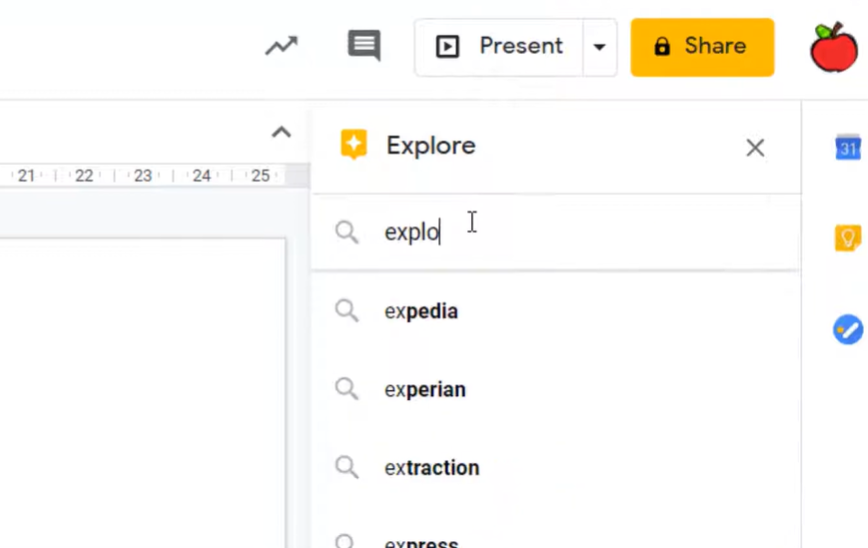
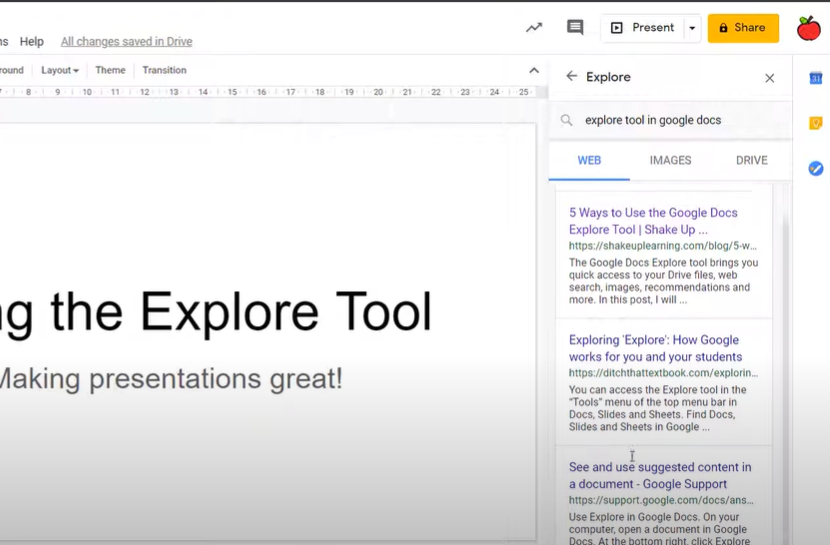
You can also search for keywords directly in the tool's search bar to find relevant web content or images.
Step 4: Apply Layout or Images
Choose a suggested layout from the Explore panel to improve the visual arrangement of your slide.
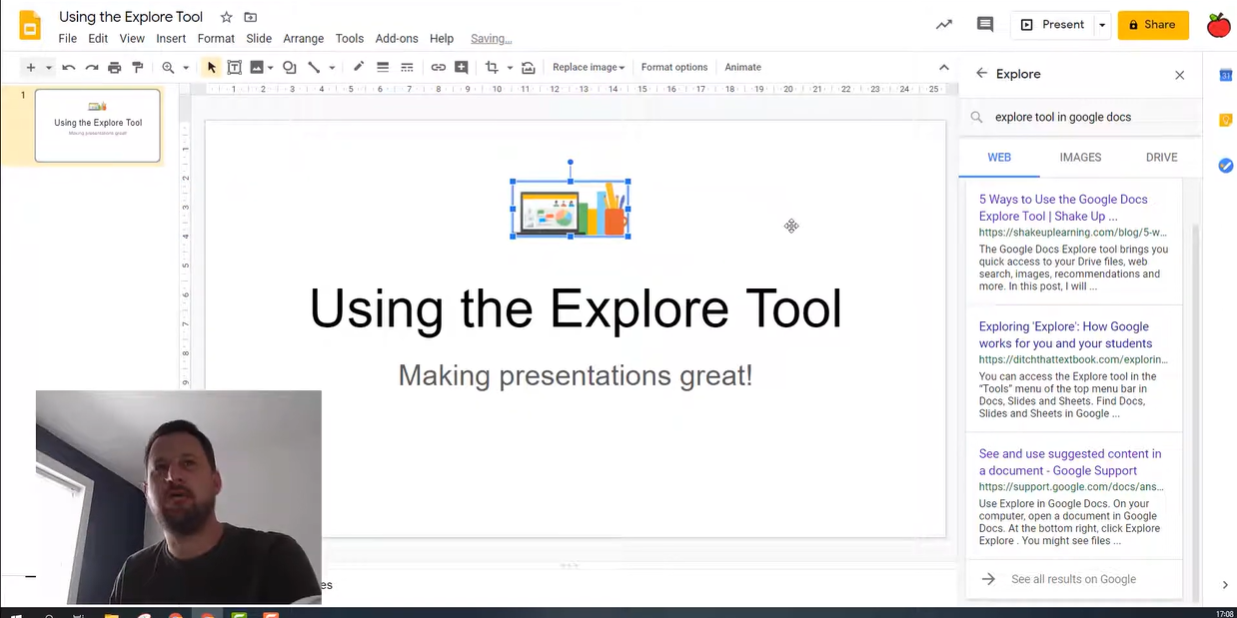
You can also drag and drop images from the web search results directly onto your slide.
Once you've found the Explore tool in Google Slides, check out how to group images in Google Slides to better organize your content and create polished layouts.
Conclusion
The Explore tool in Google Slides offers an easy way to enhance your slides by providing design suggestions, web search functionality, and quick access to images all without leaving the presentation.
This tool helps streamline the design process and adds a professional touch to your presentations.
FAQs can come handy!
Can I use the Explore tool to find royalty-free images?
Yes, the Explore tool sources images from Google Search, including ones labeled for reuse. However, always verify usage rights.
Can I use Explore on mobile devices?
No, the Explore tool is currently available only on the desktop version of Google Slides.
Does the Explore tool work with all slide content?
Yes, the tool analyzes your slide's content to offer layout suggestions and related resources regardless of the content type.


