How to Make a Pitch Deck with AI, Step by Step

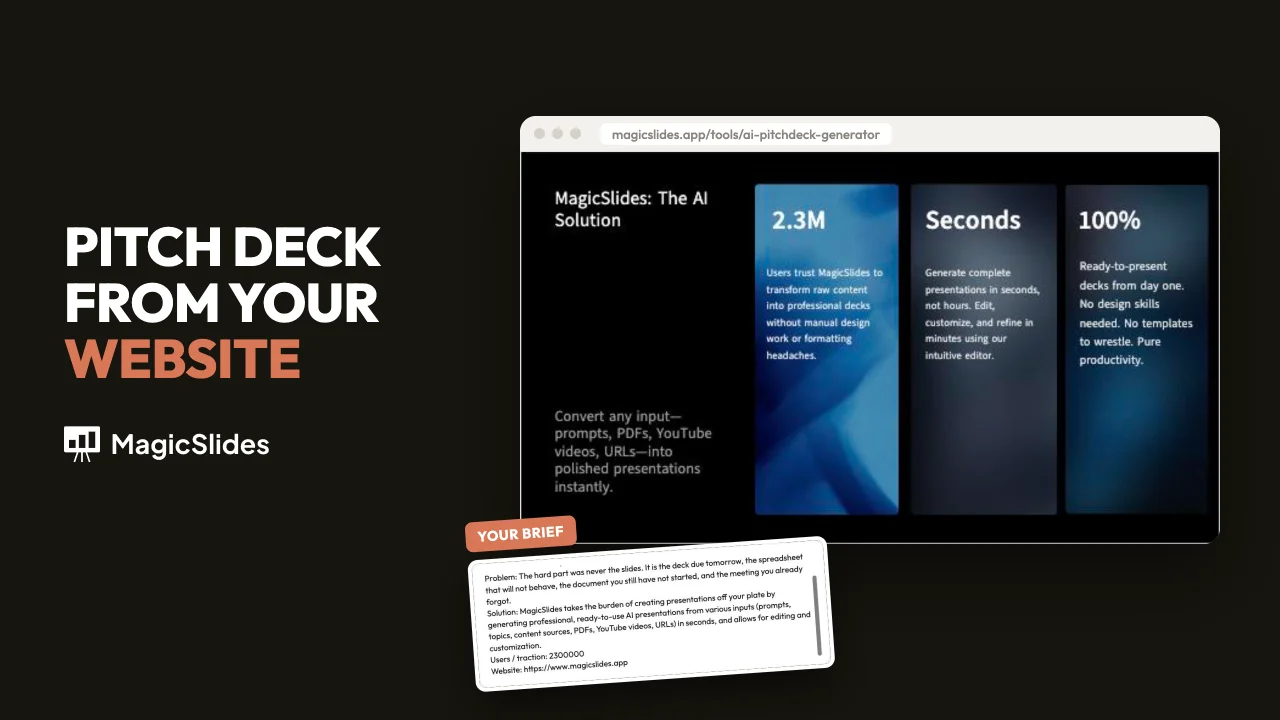
How to make a pitch deck with AI in MagicSlides: add your site, edit the brief, pick a template, approve the plan, and replace placeholder numbers.
How to make a pitch deck with MagicSlides: open the AI pitch deck generator and enter your startup's website. It reads the site and fills in a brief (what you do, the problem, the solution, your traction). Edit that brief, click Generate Pitch Deck, pick a template, and approve the plan. Then replace every placeholder number with your real figures.
We made this deck from magicslides.app. What follows is how to create a pitch deck in MagicSlides, including the placeholder numbers we had to replace.
The slides a pitch deck needs
Most investor decks use the same order. One idea on each slide:
- Title: company name and a one-line description.
- Problem: the pain, in your customer's words.
- Solution: what you built and why it fixes the problem.
- Product / how it works: screenshots or a simple flow.
- Market: how big the opportunity is.
- Traction: users, revenue, growth, notable customers.
- Business model: how you make money.
- Competition: who else solves this and why you win.
- Team: why you are the people to build it.
- The ask: how much you're raising and what it pays for.
Drop or merge slides that do not apply yet, such as traction for a pre-launch company.
What you need
- Your startup's website, or the details to type in by hand.
- A MagicSlides account. Each deck uses 1 presentation credit from your plan.
- Your real numbers: users, revenue, the amount you're raising, and what it's for.
Step 1: Enter your website
Go to the AI pitch deck generator. Step 1 is a website URL. Type it and press Enter. If you have no site yet, click Skip to Enter details Manually.
 Start from your website, or type the details yourself.
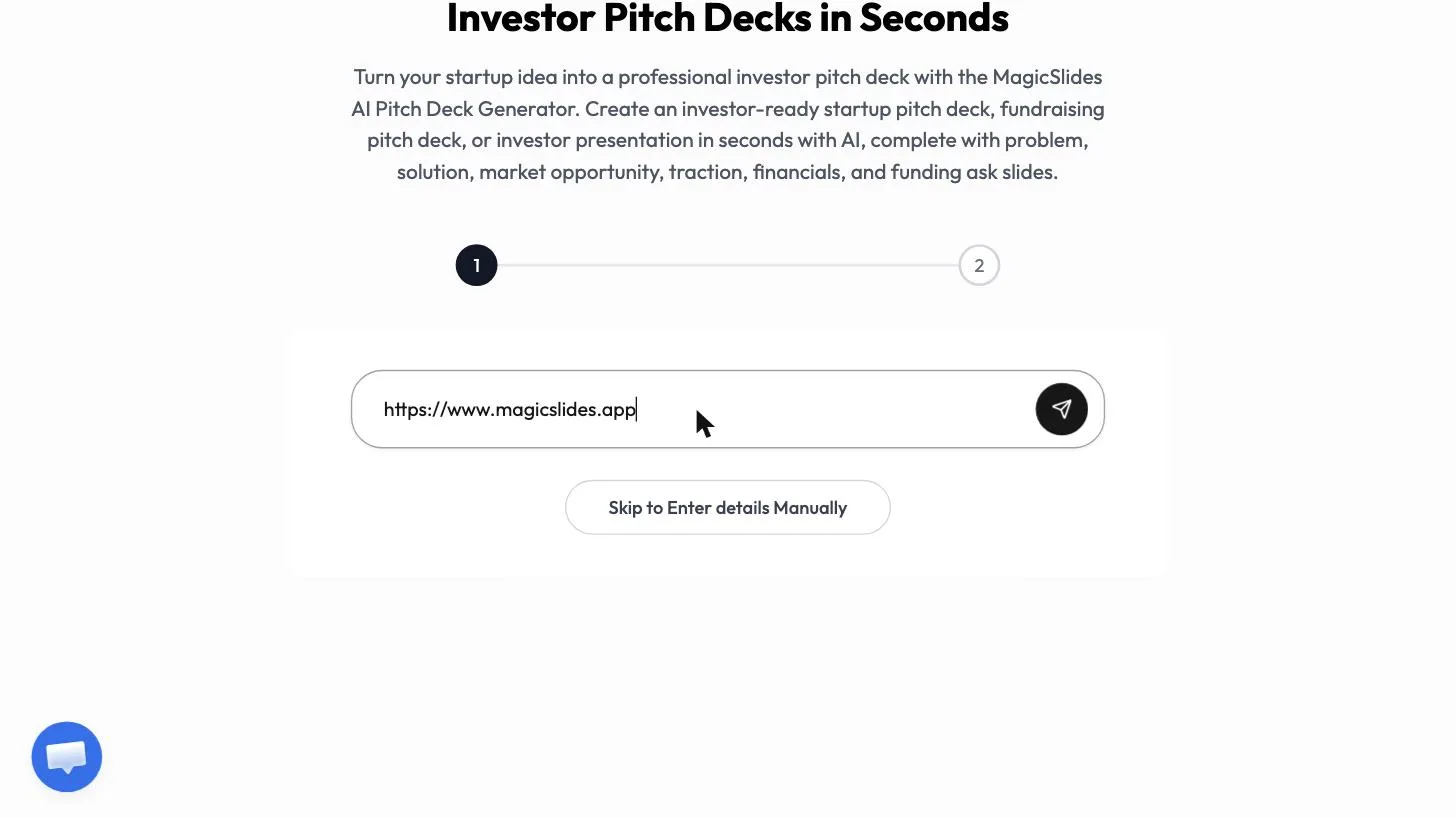 We used our own site.
Step 2: Check the brief
About 20 seconds later, step 2 shows Review your brief. MagicSlides has filled in the startup's name, what it is, the problem, the solution, users or traction, and the website. Change anything wrong or missing. You can also paste in research you already have.
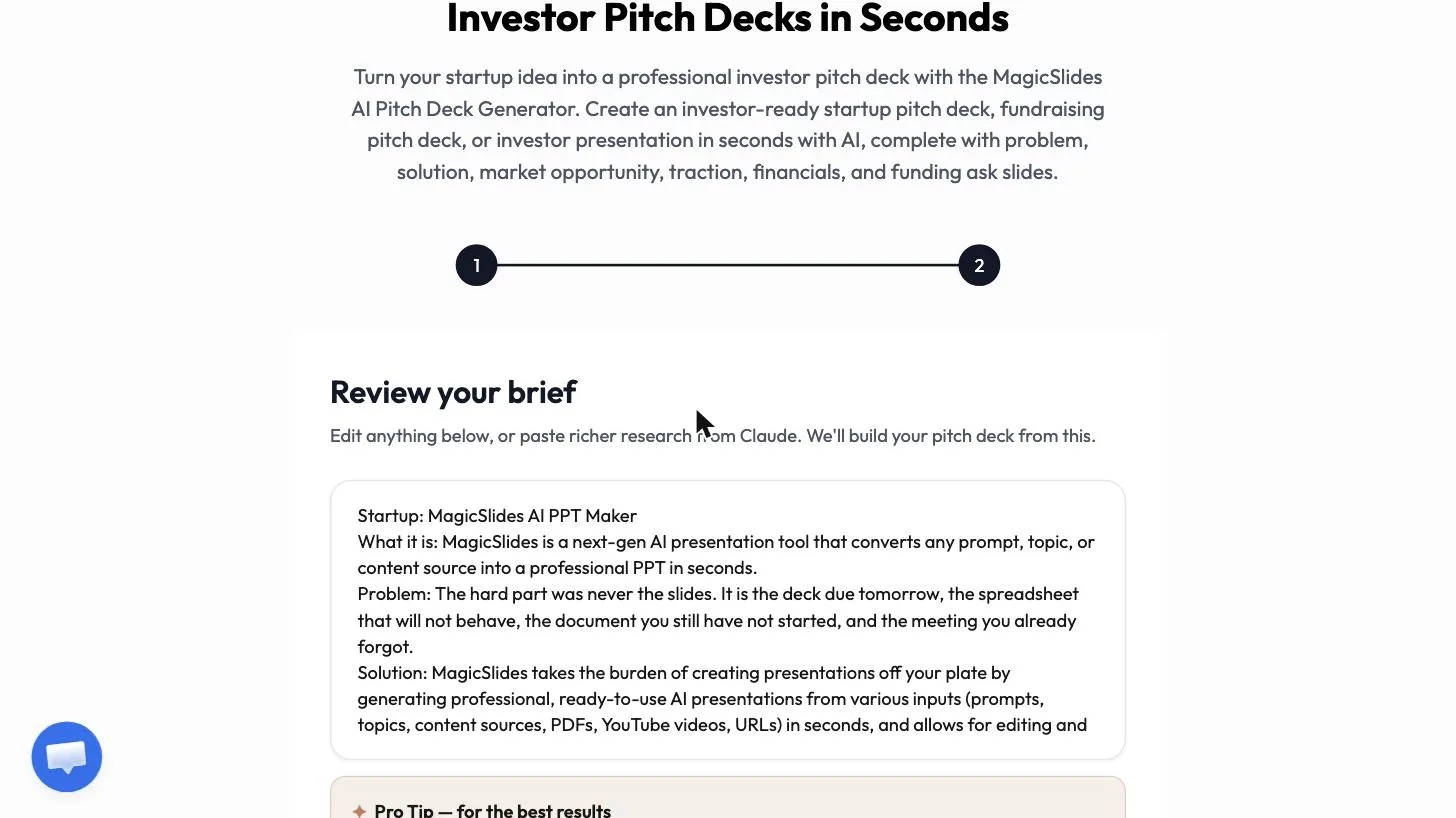 The brief is built from your site. Edit it freely.
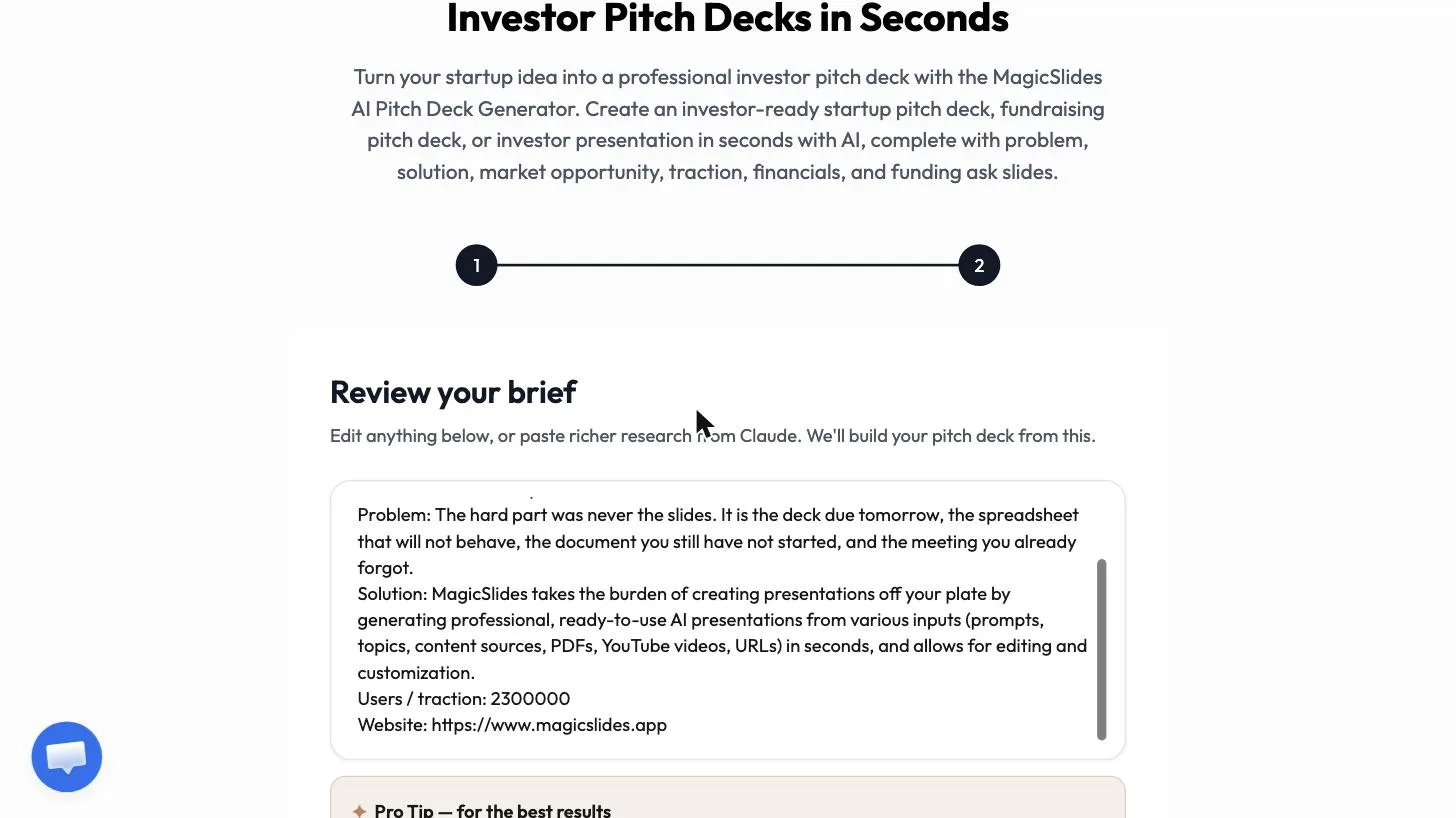 Add the figures you want investors to see.
The slides are based on this brief. Add your real traction, business model, and funding ask here. Step 7 is what showed up for us when the ask was missing.
Step 3: Click Generate Pitch Deck
Click Generate Pitch Deck →. MagicSlides opens the create page with your brief already written into the prompt.
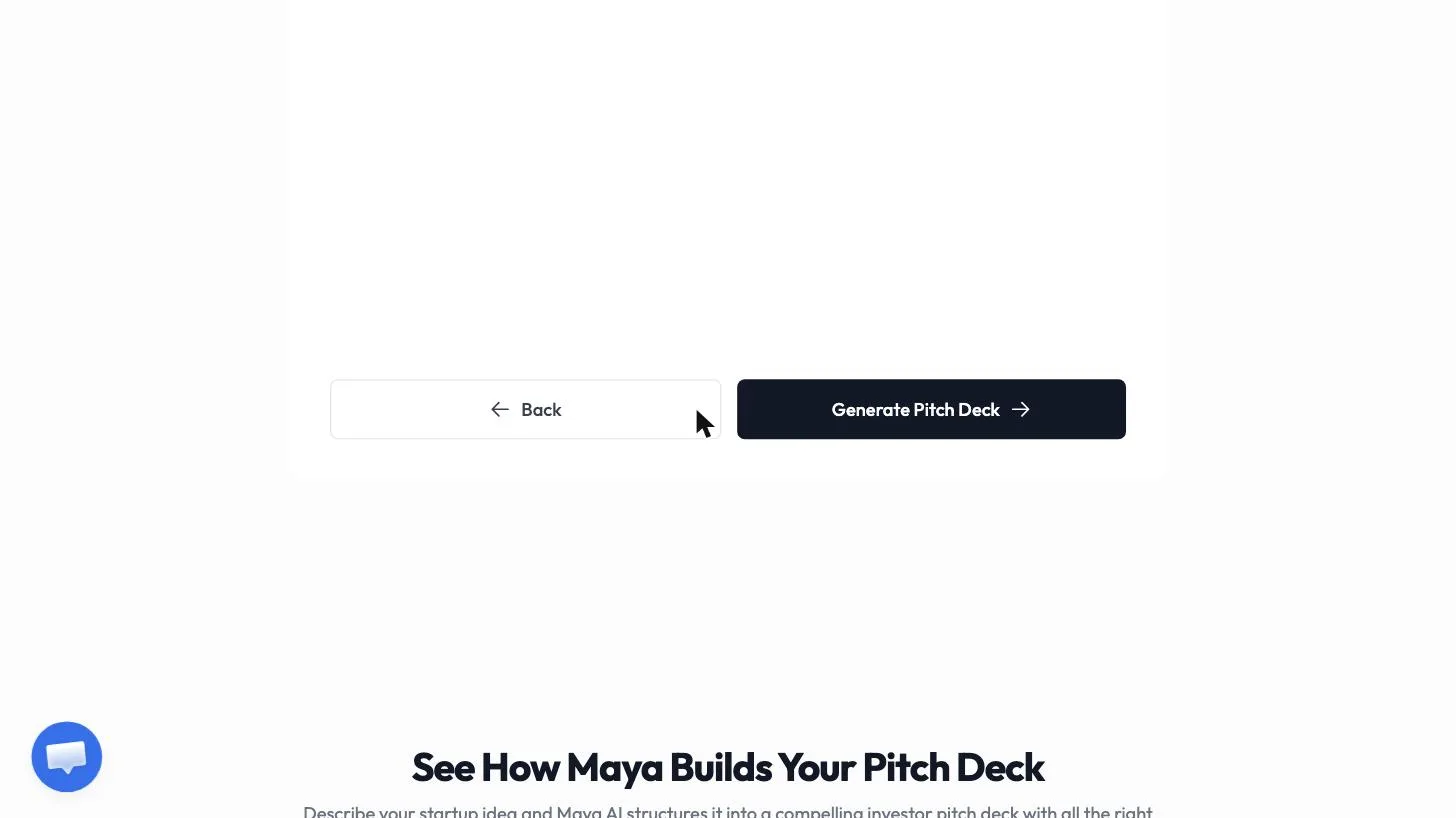 One click hands the brief to the deck builder.
Step 4: Choose a template and send
Choose a template. We used Pitch Deck Template 1, a 15-slide investor layout. Then click send.
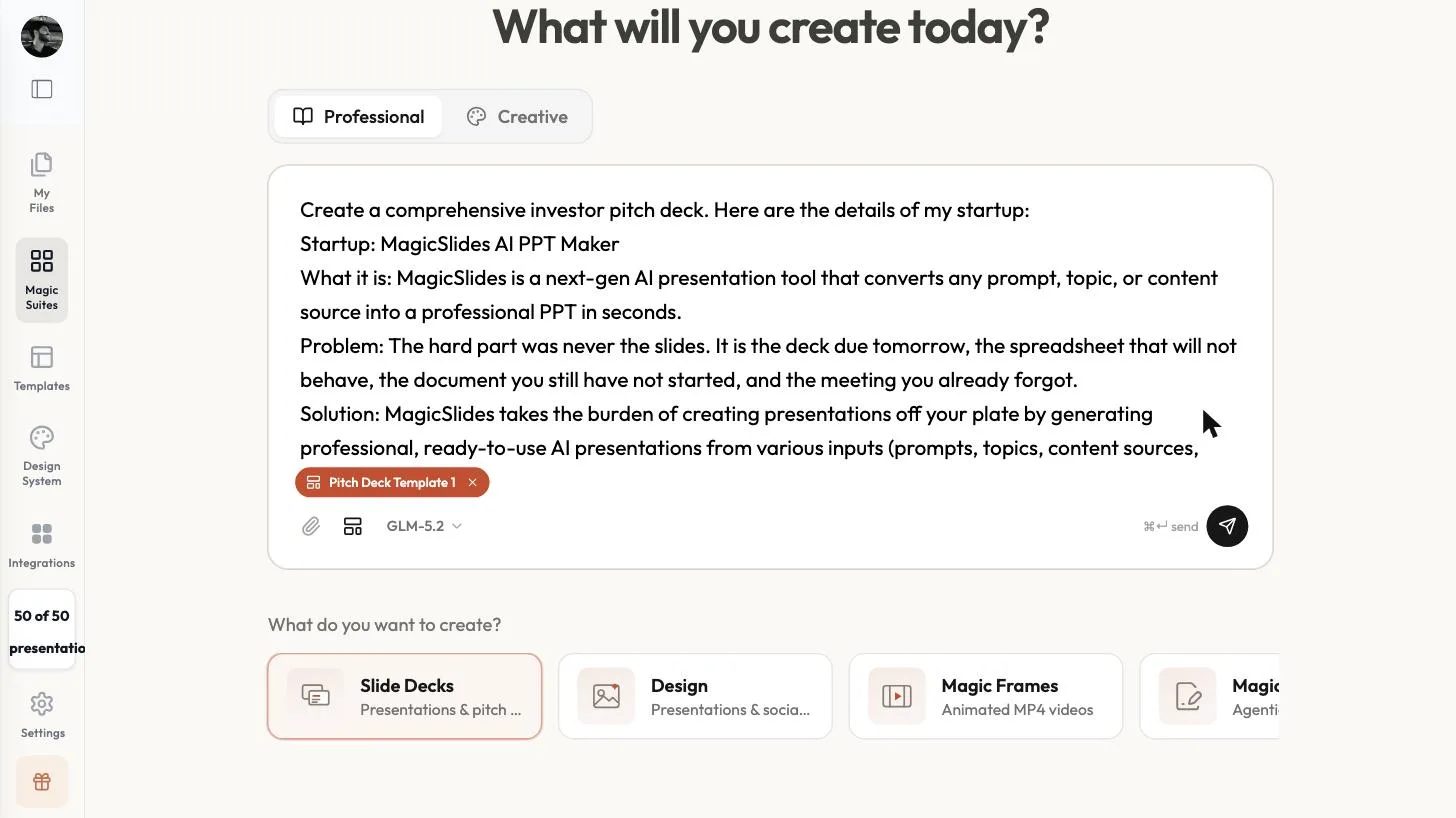 The brief becomes the prompt.
Step 5: Approve the plan
MagicSlides asks a few questions about focus, audience, and length. We clicked Decide for me on each. Read the slide-by-slide plan, then click Approve & build.
Step 6: Read the draft
About 50 seconds later we had 8 slides. Among them: a title slide, The Problem: Presentations Steal Your Time, MagicSlides: The AI Solution with the 2.3M users figure, How It Works with product images, a market slide, The Ask, and a closing slide.
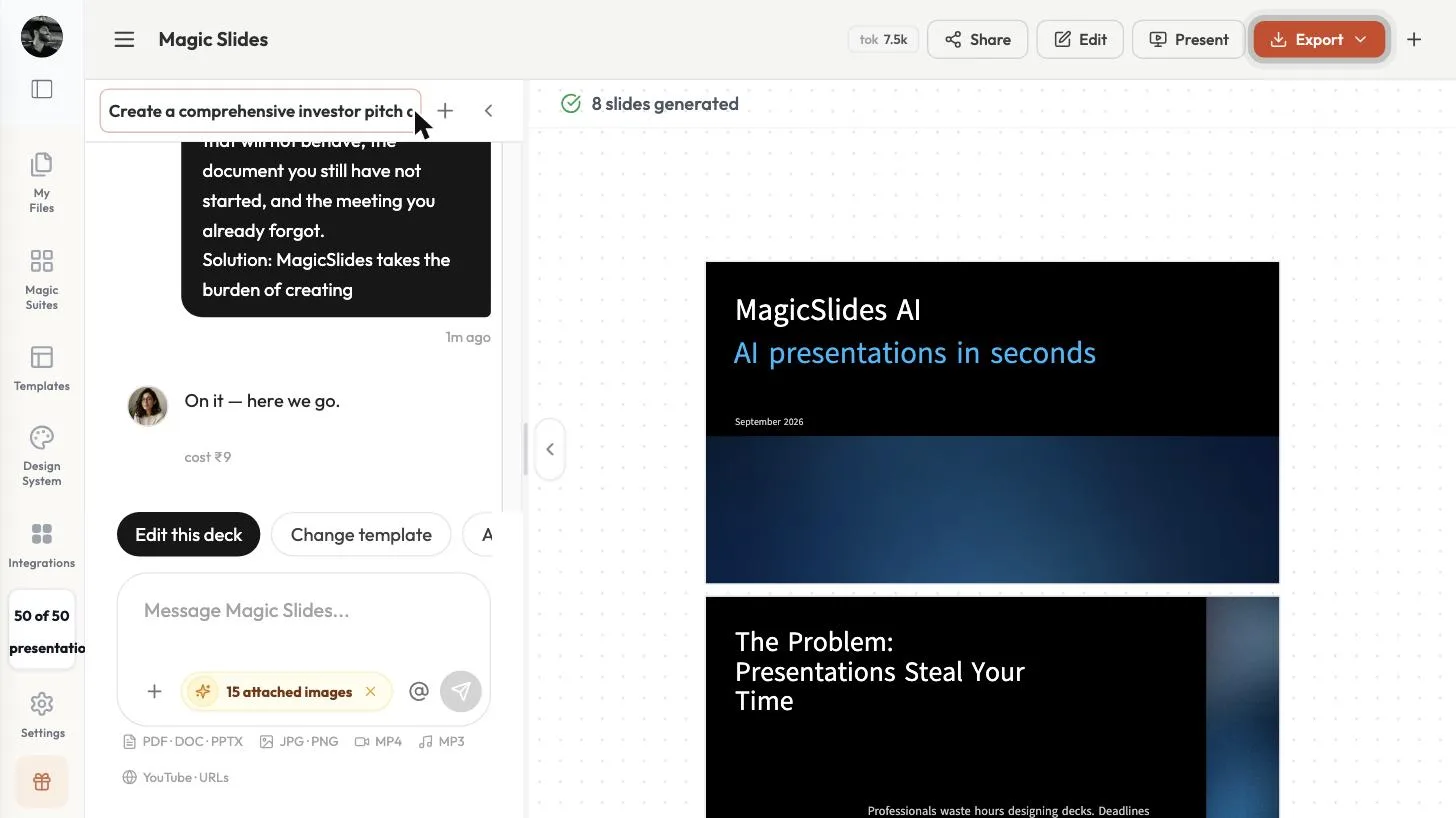 A first draft of the deck.
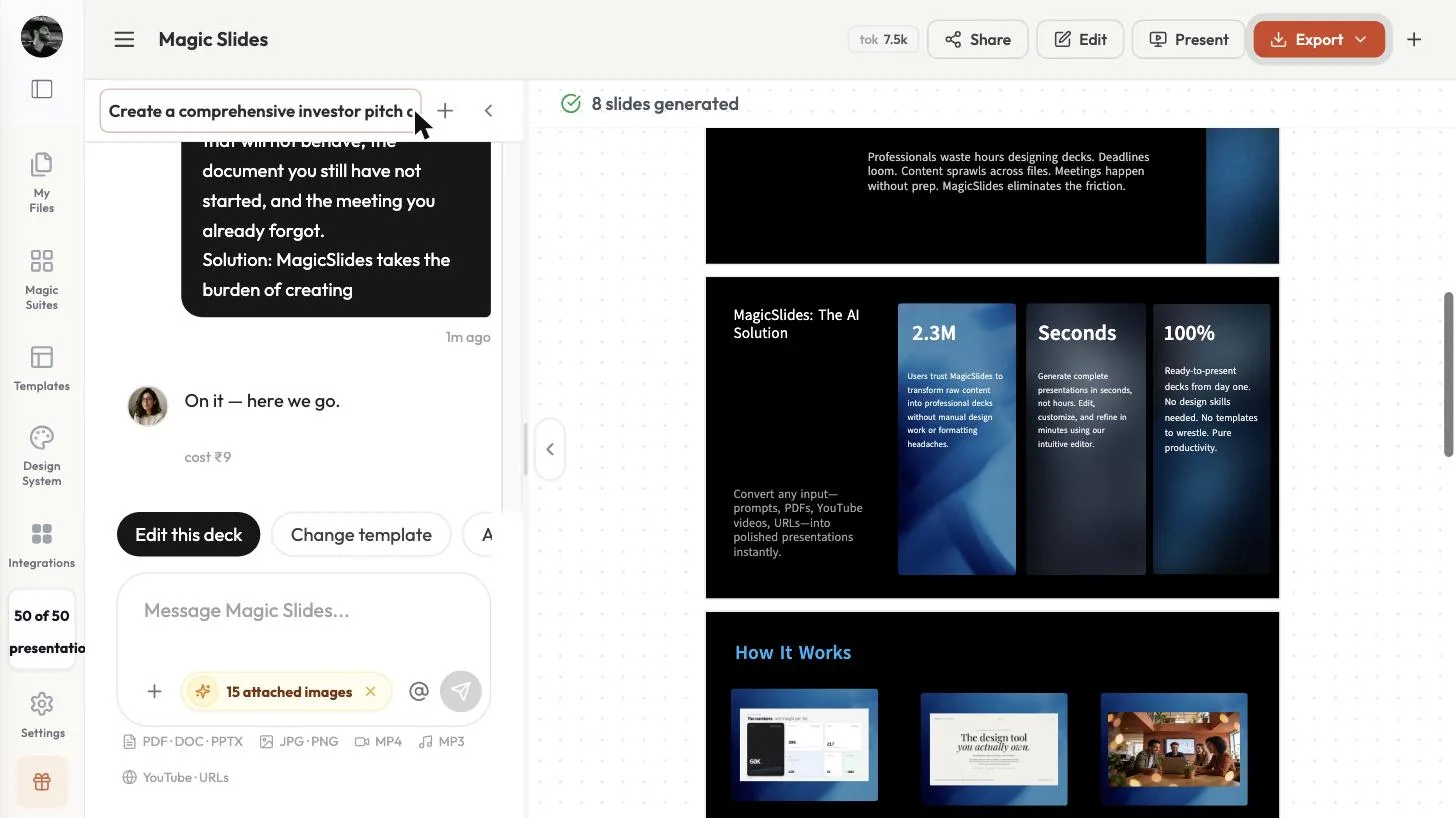 The traction figure came straight from the brief.
Step 7: Replace placeholder numbers
Our The Ask slide showed a $5M Series A, an 18-month timeline, and a 10x user-growth target. None of those were in the brief. The AI filled the gap with example figures. Before this deck goes to an investor, replace every number on it (the raise, the runway, the targets) with your real ones, or delete them.
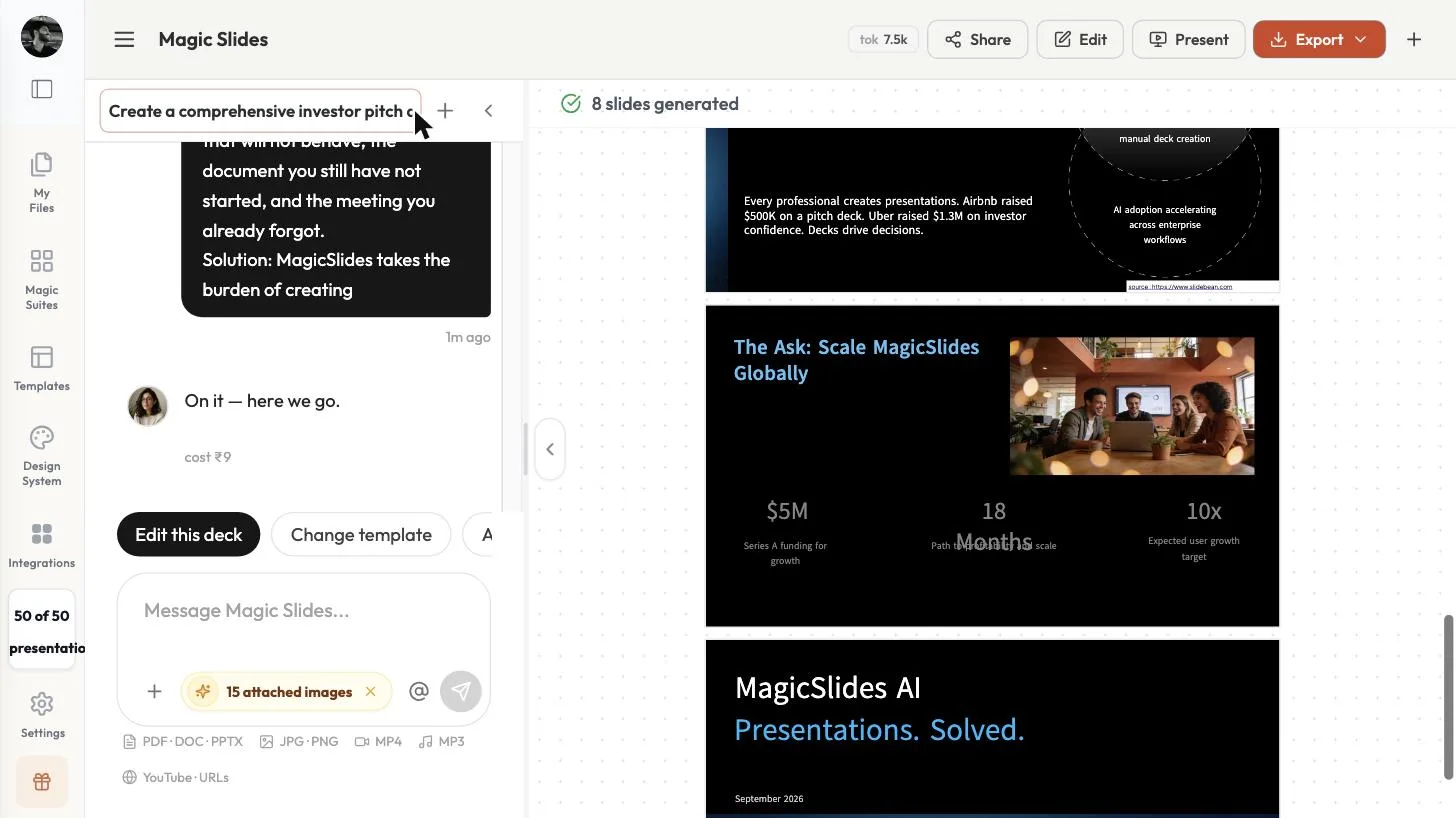 These figures were placeholders. Put your real ask here.
On the same slide, the "18 Months" text overlapped its label. Click Edit to fix layout issues like this, then Export to download PowerPoint (.pptx, marked Plus), PDF, or Google Slides.
Tips
- Put your ask in the brief. Write how much you're raising and what it's for. The ask slide then has your figures to use.
- Put traction early if you have it. A real figure for users, revenue, or growth belongs near the front of the deck.
- One idea per slide. If a slide needs a paragraph to explain, split it.
- Check sources. Market slides may cite outside sources. Keep a source only when it supports your story.
FAQ
How do I make a pitch deck with AI? Enter your website in MagicSlides' AI pitch deck generator, review the brief it builds, click Generate Pitch Deck, pick a template, and approve the plan. Then check every slide and replace placeholder numbers.
How many slides should a pitch deck have? Usually 10 or so: title, problem, solution, product, market, traction, business model, competition, team, and the ask. Our generated draft had 8.
How do I create a pitch deck without a website? Click Skip to Enter details Manually on step 1 and type your startup's details into the brief.
Can I edit the pitch deck after it's generated? Yes. Every slide is editable in the MagicSlides editor, and you can export to PowerPoint (.pptx, marked Plus), PDF, or Google Slides.
Are the numbers in the AI pitch deck accurate? Only the ones you put in the brief. In our test, the ask, the timeline, and the growth target were placeholders the AI added, so replace them with your real figures.


