How to Translate a PPT or PowerPoint Into Another Language (and Keep the Design)

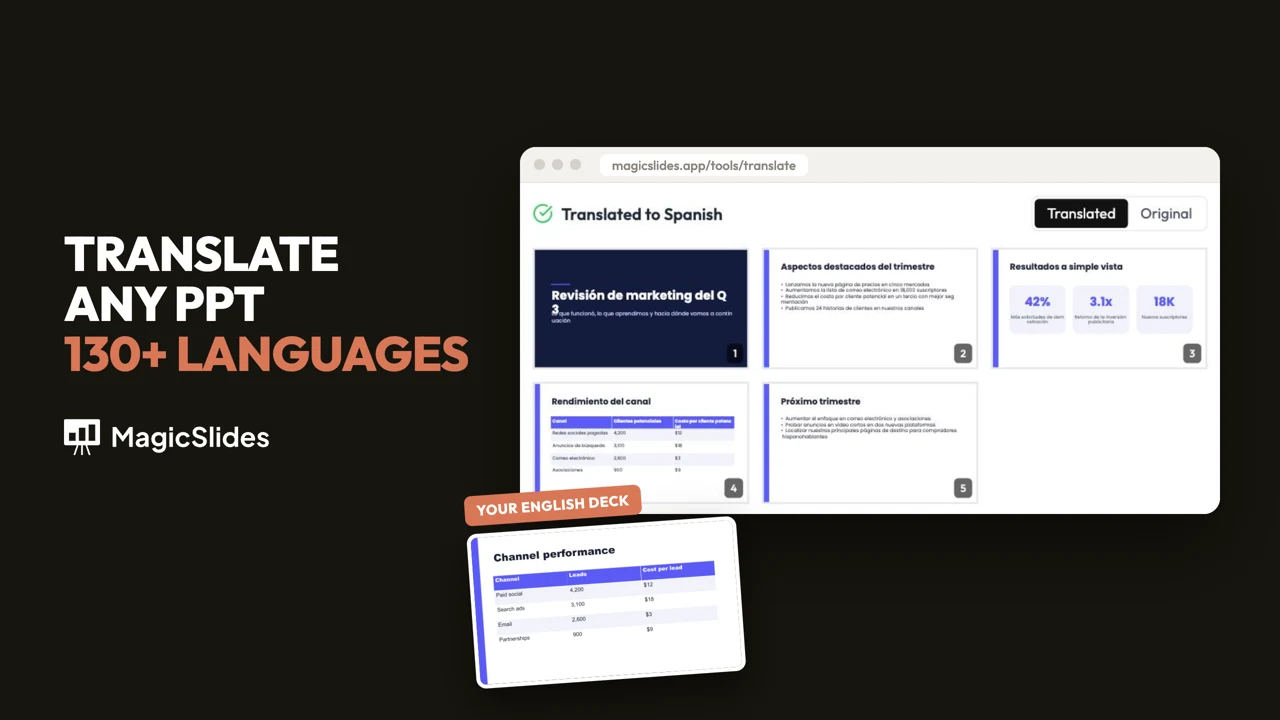
Translate a PPT or PowerPoint into Spanish, French, Hindi or 130+ other languages with MagicSlides. Titles, bullets, tables and grouped shapes are translated. The layout stays the same.
How to translate a PPT in MagicSlides: open the PowerPoint translator and upload your PPTX. Pick a target language and click Translate PPT. You get a preview of the translated slides, then you download the PPTX. Titles, bullet points, text boxes, tables and grouped shapes are translated. Fonts, colours and layout stay the same.
For this guide we translated a 5-slide marketing review from English to Spanish. The deck has a title slide, bullet lists, three stat cards and a table. It took about 30 seconds.
What you need
- A .pptx file, up to 10 MB. If you have an older .ppt, open it in PowerPoint and save it as .pptx first.
- A deck of about 20 slides or fewer. The page recommends 15 to 20 slides at most, because longer PowerPoints can time out.
- A MagicSlides account. If you aren't signed in, a sign-in window opens when you click Translate. The page keeps your file and language while you sign in, then starts the translation.
- The language you want. The list has over 130, including Spanish, French, German, Hindi, Arabic, Japanese and Portuguese.
Translate a PowerPoint step by step
Step 1: Open the translator
Go to magicslides.app/tools/translate. The page has one drop zone and a language picker.
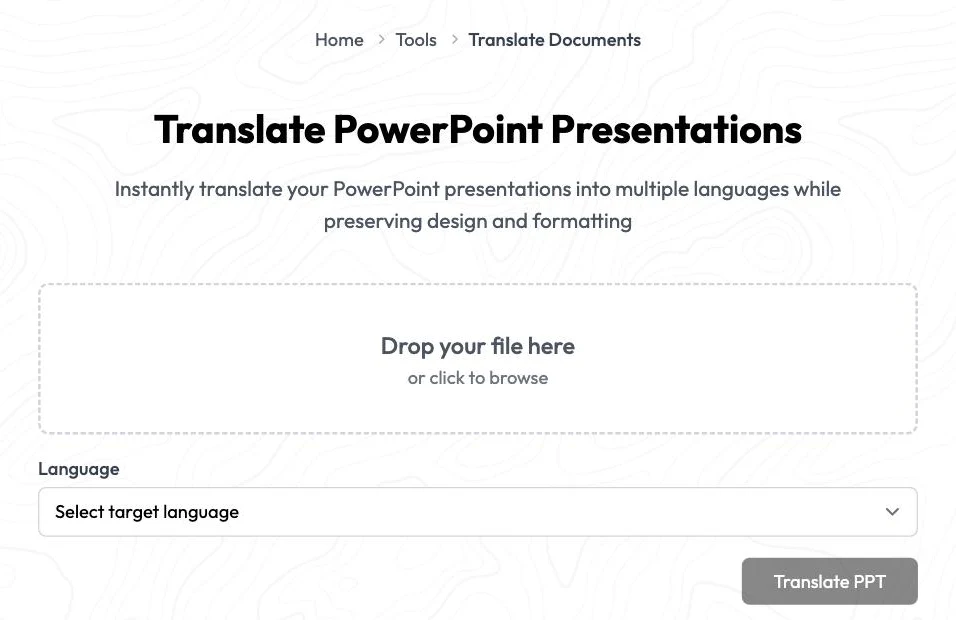 The translator: drop a file, pick a language.
Step 2: Upload your deck and check the preview
Drag your PPTX onto the drop zone, or click it to browse. The drop zone turns into a preview of your slides with the file name and slide count, so you can confirm it's the right deck before you translate. It shows up to 12 slides, then "+N more slides". Use Change file to swap it.
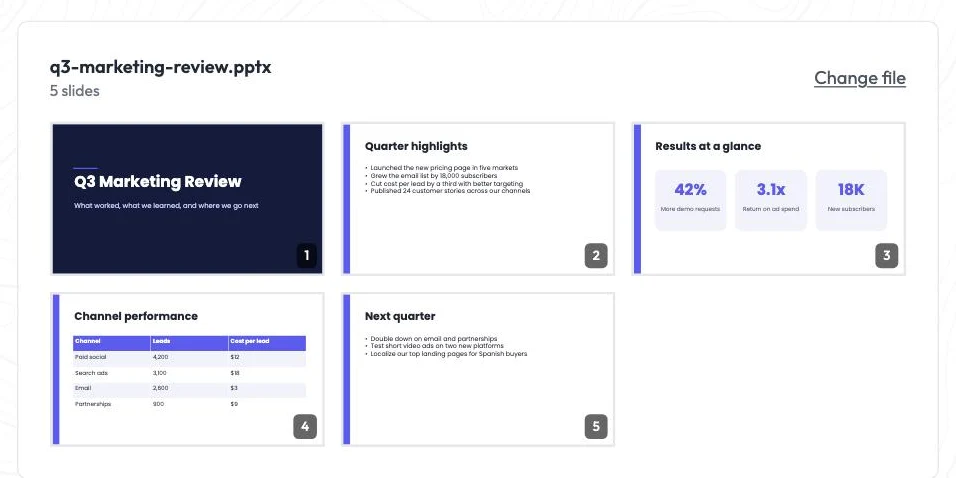 Our deck: 5 slides with bullets, stat cards and a table.
Step 3: Pick a language and click Translate PPT
Choose the target language under Language and click Translate PPT. A progress card over the preview shows each stage: Uploading, Translating text, Building your deck. The page says this can take up to a minute. Our 5 slides took about 30 seconds.
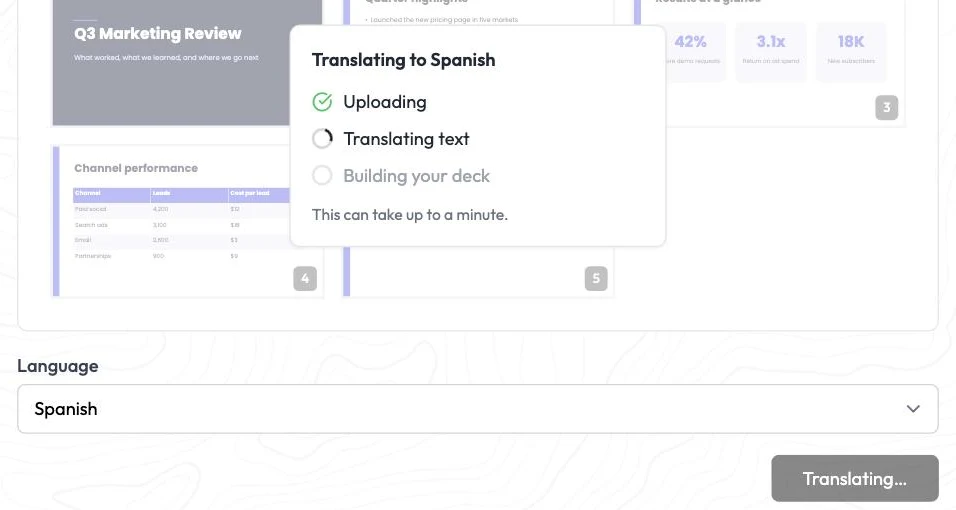 You can see which step it's on.
Step 4: Review the translated slides
When it's done you see the translated deck. Use the Translated and Original switch to flip between the two versions before you download.
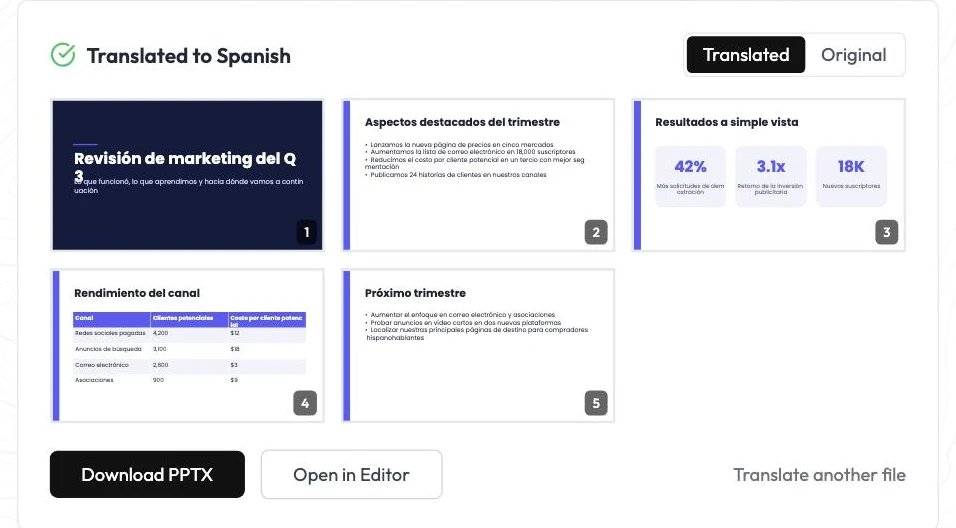 Every slide came back in Spanish, including the stat cards and the table.
Step 5: Download the PPTX
Click Download PPTX to get the translated file. It's a normal PPTX. Here's slide 4 of ours, opened from the download: the table headers and every row label are in Spanish, and the numbers are unchanged.
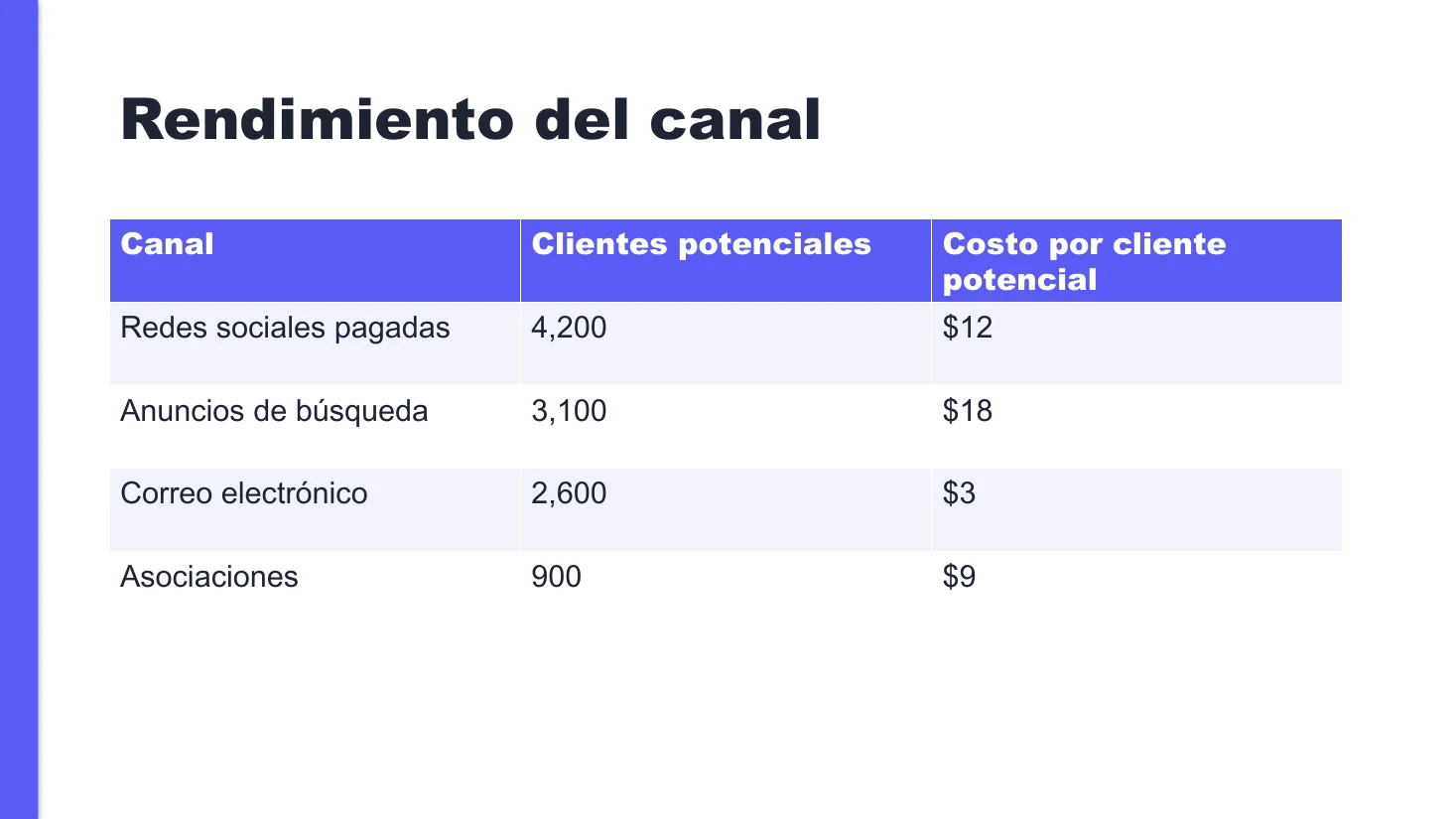 Tables are translated cell by cell, and colours and fonts stay the same.
You can also click Open in Editor to keep working in MagicSlides. The editor doesn't import tables yet. If your PowerPoint has tables, download the PPTX instead.
What gets translated
| Part of the slide | Translated? |
|---|---|
| Titles and subtitles | Yes |
| Bullet points and body text | Yes |
| Text boxes and shapes with text | Yes |
| Tables (every cell) | Yes |
| Grouped shapes (e.g. stat cards) | Yes |
| Numbers like 4,200 or $12 | Kept as they are |
| Speaker notes | No |
| Text inside pictures or screenshots | No, it's part of the image |
In the downloaded file, each piece of text keeps its formatting. A bold word stays bold, and a coloured heading keeps its colour.
Check your slides after translating
Translated text is often longer than the English. Spanish, French and German usually run longer. On our title slide, "Q3 Marketing Review" became "Revisión de marketing del Q3". The longer title wrapped onto a second line and ran into the subtitle.
 Longer titles can collide with the text below. A quick font-size tweak fixes it.
Before you present, check the downloaded PowerPoint:
- Shrink or rewrap long titles that now overlap.
- Check buttons, labels and table headers, where there's the least room.
- Translate speaker notes separately if you read from them.
- Get a native speaker to skim it if the deck is going to customers. Machine translation is good, but brand names and industry terms can come out too literal.
Other ways to translate a presentation
- Inside PowerPoint (Microsoft 365): select some text, go to Review → Translate, pick a language and click Insert. It translates only the text you select and needs an internet connection, so a whole deck means going through it piece by piece.
- Copy and paste into a translator: fine for a slide or two. For a whole deck it means redoing every text box and fixing the formatting by hand.
MagicSlides translates the whole PowerPoint at once and keeps the layout. That is where it saves the most time.
FAQ
Do I need an account to translate a PowerPoint? Yes. You need a MagicSlides account. If you aren't signed in, a sign-in window opens when you click Translate PPT, where you can sign up with email or Google.
Which file types can I translate? PPTX files up to 10 MB. For an older .ppt, save it as .pptx in PowerPoint first. For Google Slides, use File → Download → Microsoft PowerPoint (.pptx), then upload that file.
Will the design change after translating? No. Fonts, colours, images and layout stay the same, because only the text is replaced. Longer translated text can overflow its box, so check titles after translating.
Are speaker notes translated? No. Only the text on the slides is translated. Translate your notes separately if you need them.
How many languages are supported? Over 130, including Spanish, French, German, Hindi, Arabic, Chinese, Japanese and Portuguese.
How long does it take? Our 5-slide deck took about 30 seconds. The page says it can take up to a minute and recommends 15 to 20 slides at most, so split very long decks.


