How to flip a picture in powerpoint


Transform your PowerPoint visuals effortlessly. Learn the art of flipping images with this concise guide.
In the dynamic world of presentations, visuals play a pivotal role, and Microsoft PowerPoint offers a myriad of tools to enhance your slides. One intriguing feature is the ability to flip images, adding a touch of creativity to your presentation. In this comprehensive guide, we'll navigate the step-by-step process of flipping images in your PowerPoint presentation, ensuring your visuals captivate and engage your audience effectively.
How to flip a picture in powerpoint
Step 1: Open Your Microsoft PowerPoint Slide
Commence your creative journey by opening your Microsoft PowerPoint slide. If you don't have one, create a new presentation or open an existing one where you want to apply the image flip.
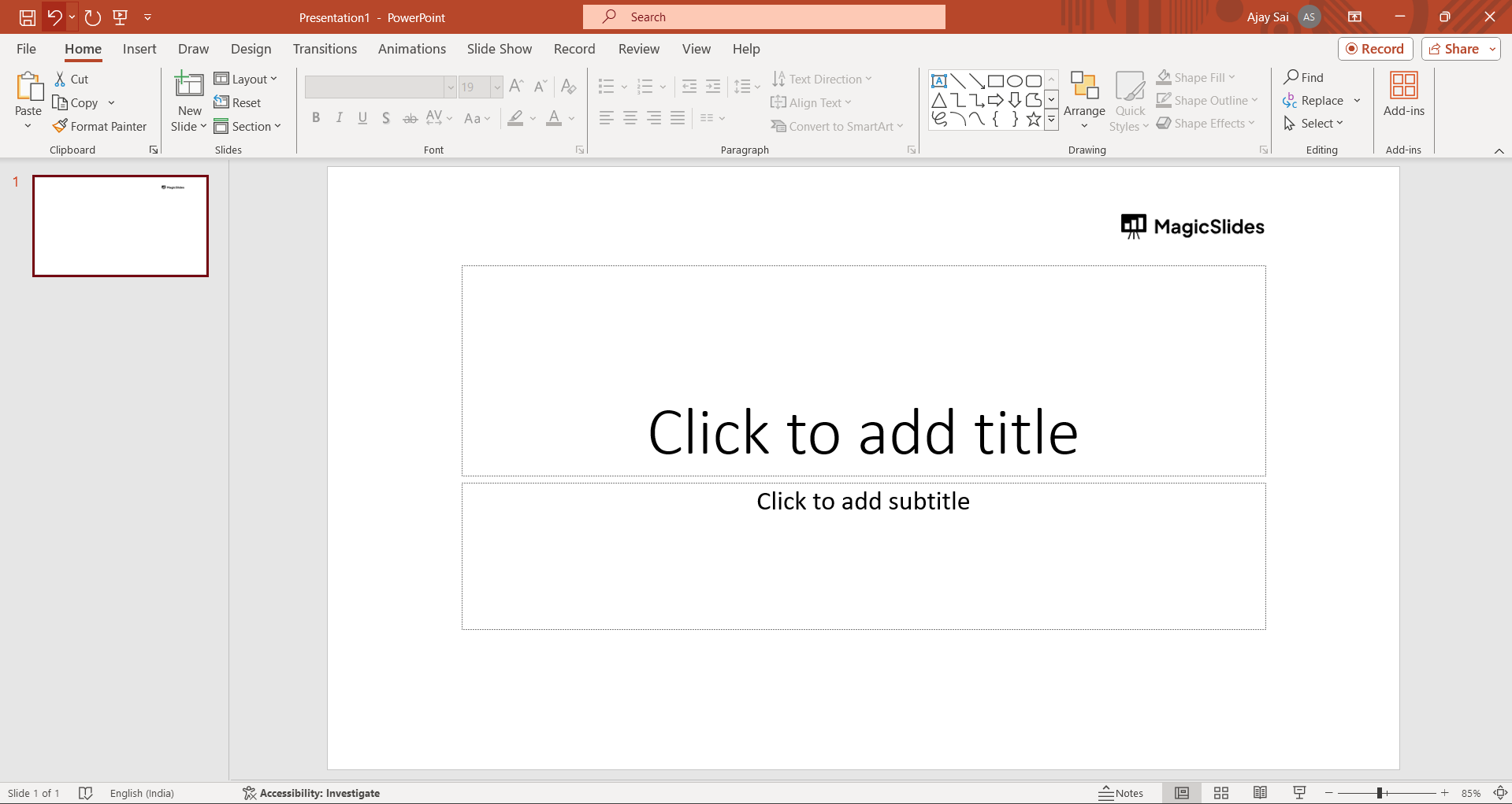
Step 2: Select the Layout with an Image to Flip
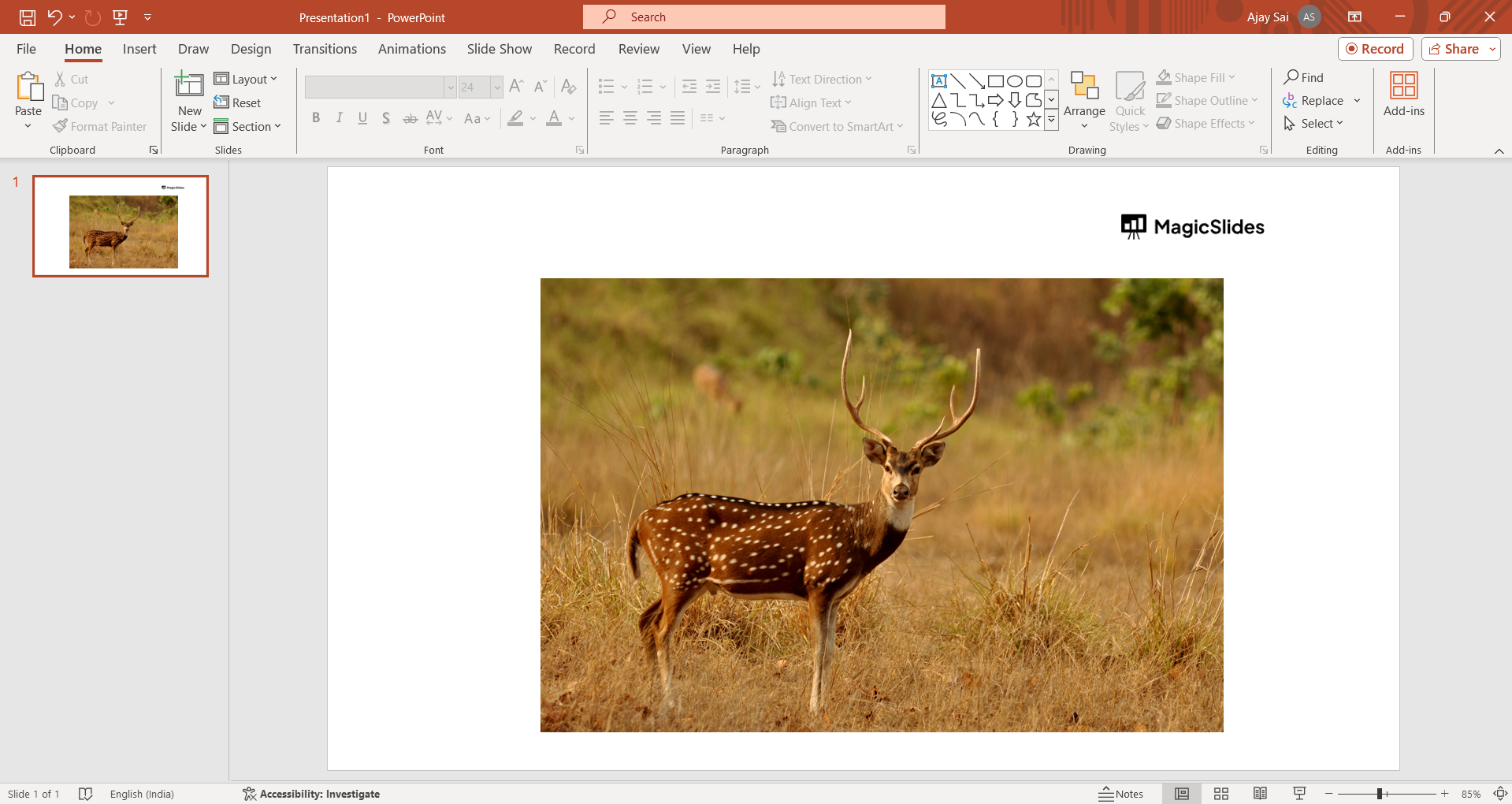
Identify the slide layout containing the image you wish to flip. Click on the image to ensure it is the active element for the upcoming adjustments.
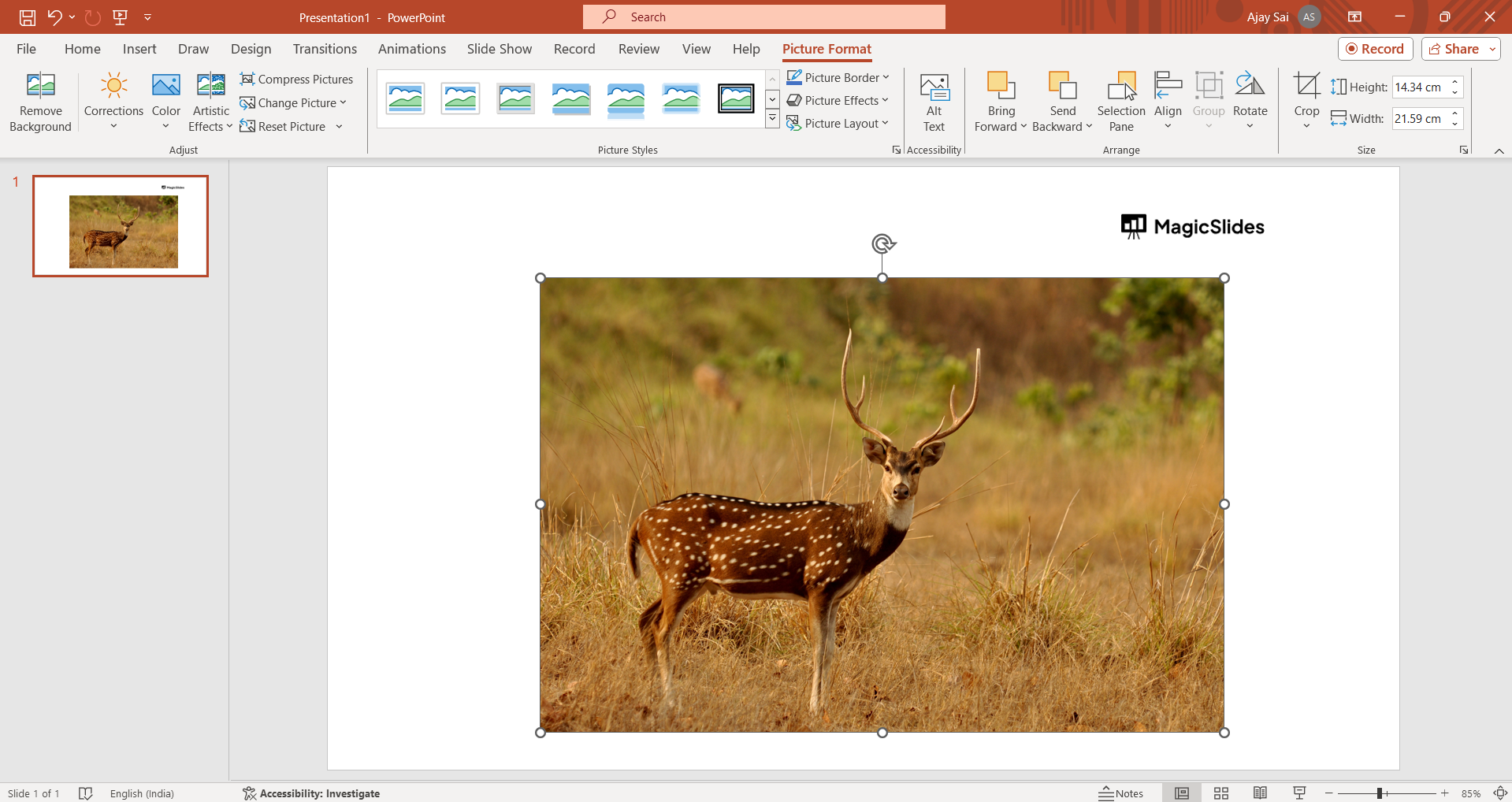
Step 3: Navigate to the "Format" Pane under "Picture Tools"
In the top menu, find the "Format" pane under "Picture Tools." This is your gateway to various formatting options for the selected image.
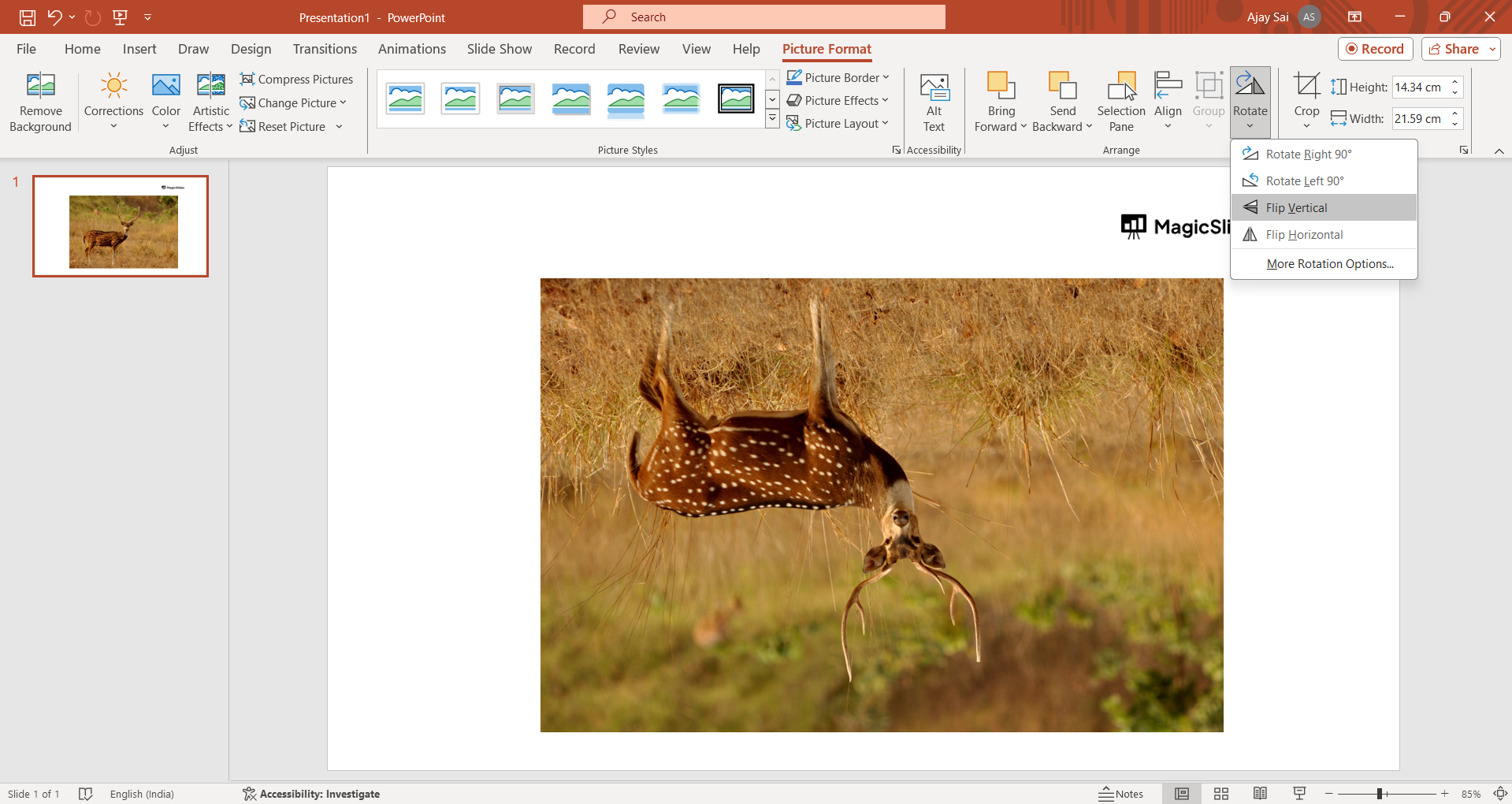
Step 4: Select "Rotate" in the "Arrange" Group
Within the "Format" tab, locate the "Arrange" group. Click on "Rotate" to unveil a drop-down menu presenting different rotation options.
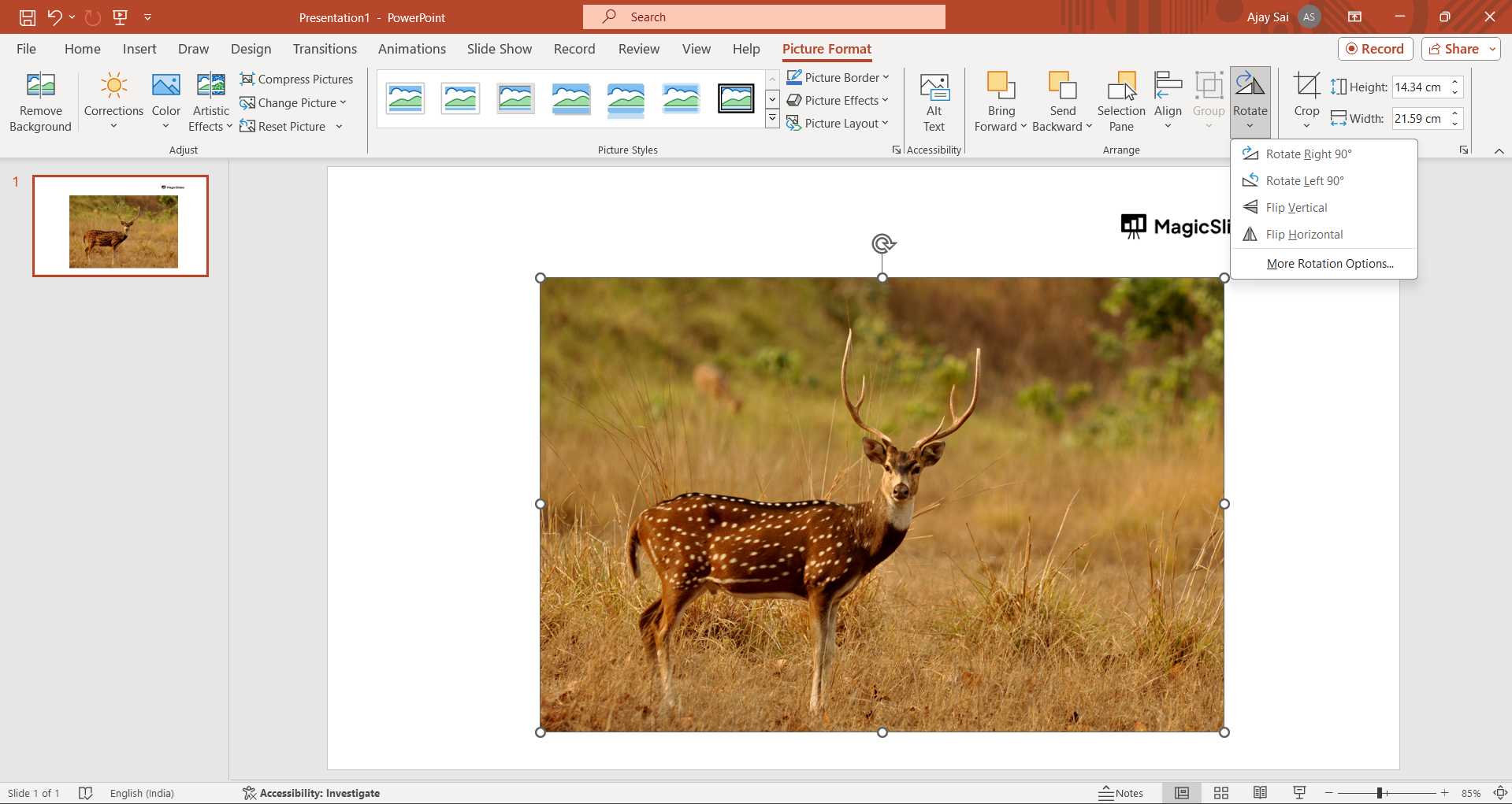
Step 5: Choose "Flip Horizontal/Flip Vertical"
In the drop-down menu, choose the option that reads "Flip Horizontal." This action horizontally mirrors the selected image, offering a fresh perspective to your visual narrative.
Step 6: Save Your Changes
Once you've achieved the desired flip, don't forget to save your changes. Click the "Save" button to ensure your creatively flipped image is stored in your presentation.
Conclusion:
By following these straightforward steps, you've successfully added a creative flair to your PowerPoint presentation. The ability to flip images offers a versatile tool for emphasizing details or presenting a different viewpoint. Experiment with this feature, elevate your visuals, and leave a lasting impression on your audience. Embrace the power of image manipulation in PowerPoint, and let your creativity shine!
Frequently Asked Questions:
Q1: Can I flip multiple images simultaneously in PowerPoint?
A: Unfortunately, PowerPoint's native tools allow flipping images individually; for multiple images, each one needs to be flipped separately.
Q2: Will flipping an image affect its quality or resolution?
A: No, the flipping process in PowerPoint does not alter the image's quality or resolution. It's a visual adjustment.
Q3: Can I undo the "Flip Horizontal" action if needed?
A: Yes, you can undo any recent actions in PowerPoint using the keyboard shortcut Ctrl + Z (Windows) or Cmd + Z (Mac).
Q4: Are there alternative methods to flip images in PowerPoint?
A: Yes, apart from the "Rotate" option, you can right-click on an image, choose "Format Picture," go to the "Size & Properties" tab, and use the Flip options.
Have a look @these info blogs:
- How To Mirror Images In Powerpoint: https://www.magicslides.app/blog/How-to-mirror-images-in-powerpoint
- How To Add Gif In Google Slides: https://www.magicslides.app/blog/How-to-add-gif-in-google-slides
- How To Turn A Powerpoint Into Google Slides: https://www.magicslides.app/blog/How-to-turn-a-powerpoint-into-google-slides
- How To Group Objects In Powerpoint: https://www.magicslides.app/blog/How-to-group-objects-in-powerpoint


