Can I Add a Table Chart in Canva


Create and customize table charts in Canva to visually organize and present your data effortlessly
Yes, you can create and customize table charts in Canva to effectively present data in your designs.
Whether you’re making presentations, infographics, or reports, table charts help simplify complex information and make it more visually appealing.
This guide will walk you through the steps to add a table chart in Canva and customize it to suit your needs.
Can I Add a Table Chart in Canva? | Steps to Add a Table Chart in Canva
Step 1: Open Canva and Start a Design
Log in to your Canva account.

Choose a template or create a blank design where you want to include the table chart.
Step 2: Access the Table Tool
Click on “Elements” in the left-hand menu. In the search bar, type “Table” to find available table chart templates.

Step 3: Choose and Insert a Table
Browse the available table designs and select one that fits your content requirements.
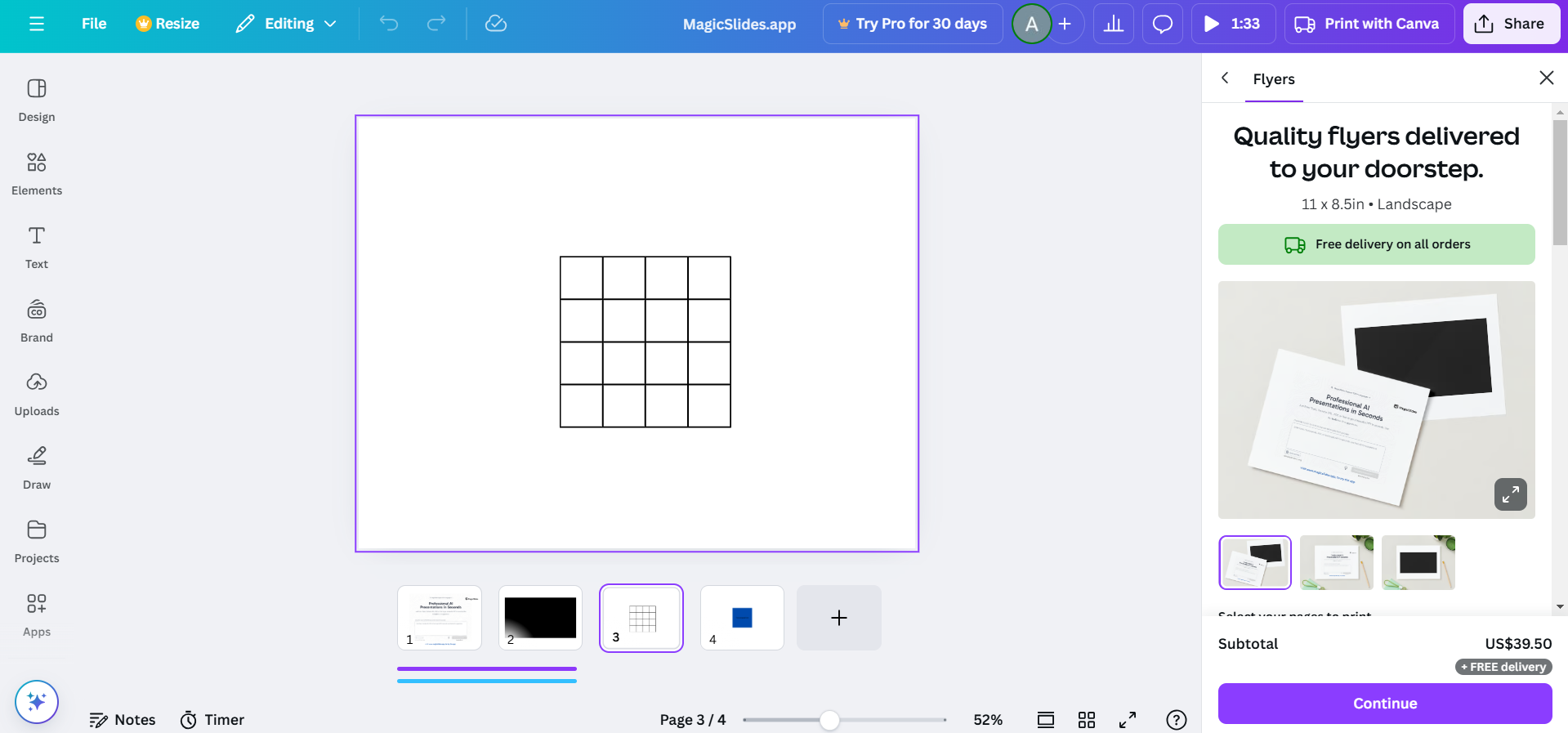
Drag and drop the selected table onto your design canvas.
Step 4: Customize the Table Size and Layout
Click on the table to resize it by dragging the corners.
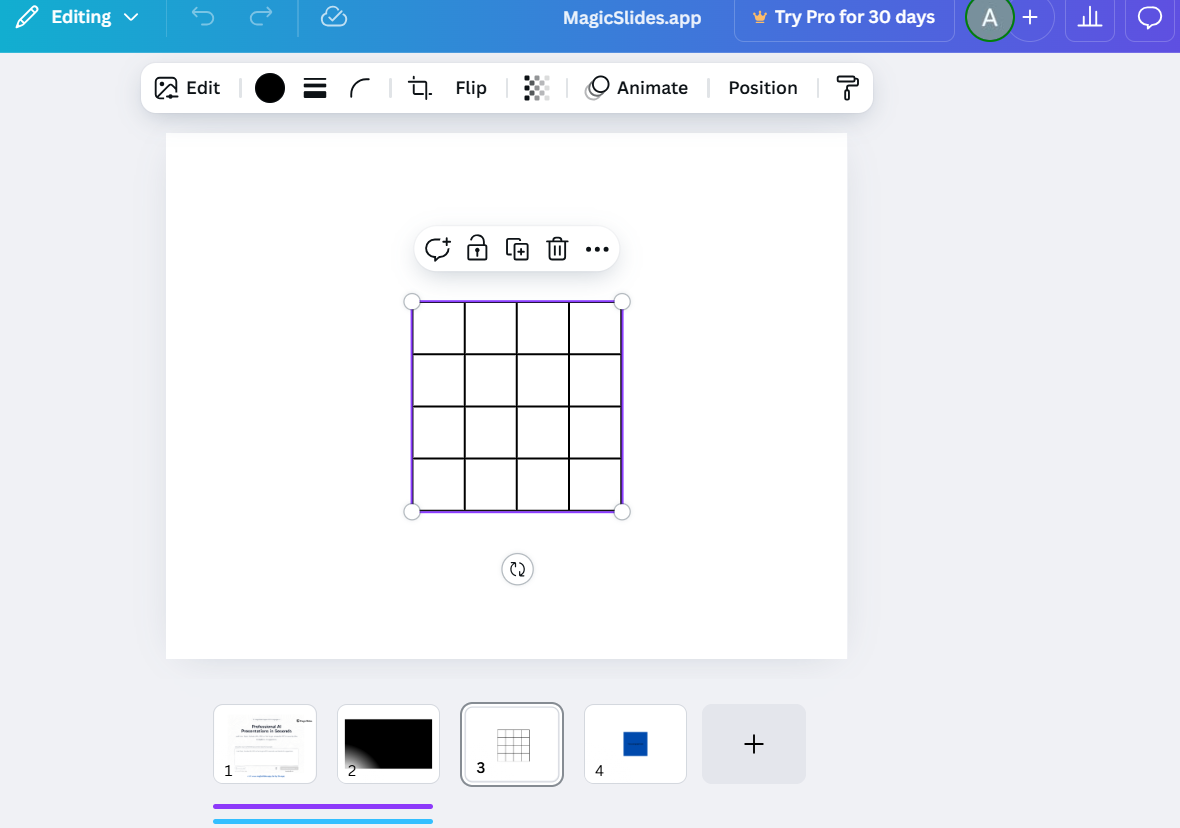
Adjust the number of rows and columns by clicking on the table and using the toolbar options.
Step 5: Add and Edit Table Data
Click on each cell to enter text, numbers, or other data.
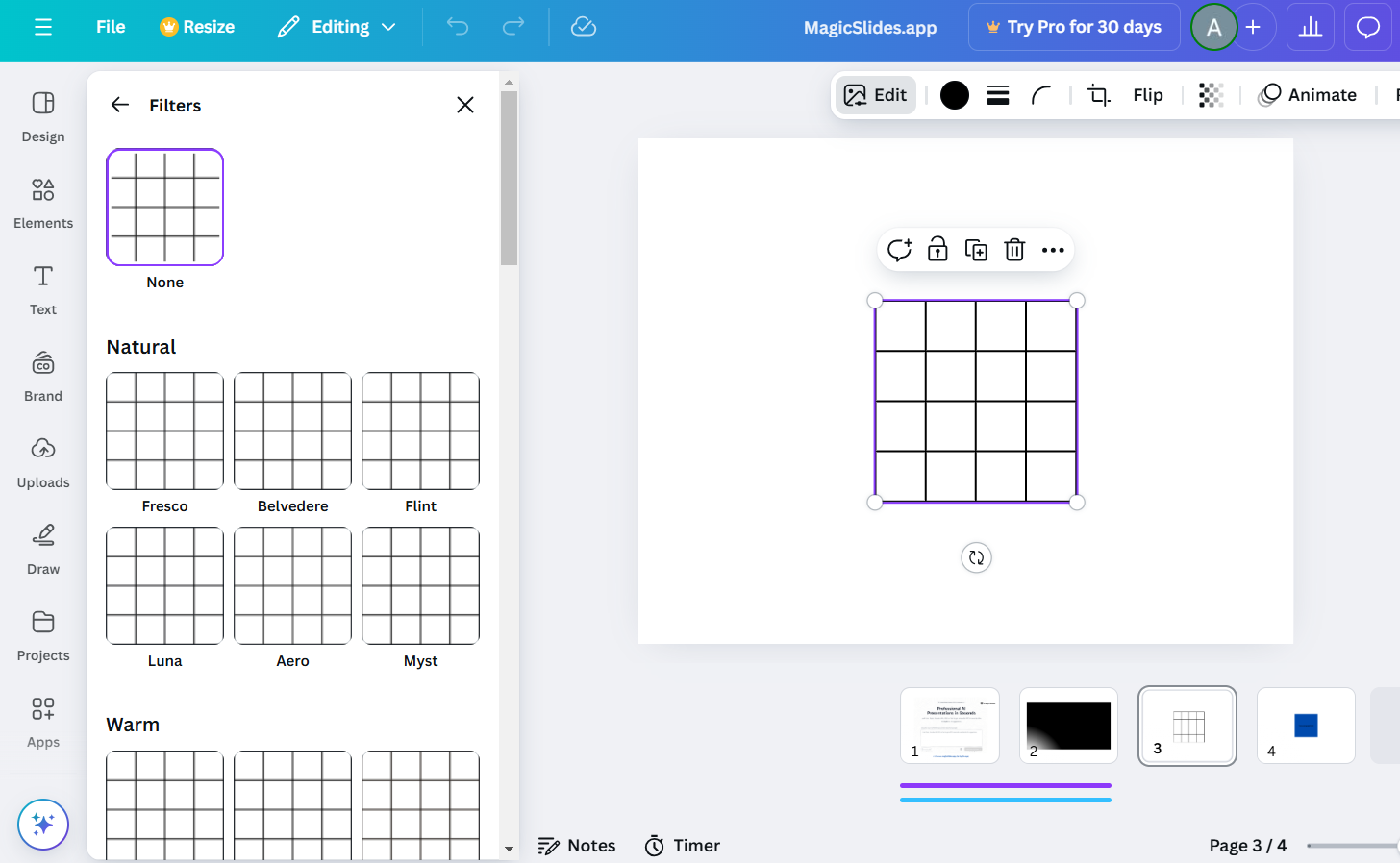
Customize the font style, size, and alignment to make the content readable and visually appealing.
Step 6: Style the Table
Use the toolbar to change the table’s colors, including cell backgrounds, borders, and text.

Add shading or alternate colors to rows and columns for better readability.
Step 7: Final Adjustments and Placement
Position the table within your design by dragging it to the desired location.
Ensure the table fits seamlessly with the rest of your design elements.
Now that you know how to add a table chart in Canva, take your design skills further by learning how to change lengths in Canva for precise adjustments.
Conclusion
Adding a table chart in Canva is an effective way to organize and display data visually.
Canva’s user-friendly tools make it simple to create and customize tables to align with your design objectives.
By following these steps, you can add professional-looking table charts to your projects and enhance their impact.
FAQs on Adding a Table Chart in Canva
Can I import a table from Excel into Canva?
While Canva doesn’t support direct imports from Excel, you can recreate your table in Canva using its tools.
Can I customize the borders of a table in Canva?
Yes! You can adjust the thickness, color, and style of table borders to match your design theme.
Can I animate a table chart in Canva?
Yes, Canva allows you to apply animations to table charts, making them more dynamic for presentations.
By following these steps, you can effectively create and customize table charts in Canva to elevate your design projects!


