How to change Lengths in Canva


Easily adjust lengths in Canva to create precise, visually appealing designs for any purpose or platform
Adjusting lengths in Canva is essential for creating precise, professional-looking designs.
Whether you're resizing an element, adjusting text boxes, or modifying shapes, Canva provides simple tools to tailor every design aspect.
Follow these step-by-step instructions to easily adjust lengths and make your designs stand out.
How to Change Lengths in Canva | Steps to Change Lengths in Canva
Step 1: Open Your Canva Design
Log in to Canva and open the project where you want to change lengths.
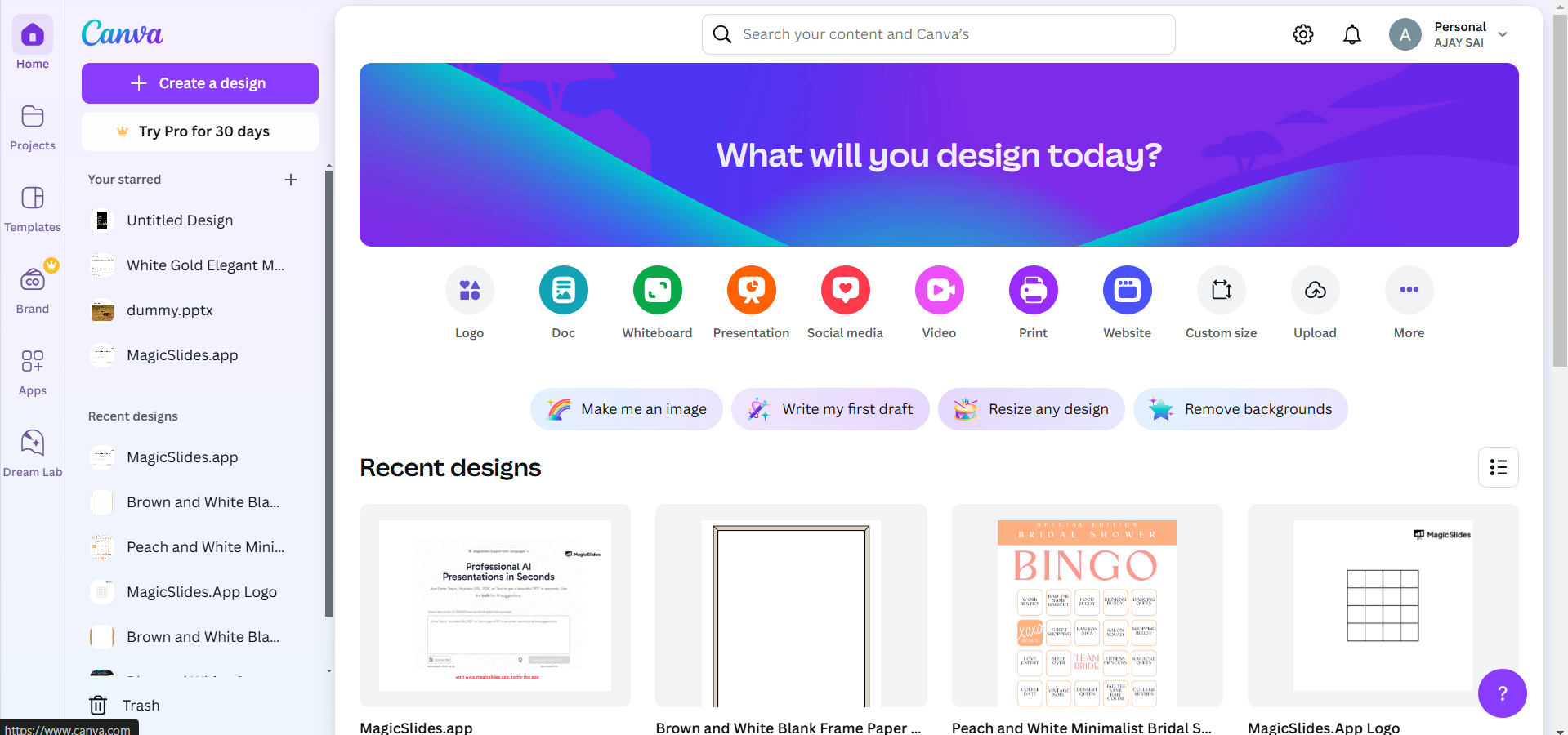
If you’re starting a new project, click Create a Design and choose a template or custom size.
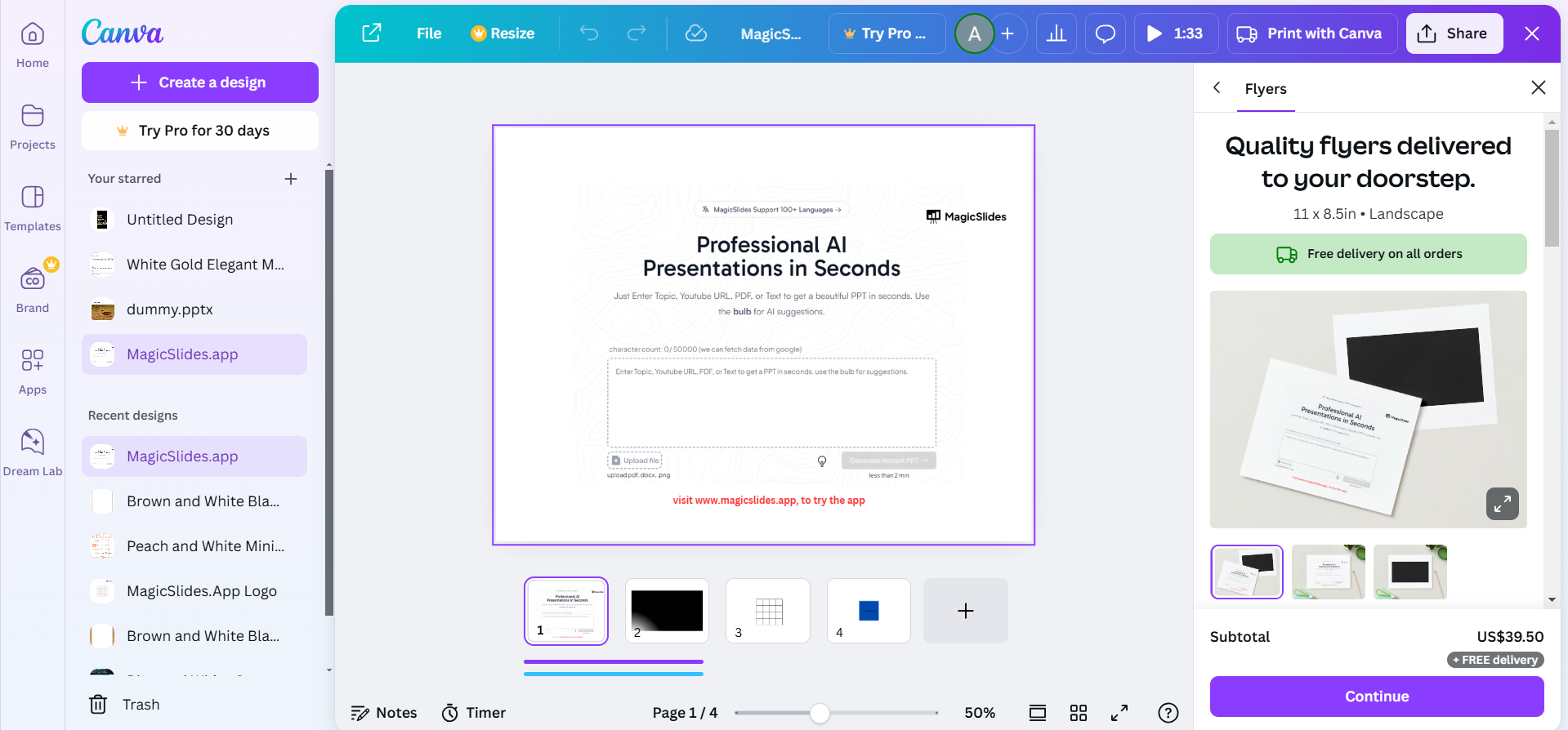
Step 2: Select the Element to Adjust
Click on the design element (e.g., text box, shape, line, or image) you want to modify.
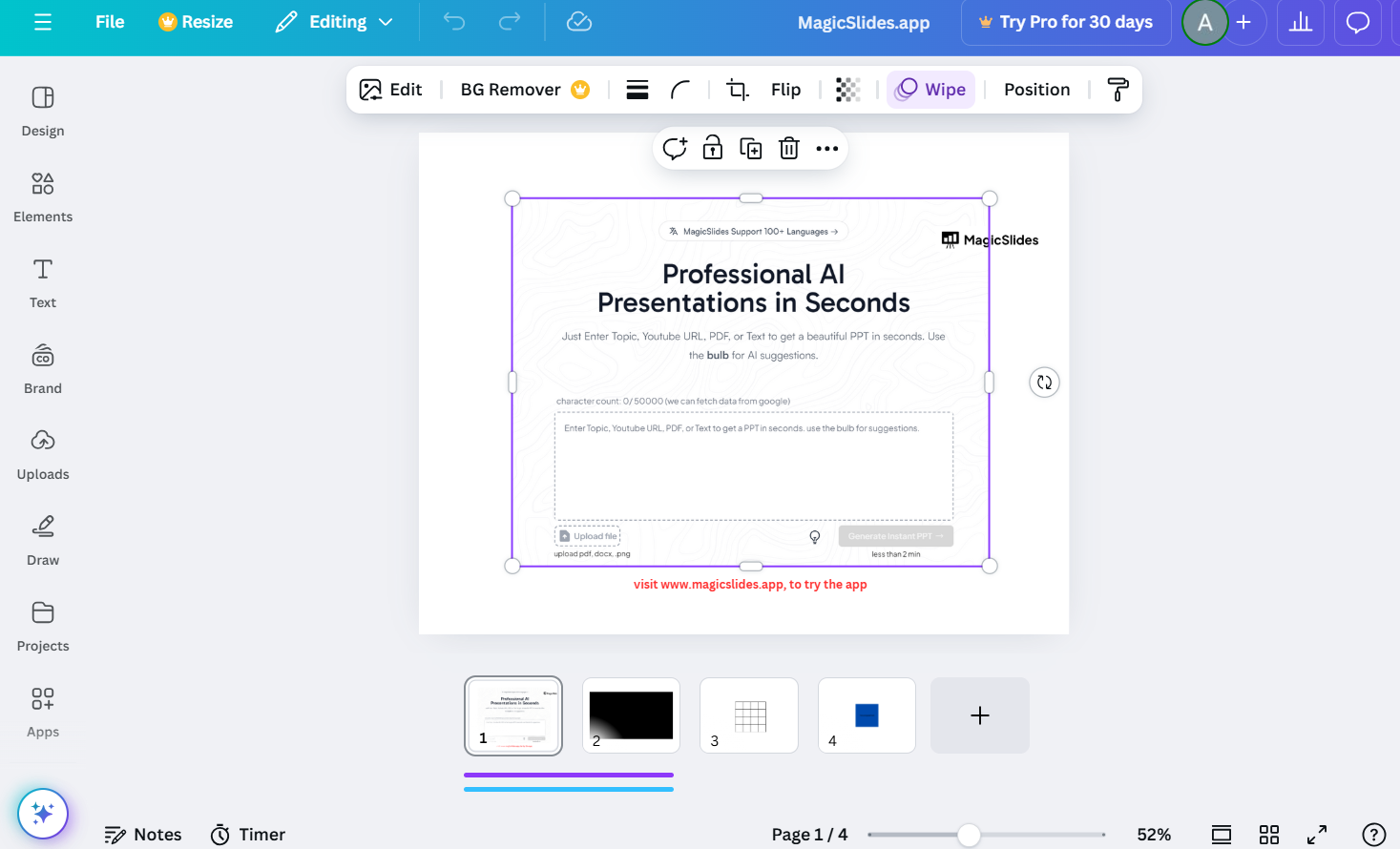
Ensure the selected element is highlighted with resize handles (small circles or squares around the edges).
Step 3: Resize the Element Manually
Click and drag the handles at the corners or edges of the selected element to adjust its length.
- Dragging corner handles maintains the element’s proportions.
- Dragging side handles adjusts only the length or width.
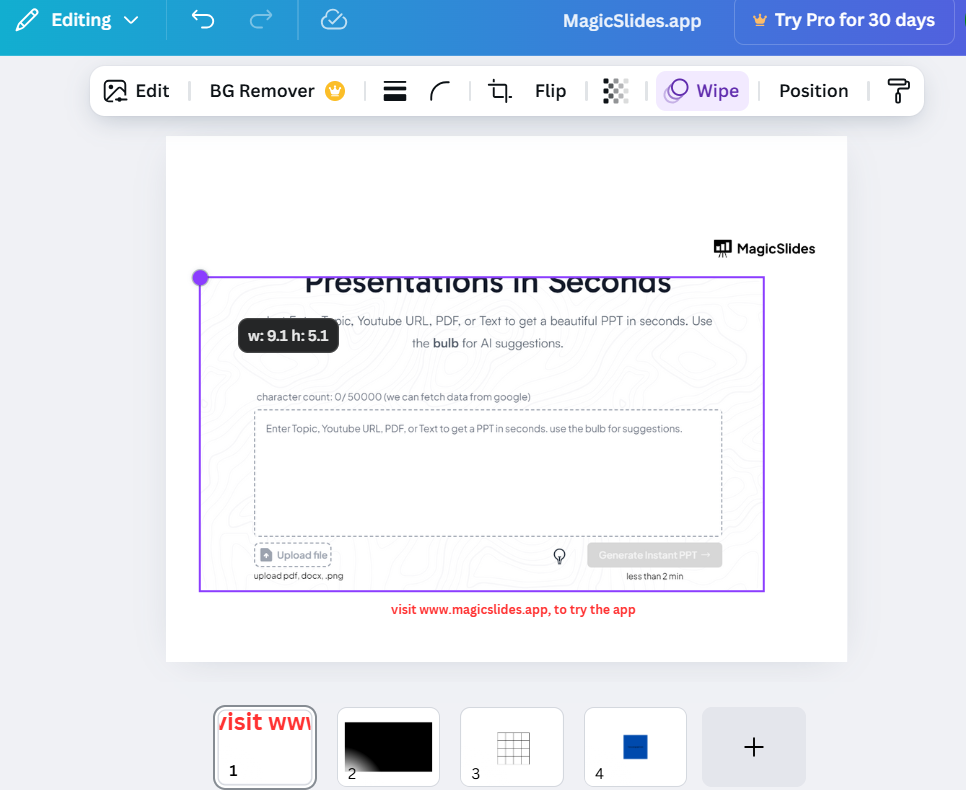
Release the mouse button to set the new size.
Step 4: Use the Position and Size Panel
For precise length adjustments, click the Position or Size options in the top toolbar.
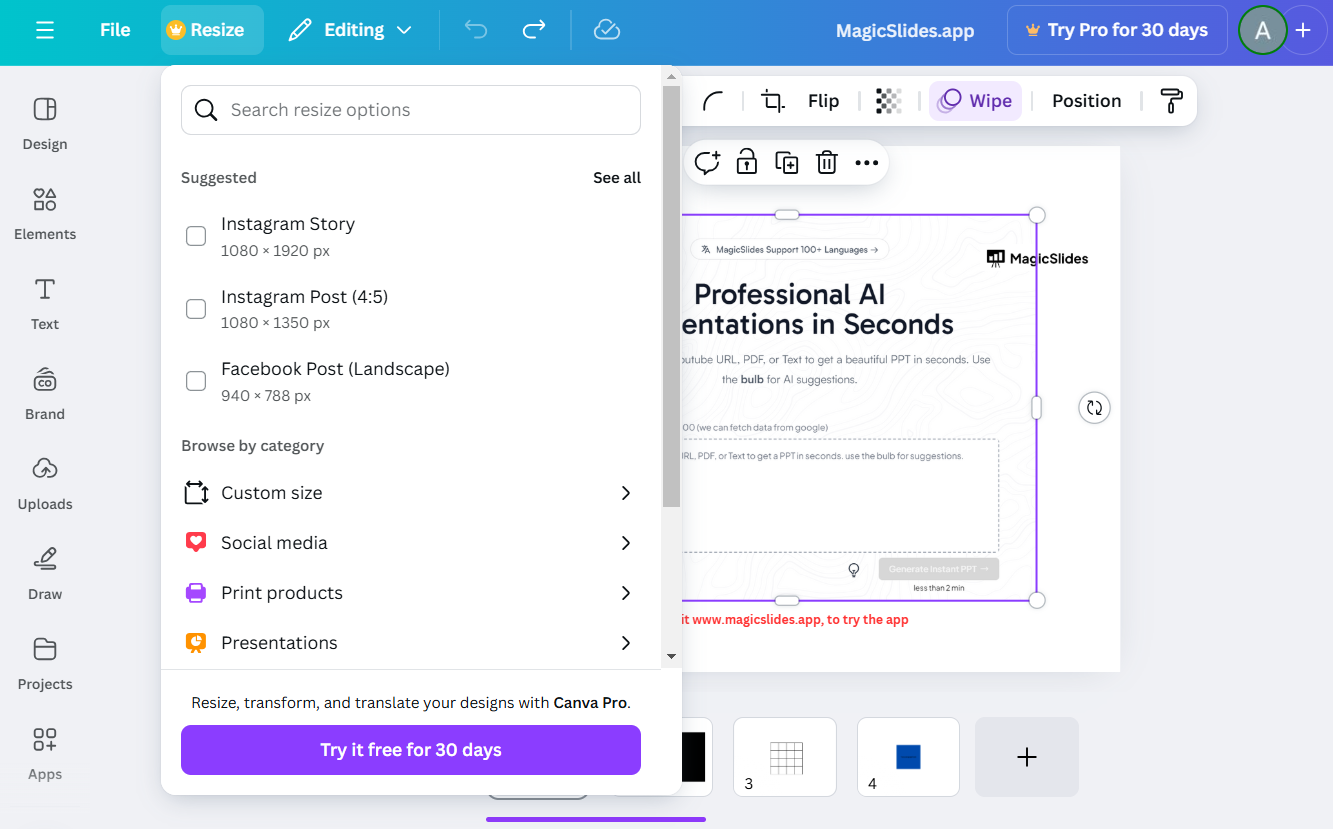
Input the exact dimensions for width and height in the respective fields. Canva will automatically resize the element based on your input.
Step 5: Preview and Save
Review your design to ensure all lengths are correctly adjusted and visually balanced.
Click the Share button and choose Download to save your design.
Conclusion
Customizing lengths in Canva is a straightforward process that enhances your design’s visual impact.
Whether resizing elements for balance or ensuring precise dimensions, these steps empower you to create polished, professional designs effortlessly.
Start experimenting with lengths today to take your Canva creations to the next level!
FAQs on Changing Lengths in Canva
Can I resize multiple elements at once in Canva?
Yes, select multiple elements by holding Shift, then drag the resize handles to adjust them together.
How do I maintain proportions while resizing?
Hold the Shift key while dragging a corner handle to resize proportionally without distorting the element.
Can I revert to the original size of an element?
Yes, use the Undo button or manually resize the element to its previous dimensions.
Mastering length adjustments in Canva ensures your designs are both visually appealing and professionally precise!


