Addon google slides iconPPT with AISlide TemplatesPPT TemplatesPricingBlog
    PPT with AISlide TemplatesPPT TemplatesPricingBlog
    1. Home
    2. Blog
    3. Can I loop a GIF in Canva Slides


    Can I loop a GIF in Canva Slides

    Ajay Sai

    Published By

    Ajay Sai

    Approved By

    Admin

    Published On

    January 28th, 2025

    Reading Time

    3 min read

    Learn how to loop GIFs seamlessly in Canva slides to enhance your presentations with dynamic animations

    GIFs are a fantastic way to add visual interest and dynamic content to Canva slides.
    While Canva supports GIFs, ensuring they loop seamlessly during your presentation requires careful setup.
    This guide explains how to incorporate and loop a GIF in Canva slides, enhancing your presentation's impact.

    Can I Loop a GIF in Canva Slides? | Steps to Loop a GIF in Canva Slides

    Step 1: Upload or Select a GIF

    Open your Canva project and navigate to the slide where you want the GIF.
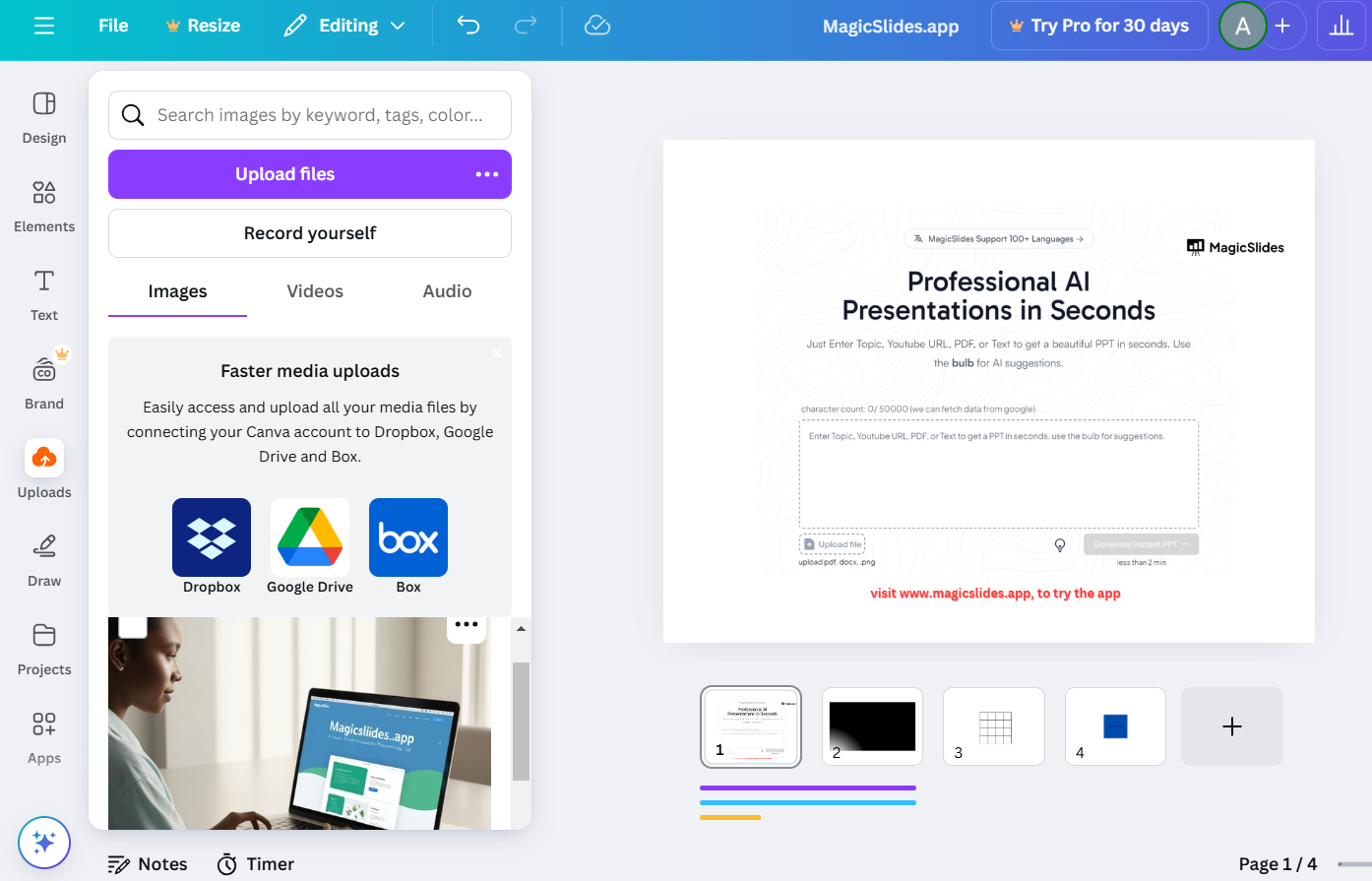
    To upload a custom GIF, click on Uploads > Upload Files, and select the GIF from your device.
    notion image
    Alternatively, search for GIFs in Canva’s library by going to Elements > GIFs and picking one.

    Step 2: Place the GIF on the Slide

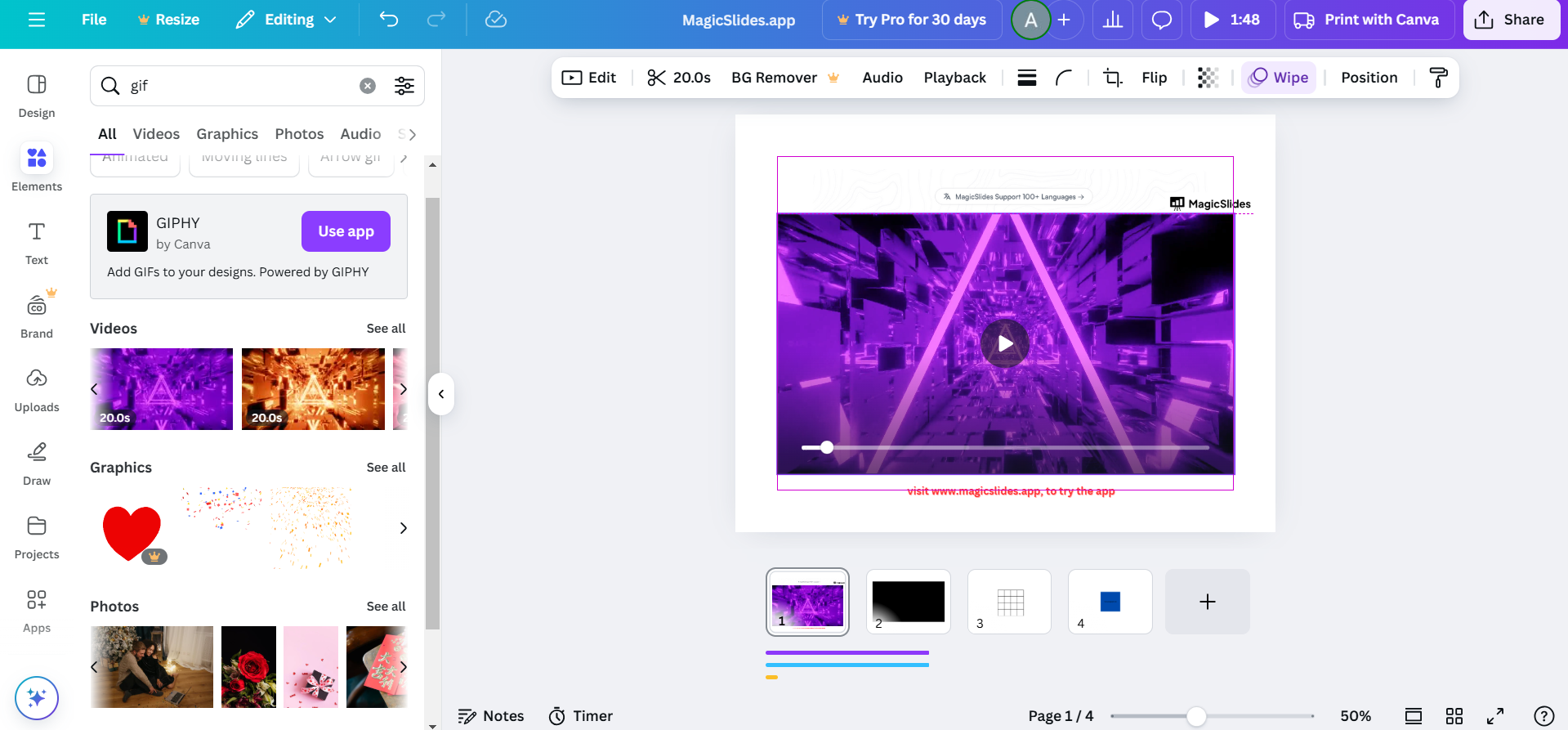
    Drag and drop the GIF onto the slide.
    notion image
    Resize and position the GIF as needed by adjusting its corners and dragging it to the desired location.

    Step 3: Enable Playback Settings

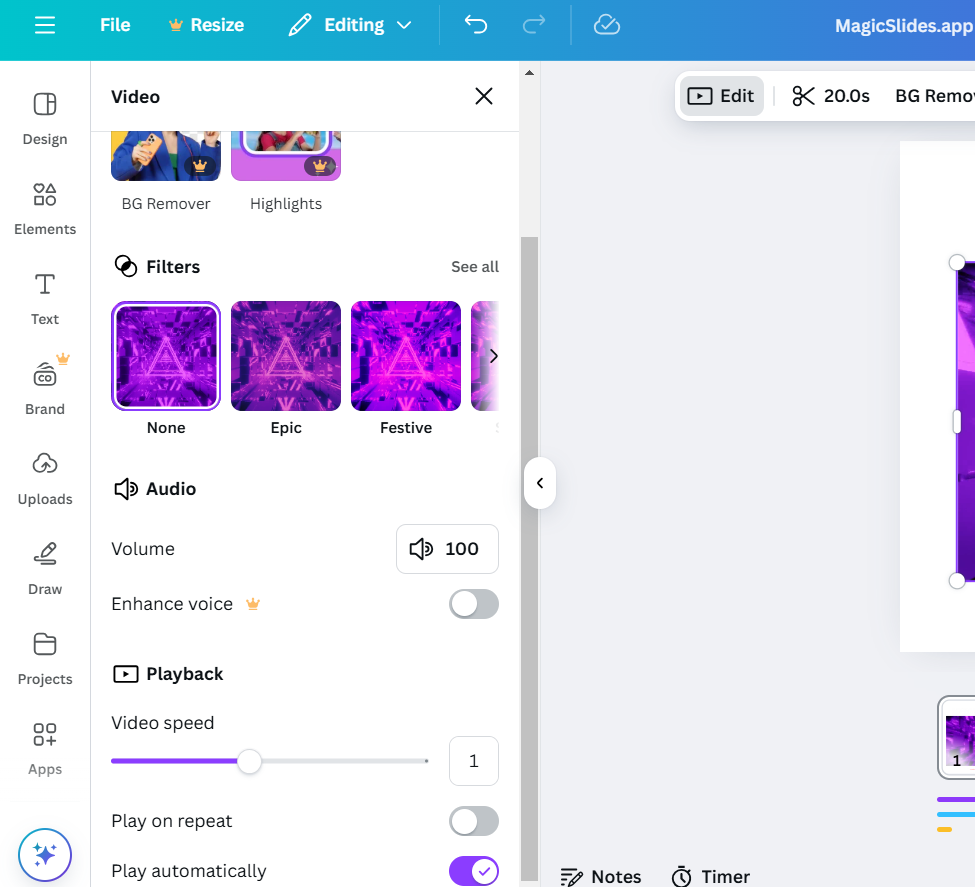
    Click on the GIF to open the toolbar above the slide.
    notion image
    In the toolbar, look for playback options or animation settings. By default, GIFs in Canva loop automatically during presentation mode.

    Step 4: Duplicate Slides for Continuous Effect

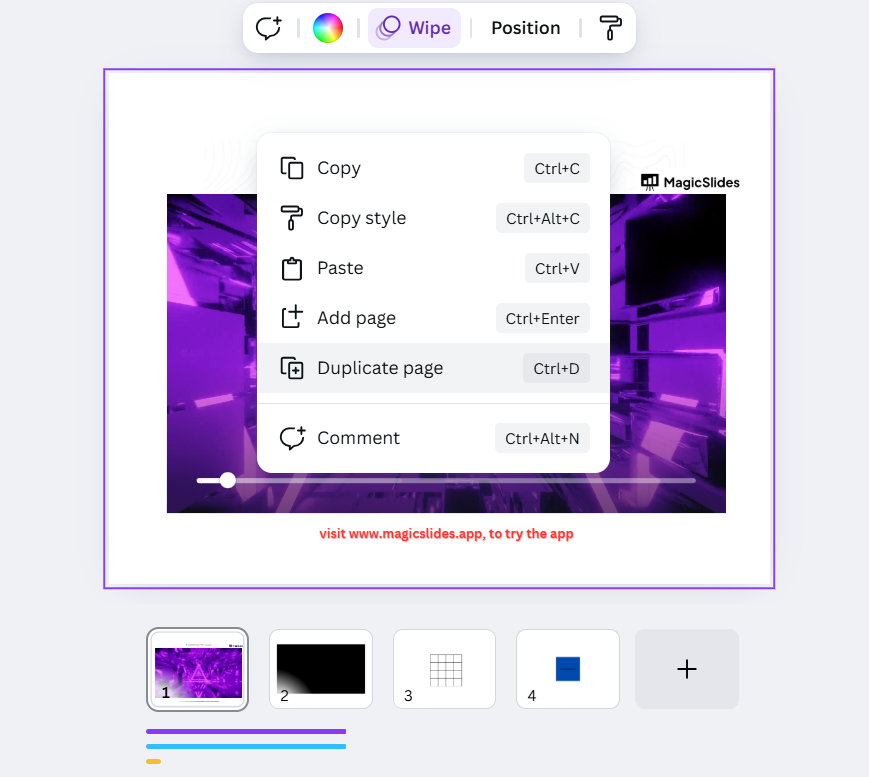
    To extend the GIF’s looping across multiple slides, right-click the slide with the GIF and select Duplicate Slide.
    notion image
    Ensure the same GIF placement across all duplicated slides for a seamless transition.

    Step 5: Preview Your Presentation

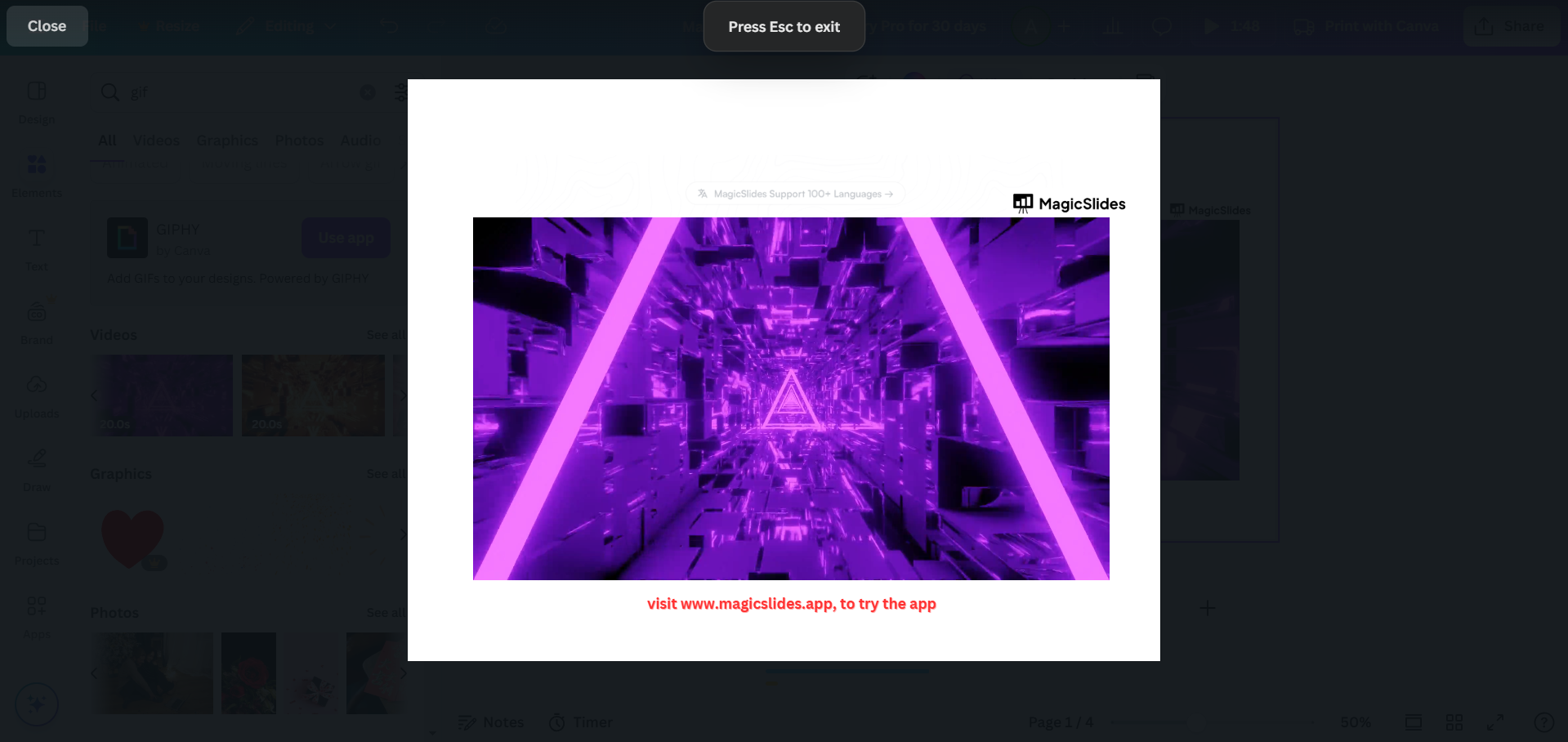
    Click on Present in the top-right corner to start the slideshow.
    notion image
    Observe the GIF in action to confirm it loops as expected.

    Step 6: Export as Video (Optional)

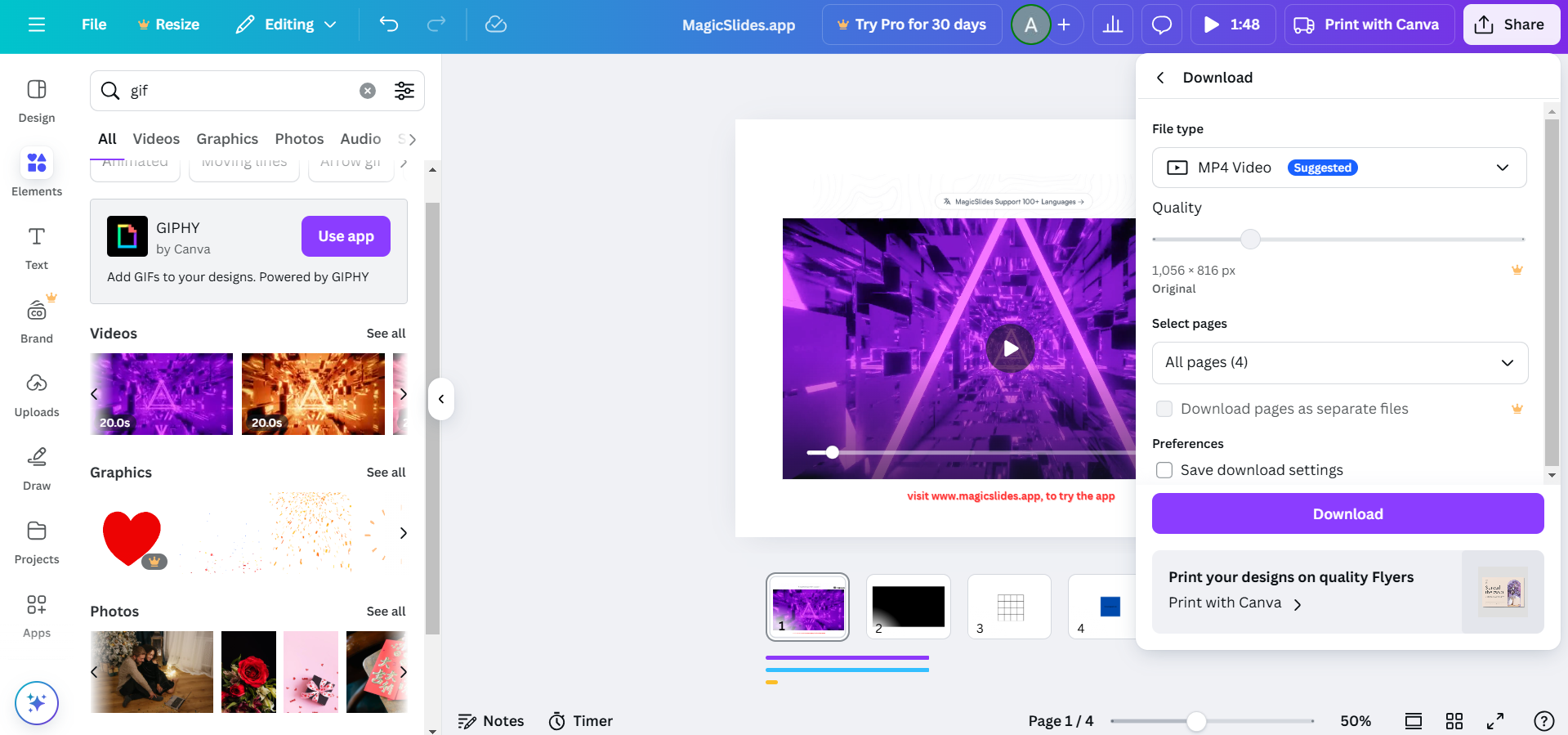
    If you need the presentation with a looping GIF as a video file, click Share > Download and select MP4 Video as the file type.
    notion image
    The exported video will maintain the GIF’s looping animation.

    Looping a GIF in Canva Slides is possible! But why stop there? With MagicSlides.app, you can create professional, dynamic presentations effortlessly, adding features like animations, videos, and more to elevate your slides in seconds.

    Conclusion

    Incorporating looping GIFs into Canva slides is an effective way to add liveliness to your presentations.
    Whether using Canva’s built-in options or duplicating slides for continuous playback, these steps ensure your GIFs captivate your audience without interruptions.

    FAQs on Looping GIFs in Canva Slides

    Can I control the looping duration of a GIF in Canva?

    No, GIFs in Canva loop indefinitely during presentations, following their original animation length.

    Will the GIF loop when exported as a PDF?

    No, PDFs do not support GIF animations. Export as a video or present directly to retain the looping.

    Can I add multiple GIFs to a single slide in Canva?

    Yes, you can place multiple GIFs on a slide, each retaining its animation properties.
    By following this guide, you can effectively use looping GIFs in your Canva slides to create engaging, memorable presentations.

    Share on socials

    About the author

    Ajay Sai profile photo
    Ajay Sai— writer at MagicSlides.app

    Ajay have been a techincal writer for more than 2+ years. from coding tutorials to using day to day apps he have helped 100k+ visitors with their various queries

    More from Ajay

    More from the blog

      250+ Good Morning Messages for Her (Romantic, Deep, Cute & Sweet)

      28 January 2026

      50+ History Presentation Topics For 2026

      28 January 2026

      How to Add Music to Your Canva Presentation: A Step-by-Step Guide

      27 January 2026

      15 Quick Tips To Use ChatGpt At Work

      22 January 2026

      11 Best AI Tools for Business in 2025

      22 January 2026

      How to Create an Infographic That Clearly Communicates Your Message

      20 January 2026

      How to Create a Sales Presentation Template in Google Sheets

      20 January 2026

      How to Make a Pie Chart on Google Slides in Simple Steps

      19 January 2026

      How to Change Slide Size in PowerPoint in 5 Steps

      15 January 2026

    Table of Contents

    Create Presentations in Seconds

    Transform your ideas into professional presentations with AI. No design skills needed.

    Try MagicSlides Free

    Create Stunning Presentations with AI in Seconds ✨

    Transform any topic, text, YouTube video, PDF or URL into beautiful presentations instantly with MagicSlides AI.

    Try MagicSlides AI Presentation Maker
    MagicSlides AI Presentation

    Footer

    Solutions

    • MagicSlides App
    • Google Slides Add-on
    • MagicSlides in Chrome
    • MagicSlides in Figma
    • MagicSlides in ChatGPT
    • MagicSlides in Telegram
    • MagicSlides in Zapier
    • MagicSlides in Figma Slides

    Tools

    • AI PPT Tools
    • QR Code Generator
    • Design Tools
    • PPT Templates
    • Slide Templates
    • PDF Tools

    Examples

    • AI Presentations
    • PPT by MagicSlides
    • Quizzes
    • Charts
    • Coloring Pages

    Resources

    • Changelog
    • Documentation
    • API Docs

    Top Blogs

    • How to Create Presentation Using ChatGPT
    • 100+ Best Seminar Topics for Students in 2025

    Company

    • Help
    • MCP
    • Blog
    • Pricing
    • Affiliate Program
    • Manage Subscription
    • Privacy Policy
    • Contact Us
    • Terms & Conditions
    • Refund & Cancellation Policy

    We also built

    • SheetAI - GPT For Sheets
    • MagicForm - GPT For Google Forms
    • SecondBrain.fyi
    • BlogBee - Free Blogging Platform

    © 2026 IndianAppGuy Tech Pvt Ltd. All rights reserved.