Can you convert Canva to Google Slides


Easily convert your Canva presentation to Google Slides for seamless editing, sharing, and collaboration. Here’s how
Can You Convert Canva to Google Slides?
Yes! You can convert a Canva presentation to Google Slides easily by exporting your design as a PowerPoint file and then uploading it to Google Slides. Follow these simple steps to ensure a smooth conversion.
Step-by-Step Guide to Convert Canva to Google Slides
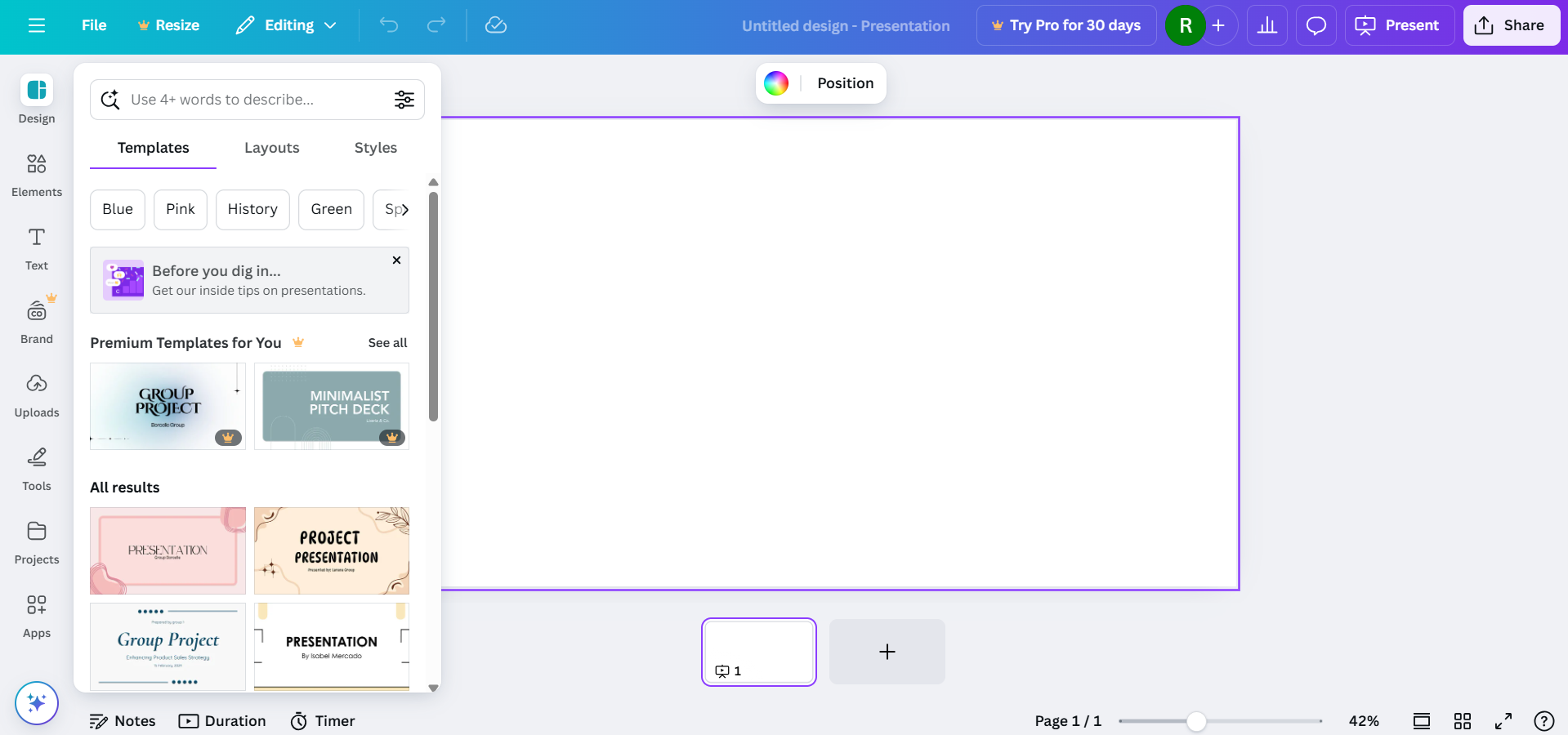
Step 1: Open Your Canva Design
- Log in to Canva and open the presentation you want to convert.
Step 2: Export the Canva Presentation
- Click on the Share button at the top-right corner.
- Select Download from the dropdown menu.
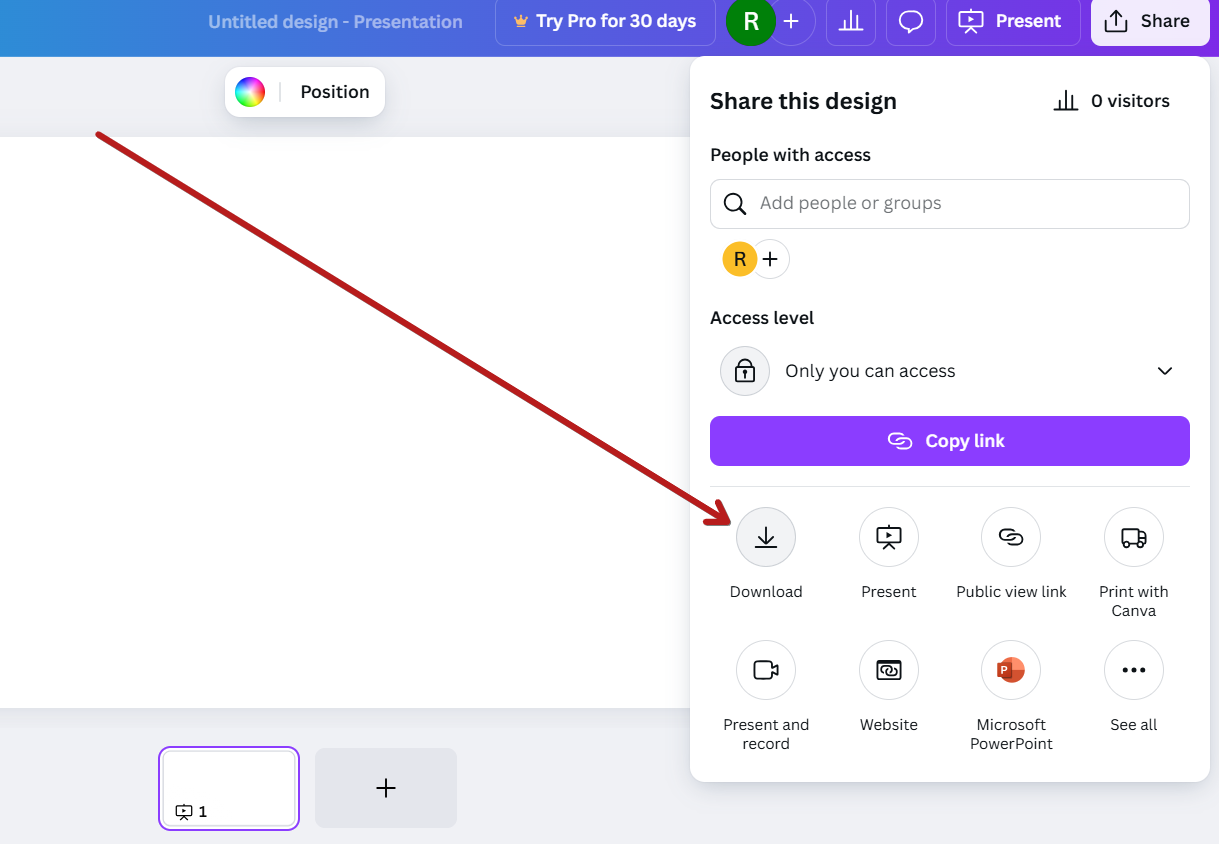
- Choose Microsoft PowerPoint (.pptx) as the file format.
- Click Download, and the file will be saved to your computer.
Step 3: Upload the File to Google Drive
- Open Google Drive.
- Click New → File Upload and select the downloaded .pptx file.
- Wait for the upload to complete.
Step 4: Open the File in Google Slides
- Locate the uploaded .pptx file in Google Drive.
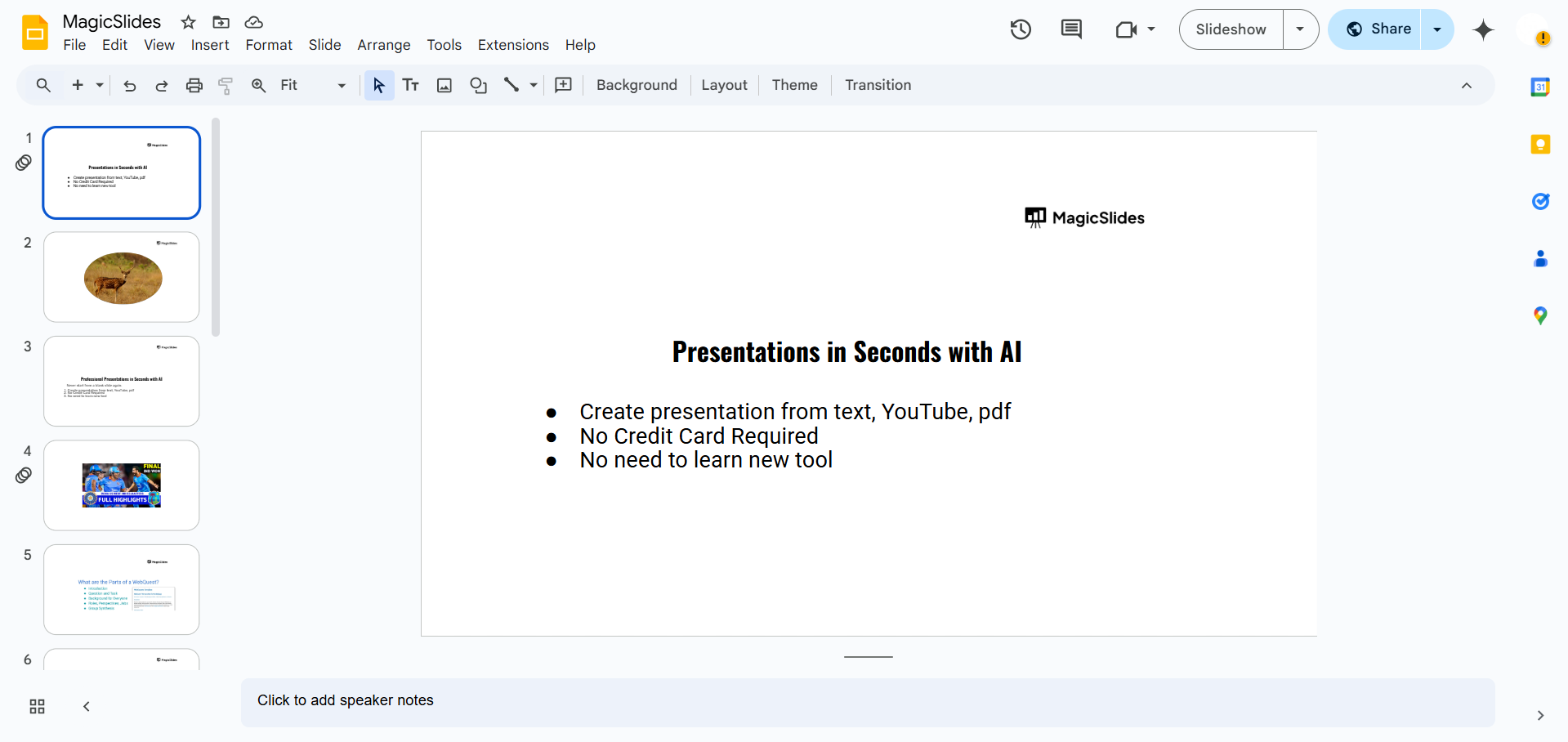
- Right-click on the file, hover over Open with, and select Google Slides.
Step 5: Save as a Google Slides File
- Once the presentation opens, click File → Save as Google Slides.
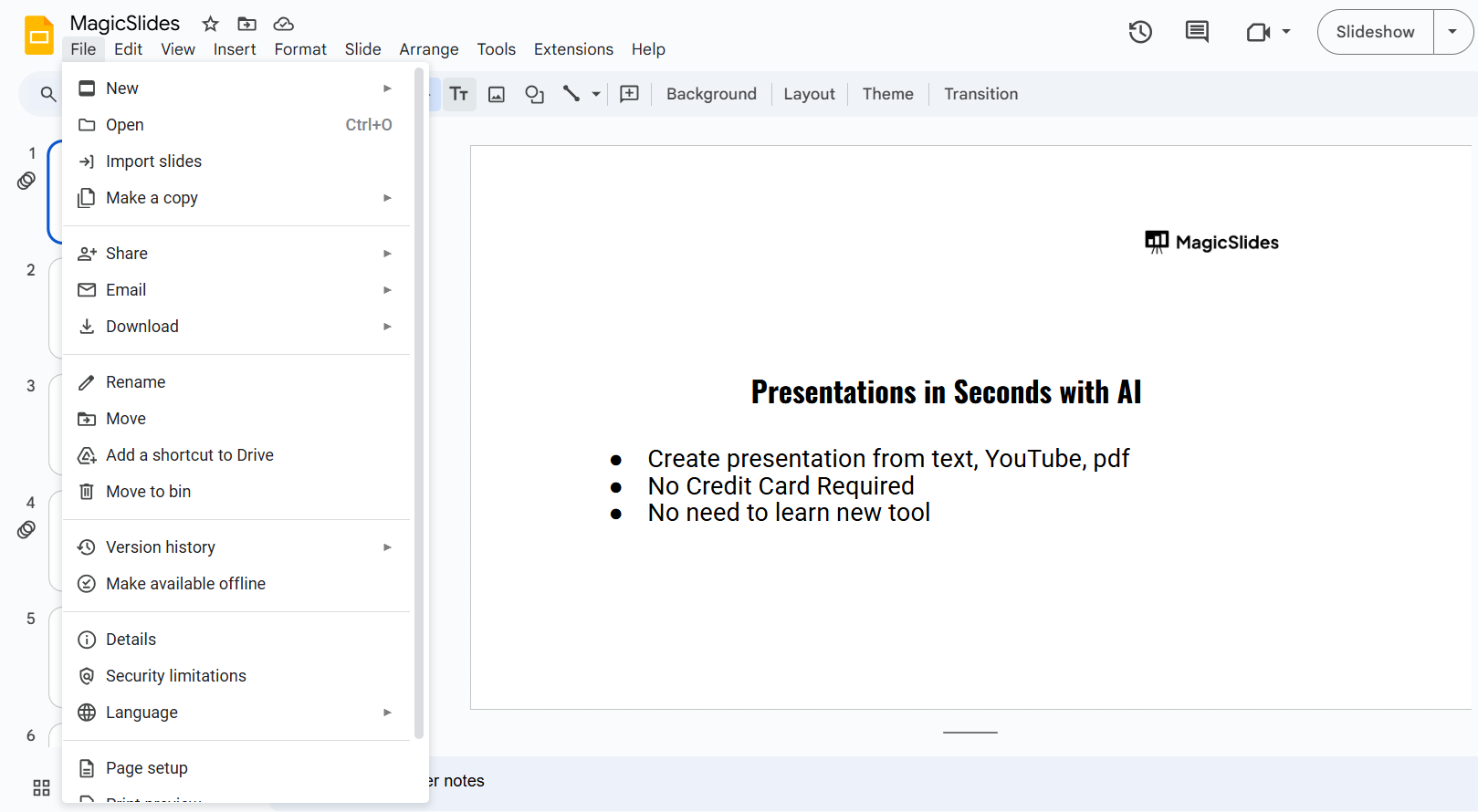
- This will create a new, fully editable Google Slides version of your Canva presentation.
Yes, you can convert Canva designs to Google Slides, but if you want an AI-powered tool that generates presentations instantly, try MagicSlides.app seamless slide creation from text, PDFs, and even YouTube videos!
Conclusion
Converting a Canva presentation to Google Slides is quick and simple.
By following these steps, you can edit and present your Canva designs in Google Slides without losing quality or formatting.
FAQs can come handy!
Will my Canva animations transfer to Google Slides?
No, Canva animations do not transfer to Google Slides. You’ll need to reapply animations manually in Google Slides.
Can I edit the elements after converting to Google Slides?
Yes, but some formatting may need adjustments since Canva and Google Slides handle text and images differently.
Does this method work for all Canva designs?
This method works best for presentations. If your design has complex elements, you might need to adjust them after conversion.


