How to Use Canva Magic Switch to Translate Slides Instantly (2025 Tutorial)


Learn how to use Canva Magic Switch to translate slides instantly. Step-by-step guide + tips for better multilingual decks with MagicSlides.
IWith the gobal workplace, sharing your ideas across languages is no longer optional — it’s essential. That’s why Canva Magic Switch is one of the most powerful tools Canva has released in recent years.
Whether you’re pitching to international clients, educating diverse classrooms, or launching products in multiple regions, Canva Magic Switch allows you to instantly translate presentations into 100+ languages, making your message truly global — in just a few clicks.
But while Canva Magic Switch simplifies the process, it’s not perfect. For full export flexibility, multi-format compatibility (like PowerPoint or Google Slides), and advanced multilingual AI workflows, MagicSlides offers a more robust alternative.
This 2025 Canva Magic Switch tutorial will walk you through how to use Canva Magic Switch to translate slides step-by-step — with real use cases, expert tips, and a comparison with MagicSlides for pro-level translation control.
What Is Canva Magic Switch?
Canva Magic Switch is a powerful AI feature built into Canva’s editor that lets you:
- Instantly translate Canva slides into dozens of global languages
- Repurpose content from one format to another (slides → social posts, blog posts, etc.)
- Resize and reformat designs for multiple screen types (e.g., from posters to slides)
In this blog, we’re focusing exclusively on its slide translation capabilities — turning one Canva presentation into multilingual versions, almost instantly.
If you’ve been wondering how to use Canva Magic Switch for seamless global communication, keep reading.
Step-by-Step: How to Use Canva Magic Switch to Translate Slides
Here’s a simple walkthrough to help you translate Canva slides using Magic Switch.
Step 1: Open Your Canva Presentation
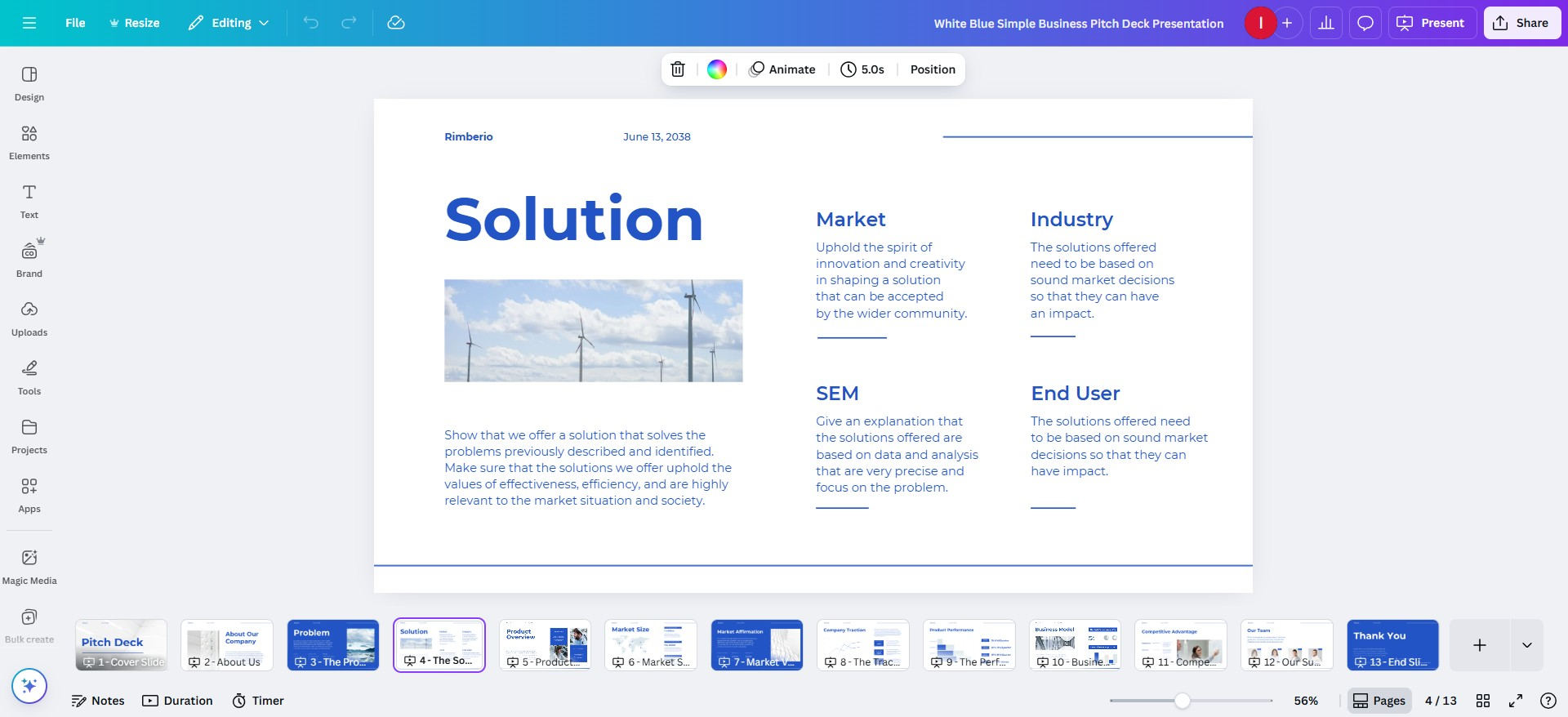
- Head to your Canva dashboard
- Select any Canva presentation you’ve created or start a new one using Canva presentation templates
- Make sure your slides contain text elements for Magic Switch to detect and translate
Step 2: Click on “Magic Switch” in the Toolbar
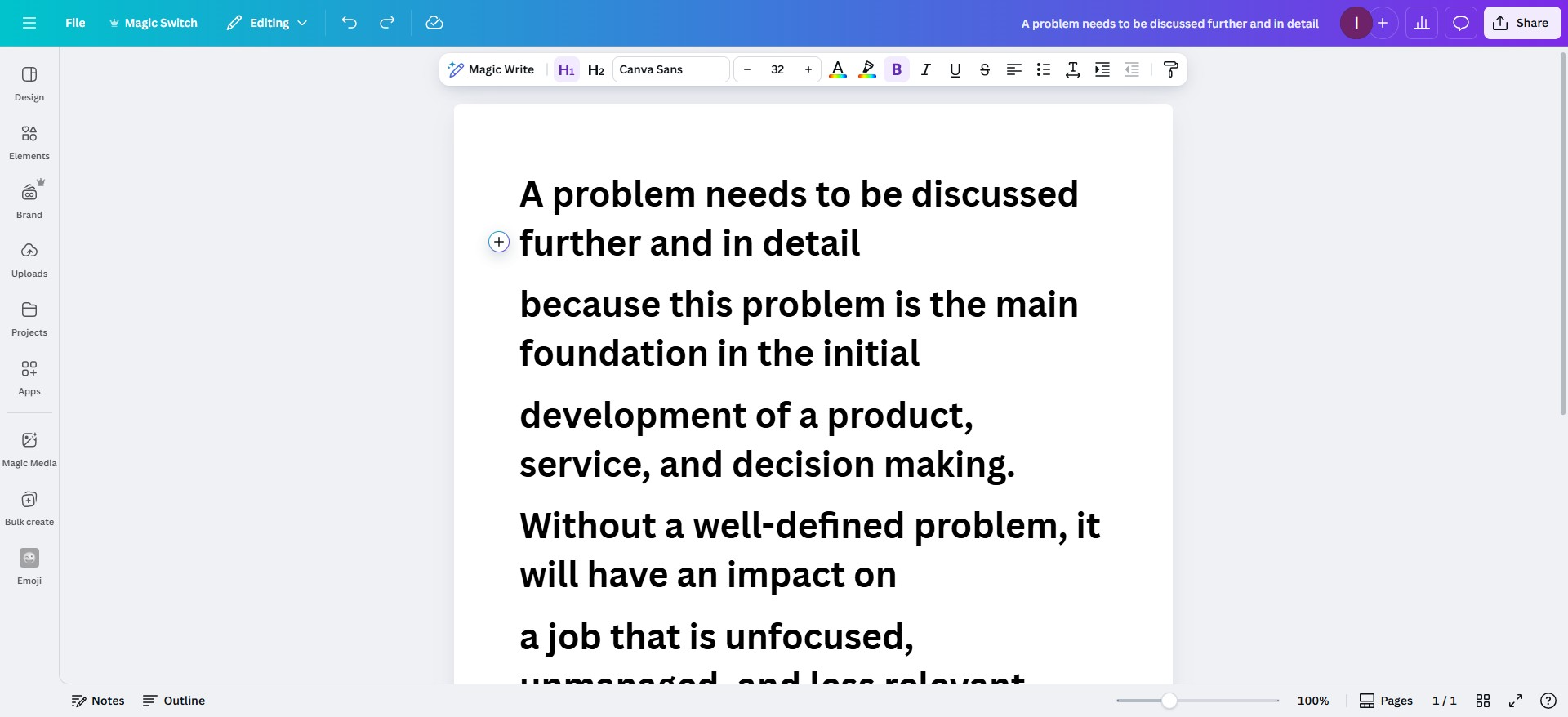
- Inside your presentation editor, go to the top toolbar
- Click on Apps > Magic Switch
- Or simply right-click on a slide and select “Magic Switch” from the contextual menu
This opens a dropdown where you’ll choose what kind of switch you want to make.
Step 3: Choose the “Translate” Option
- Click Magic Switch → Translate
- A language selection window will appear
- Choose from 100+ supported languages including:
- Spanish
- Hindi
- Arabic
- French
- Mandarin
- German
- And many more!
Magic Switch will begin translating all visible text elements across your entire presentation.
Step 4: Review and Fine-Tune the Translation
AI translation is fast — but not always perfect. Take time to:
- Check grammar, especially for formal decks
- Adjust tone to suit your audience
- Modify idioms or culturally specific references
- Ensure RTL (right-to-left) languages like Arabic or Hebrew appear correctly (though formatting may require manual fixes)
Step 5: Export or Duplicate the Translated Presentation
- Canva will generate a new, translated version of your original presentation
- You can now:
- Share via Canva link
- Download as PDF or MP4 video
- Present directly inside Canva
Note: Canva does not support exporting translated decks to PowerPoint or Google Slides. For that, MagicSlides is a better option with full cross-platform exports.
Use Cases for Canva Magic Switch Translation
Canva Magic Switch is ideal for:
- Multilingual educational decks for global classrooms or remote learning
- International client presentations and sales pitches
- Regional marketing content in multiple languages
- Localized onboarding or training decks for global employees
- Public speaking decks where audiences speak different languages
Wherever communication spans cultures, presentation translation in Canva becomes crucial — and Magic Switch gets you halfway there, fast.
Limitations of Canva’s Magic Switch Translation
While Canva Magic Switch is impressive, it’s not without drawbacks:
| Limitation | Impact |
|---|---|
| ❌ No PPT or Google Slides export | Can’t use translated decks in standard tools |
| ❌ Only supports one language translation at a time | No bulk/multi-language generation |
| ❌ Doesn’t adapt tone or idioms to regional context | May require manual localization |
| ❌ RTL formatting support is limited | Arabic, Hebrew, Urdu may look off |
| ❌ No automated redesign for other languages | Text may overflow or break layouts |
💡 That’s where MagicSlides excels: you can translate entire decks, export to Google Slides, PowerPoint, and even present live — all while customizing design and tone for each language.
Magic Switch vs MagicSlides: Which Is Better for Slide Translation?
| Feature | Canva Magic Switch | MagicSlides |
|---|---|---|
| AI slide translation | ✅ | ✅ |
| Translate into multiple languages at once | ❌ | ✅ |
| Export to PowerPoint | ❌ | ✅ |
| Google Slides compatible | ❌ | ✅ |
| Fine-tune cultural tone | ❌ | ✅ |
| Layout redesign for each language | ❌ | ✅ |
| Ideal for | Fast auto-translate | Professional, global-ready decks |
If you’re a teacher or solo creator, Magic Switch Canva guide might be enough. But for marketing teams, global startups, or serious professionals, MagicSlides’ translation feature is a game-changer.
FAQs: Canva Magic Switch Translation
Q: What is Canva Magic Switch?
A: Canva Magic Switch is an AI feature that helps translate slides, resize formats, and repurpose designs instantly within Canva.
Q: How do I use Canva Magic Switch to translate presentations?
A: Open your Canva presentation, go to Apps → Magic Switch → Translate, pick a language, and Canva will auto-translate all slides.
Q: Can Canva Magic Switch export translated slides to PowerPoint or Google Slides?
A: No. Canva only allows export to PDF or MP4. For PPT or Slides, use MagicSlides.
Q: Does MagicSlides support translated slide exports?
A: Yes. MagicSlides lets you export AI-generated or translated decks to both Google Slides and PowerPoint — with proper formatting.
Q: Is MagicSlides better than Canva Magic Switch for multilingual decks?
A: For quick translation, Magic Switch works. But for cross-platform support, bulk language output, and better localization, MagicSlides is more powerful.
Final Thoughts: Translate Canva Slides Smarter in 2025
Canva Magic Switch is an excellent entry-level multilingual presentation tool, especially for quick translations inside Canva.
But if you need:
- ✅ Exports in PowerPoint or Google Slides
- ✅ Translation into multiple languages at once
- ✅ Cultural tone adjustments
- ✅ Layout optimization post-translation
Then MagicSlides translation feature gives you the full flexibility Canva lacks.
As global communication becomes more essential, choose tools that help you reach everyone — clearly, accurately, and in their own language.


