How to change layout in Microsoft Powerpoint in just five simple steps


changing layouts in Powerpoint lets you make your presentations more appealing to audience, here are few simple steps..
In Microsoft PowerPoint, you can change the layout of a slide to switch between different predefined formats for arranging content, such as title slides, content slides, picture slides, etc. Here's how you can change the layout of a slide:
Step 1: Open Your Presentation: Open the PowerPoint presentation that contains the slide you want to change the layout for.
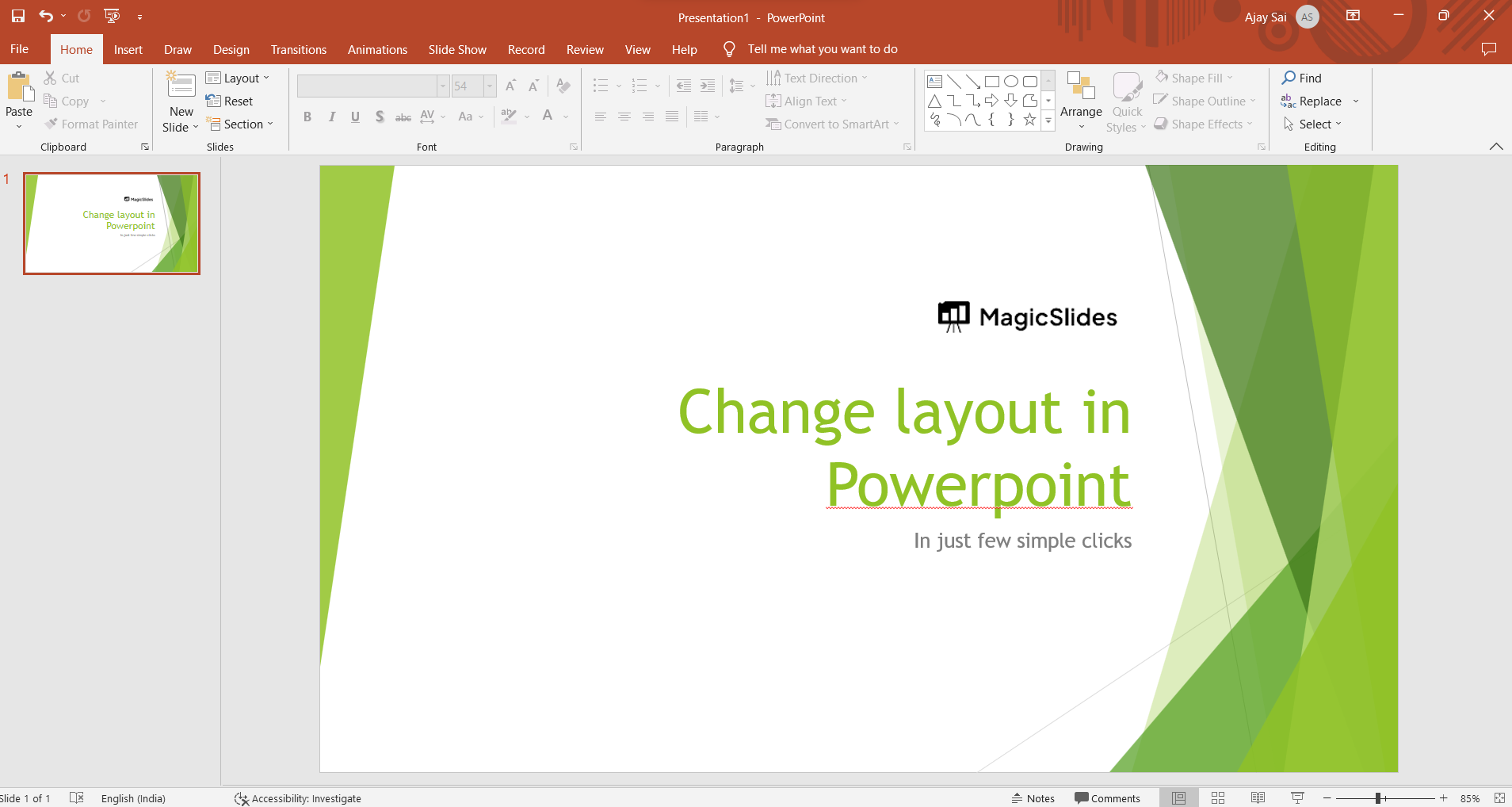
Step 2: Select the Slide: Click on the slide in the left-hand slide thumbnail pane or in the main slide view. This will select the slide you want to modify.
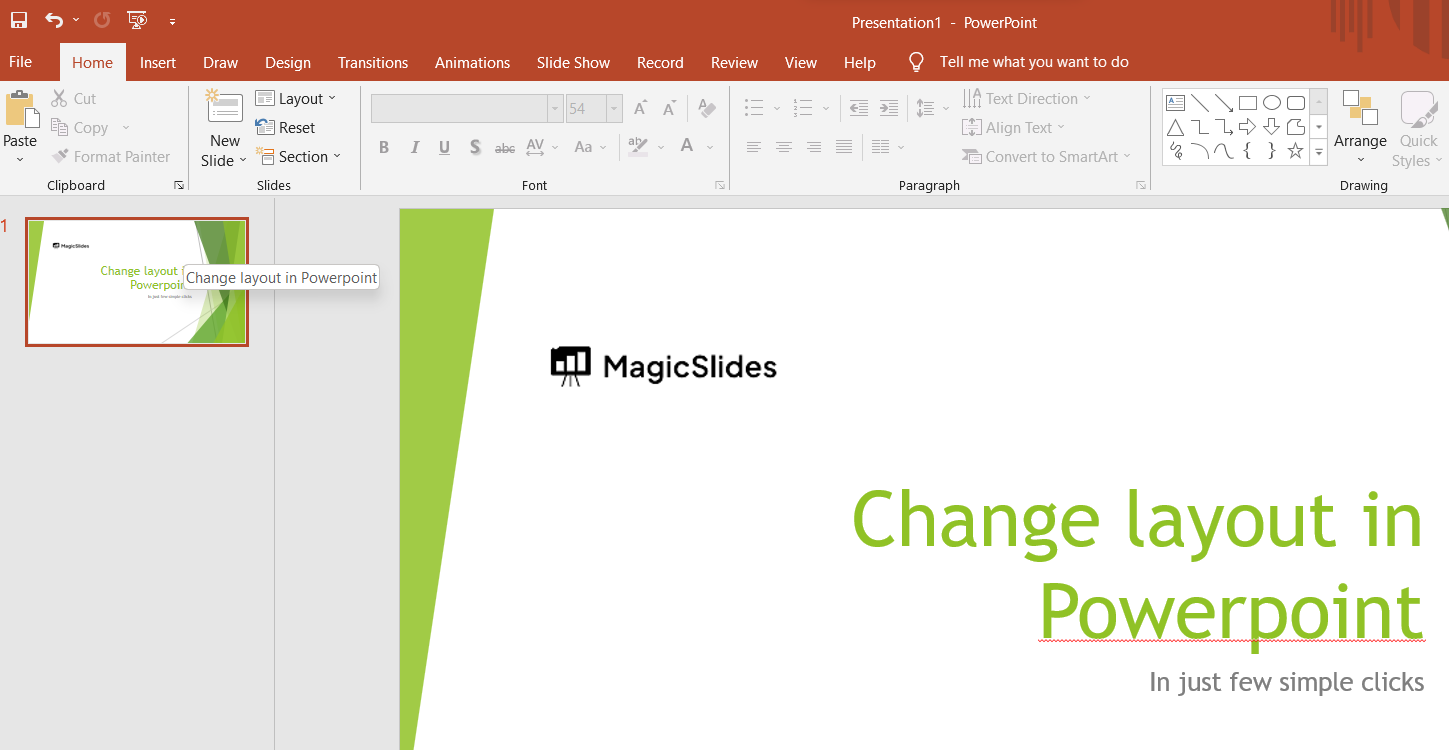
Step 3: Right-click on the selected slide in the left-hand slide thumbnail pane or in the main slide view.
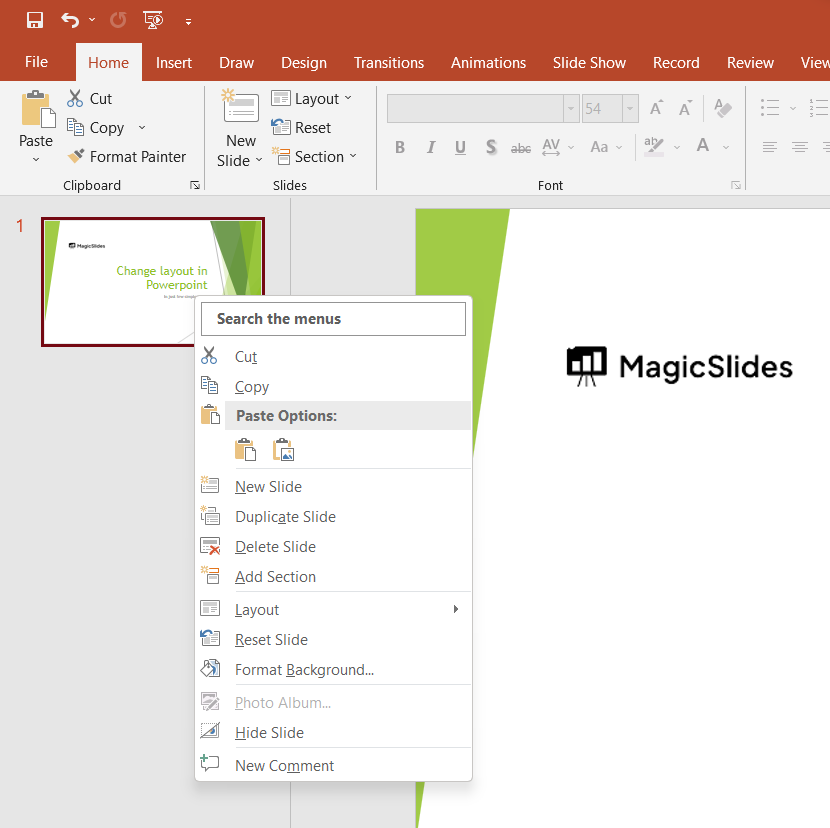
Step 4: From the context menu that appears, hover over the "Layout" option.
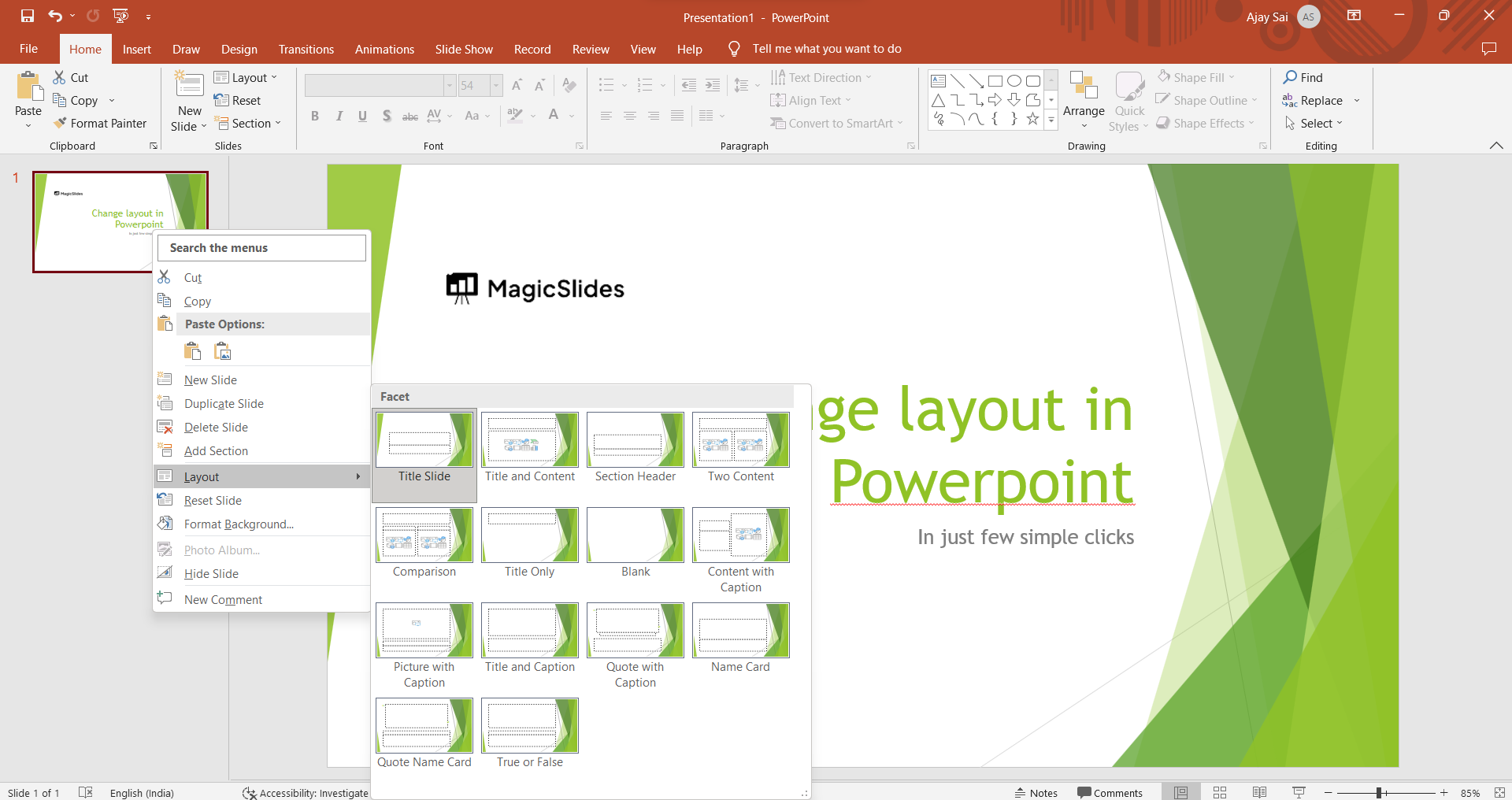
Step 5: A submenu will appear with various layout options. Click on the layout you want to apply.
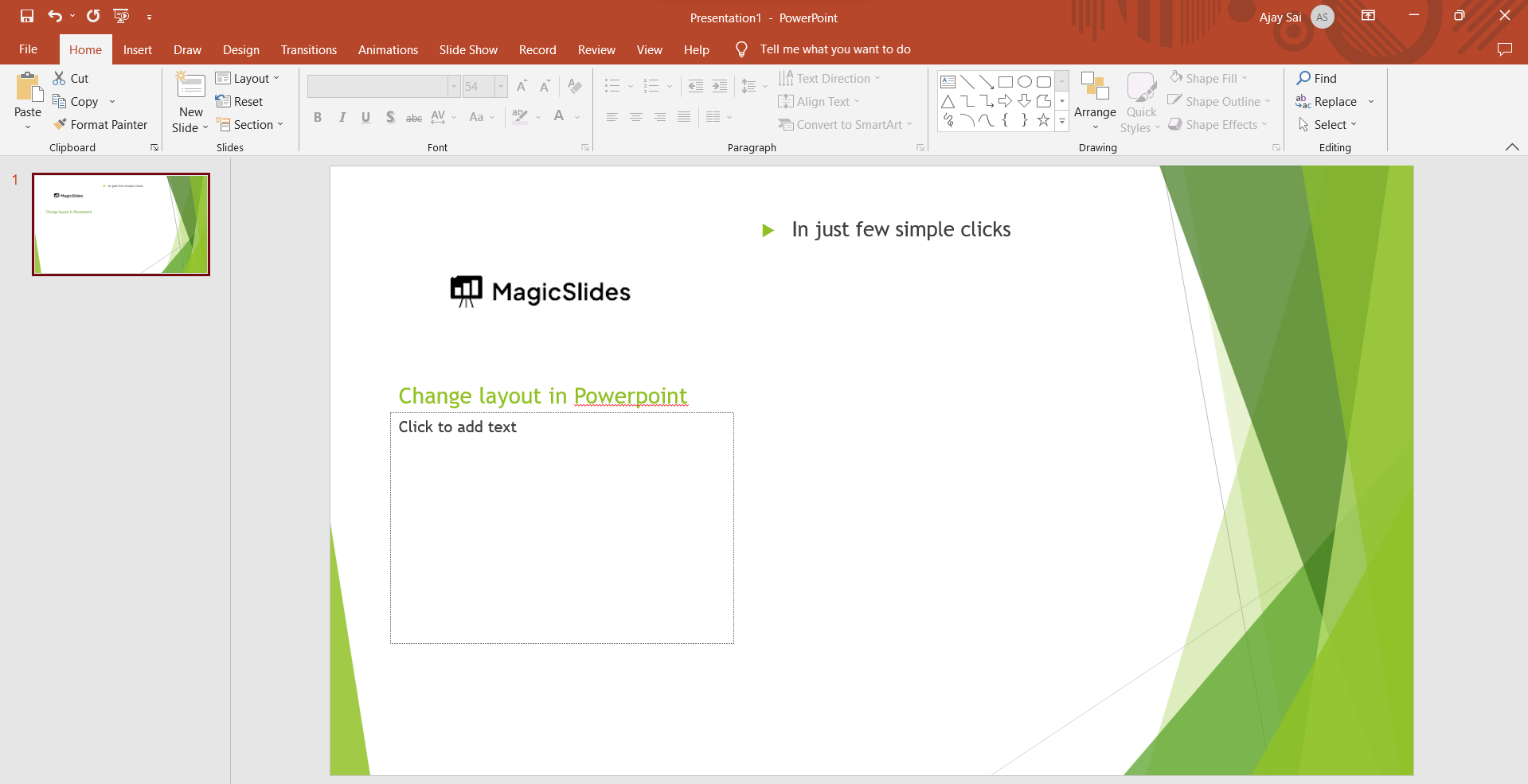
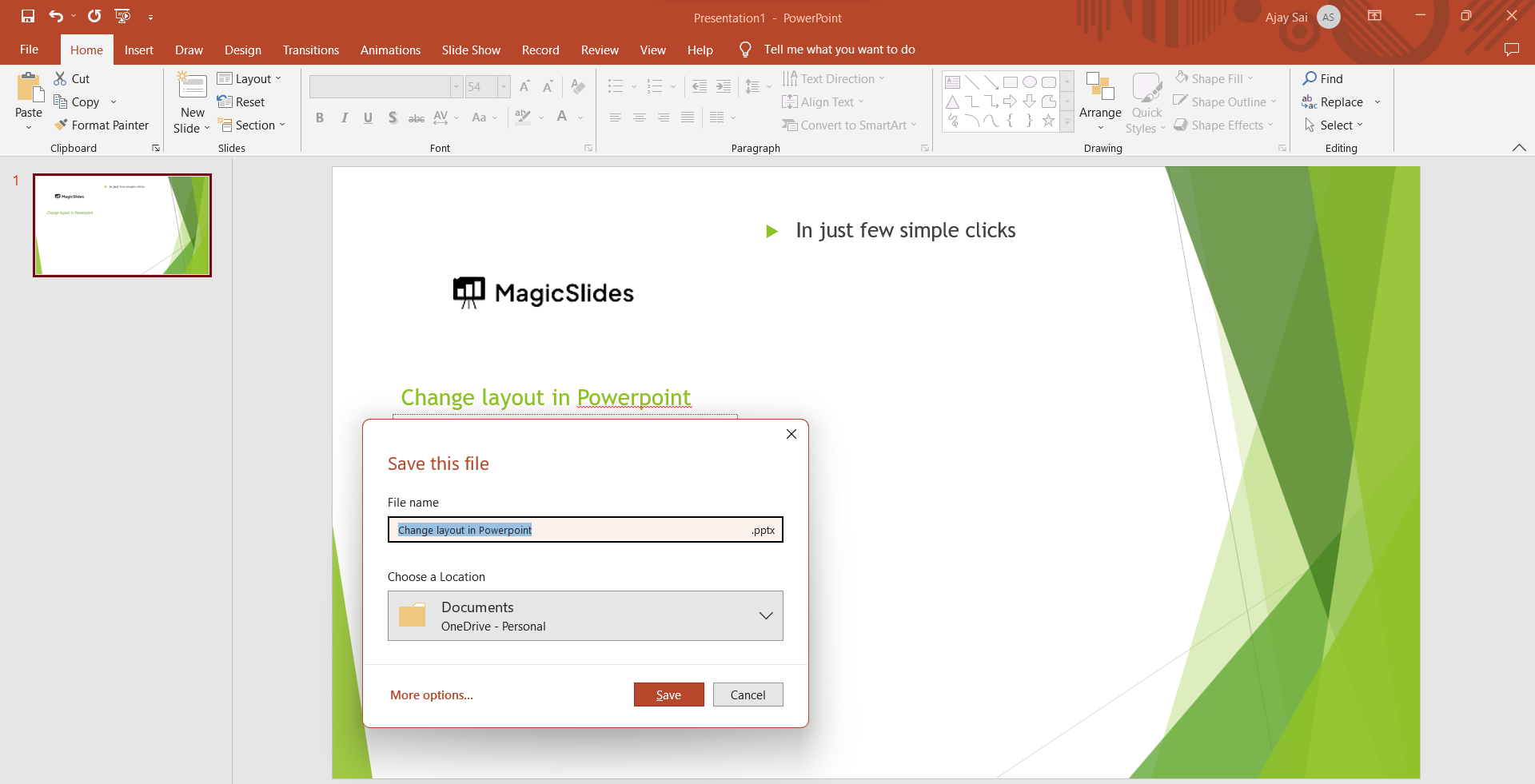
Step 6: Save Your Changes: Make sure to save your presentation after making any changes to the layout or content.
Changing the layout of a slide allows you to quickly modify the arrangement of text, images, and other content on that slide without having to manually adjust each element. This can be especially helpful when you want to experiment with different visual styles or when you need to adapt your content to different types of slides, such as title slides, bullet point lists, and more.


