How to format Google Slides Presentation in few simple steps


Format Google Slides: Apply themes, adjust layout, format text, insert media, add transitions, and share for an engaging and organized presentation.
Step 1: Create or Open Your Presentation
1.1. Visit Google Slides official website to get started.
1.2. Click the "+ New" button and select "Google Slides" to create a new presentation, or locate and open an existing presentation.
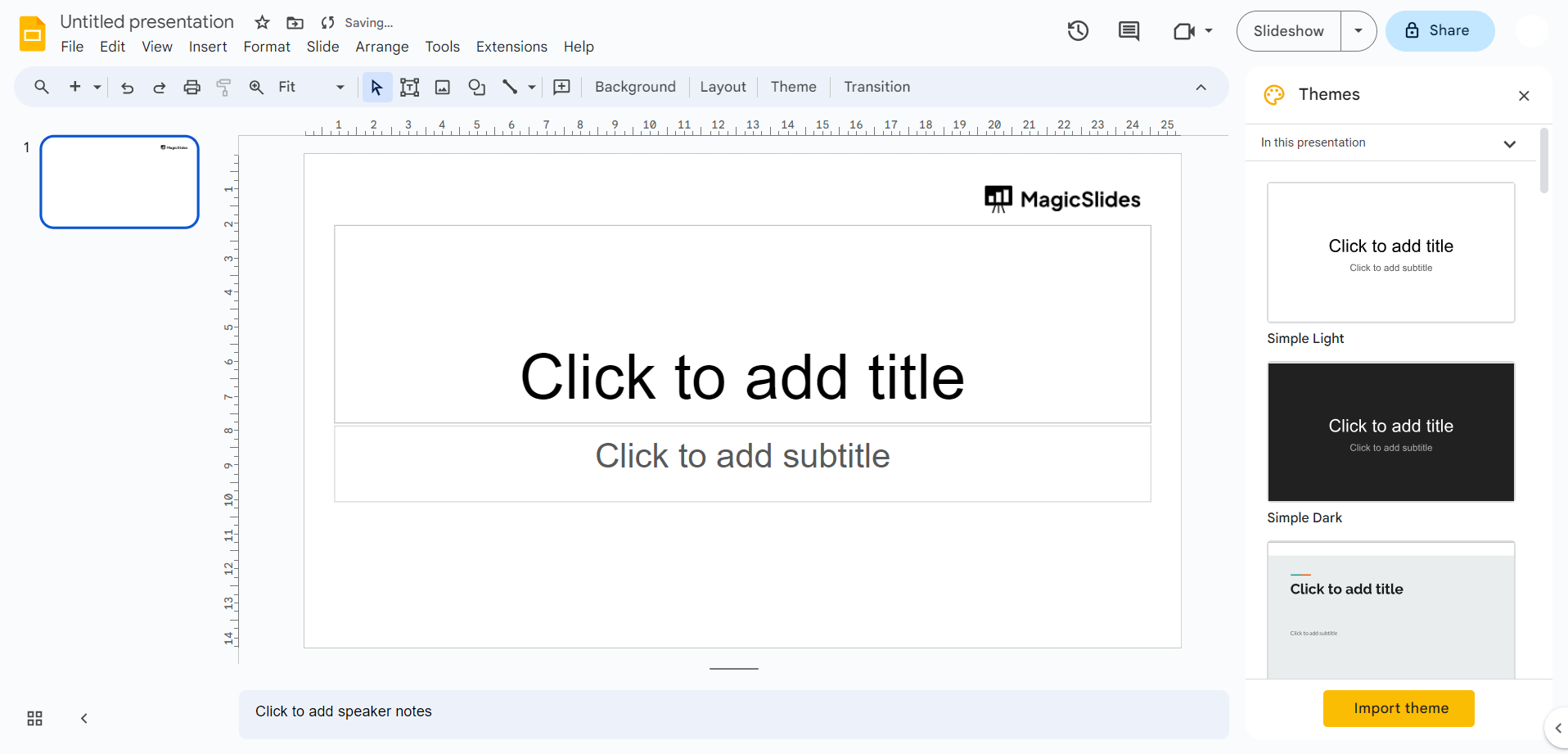
Step 2: Apply a Theme
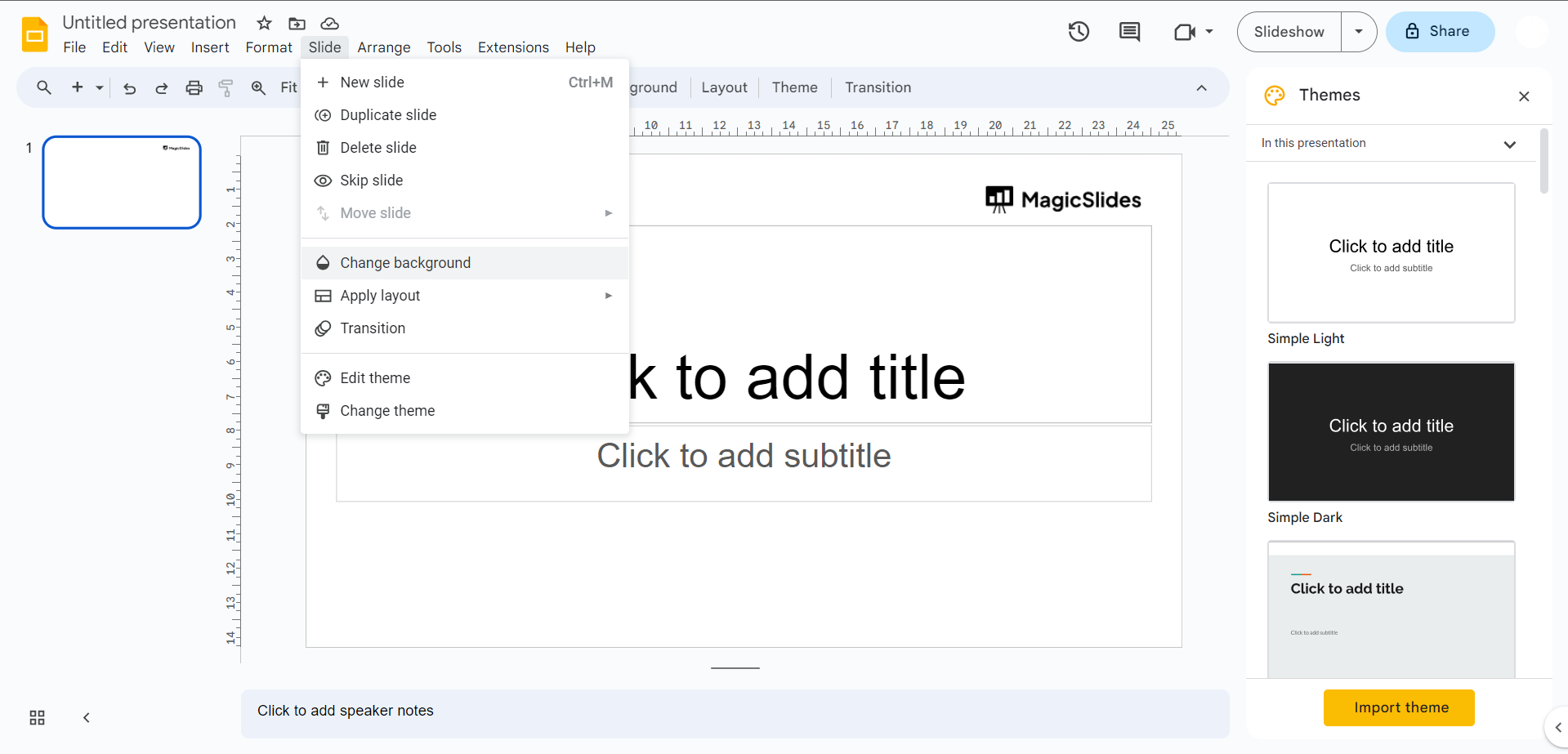
2.1. Click on the "Slide" menu at the top or right-click on a slide in the slide sorter panel on the left.
2.2. Select "Change background."
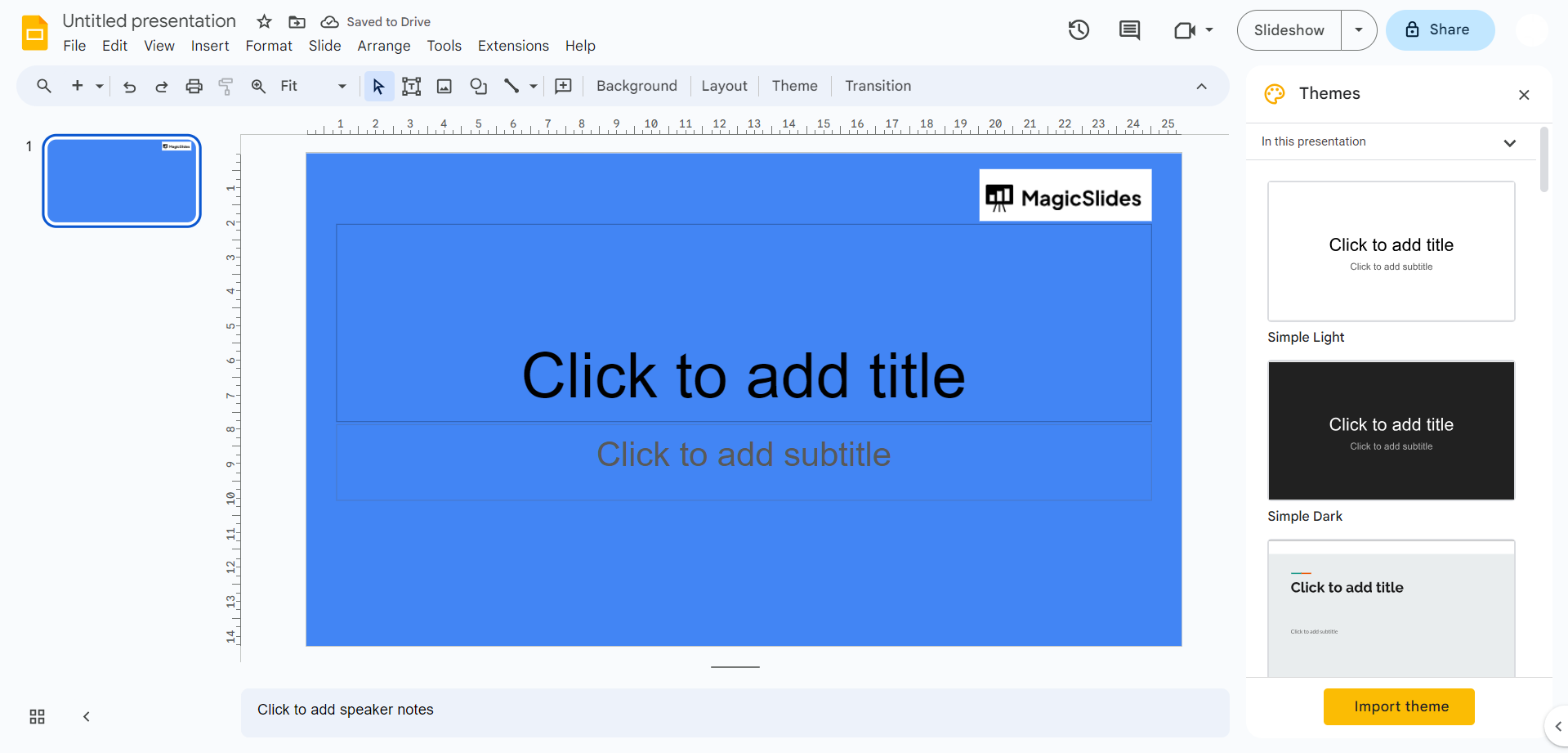
2.3. Choose a theme from the provided themes or click "Import theme" to use a custom theme. You can also click "Custom" to manually change background colors and images.
Step 3: Adjust Slide Layout
3.1. Click on a slide in the slide sorter panel on the left.
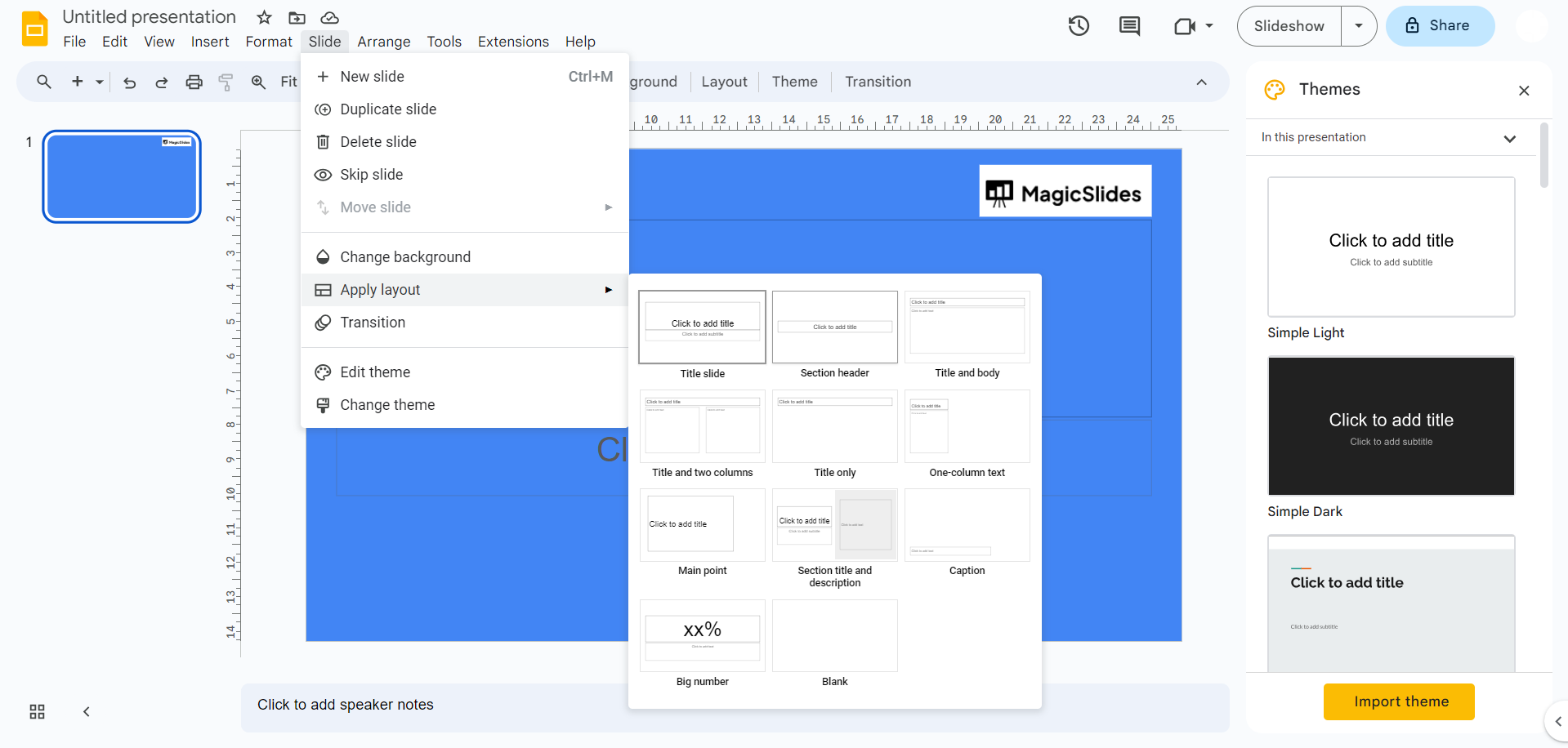
3.2. Go to the "Slide" menu and select "Layout."
3.3. Choose the desired layout for your slide (e.g., Title slide, Title and content, Blank, etc.).
Step 4: Format Text
4.1. Select the text box you want to format by clicking on it.
4.2. Use the toolbar at the top to change the font, font size, font color, and text alignment.
4.3. You can also access additional text formatting options by clicking on "Format" in the top menu and selecting "Text."
Step 5: Add Images and Graphics
5.1. Click the "Insert" menu at the top.
5.2. Choose "Image" to add images from your computer or from the web.
5.3. Use the "Shape" option to add various shapes to your slide.
5.4. You can resize and reposition images and shapes by clicking and dragging them.
Step 6: Preview and Present
6.1. Click the "Present" button in the top-right corner to preview your presentation.
6.2. Navigate through your slides using keyboard shortcuts (arrow keys) or the on-screen navigation.
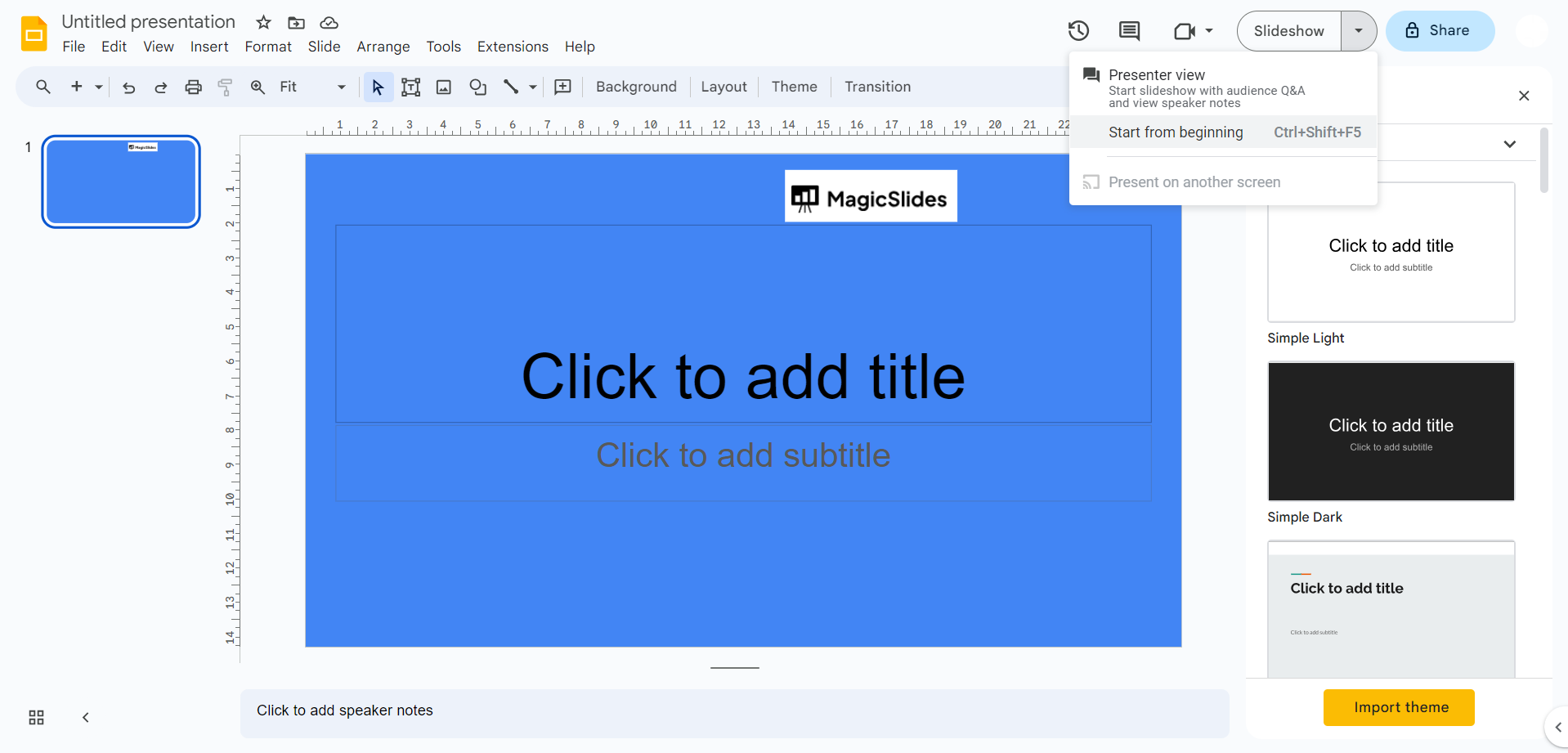
Step 7: Share Your Presentation
11.1. Click the "Share" button in the top-right corner to share your presentation with others. Set viewing/editing permissions as needed.
That's it! You've now formatted your Google Slides presentation. You can continue to refine and edit your presentation as needed, adjusting formatting, adding content, and making it visually appealing to your audience.


