How can shapes enhance your PPT Presentation?


Explore how using shapes in your PPT presentation can enhance visuals, clarity, and audience engagement.
Shapes are powerful tools that can significantly enhance your PowerPoint presentations. They help to highlight key points, create visual interest, and make complex information more digestible.
Whether you are illustrating a process, emphasizing a message, or designing an engaging slide, shapes can add depth and clarity to your content.
This blog post will explore the benefits of using shapes in presentations and provide a step-by-step guide on how to add shapes to your PowerPoint slides effectively.
How Shapes Can Enhance Your Presentation
- Highlight Key Points: Draw attention to important areas using arrows, rectangles, and other shapes.
- Create Visual Interest: Break up text and add engaging visual elements with circles, triangles, and other geometric shapes.
- Illustrate Concepts: Use shapes to create flowcharts, Venn diagrams, and hierarchical structures, making complex information more understandable.
- Enhance Readability: Organize content with shapes like shaded boxes to improve the slide's readability.
- Add Professionalism: Consistent and appropriate use of shapes can give your presentation a polished and cohesive look.
How to Add Shapes to a Presentation: Step-by-Step Guide
Step 1: Open Your PowerPoint Presentation
First, ensure you have your PowerPoint presentation open. Open PowerPoint. Open the presentation where you want to add shapes.
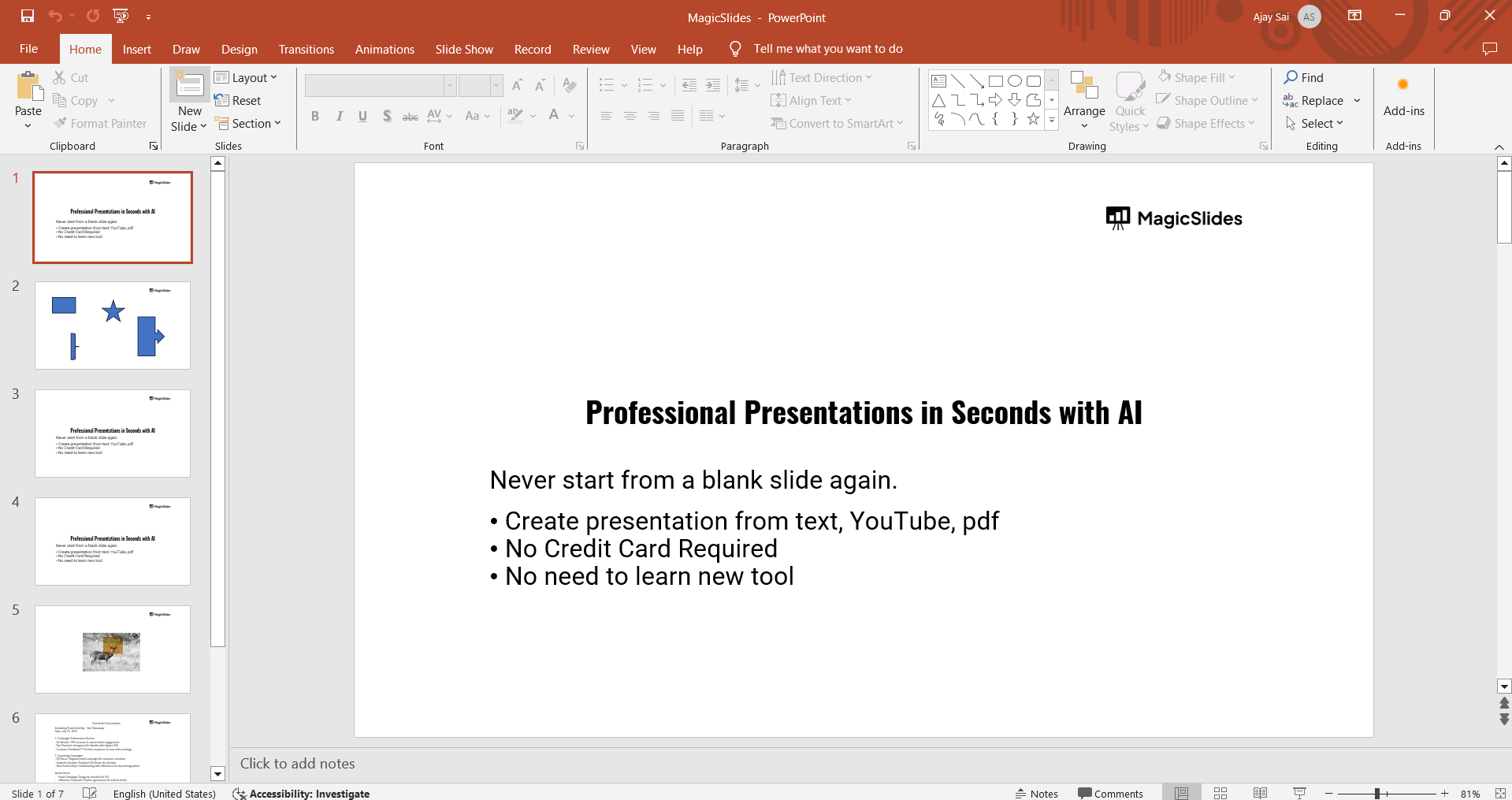
Step 2: Navigate to the Slide Where You Want to Add a Shape
Select the slide on which you want to add a shape. In the slide navigation pane on the left, click on the slide where you want to add the shape.

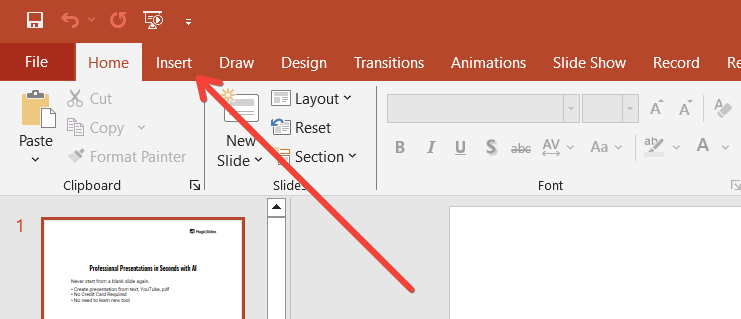
Step 3: Select the Insert Tab
Go to the "Insert" tab to access shape options. Click on the "Insert" tab in the ribbon at the top of the screen.
Step 4: Choose a Shape
Select the shape you want to add to your slide.
In the "Illustrations" group, click on "Shapes." A dropdown menu will appear with various shape options. Click on the shape you want to insert.

Step 5: Draw the Shape on the Slide
Insert the shape by drawing it on the slide. Click and drag on the slide to draw the shape. Release the mouse button to finalize the shape.

Step 6: Customize the Shape
Click on the shape to select it. Use the handles to resize or rotate the shape as needed. Customize the shape's appearance using the "Format" tab. You can change the shape’s fill color, outline, effects, and more.

Step 7: Add Text to the Shape (Optional)
You can add text to your shape to provide additional information. Click on the shape to select it. Start typing to add text directly inside the shape.
Format the text using the "Home" tab options.
Conclusion
Shapes are versatile and powerful elements that can greatly enhance the effectiveness of your PowerPoint presentations. They help to highlight key points, create visual interest, illustrate concepts, improve readability, and add a professional touch to your slides.
By following the step-by-step guide provided, you can easily incorporate shapes into your presentations, making them more engaging and visually appealing. Start experimenting with shapes today to take your presentations to the next level.
Frequently Asked Questions
What types of shapes can be used in a PowerPoint presentation?
PowerPoint offers a wide variety of shapes, including basic geometric shapes (circles, squares, triangles), arrows, flowchart symbols, stars, banners, callouts, and more.
These can be found under the "Insert" tab in the "Shapes" dropdown menu.
Each shape can be customized in terms of size, color, and style to suit your presentation needs.
How can shapes improve the readability of my slides?
Shapes can improve readability by organizing content visually. For example, using shaded boxes to separate different sections of text can make your slides easier to follow.
Additionally, arrows and lines can guide the audience’s eyes through the information, while callouts can highlight key points without cluttering the slide.
Can I add text to shapes in PowerPoint?
Yes, you can add text to shapes in PowerPoint. Simply click on the shape to select it, then start typing. The text will be added inside the shape.
You can further format the text using the options in the "Home" tab, such as changing the font, size, color, and alignment to ensure it fits well within the shape and enhances your slide's overall design.


