How Put Video from your Camera into Google Slides


Easily insert a recorded video from your camera into Google Slides using Google Drive
How to Insert a Video from Your Camera into Google Slides
Adding a video from your camera to Google Slides enhances your presentation by making it more engaging and interactive.
While Google Slides doesn’t support direct video recording, you can record a video on your device and then insert it into your slides.
Follow these step-by-step instructions to easily add a video from your camera into Google Slides.
Steps to Insert a Video from Your Camera into Google Slides
Step 1: Record a Video Using Your Camera
Open the Camera app on your smartphone, tablet, or computer. Record the video you want to add to your presentation.
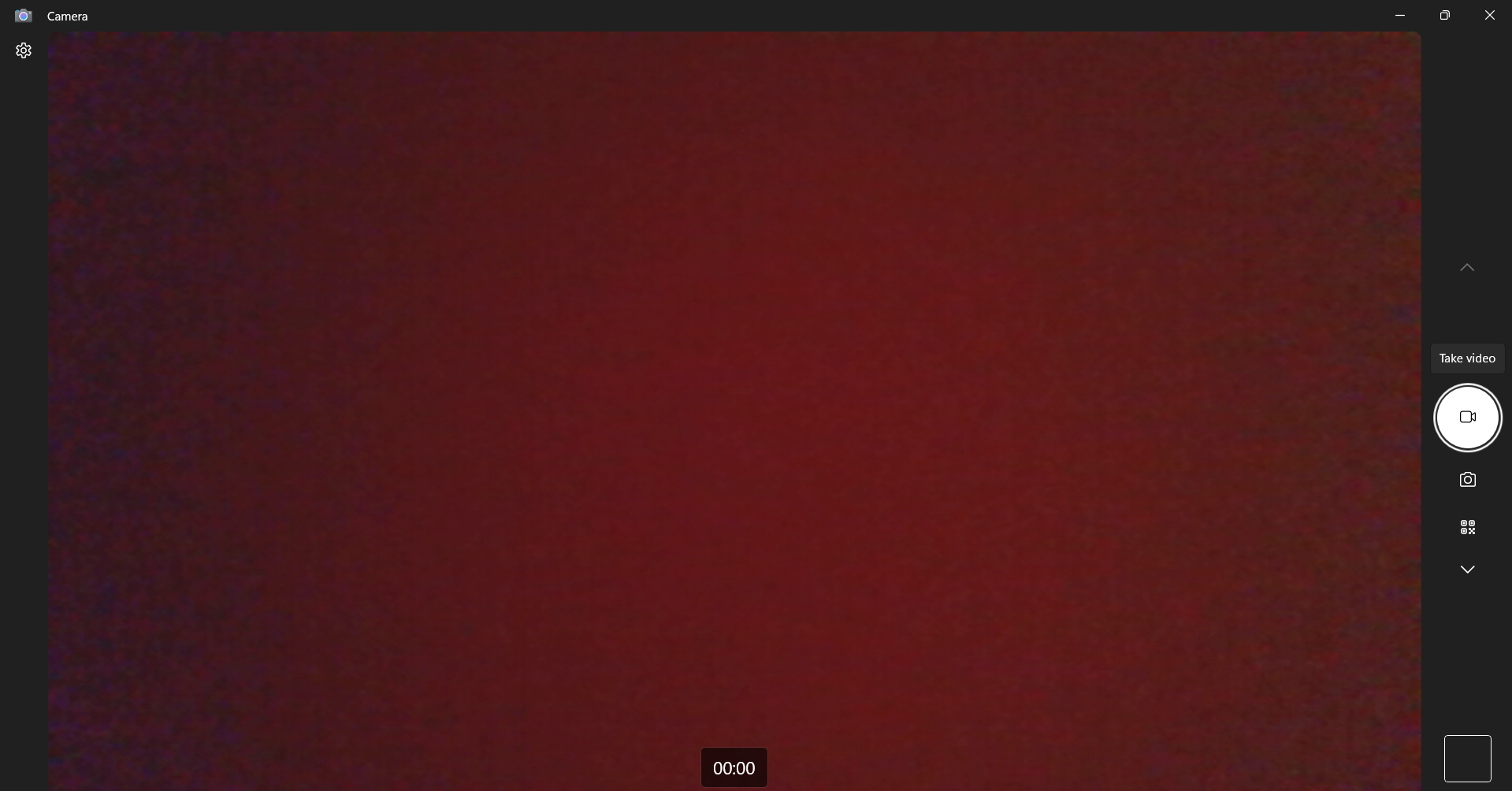
Once recorded, save the video to your device.
Step 2: Upload the Video to Google Drive
Go to Google Drive and log in to your account. Click New > File upload and select the recorded video.
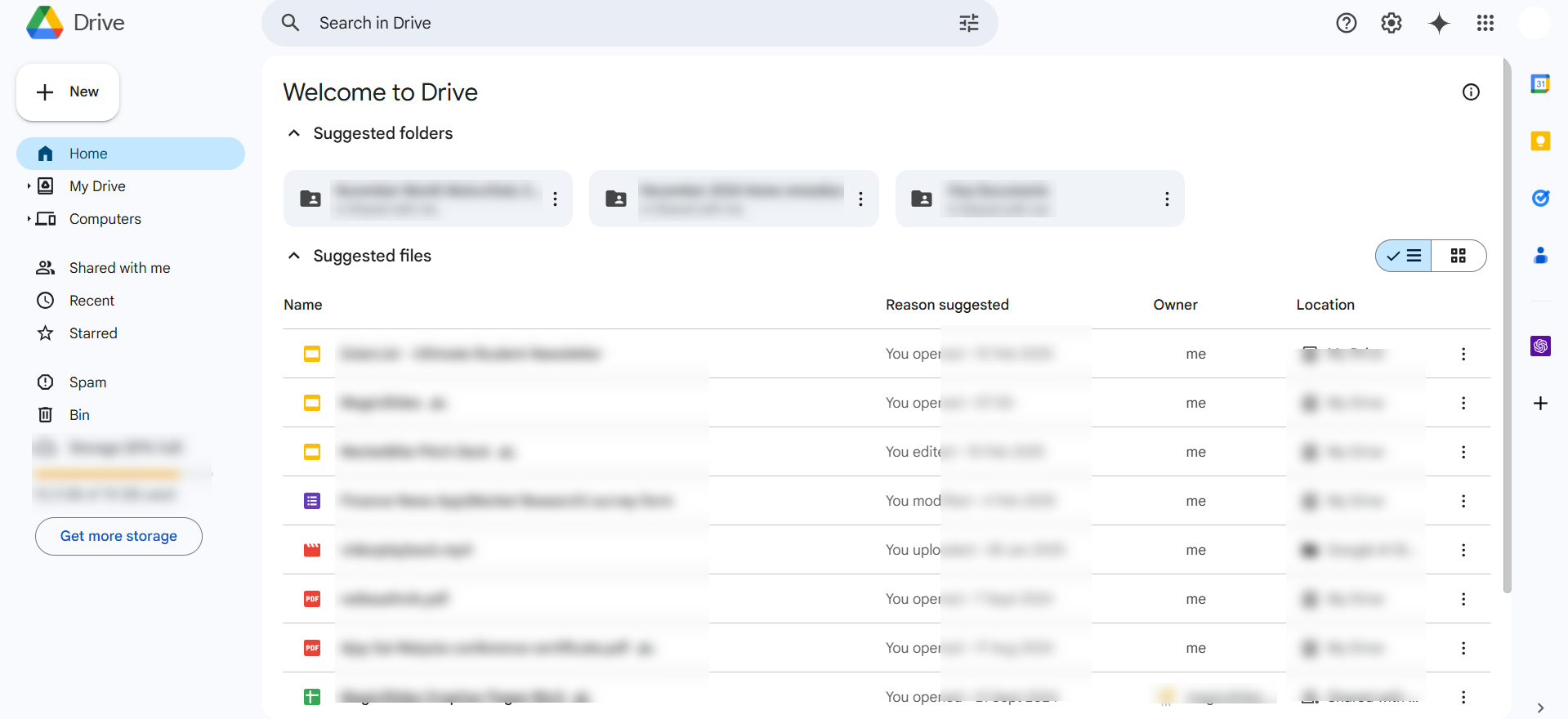
Wait for the upload to complete.
Step 3: Open Your Google Slides Presentation
Visit Google Slides and open your presentation. Navigate to the slide where you want to add the video.
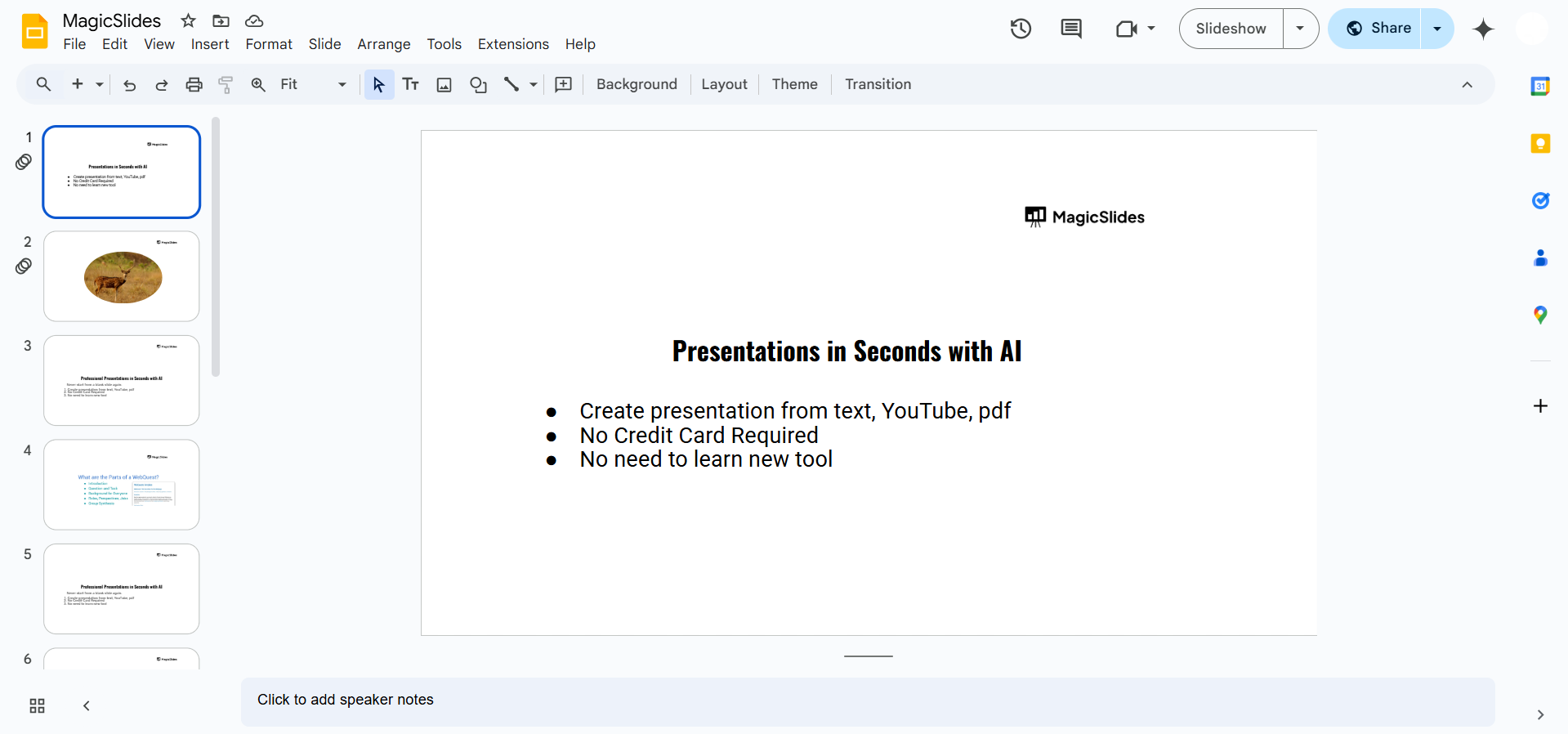
Step 4: Insert the Video from Google Drive
Click Insert > Video from the top menu. Select Google Drive and locate your uploaded video.
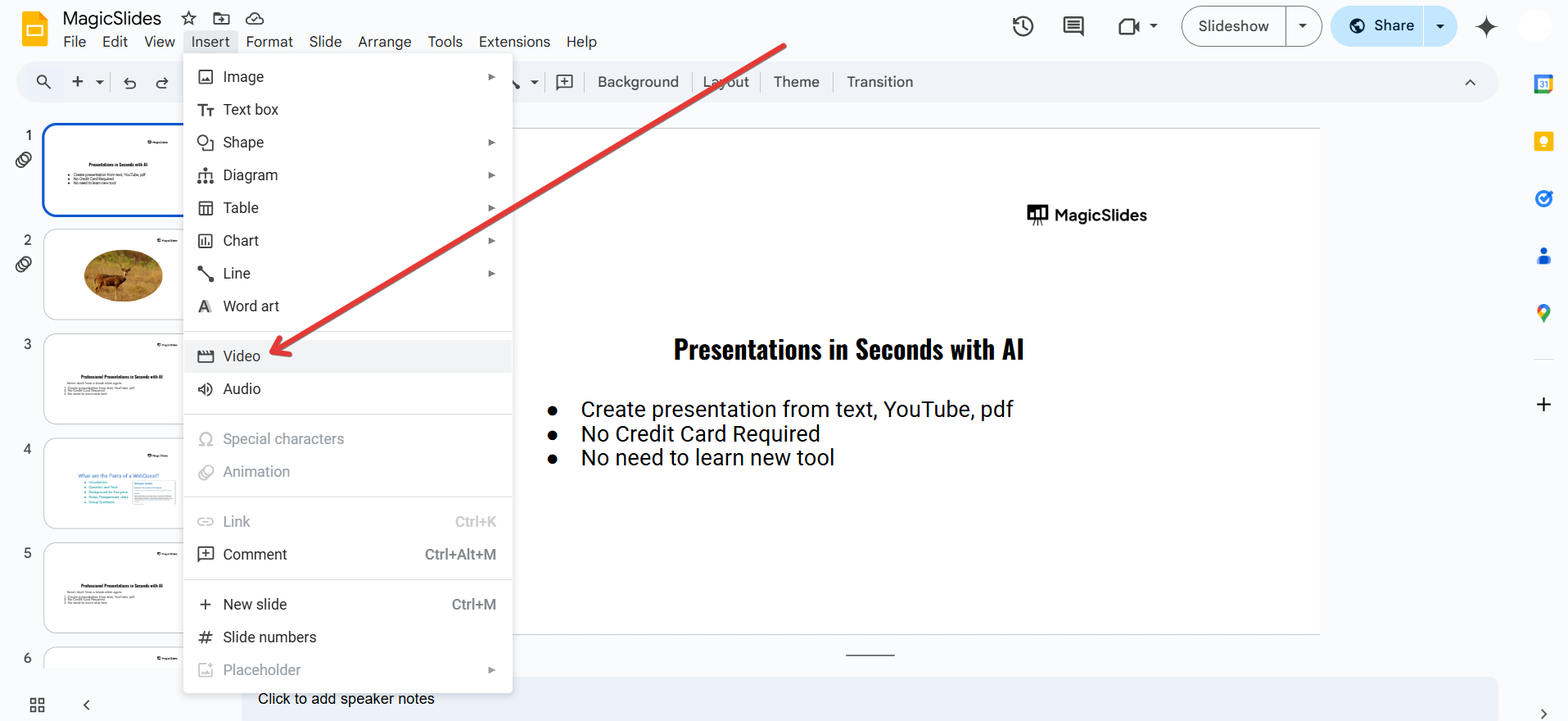
Click Insert to add the video to your slide.
Step 5: Adjust the Video Size and Settings
Resize and reposition the video as needed.
Click on the video, then select Format options (on the right panel) to:
- Set autoplay when presenting.
- Trim the video to show only the relevant part.
- Mute the audio if necessary.
Step 6: Present Your Slides with the Video
Click Present in Google Slides. Play the video directly from the slide during your presentation.
Adding a personal video to your Google Slides enhances engagement, but creating an entire presentation doesn’t have to be time-consuming. With MagicSlides.app, you can generate a full, professional presentation—including multimedia elements instantly!
Conclusion
By following these simple steps, you can easily add a video from your camera to Google Slides.
This method allows you to enhance your presentations with personalized videos, making them more interactive and engaging.
FAQs on Inserting a Video from Your Camera into Google Slides
Can I upload a video directly to Google Slides?
No, you must first upload the video to Google Drive before inserting it into Google Slides.
What video formats does Google Slides support?
Google Slides supports common formats like MP4, MOV, and AVI when uploaded via Google Drive.
Can I add a video without using Google Drive?
No, Google Slides requires the video to be hosted on Google Drive or YouTube for embedding.


