How to adapt Word marketing collateral to PowerPoint Presentations?


Transform Word marketing materials into dynamic PowerPoint presentations effortlessly with expert tips. Elevate your messaging and captivate your audience effectively.
Creating compelling PowerPoint presentations from existing Word marketing collateral is a strategic move to captivate your audience. With the help of innovative tools like MagicSlides GPT, the process becomes seamless. Let's dive into the basics and the step-by-step guide to adapt your Word documents into visually appealing PowerPoint presentations.
How to adapt Word marketing collateral to PowerPoint Presentations
Before we embark on the step-by-step guide, it's essential to grasp the fundamentals of adapting Word marketing collateral to PowerPoint presentations. This transformation ensures your content is not only visually appealing but also engages your audience effectively.
1. Visit Google Slides
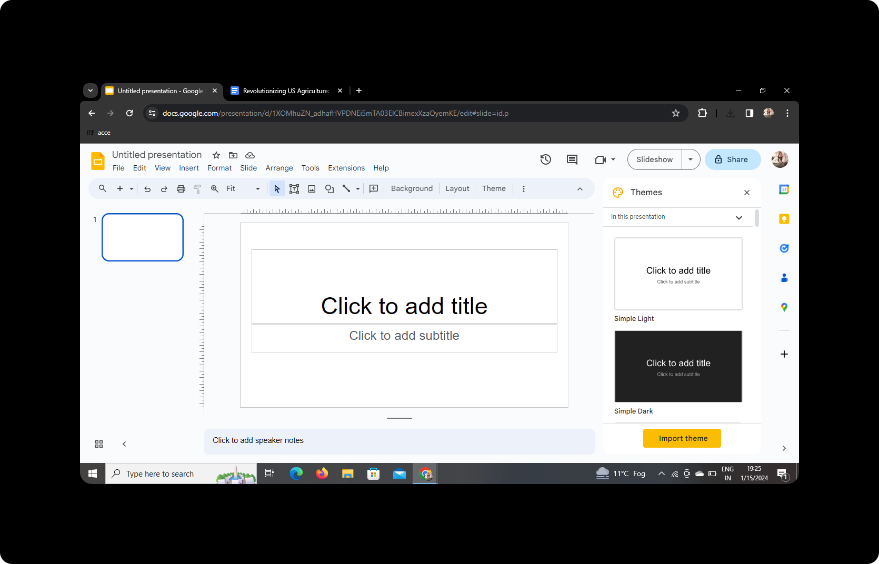
Begin by heading to Google Slides. If you don't have a Google account, create one. Google Slides provides a user-friendly platform for creating and editing presentations.
2. Sign in with Google to Google Slides
Log in to your Google account to access Google Slides. This step is crucial for seamless integration with other Google services and tools.
3. Download MagicSlides GPT Extension (if not already downloaded)
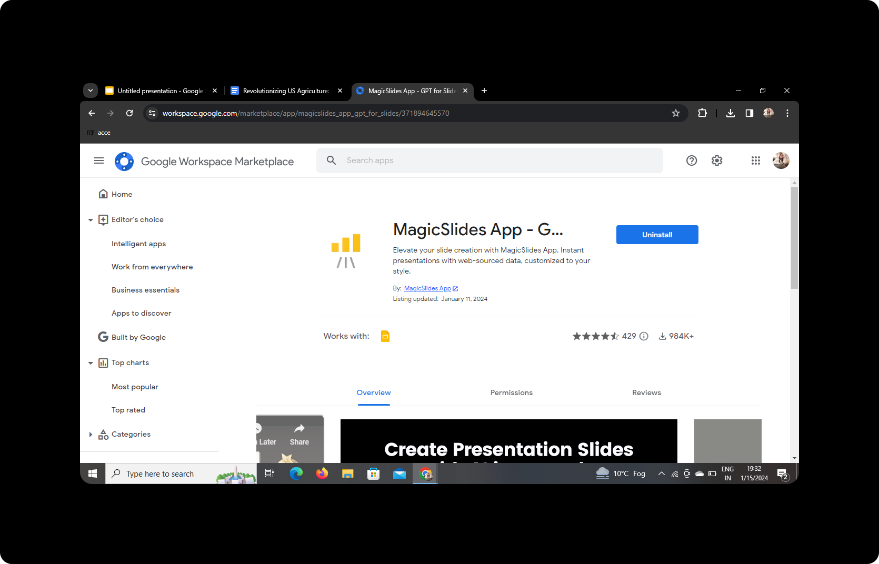
If you haven't downloaded the MagicSlides GPT extension, head to the Chrome Web Store. Search for MagicSlides GPT and download the extension.
4. Open MagicSlides GPT in Extensions
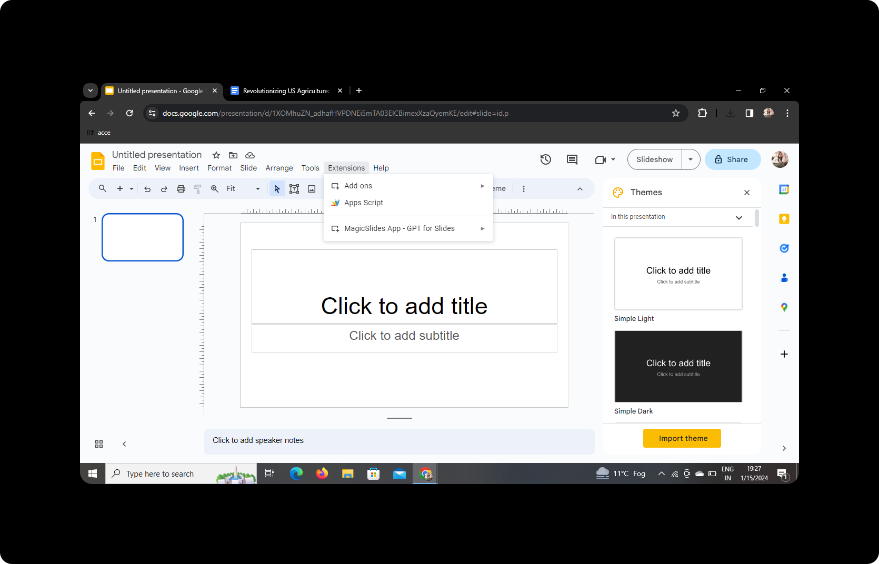
Once downloaded, open the MagicSlides GPT extension in your browser's extensions. Ensure it's activated for use within Google Slides.
5. Click on PDF/DOCX to PPT in MagicSlides GPT
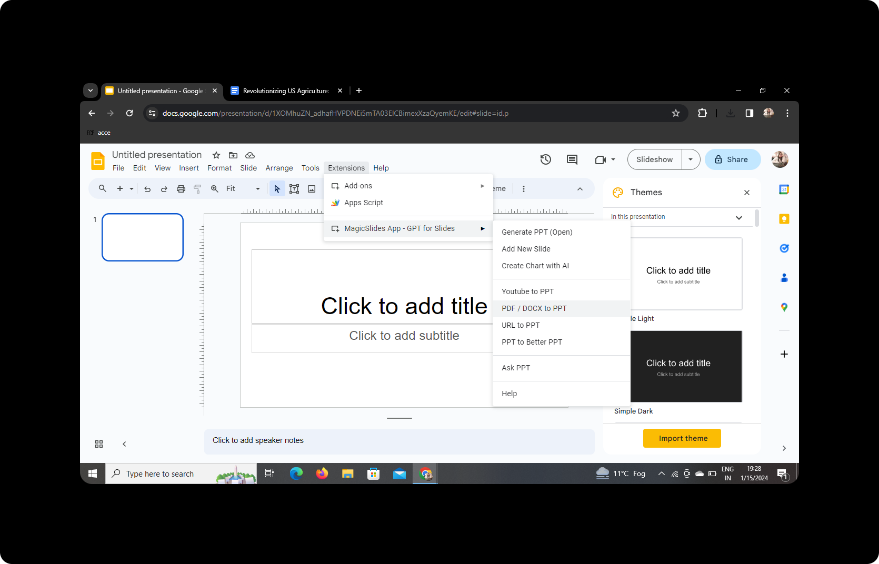
Within Google Slides, click on the MagicSlides GPT extension. Look for the option labeled 'PDF/DOCX to PPT.' Click on it to initiate the transformation process.
6. Click on 'Upload PDF/DOCX' Option and Upload Your Content
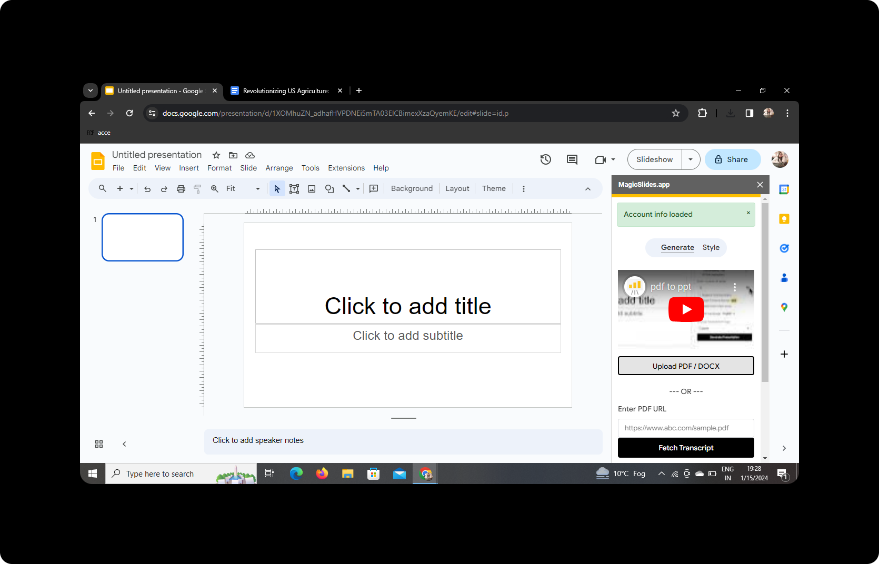
Select the 'Upload PDF/DOCX' option within MagicSlides GPT. Upload your Word marketing collateral document, and the tool will analyze the content.
7. Select the Number of Slides
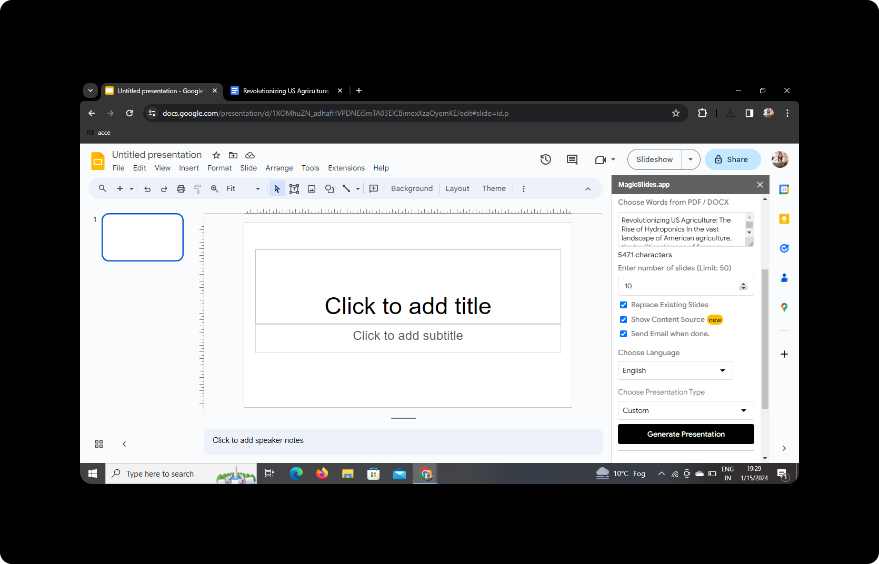
Customize the transformation by selecting the desired number of slides for your PowerPoint presentation. Adjust other preferences to suit your presentation style.
8. Click on Generate Presentation
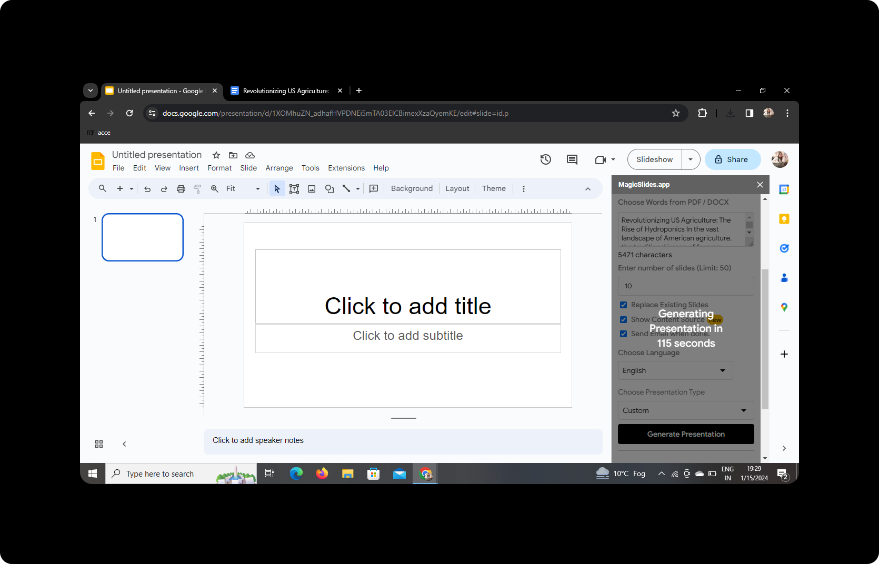
Click the 'Generate Presentation' button within MagicSlides GPT. The tool will convert your Word document into a visually appealing PowerPoint presentation.
9. Your Presentation is Ready
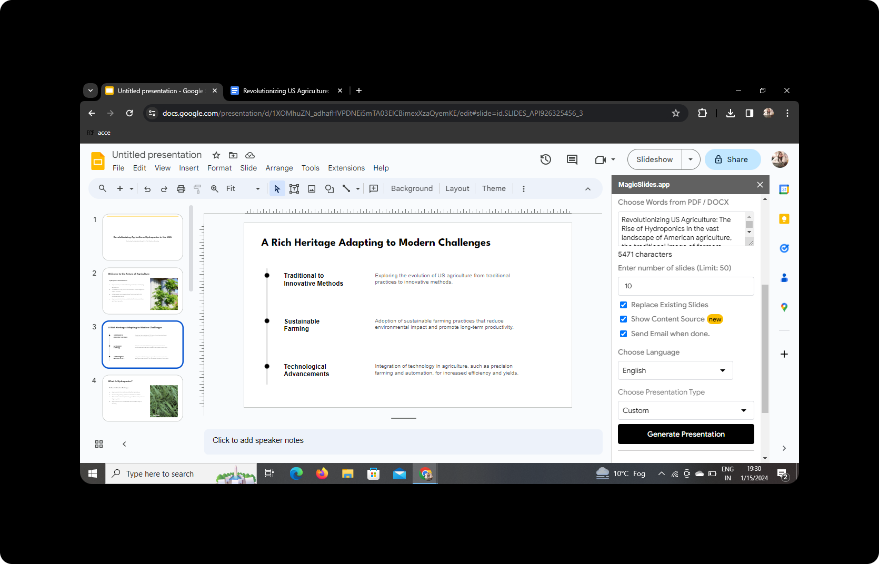
Congratulations! Your PowerPoint presentation is ready. Review the slides, make any necessary edits, and save your work.
Conclusion:
Adapting Word marketing collateral into PowerPoint presentations offers a dynamic way to repurpose content. With the user-friendly interface of Google Slides and the powerful capabilities of MagicSlides GPT, the transformation process is efficient and effective.
FAQs:
Can I use MagicSlides GPT with other document formats?
MagicSlides GPT primarily supports PDF and DOCX formats for transformation into PowerPoint presentations.
How do I edit slides after the transformation?
After generating the presentation, you can edit slides directly within Google Slides to add, remove, or modify content as needed.
Can I customize the design of the slides?
Yes, Google Slides provides various customization options to enhance the design and layout of your PowerPoint presentation.
Is MagicSlides GPT free to use?
MagicSlides GPT may offer both free and premium versions. Check the Chrome Web Store for details on pricing and features.
Can I collaborate with others on the presentation?
Yes, Google Slides allows real-time collaboration. Share your presentation with others, and collaborate seamlessly on the content.
Incorporating these steps into your workflow allows you to transform your Word marketing collateral into engaging PowerPoint presentations, maximizing the impact of your content.


