How to Add a Countdown Timer to PowerPoint


A countdown timer in PowerPoint enhances engagement, keeping sessions timed and presentations interactive and dynamic
Adding a countdown timer to a PowerPoint presentation can be a great way to manage time effectively and keep your audience engaged, especially during breaks, activities, or timed sessions.
PowerPoint provides a few different methods to create timers, from using animations to embedding videos.
Here’s a step-by-step guide to help you add a countdown timer to your presentation.
How to Add a Countdown Timer to PowerPoint: A Step-by-Step Guide
Step 1: Open PowerPoint and Select a Slide
Begin by opening your PowerPoint presentation and navigating to the slide where you want to add the countdown timer.
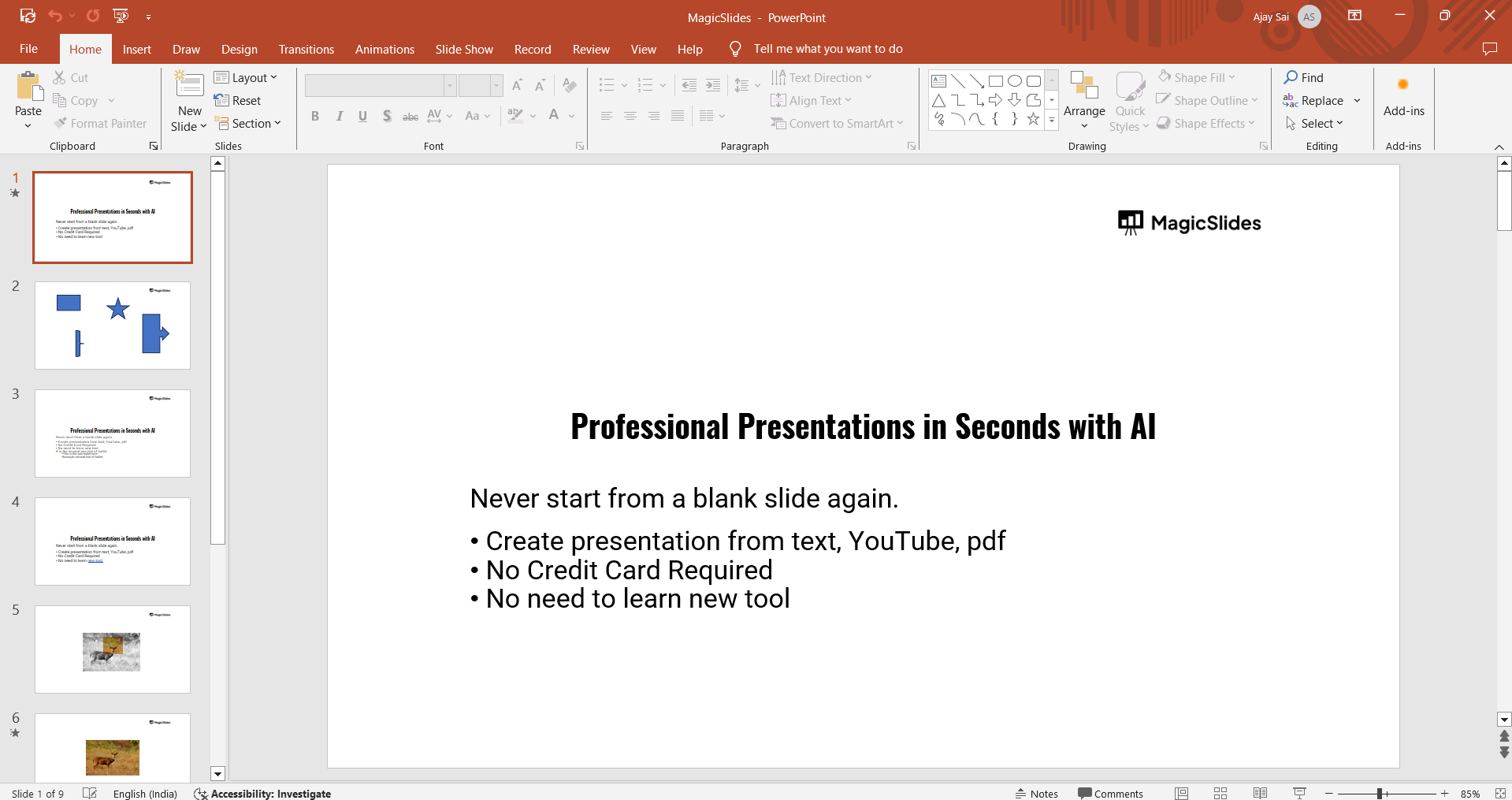
If you’re setting up a timer for a break or activity, create a new slide specifically for this purpose by selecting "New Slide" in the "Home" tab.
Step 2: Insert a Text Box for the Timer Display
Go to the "Insert" tab, and select "Text Box." Click anywhere on your slide to create a text box where you’ll display the countdown.
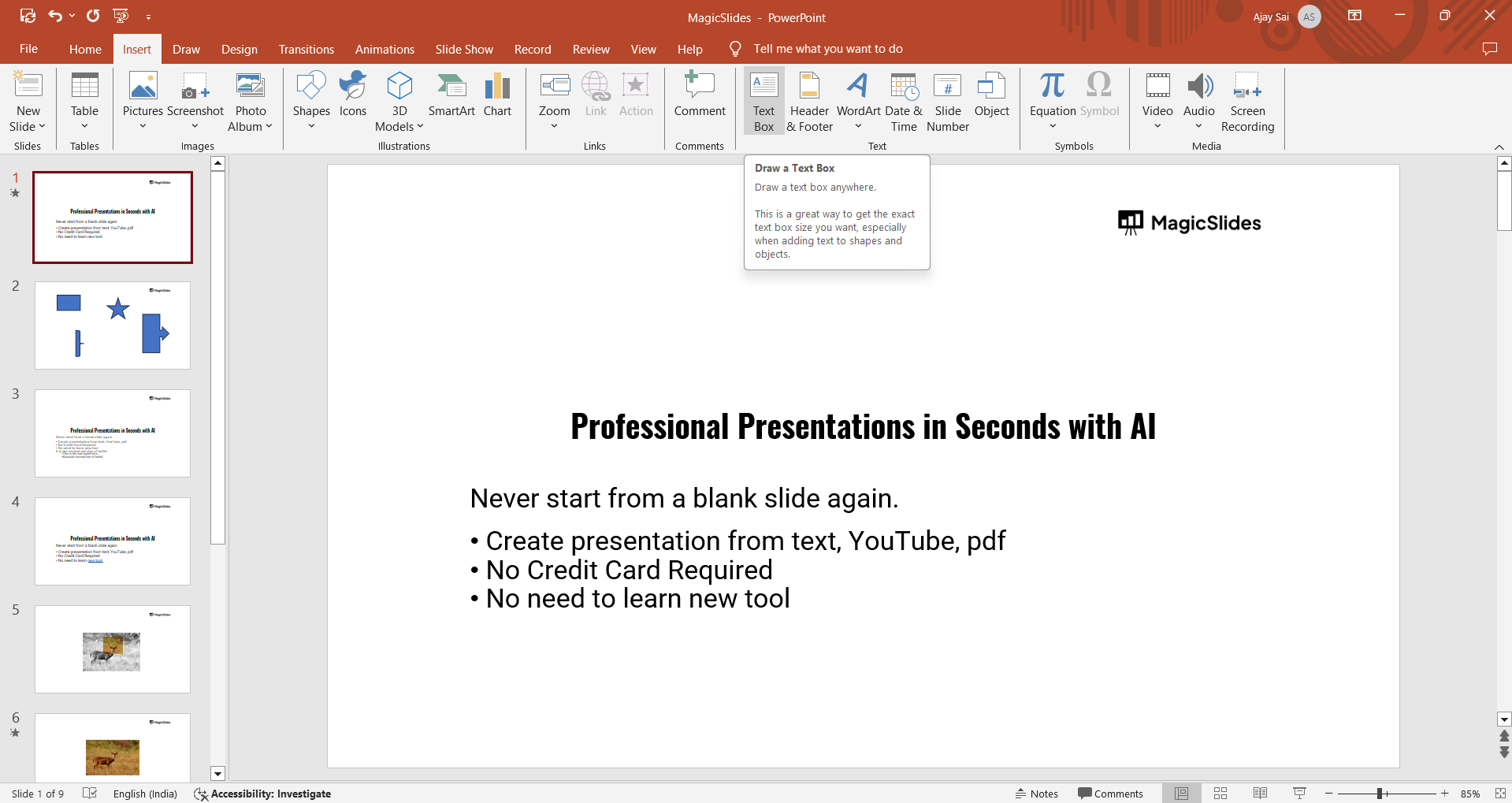
Enter the starting number of your countdown (e.g., "10" for a 10-second countdown), and adjust the font size and color as desired to make it clearly visible.
Step 3: Set Up Animation for the Countdown
With the text box selected, go to the "Animations" tab and choose the "Appear" or "Disappear" animation, which will control how the timer counts down.
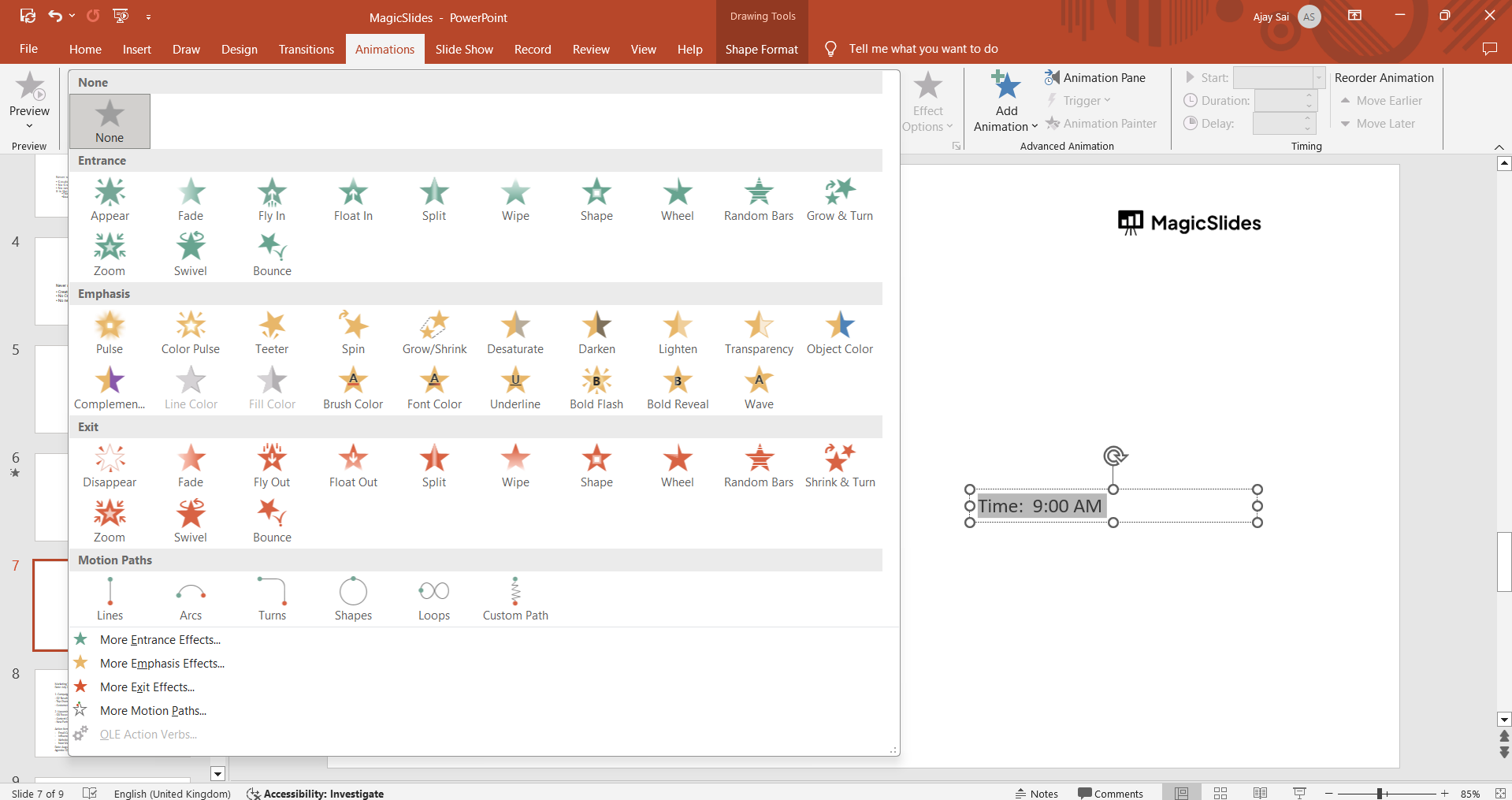
Next, click on "Animation Pane" to open the sidebar where you can adjust each animation’s settings.
Step 4: Duplicate the Text Box for Each Countdown Second
Copy the text box by selecting it, pressing "Ctrl + C" to copy, and "Ctrl + V" to paste.
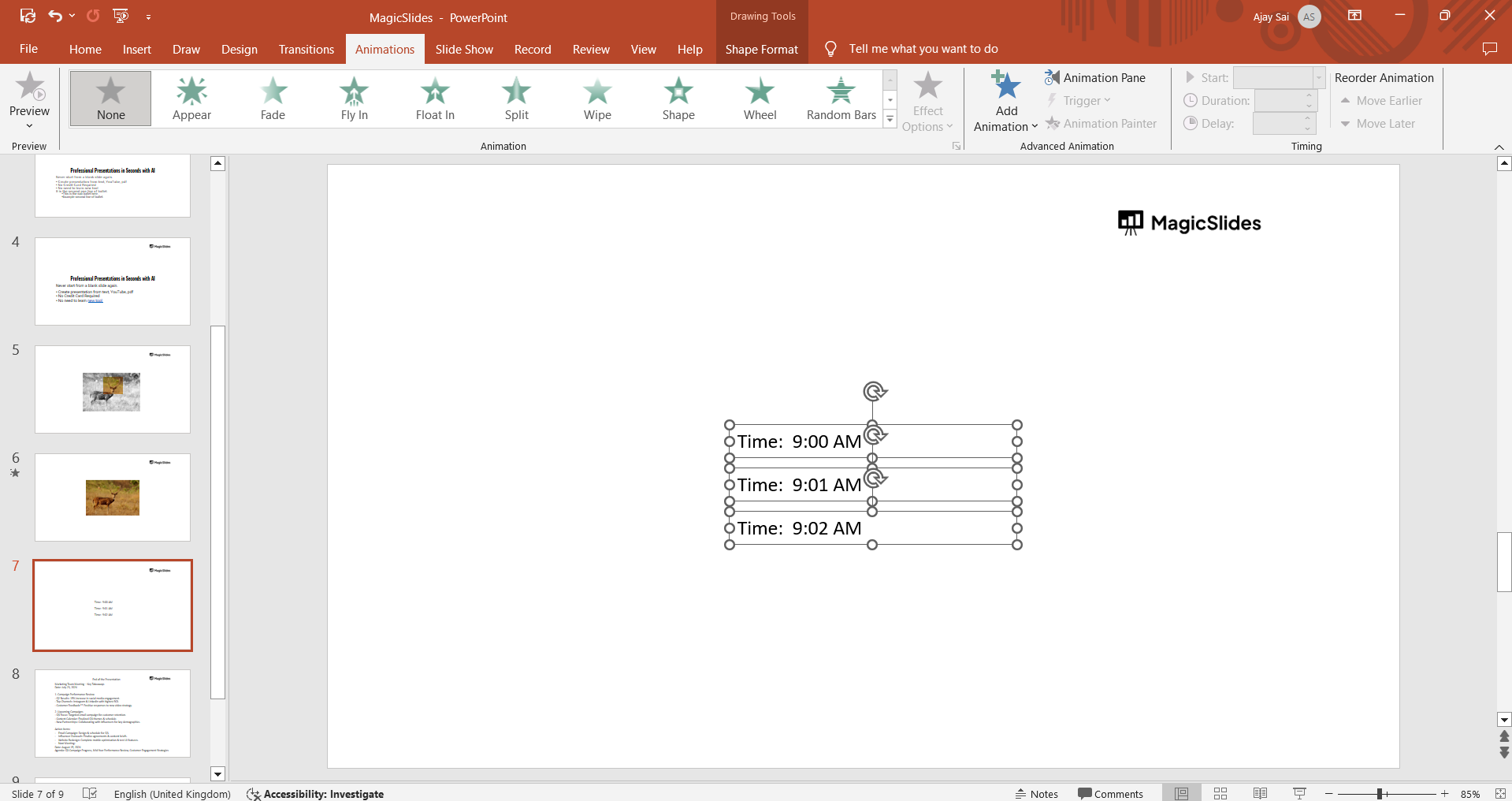
Update each copied text box with a decrementing number (e.g., "9," "8," "7"), arranging each one so that the next number appears when the previous one disappears.
Step 5: Adjust the Timing of Each Animation
In the "Animation Pane," adjust the timing for each text box.
Set each animation to start "After Previous," and set the duration to 1 second for a countdown effect.
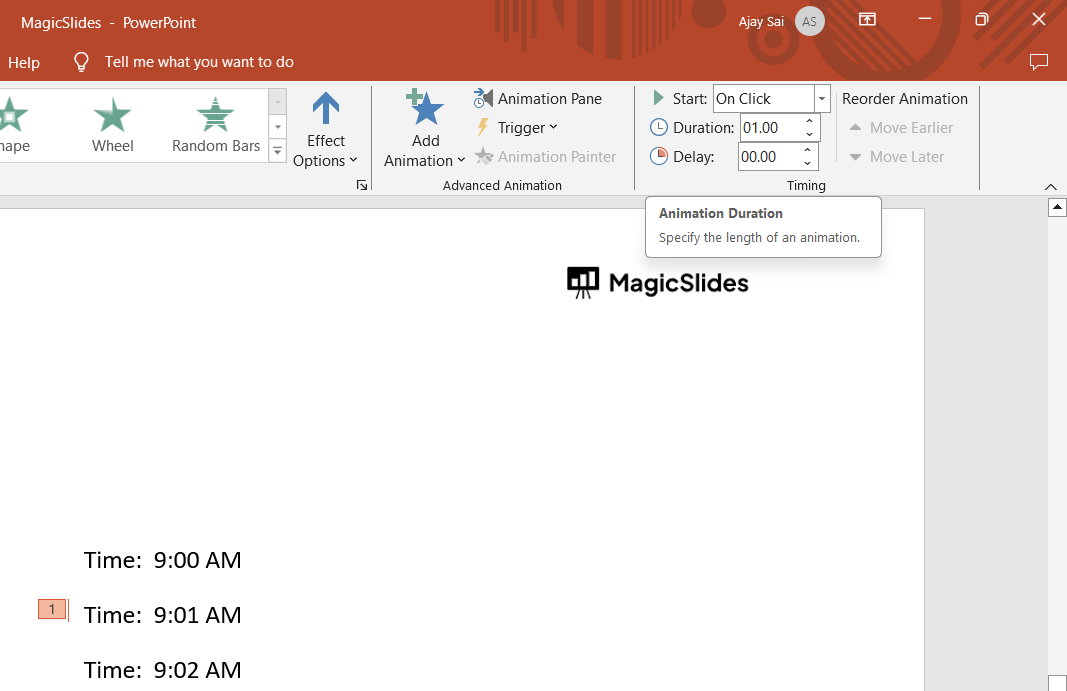
This setup will make each number appear and disappear one after the other, simulating a countdown.
Step 6: Preview the Countdown Timer
To ensure the countdown timer works correctly, go to the "Slide Show" tab and select "From Current Slide" to preview the animations.
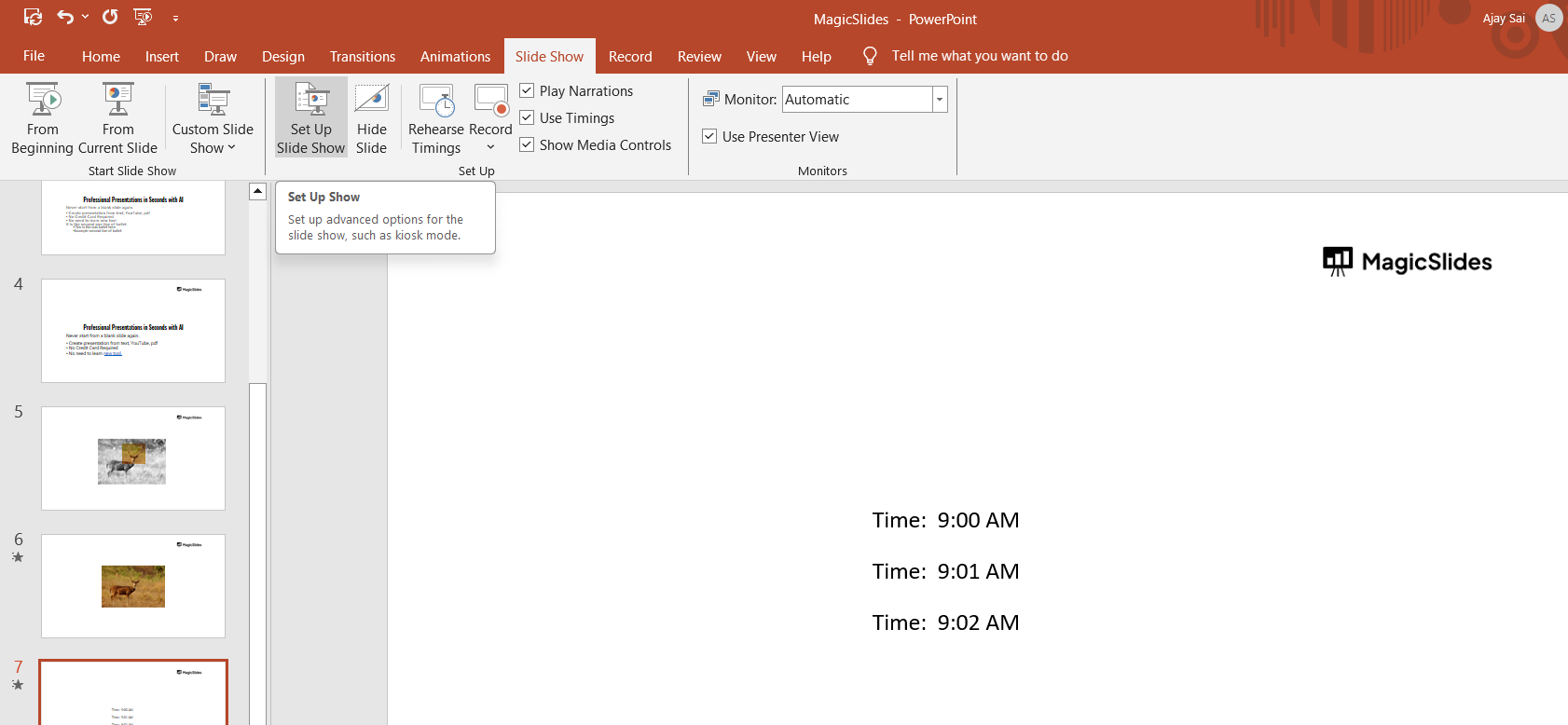
Watch how the numbers count down, and make any adjustments to timing or font size if necessary.
Once you know how to add a countdown timer in PowerPoint, consider creating a roadmap in PowerPoint to clearly illustrate the timeline of your projects.
Conclusion
Adding a countdown timer to PowerPoint is a simple way to keep your audience on track and add a dynamic element to your presentation.
By using animations effectively, you can create a smooth, attention-grabbing countdown that’s ideal for breaks, quizzes, or interactive sessions.
Try this technique in your next presentation to keep timing under control and audience engagement high.
FAQs are here to help!
Can I add a countdown timer that’s longer than 10 seconds?
Yes, you can extend the countdown to any duration you like by adding more text boxes and adjusting the timing of each animation.
Is there a way to add a countdown timer without animations?
Yes, you can insert a pre-made countdown timer video by going to the "Insert" tab, selecting "Video," and embedding a video countdown that plays on the slide.
Will the countdown timer work if I present online or on a different device?
Yes, as long as PowerPoint is compatible, the timer should work the same way on different devices and during online presentations.


