How to add a shape transition in PowerPoint


Elevate your presentations by mastering simulated shape transitions in PowerPoint captivate your audience with visual dynamism.
Unlock a new dimension of creativity in PowerPoint as we explore the art of simulating shape transitions. While PowerPoint doesn't offer a dedicated shape transition, we'll delve into a clever workaround using animations and the Morph transition which might be availble if you are using the newer version of Microsoft PowerPoint. Learn how to seamlessly transform shapes, adding a dynamic flair to your presentations and captivating your audience with visually striking transitions.
How to create a shape transition in PowerPoint
Open your PowerPoint application:
Launch the PowerPoint application and open the presentation you want to enhance with a shape transition.
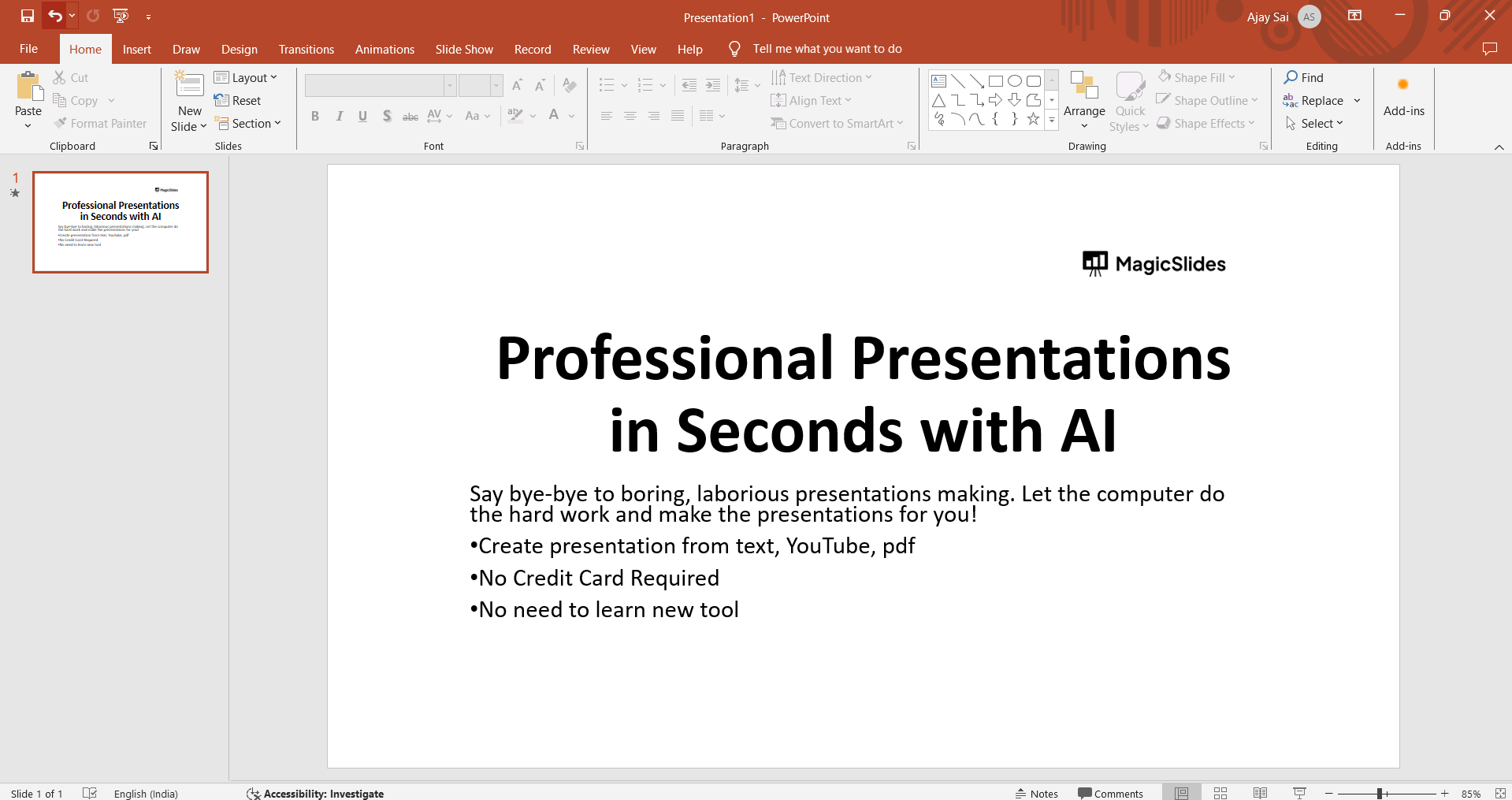
Select a Slide:
Navigate to the slide where you want to apply the shape transition. Click on the slide in the left-hand navigation pane.
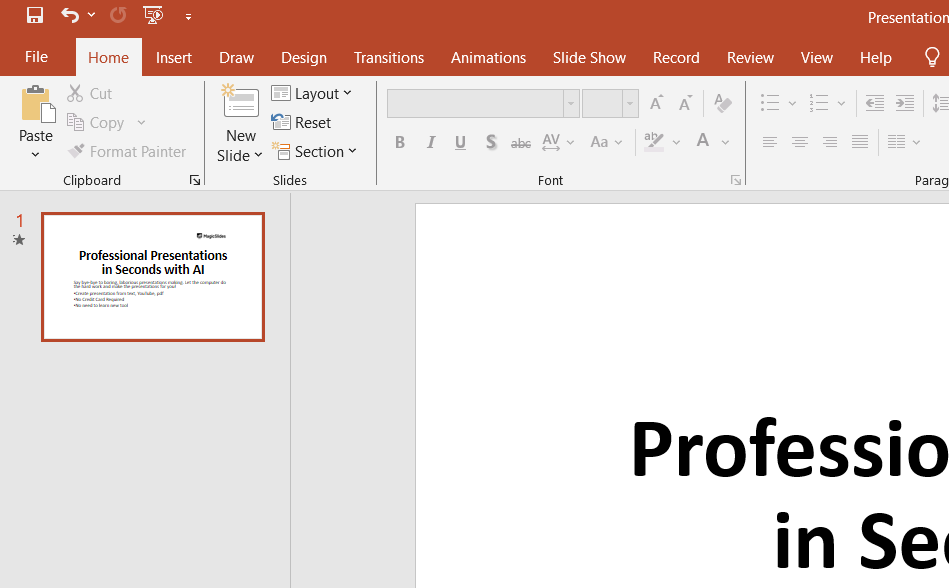
Go to Transitions Tab:
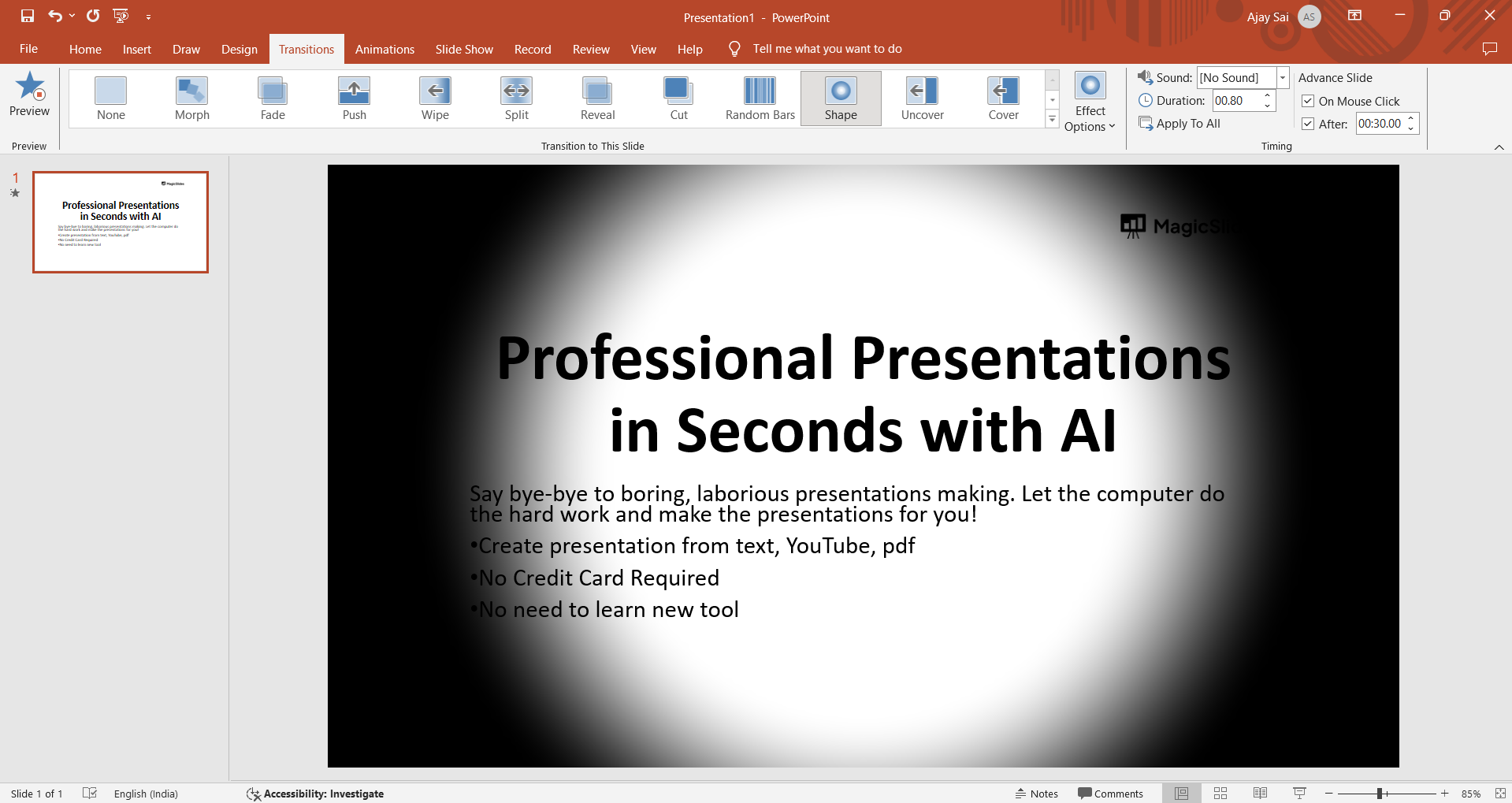
Click on the "Transitions" tab in the PowerPoint ribbon at the top of the screen.
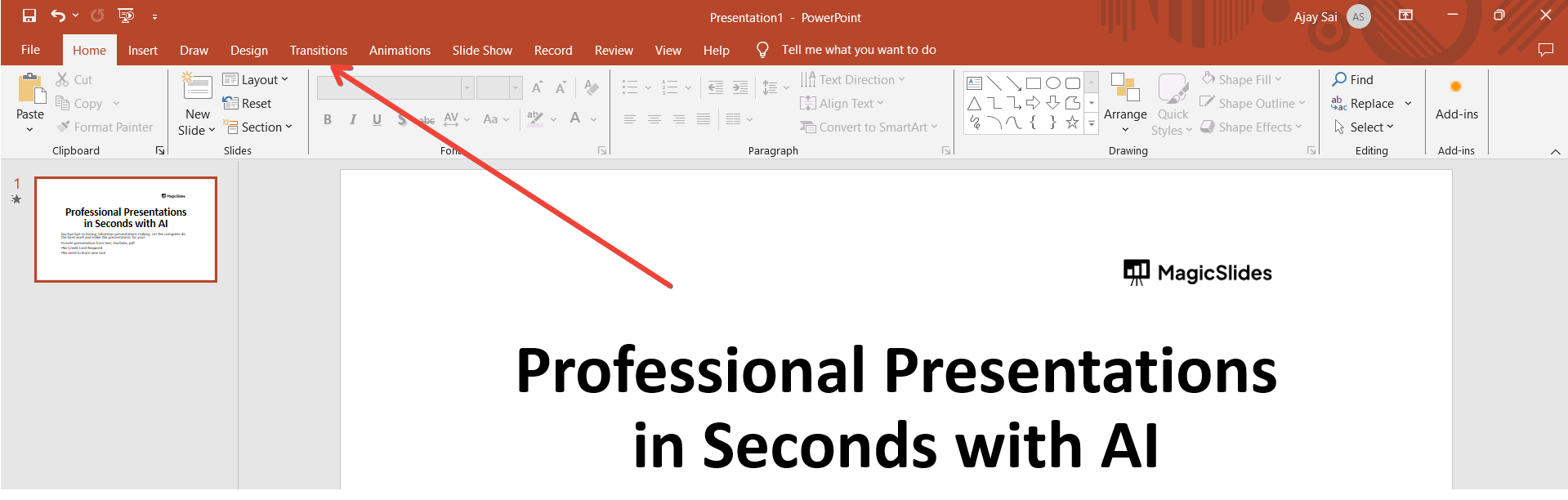
Choose cut Transition:
In the Transitions tab, locate the "shape" transition option. Click on it to apply the effect to the selected slide.
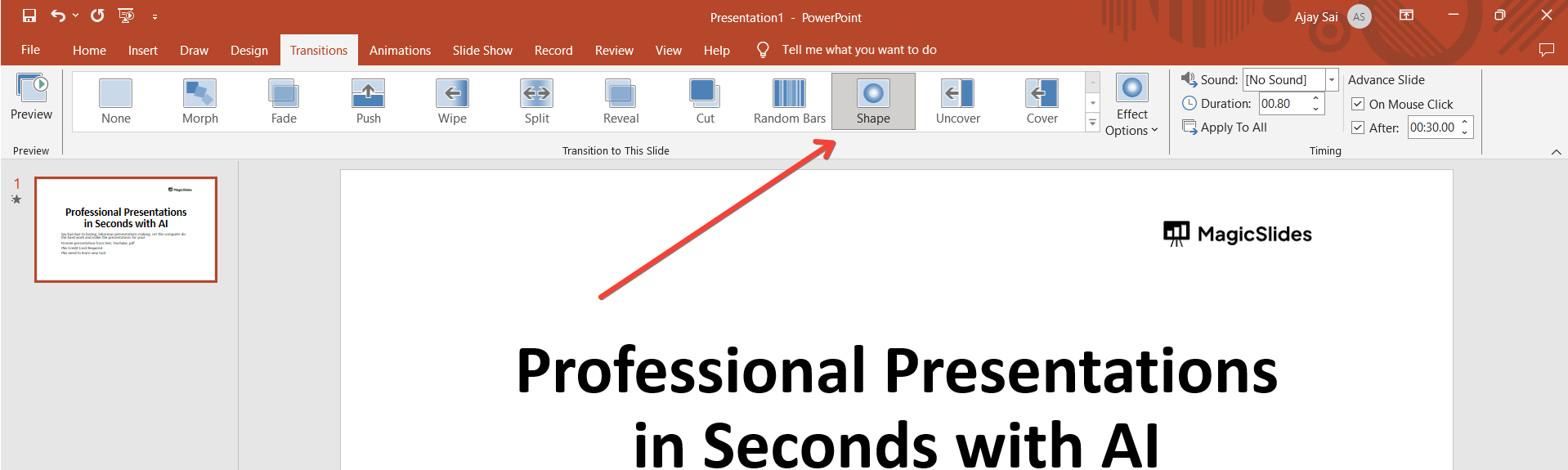
Adjust Transition Options (Optional):
Customize the shape transition by adjusting optional settings like direction, duration, or sound. Explore the "Effect Options" in the Transitions tab for more control.

Preview the Transition:
Before finalizing, use the "Preview" button to see how the shape transition looks on your slide. Make any necessary adjustments.
Save Your Presentation:
After perfecting your shape transition, don't forget to save your presentation to preserve the effects.
Conclusion:
By combining strategic duplications, modifications, and the power of the shape transition, you've elevated your slides into dynamic narratives. As you master this technique, your presentations become a canvas for creativity, where shapes seamlessly dance across slides, leaving a lasting impact on your audience. Embrace the art of simulated shape transitions, and let your slides tell a story that goes beyond the ordinary. Know to extract Webinar Highlights From YouTube To PowerPoint For Quick References.
Frequently Asked Questions:
Can I use the Morph transition for shape animation in all versions of PowerPoint?
The Morph transition is available in Microsoft 365, PowerPoint 2019, PowerPoint 2016, and PowerPoint for the web.
What types of shape changes work well with the Morph transition?
The Morph transition smoothly animates movements, resizing, and other changes in position for a variety of shapes.
Can I use the Morph transition for complex animations involving multiple shapes?
Yes, the Morph transition is versatile and can handle complex animations involving multiple shapes on consecutive slides.


