how to add a video to power point


Adding videos to presentations enhances engagement, clarifies content, and conveys complex ideas effectively, fostering audience understanding.
In an era where visual communication reigns supreme, the integration of multimedia elements into presentations has become a vital component of effective storytelling. Among these multimedia elements, videos hold a special place.
They have the power to captivate audiences, elucidate complex concepts, and breathe life into otherwise static slides. In this digital age, PowerPoint presentations have evolved to harness the vast resources of the internet, enabling seamless integration of online videos from platforms like YouTube.
In this guide, we will explore the steps for adding online videos to your PowerPoint presentations, focusing on newer versions of the software (PowerPoint 2013 and later). By the end of this journey, you will have the skills to infuse your presentations with the energy and engagement that only online videos can provide.
Step 1: Selecting the Slide: Start by choosing the slide in your PowerPoint presentation where you want to incorporate an online video. Carefully consider the placement of the video within your content flow for maximum impact.
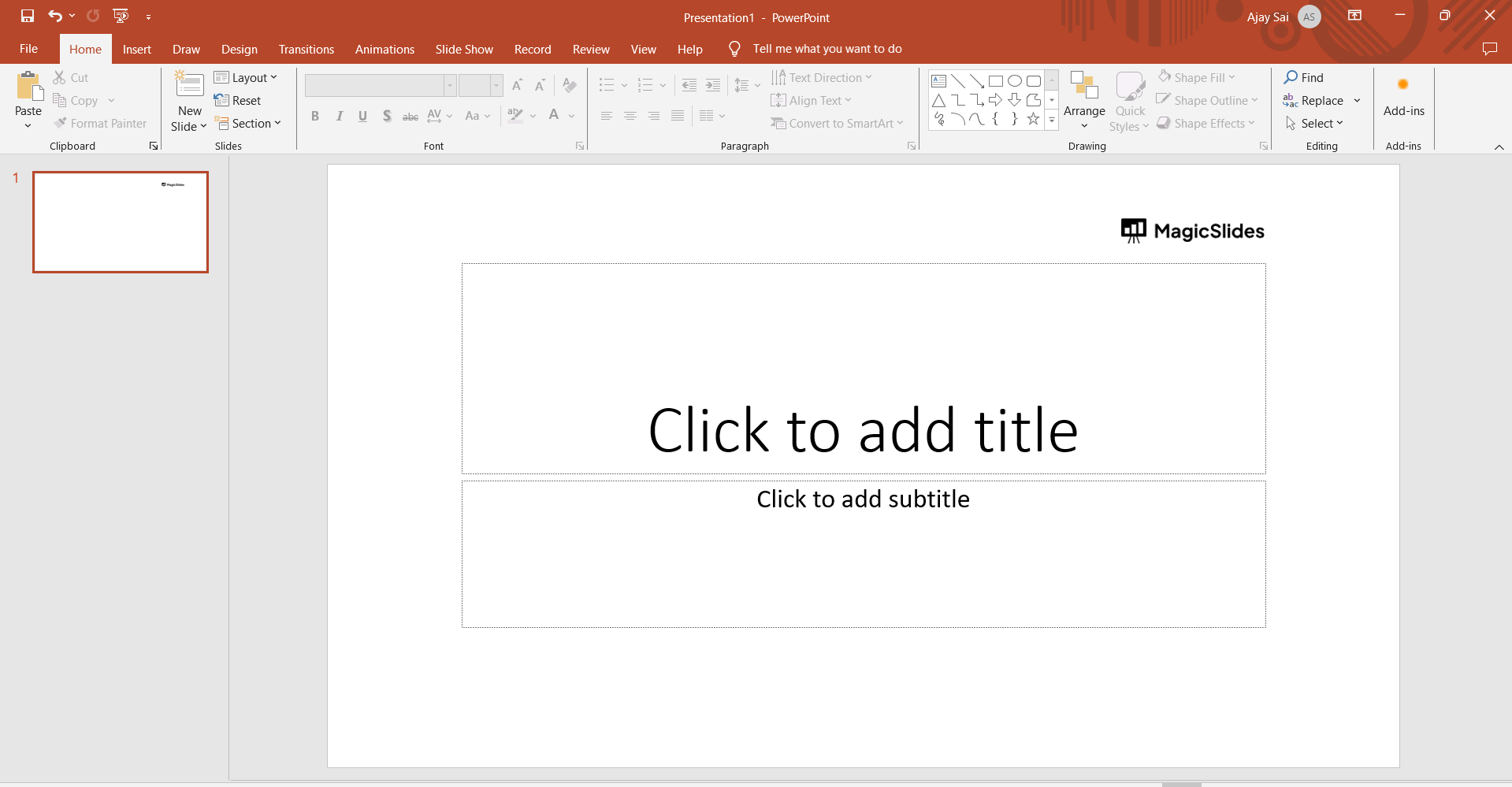
Step 2: Accessing the Insert Tab: Once you've selected the slide, go to the "Insert" tab in the PowerPoint ribbon. This tab provides various options for adding different types of content to your presentation.
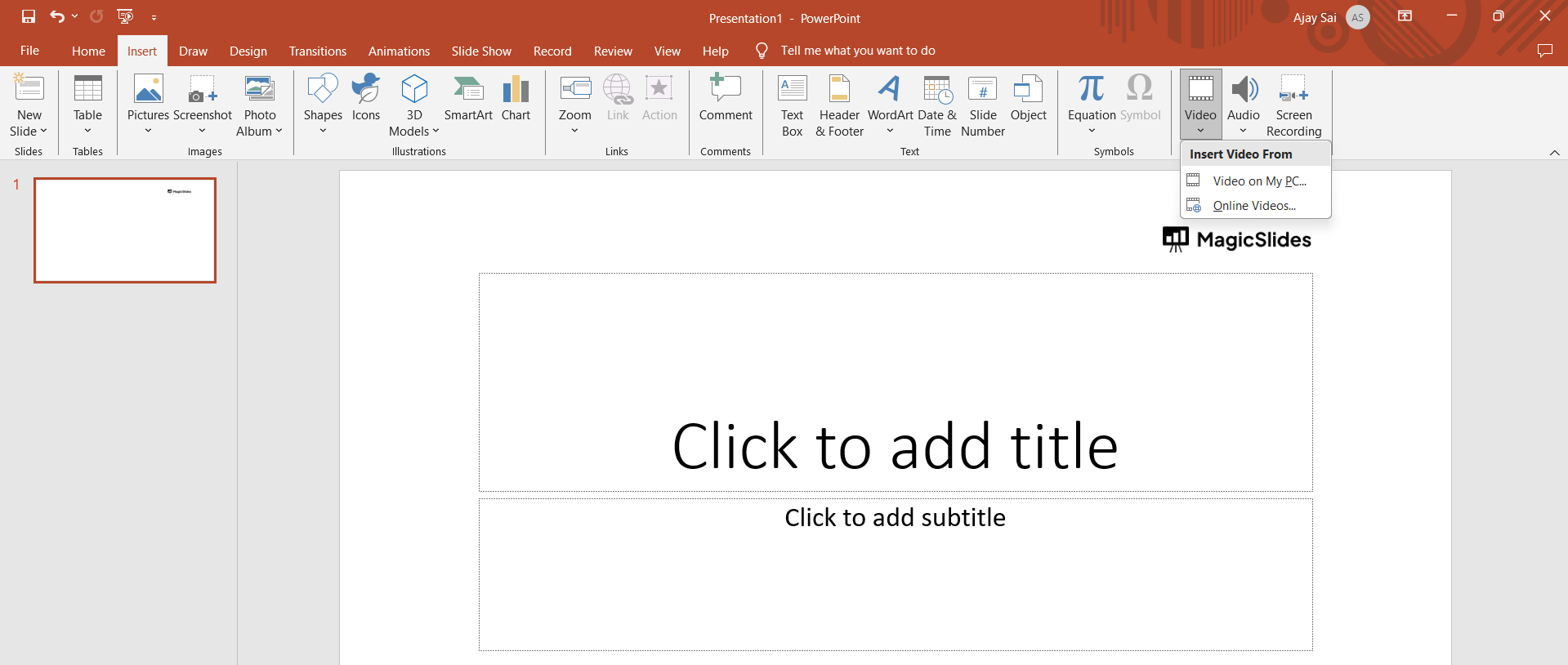
Step 3: Selecting the Video Option: Within the "Insert" tab, locate and click on the "Video" option, typically found in the "Media" or "Media Clips" group. Clicking on this option will present you with several choices, including the ability to insert online videos.
Step 4: Choosing "Online Video": From the menu that appears after clicking "Video," select the "Online Video" option. This functionality is designed to allow you to directly embed videos from online sources like YouTube into your presentation.
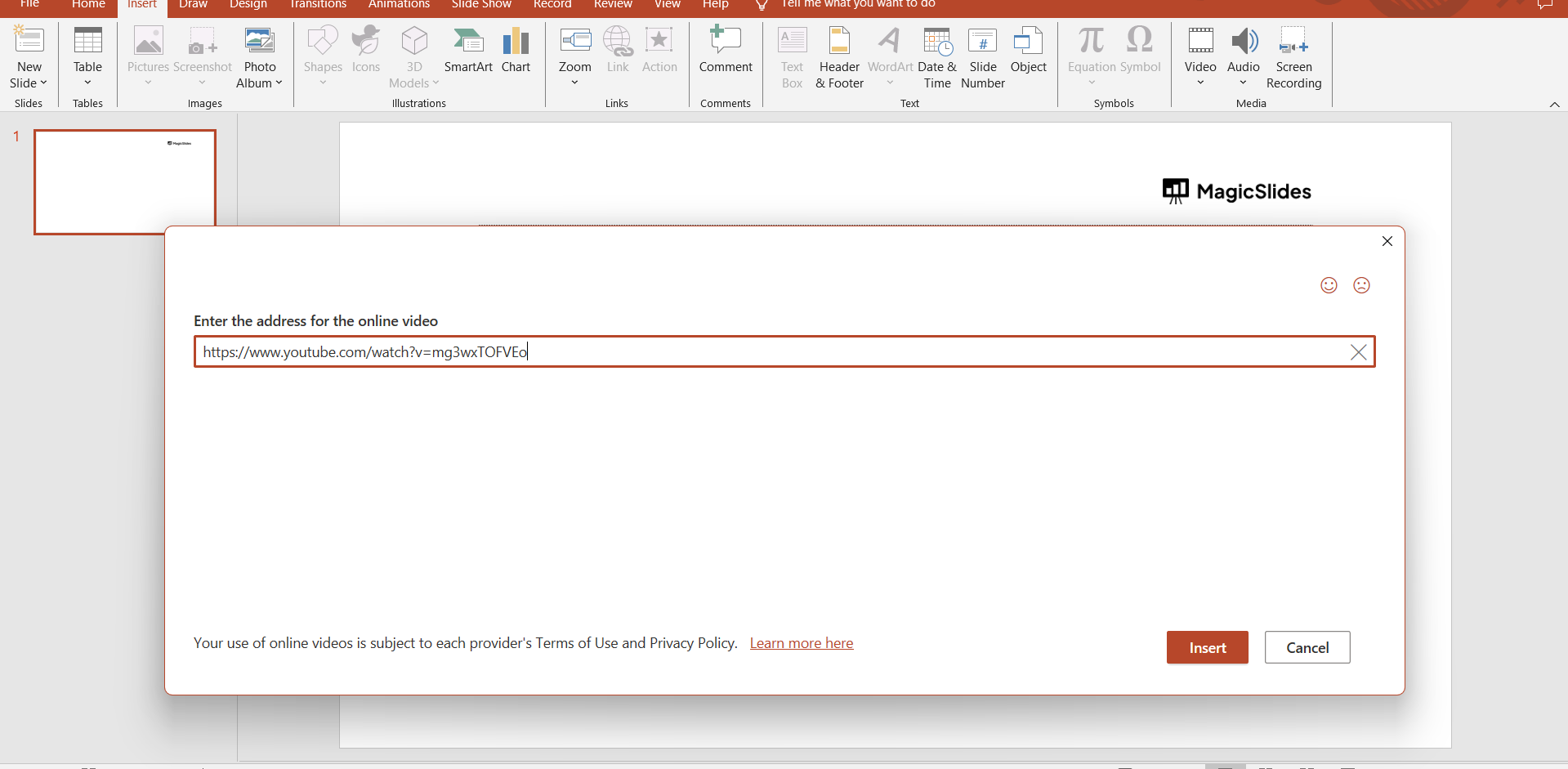
Step 5: Inserting the Online Video: A dialog box will pop up, giving you the option to search for a video on YouTube directly from within PowerPoint. You can use keywords or phrases to search for the specific video you want to include. Alternatively, if you have an embed code for a video, you can paste it into the provided field.
Step 6: Click "Insert": After entering the search terms or pasting the embed code, click the "Insert" button. PowerPoint will connect to the internet, search for the video, and insert it into your slide.
Step 7: Video Settings: Once the video is inserted, you can adjust its settings as needed. Common settings include choosing whether the video should play automatically when the slide is displayed or when clicked, adjusting the volume, and deciding whether it should loop or not. These settings can be accessed by right-clicking on the video and selecting "Video Options" or a similar menu item.
Step 8: Save Your Presentation: Don't forget to save your presentation after inserting the online video to ensure that your changes are retained.
Step 9: Testing the Presentation: Always test your presentation to ensure that the online video plays correctly. This is crucial, especially if you plan to share the presentation with others, as internet connectivity and settings can affect the video's performance.
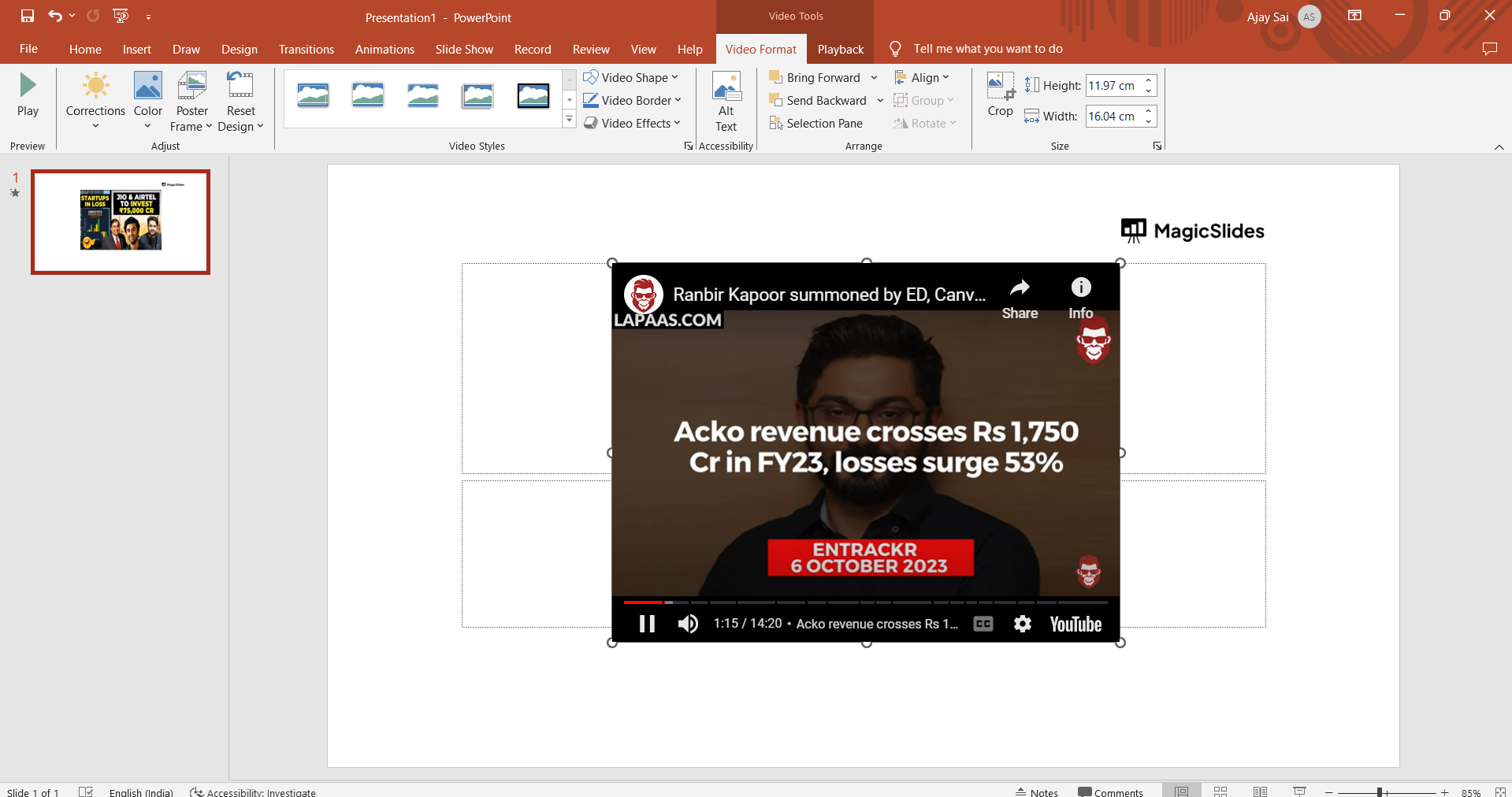
Inserting online videos can make your PowerPoint presentations more dynamic and engaging, as it allows you to leverage the rich content available on platforms like YouTube to enhance your message and capture your audience's attention. However, remember that you'll need an active internet connection to play these videos during your presentation.
As we conclude our exploration of integrating online videos into PowerPoint presentations, it becomes evident that this feature is a game-changer in the world of visual communication. The ability to seamlessly embed videos from online sources like YouTube empowers presenters to elevate their storytelling and connect with audiences on a deeper level.
So, as you embark on your next presentation journey, don't hesitate to harness the power of online videos to deliver a compelling and memorable message. Your audience will undoubtedly thank you for it.


