How To Add Page Numbers To MS PowerPoint?


Learn to add page numbers in MS PowerPoint effortlessly with our step-by-step guide. Enhance your presentations with professional pagination now!
Microsoft PowerPoint offers a user-friendly feature to add page numbers to your presentation, enhancing its professionalism and organization. Follow these straightforward steps to seamlessly incorporate page numbers into your slides.
How To Add Page Numbers To MS PowerPoint?
Before diving into the steps, ensure you have Microsoft PowerPoint installed on your computer. If not, you can download and install it from the official Microsoft website. Sign in to your Microsoft account or create one if needed.
Open Microsoft PowerPoint
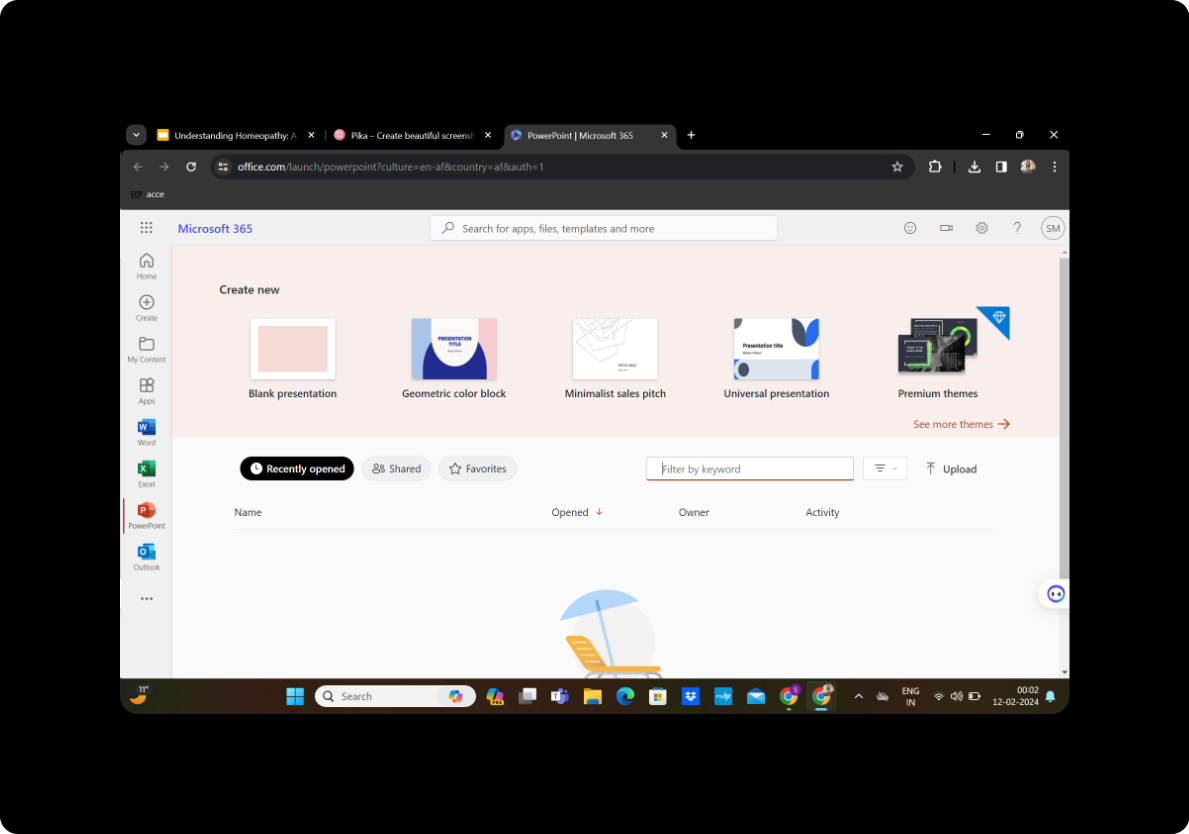
Launch Microsoft PowerPoint and open the presentation to which you want to add page numbers.
Step 1: Open Your Presentation
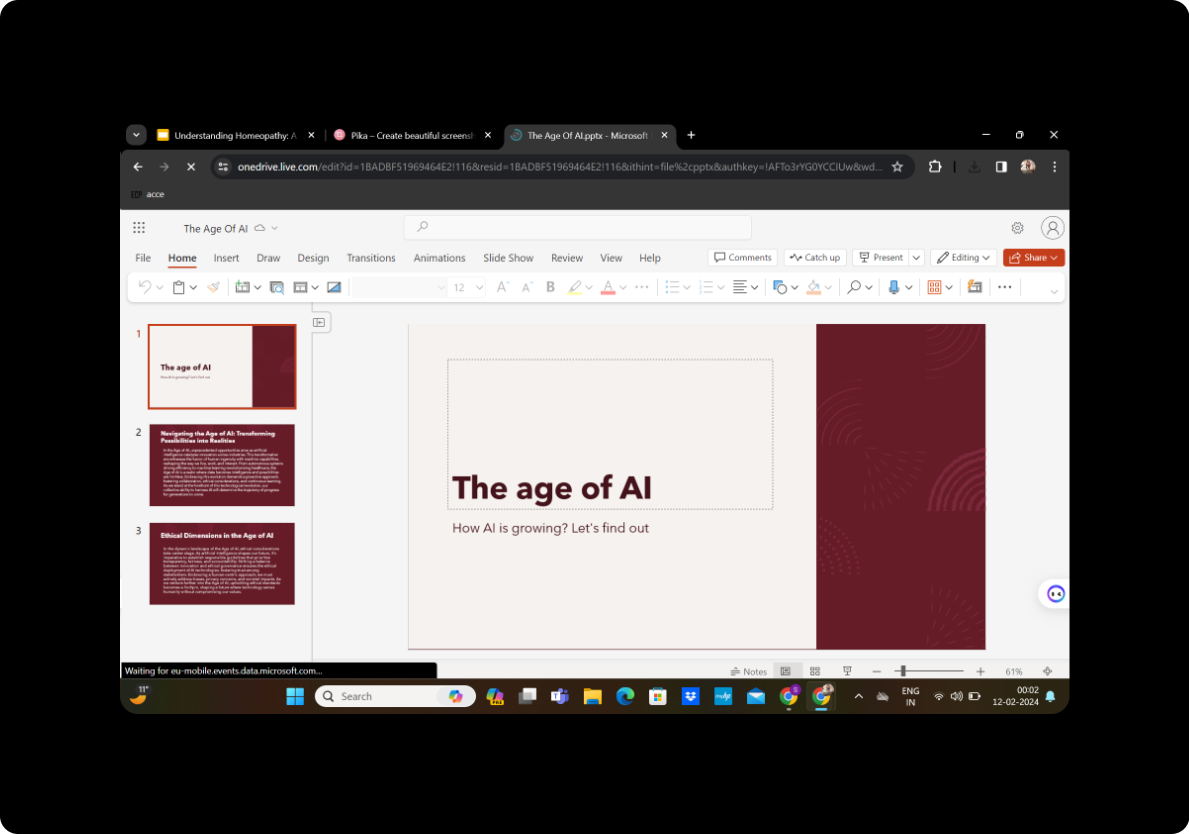
Launch Microsoft PowerPoint and open the presentation to which you want to add page numbers.
Step 2: Navigate to the Insert Tab
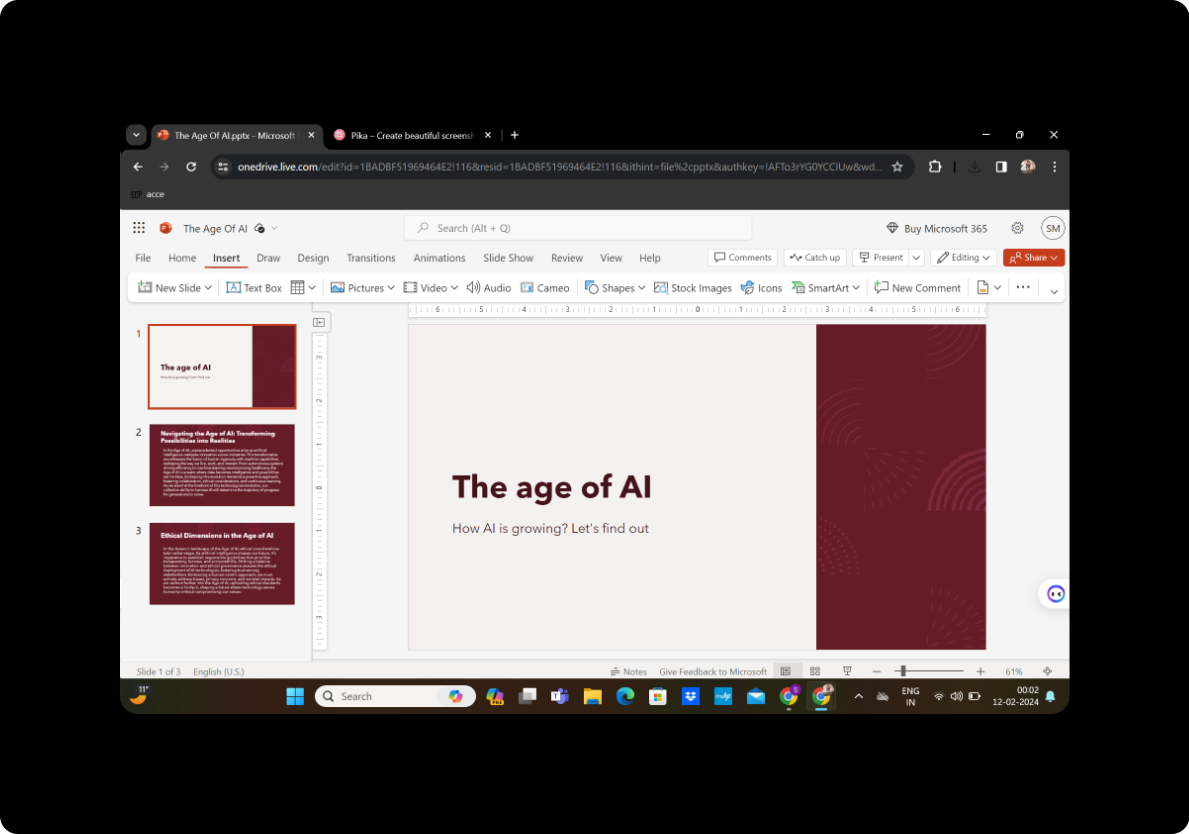
Once your presentation is open, switch to the "Insert" tab located in the top menu bar.
Step 3: Click on Header and Footer
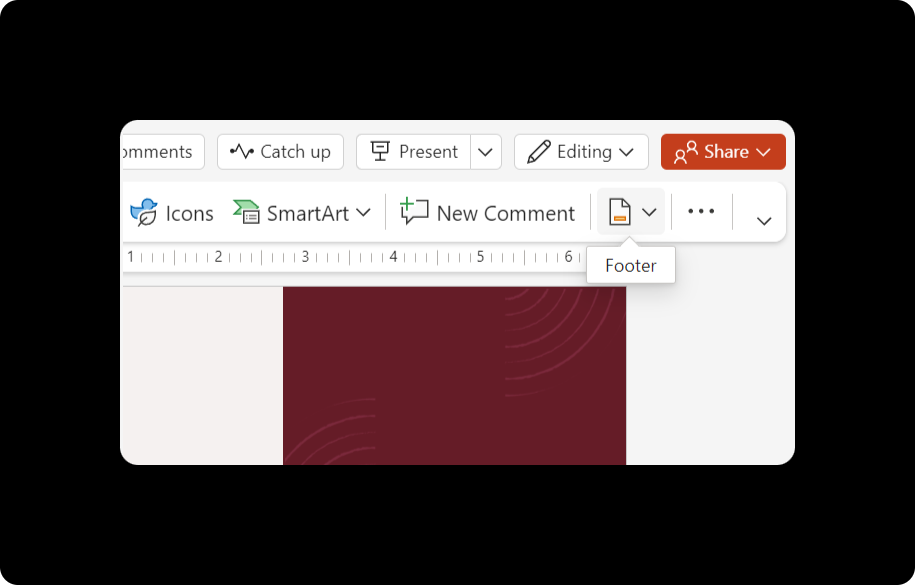
Within the Insert tab, locate and click on the "Header and Footer" option. This will open a dialog box with customization options.
Step 4: Select Slide Number
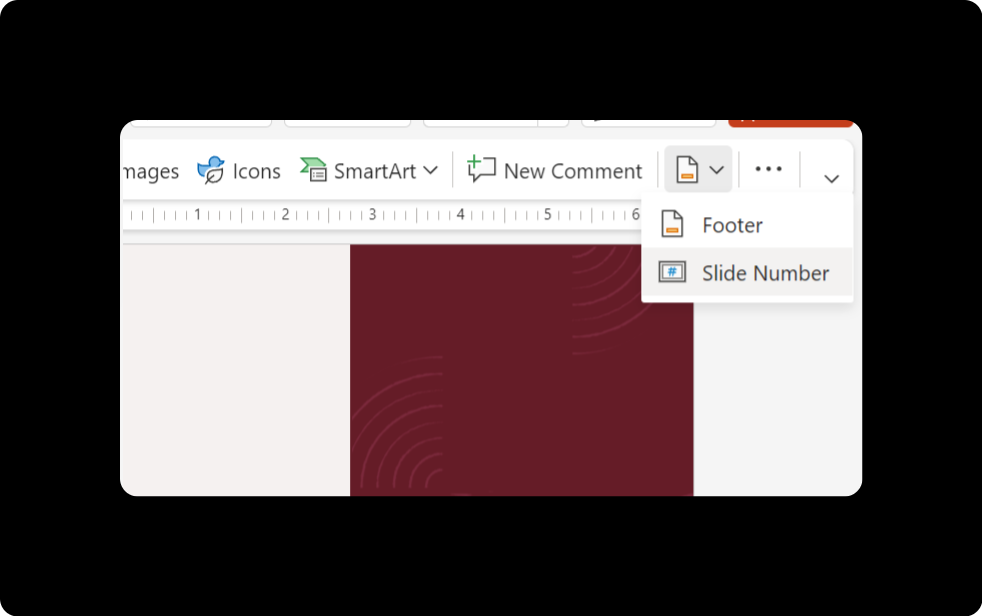
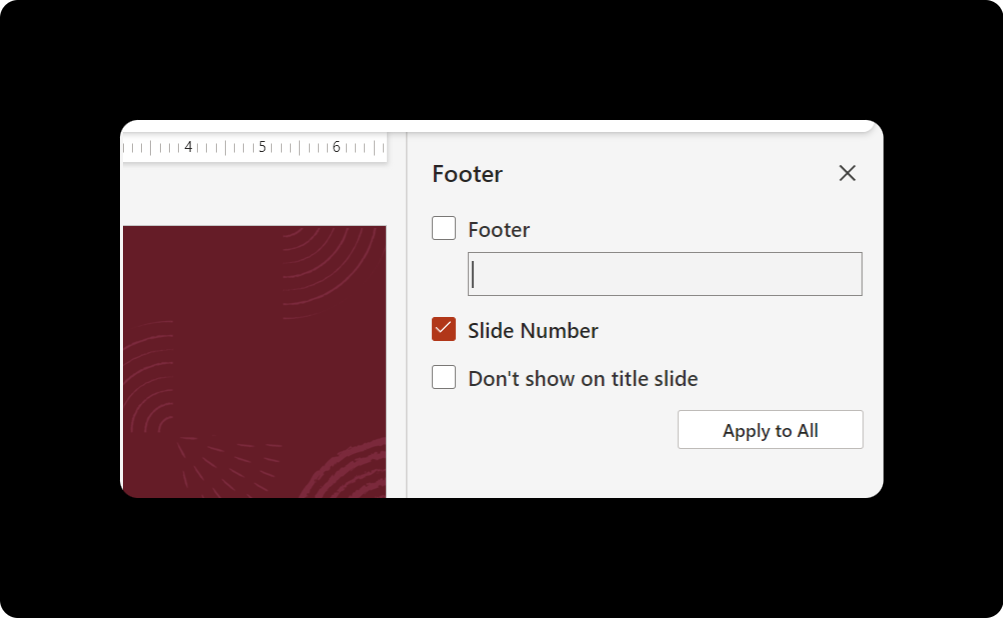
In the dialog box, find the "Slide" tab. Check the box next to "Slide number" to enable the page numbering feature.
Step 5: View the Added Numbers

Now, you'll notice that numbers have been added to your slides, typically starting from 1 and incrementing for each subsequent slide.
Step 6: Customize Numbering

Modify the appearance of your page numbers to suit your preferences. You can adjust the position, make it bold, change the font, or apply other formatting options.
Step 7: Save Your Presentation
After you are satisfied with the placement and style of your page numbers, click "Save" to save your updated presentation.
Your Presentation is Ready!
Your PowerPoint presentation is now enhanced with page numbers, providing clarity and structure for you and your audience.
Conclusion
Adding page numbers to your PowerPoint presentation is a simple yet impactful way to organize your content. Whether it's for academic, professional, or personal use, page numbers contribute to a more structured and professional-looking presentation.
Frequently Asked Questions
Can I customize the appearance of the page numbers further? Yes, Microsoft PowerPoint provides various formatting options to customize the appearance of your page numbers, allowing you to align them, change fonts, and make them bold or italicized.
Can I start page numbering from a specific slide? Absolutely! In the "Header and Footer" dialog box, you have the option to start page numbering from any slide you choose.
Can I hide page numbers on specific slides? Yes, within the same dialog box, you can uncheck the "Slide number" box for individual slides to exclude them from the numbering sequence.
Will the page numbers be visible in the presentation mode? Yes, the page numbers will be visible in the presentation mode, providing a helpful reference for both the presenter and the audience.
Can I add page numbers to specific sections of my presentation? Yes, PowerPoint allows you to customize page numbering for specific sections, providing flexibility in organizing your content.


