How to Add PowerPoint Subtitles


Enhance accessibility and engagement by adding subtitles to your PowerPoint presentations with these simple steps
How to Add Subtitles in PowerPoint
Adding subtitles in PowerPoint enhances accessibility and engagement by making presentations more inclusive for all audiences, including those who are hearing-impaired or speak different languages.
Whether you want to manually insert subtitles or enable real-time captions, this guide will show you the step-by-step process to add subtitles in PowerPoint.
Step-by-Step Guide to Adding Subtitles in PowerPoint
Step 1: Open Your PowerPoint Presentation
Launch Microsoft PowerPoint and open the presentation where you want to add subtitles.
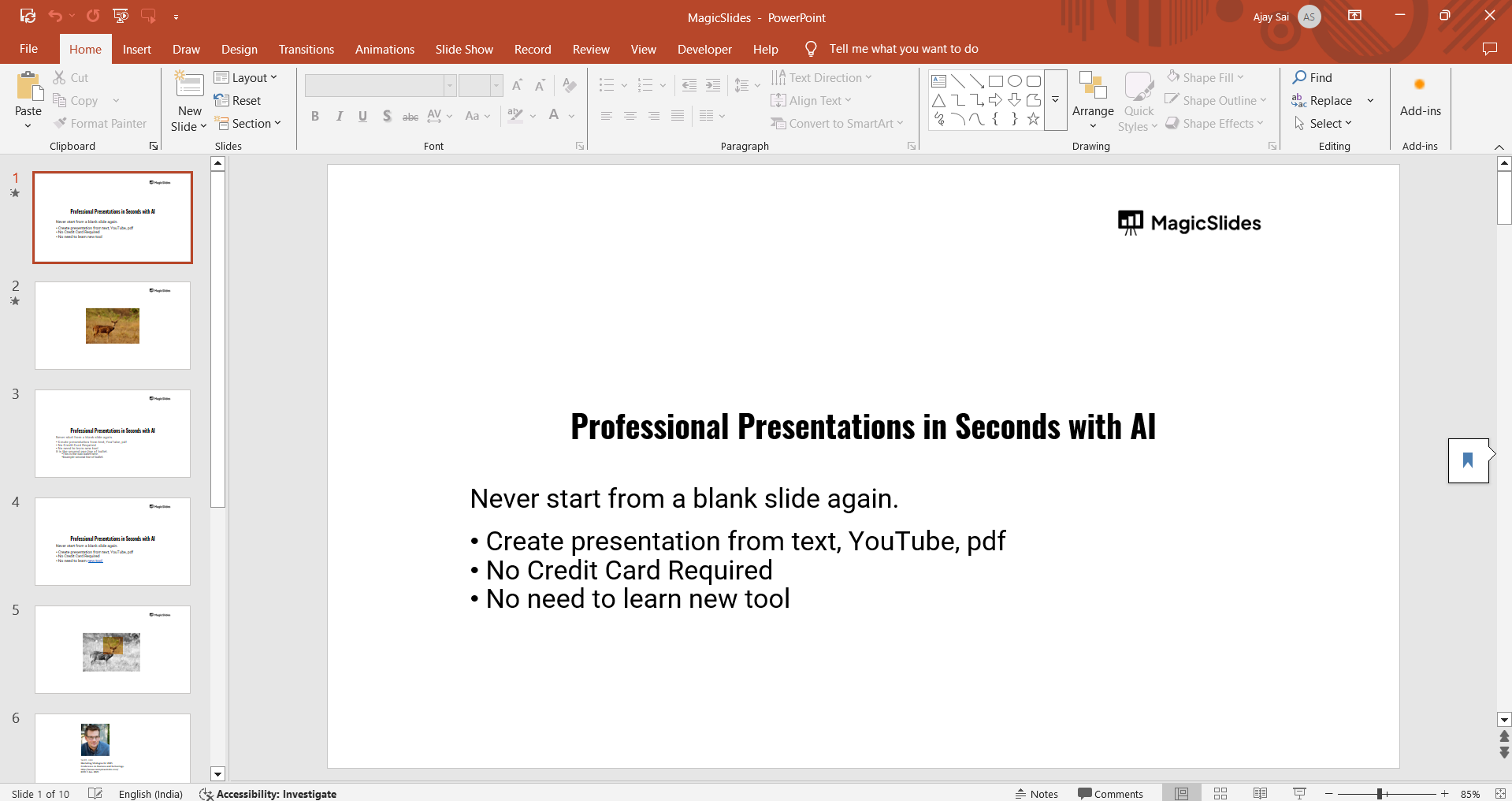
Select the slide where subtitles are needed.
Method 1: Manually Adding Subtitles
Step 2: Insert a Text Box for Subtitles
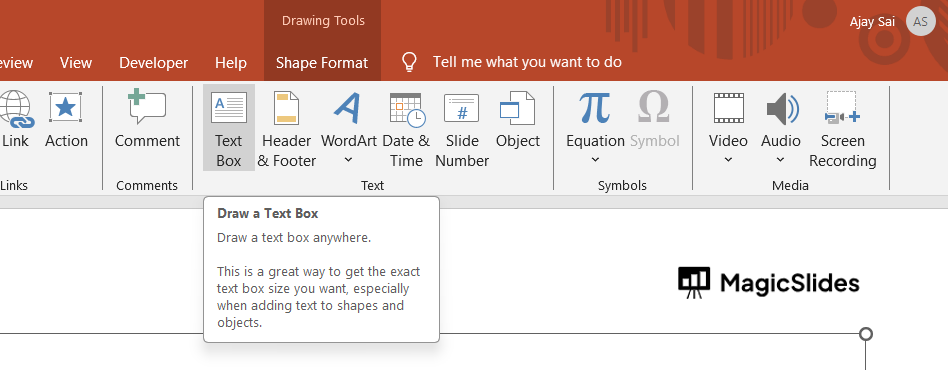
Click on Insert > Text Box in the PowerPoint ribbon. Click anywhere on the slide and type the subtitle text.
Step 3: Format the Subtitle Text
Adjust the font style, size, and color to make the subtitles easily readable.
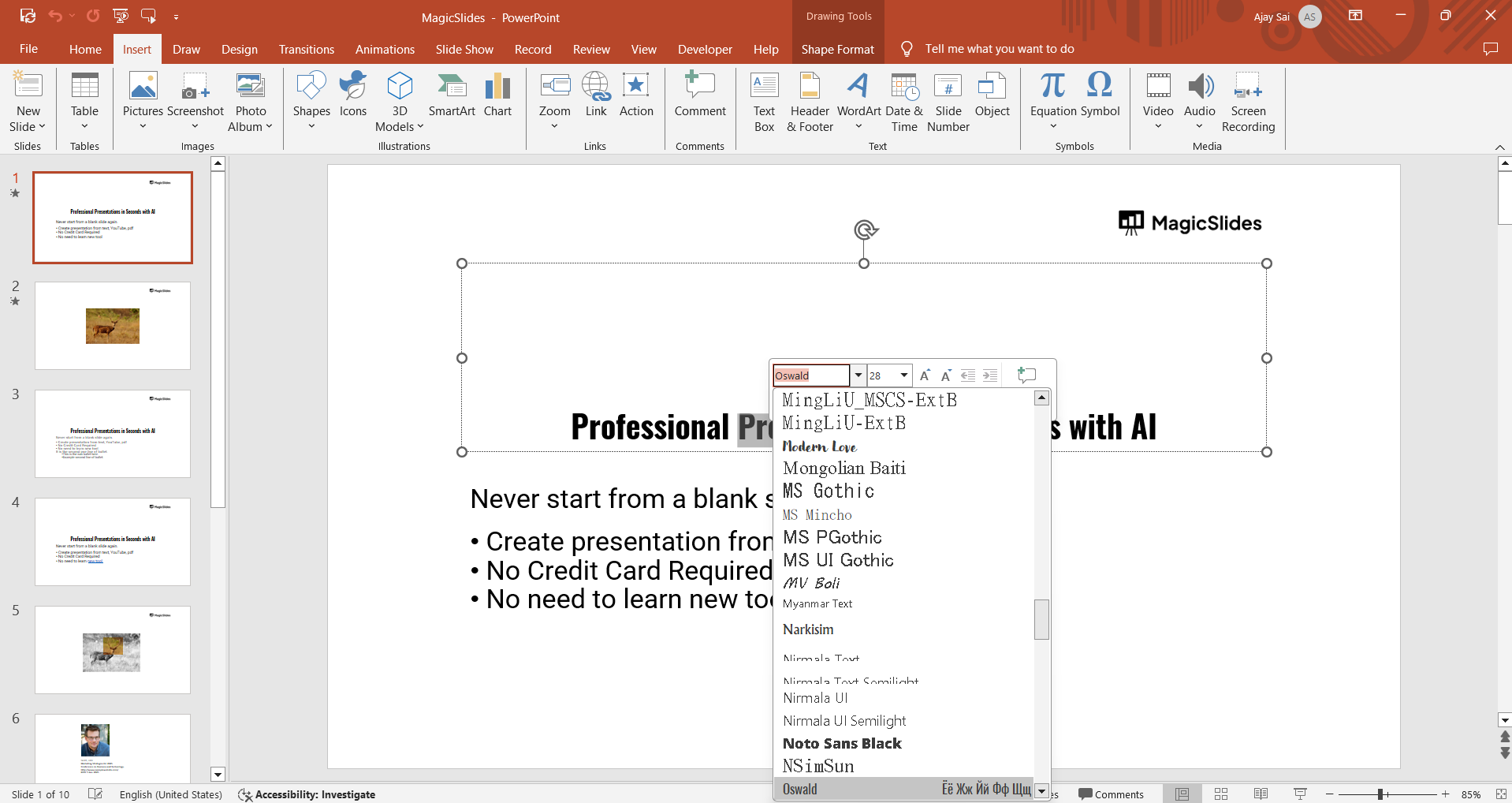
Position the text box at the bottom of the slide to mimic a typical subtitle layout.

Step 4: Add Animation (Optional)
If you want subtitles to appear gradually, go to Animations and select Appear or Fade-In effects.
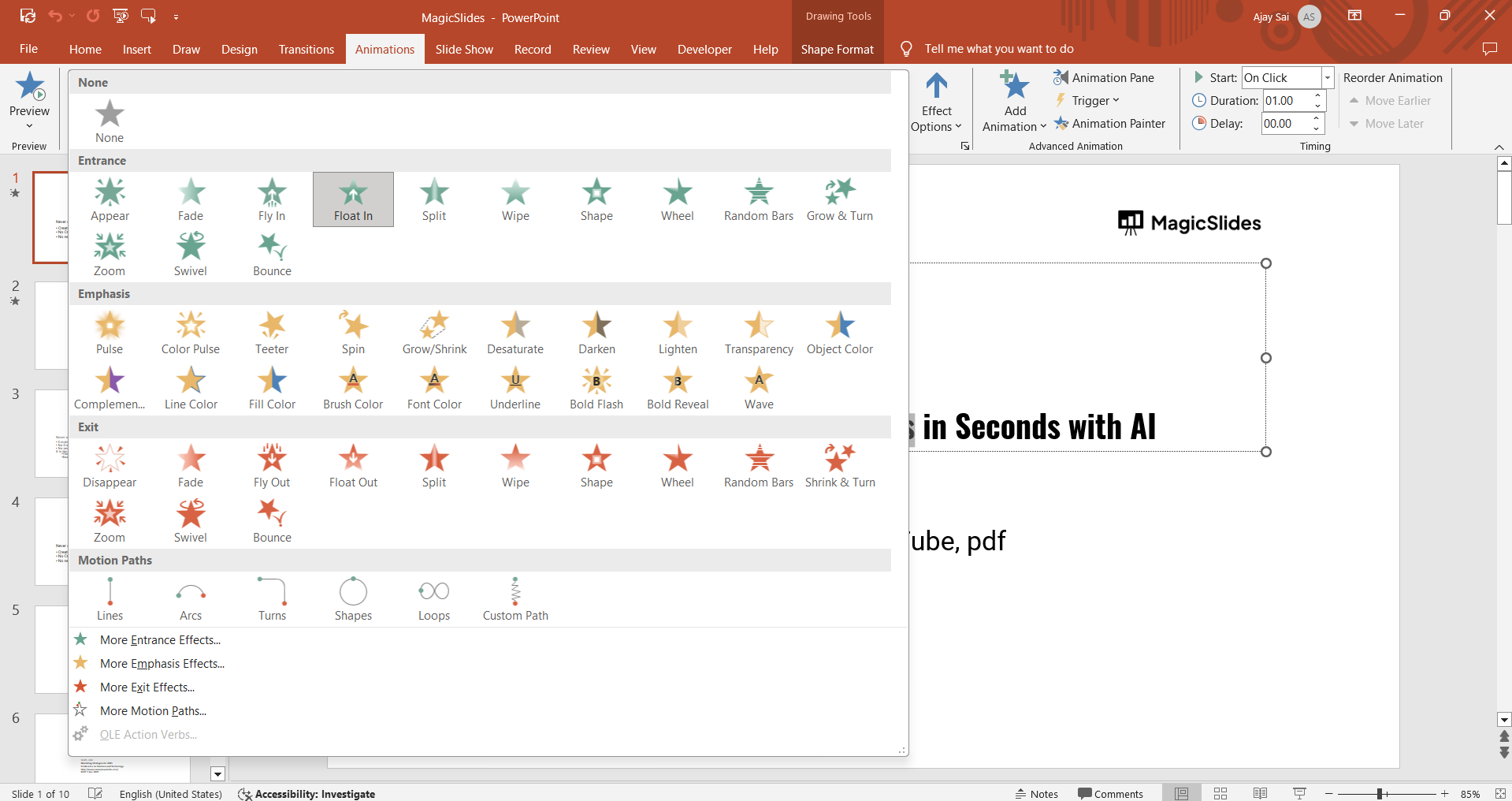
Adjust the animation timing under Animation Pane to sync with your slide content.
Method 2: Enabling Live Captions for Real-Time Subtitles
Step 2: Enable Subtitles in PowerPoint
Click on the Slide Show tab. Select Always Use Subtitles from the subtitle options.
Step 3: Customize Subtitle Settings
Click on the Subtitle Settings dropdown. Choose the spoken language (e.g., English, Spanish, French).
Select the subtitle display position (above or below the slide).
Step 4: Start the Slideshow with Subtitles
Click From Beginning or From Current Slide to start the slideshow.
Speak clearly, and PowerPoint will automatically generate live subtitles as you present.
Adding subtitles to PowerPoint makes your presentation more accessible, but if you want to create a professional slideshow effortlessly, try MagicSlides.app. Just enter your topic, and let AI generate polished slides in seconds!
Conclusion
Adding subtitles to your PowerPoint presentation improves clarity, accessibility, and engagement.
Whether you prefer manually inserting subtitles or using live captions for real-time transcription, this feature ensures better communication with diverse audiences.
FAQs About Adding Subtitles in PowerPoint
Can I change the font and color of live subtitles?
No, live subtitles use PowerPoint’s default font, but you can adjust the subtitle position.
Do live subtitles work offline?
No, live subtitles require an active internet connection for real-time transcription.
Can I add subtitles in multiple languages?
Yes, you can choose a different subtitle language from the Subtitle Settings menu.
Now, enhance your presentations by making them more accessible and engaging with subtitles! 🚀


