How to add the wipe transition in PowerPoint


Elevate your PowerPoint slides learn the art of adding the dynamic Wipe transition effortlessly and stylishly.
Welcome to the realm of dynamic presentations! In this guide, we'll unravel the simplicity behind integrating the captivating Wipe transition in PowerPoint. Elevate your slides and captivate your audience with a touch of fluidity and style.
How to create a wipe transition in PowerPoint
Open your PowerPoint application:
Launch the PowerPoint application and open the presentation you want to enhance with a Wipe transition.
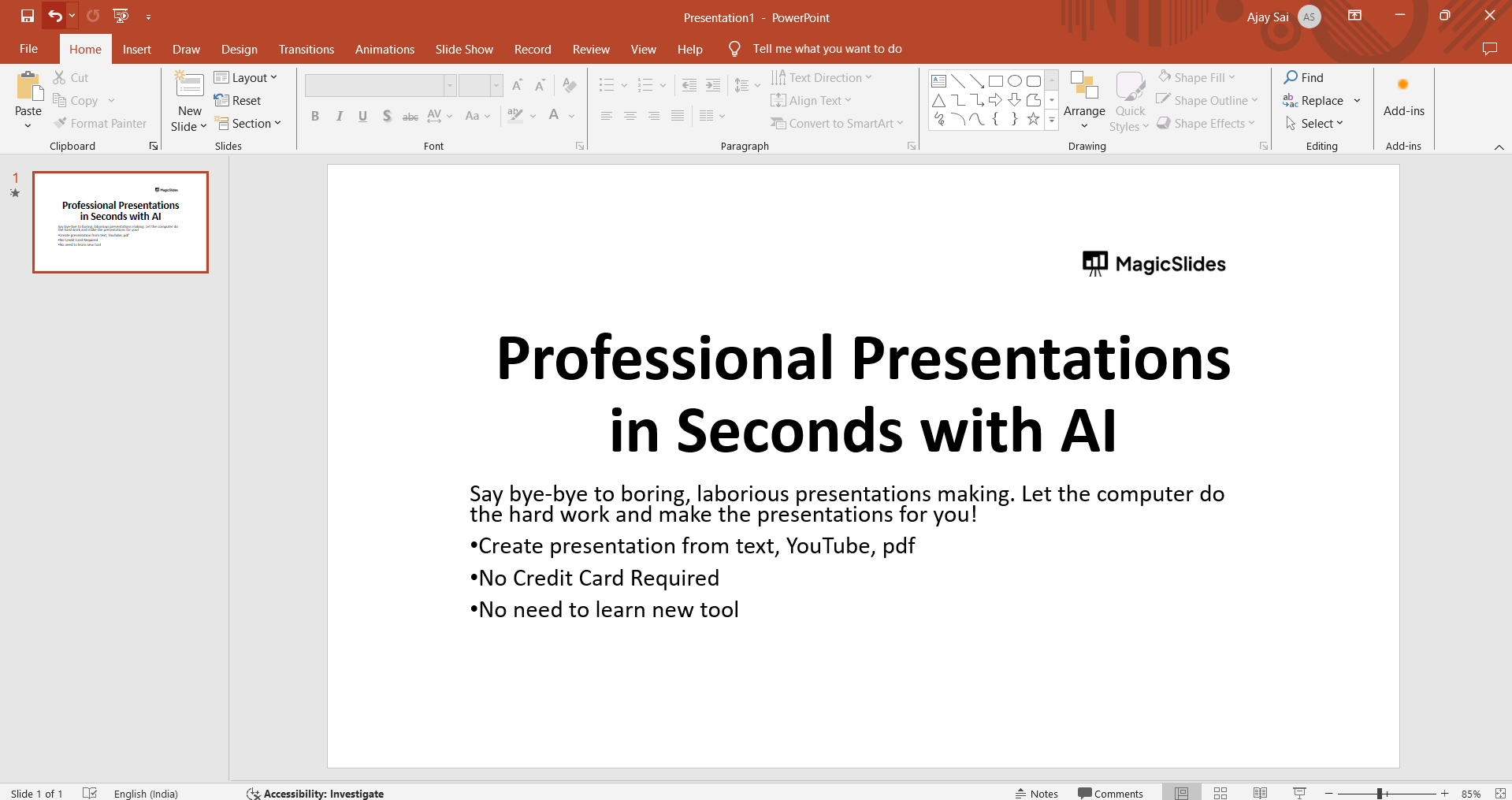
Select a Slide:
Navigate to the slide where you want to apply the Wipe transition. Click on the slide in the left-hand navigation pane.
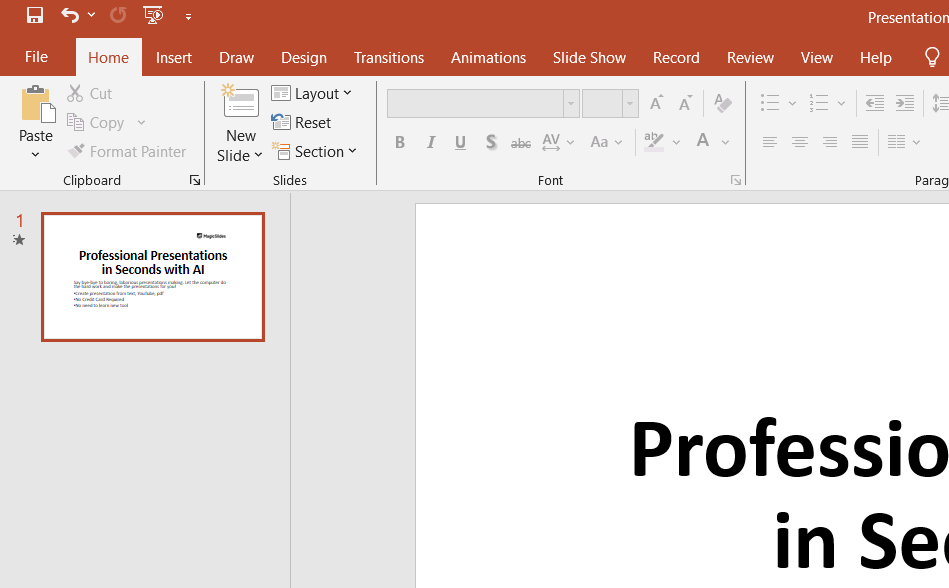
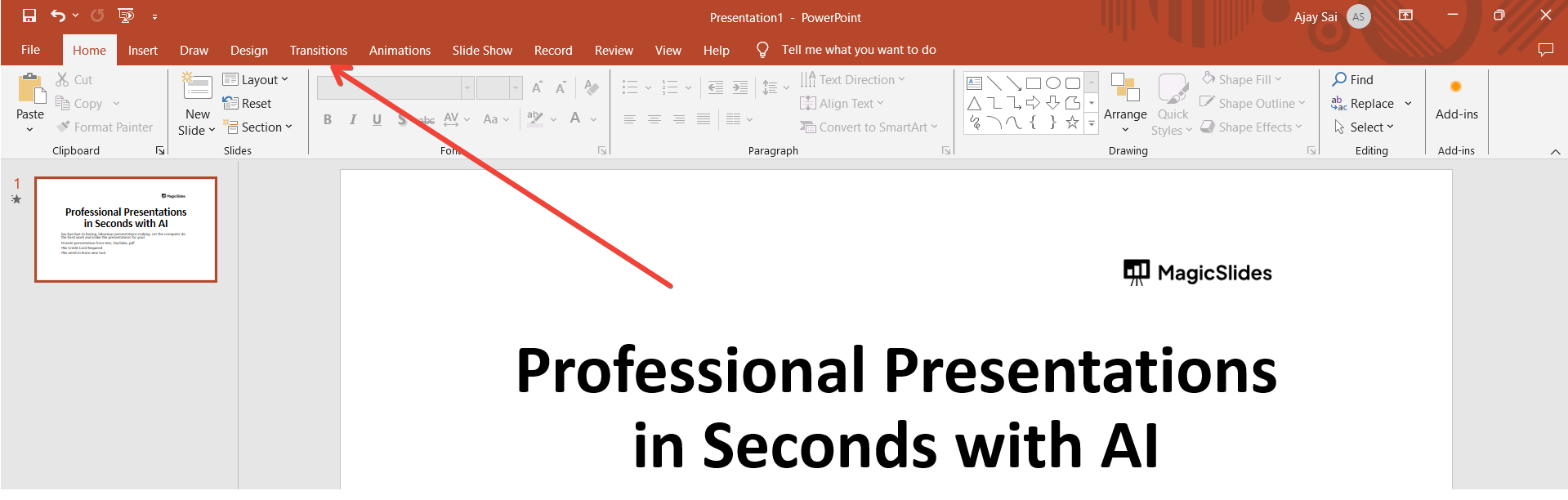
Go to Transitions Tab:
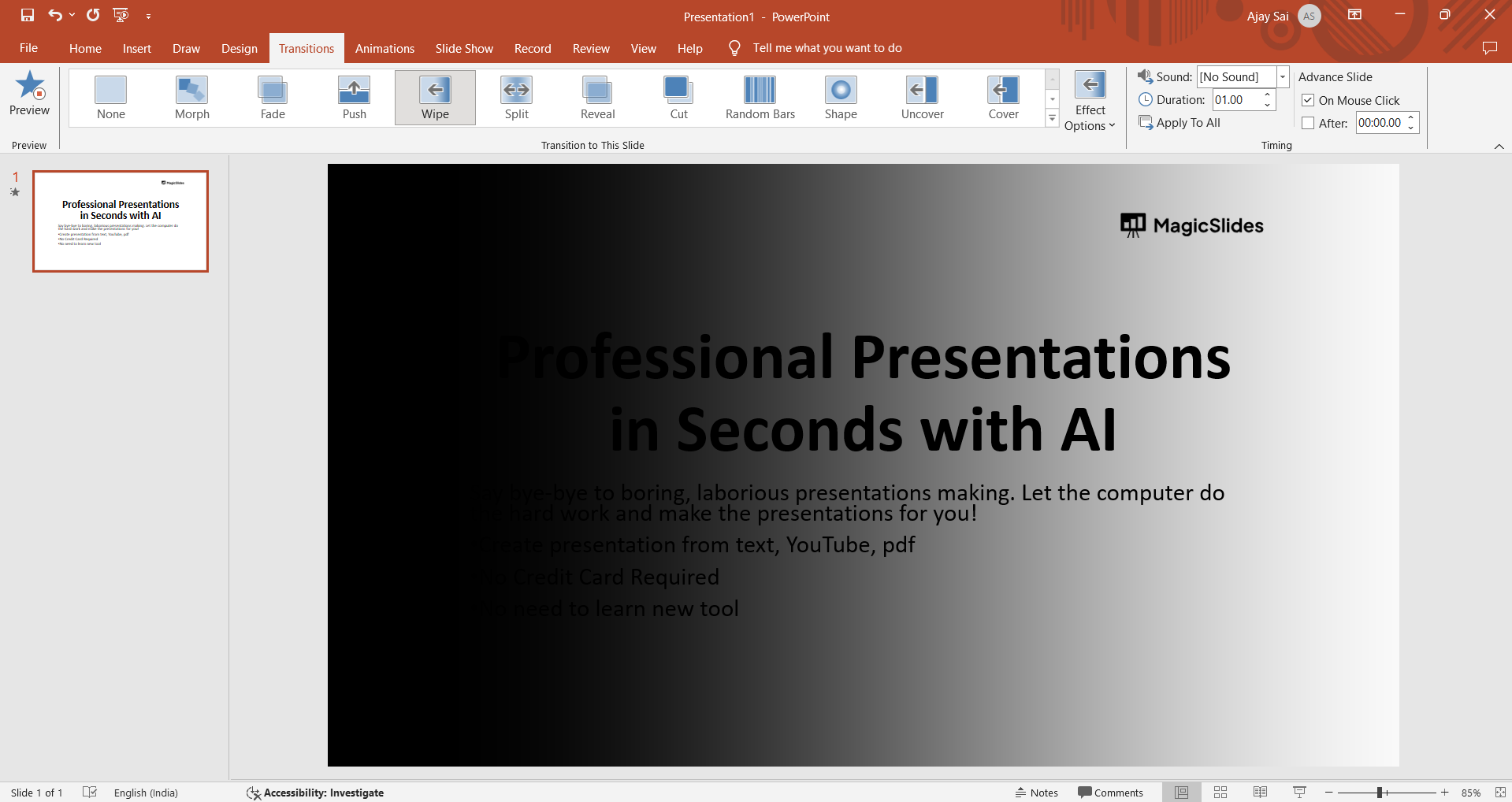
Click on the "Transitions" tab in the PowerPoint ribbon at the top of the screen.
Choose wipe Transition:
In the Transitions tab, locate the "Wipe" transition option. Click on it to apply the effect to the selected slide.
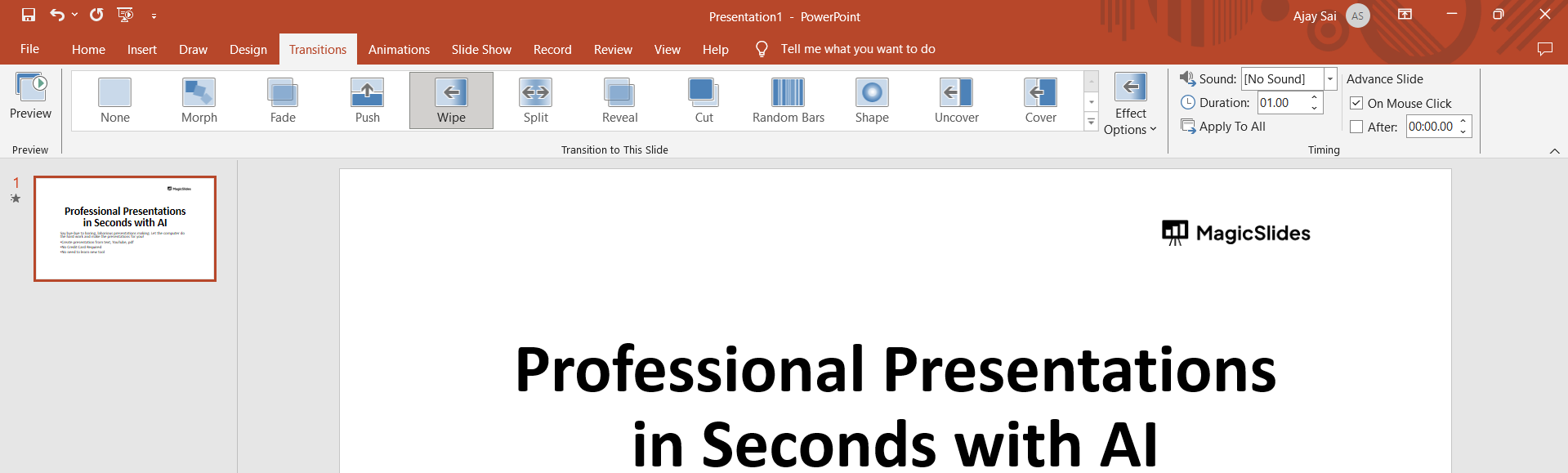
Adjust Transition Options (Optional):
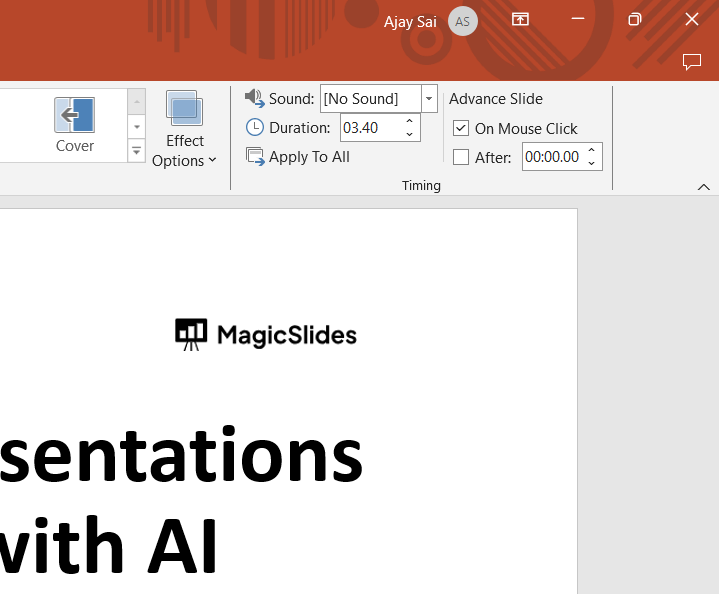
Customize the Wipe transition by adjusting optional settings like direction, duration, or sound. Explore the "Effect Options" in the Transitions tab for more control.
Preview the Transition:
Before finalizing, use the "Preview" button to see how the wipe transition looks on your slide. Make any necessary adjustments.
Apply to Other Slides (Optional):
To maintain consistency, apply the wipe transition to other slides. Use the "Apply to All" button in the Transitions tab to ensure a uniform transition experience.
Save Your Presentation:
After perfecting your wipe transition, don't forget to save your presentation to preserve the effects.
Conclusion:
As you master the art of the Wipe transition, your PowerPoint presentations gain a new dimension of visual appeal. The seamless, dynamic flow between slides adds a layer of sophistication, transforming static content into an engaging narrative. Elevate your storytelling, leave a lasting impression, and harness the power of Wipe for presentations that truly stand out. Create Language Learning Materials By Converting YouTube Videos To PowerPoint Slides
Frequently Asked Questions:
Can I use the Wipe transition in all versions of PowerPoint?
Yes, the Wipe transition is available in various versions of PowerPoint, adding versatility to your presentations.
Can I apply different directions for the Wipe transition on different slides?
Absolutely, customize each slide by adjusting the direction in the Transitions tab for a tailored effect.
Does the Wipe transition work well with all types of content, including text and images?
Yes, the Wipe transition smoothly transitions various content types, enhancing both text and visual elements seamlessly.


