how to add videos to google slides on ipad


Discover how to enhance your iPad presentations with engaging videos. Learn how to add videos to Google Slides on iPad.
Incorporating videos into your Google Slides presentation on an iPad can greatly enrich your content and engage your audience. Although the process may differ slightly from the desktop version, it's still quite straightforward.
In this comprehensive guide, we will walk you through the steps to seamlessly add videos to your Google Slides presentation on your iPad.
Steps to Add Videos to Google Slides on iPad:
→ Open Google Slides:
- Begin by unlocking your iPad and launching the Google Slides app.
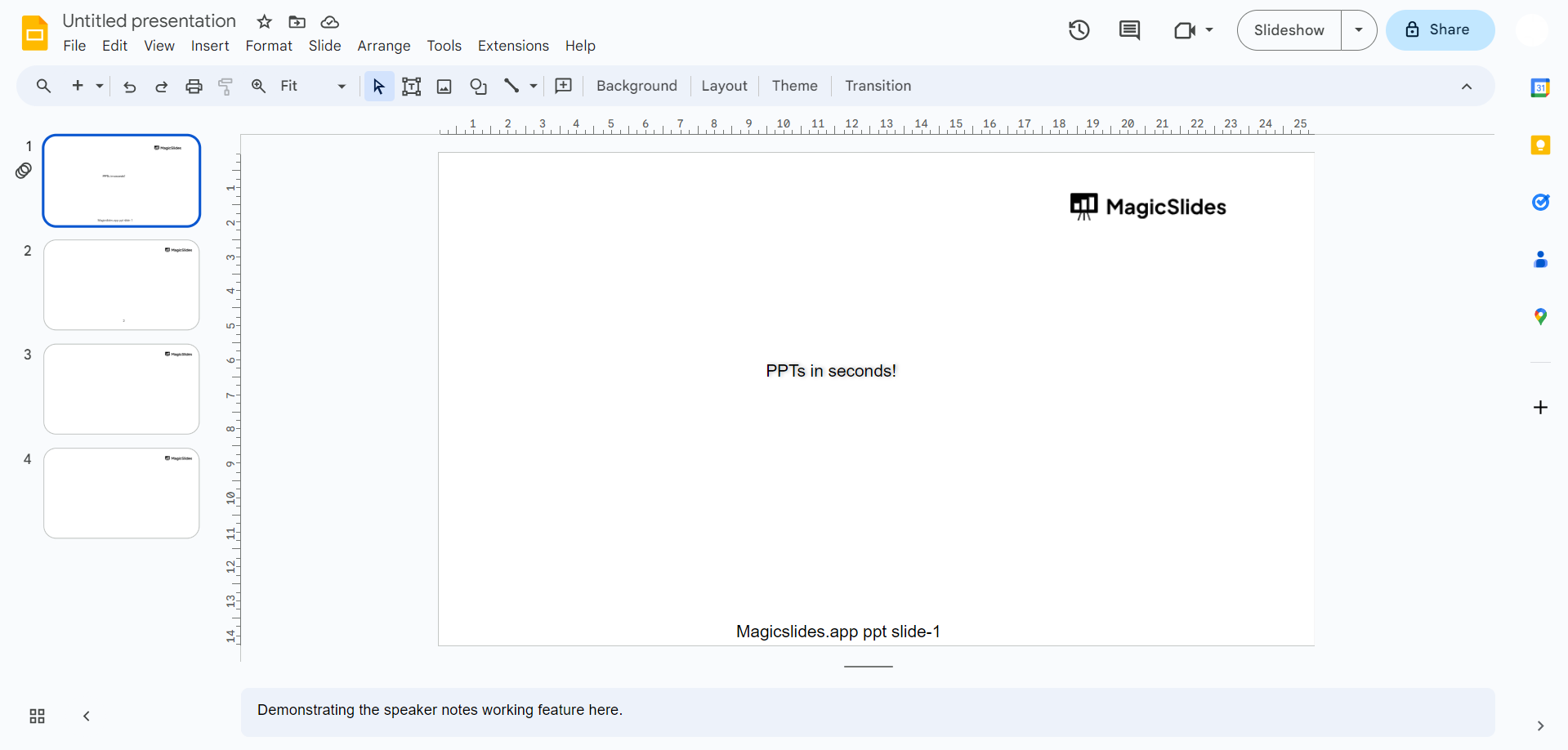
→ Access or Create a Presentation:
- Choose an existing presentation or create a new one, depending on your requirements.
→ Select the Slide:
- Navigate to the slide where you want to insert the video.
→ Tap the "+" Icon/insert button:
- In the top toolbar, tap the "+" icon. This allows you to add content to your slide.
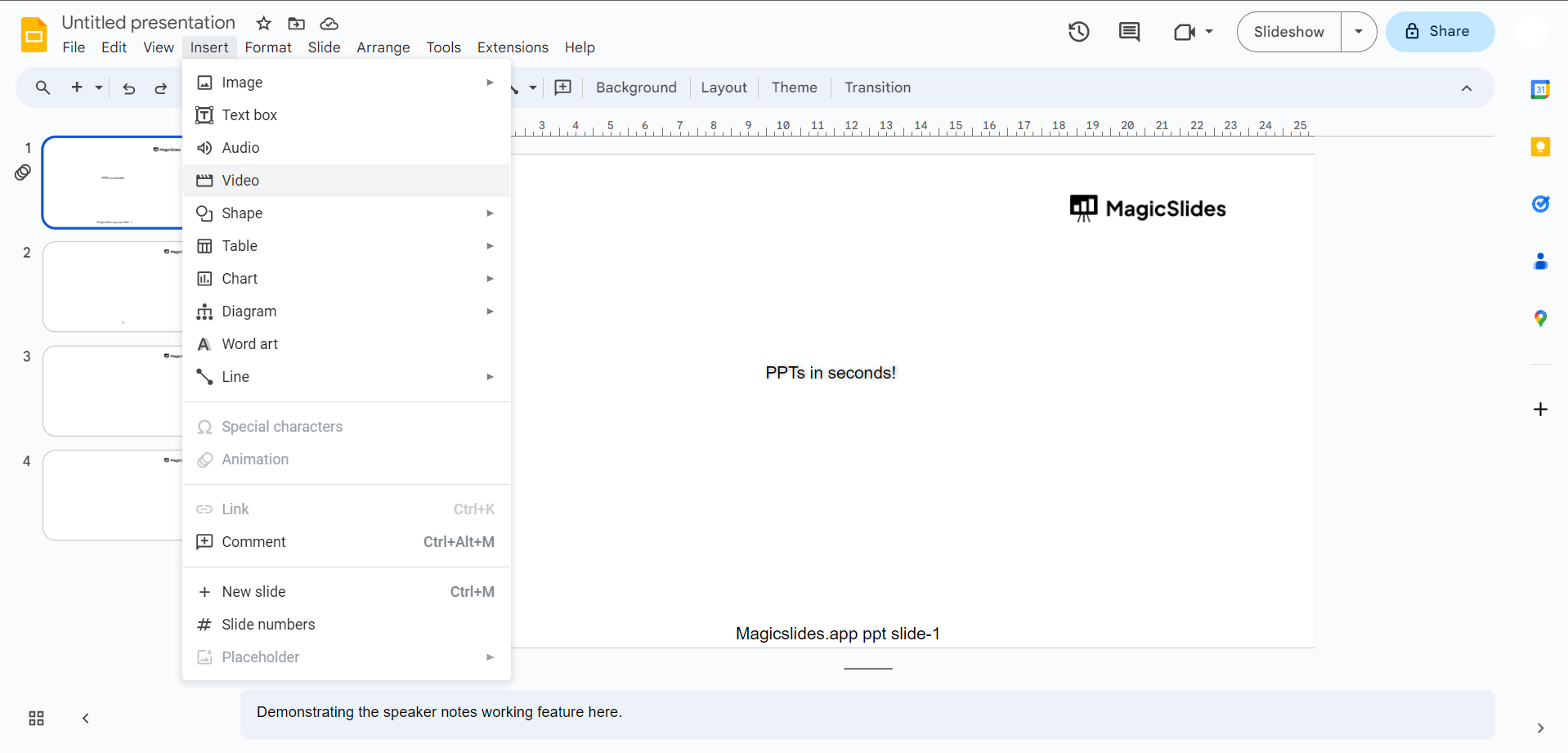
→ Choose "Video":
- From the content options, select "Video." You may be prompted to access your device's media or cloud storage.
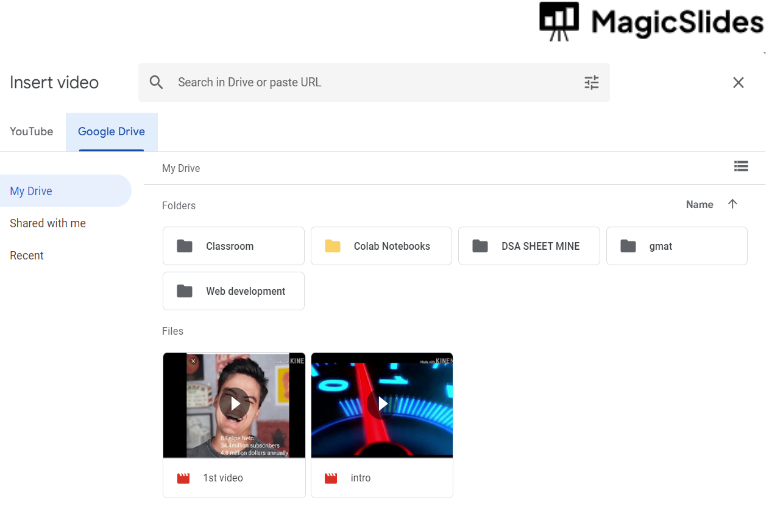
→ Pick Your Video:
- Locate and select the video you wish to insert from your iPad's storage or linked cloud storage services like Google Drive.
→ Confirm Changes:
- Make sure to save your presentation with the newly added video by tapping the checkmark or saving icon.
→ Play the Presentation: – To view your presentation with the video, enter the presentation mode, and test the video's functionality.
Conclusion:
Adding videos to your Google Slides presentation on an iPad can be a compelling way to engage your audience and convey information effectively.
By following these detailed steps, you can seamlessly integrate videos into your slides, enhancing your presentation and making it more interactive. Whether you're sharing educational content, business presentations, or creative projects, the ability to include videos on your iPad empowers you to captivate your audience and convey your message with impact.
frequently asked questions
What types of videos can be added to Google Slides on an iPad?
You can add a variety of video formats, including MP4, MOV, and others that are compatible with Google Slides.
Is it possible to add videos to any slide in my Google Slides presentation on the iPad?
Yes, you can add videos to any slide in your Google Slides presentation on the iPad to enhance your content.
Can I adjust the size and position of the video once it's added to a slide?
Absolutely, you can easily resize and reposition the video on the slide by tapping and dragging it as needed.
How can I make a video autoplay and mute its audio in Google Slides on an iPad?
To make a video autoplay and mute its audio, tap the video, and use the options provided in the toolbar to enable autoplay and mute.
Are there any limitations regarding the file size of the video I can add to Google Slides on an iPad?
While Google Slides doesn't have strict file size limits, it's recommended to keep video file sizes reasonable to ensure smooth performance and efficient sharing.
Can I add videos from cloud storage services like Google Drive to my presentation on the iPad?
Yes, you can add videos from cloud storage services such as Google Drive, making it convenient to access and insert videos into your presentation.
What is the recommended format for videos to ensure compatibility with Google Slides on an iPad?
The most widely supported video format for Google Slides on an iPad is MP4. It's advisable to use this format for optimal compatibility and playback quality.


