How to Apply one column Layout in Google Slides


Create an elegant one-column layout in Google Slides for a focused and visually appealing presentation design.
Crafting a one-column layout in Google Slides may not have a dedicated option, but with a bit of customization, you can achieve a clean and focused design. Follow these detailed steps for a seamless and tailored one-column layout:
How to Apply one column Layout in Google Slides
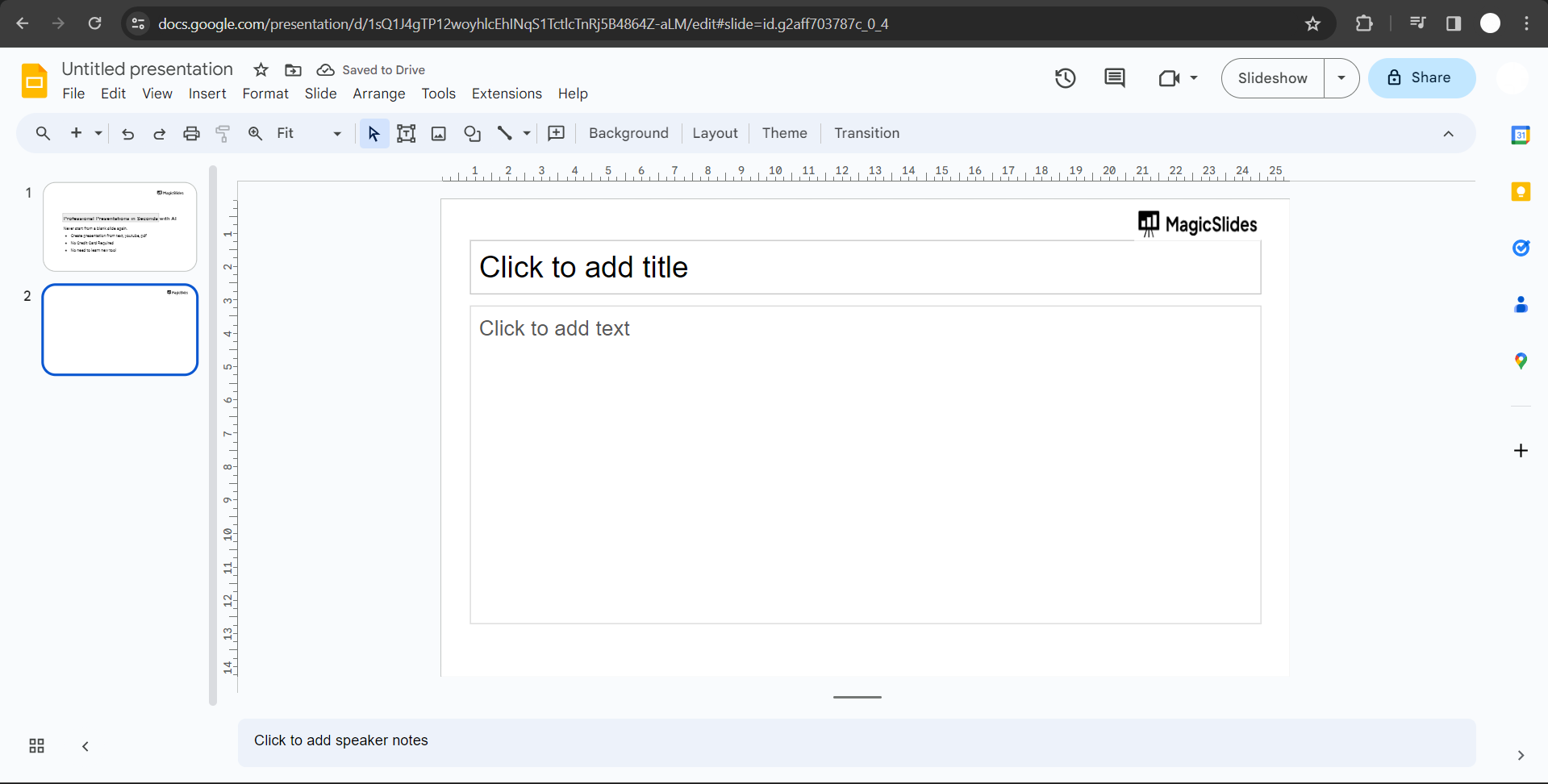
Start with a Blank Slide:
Begin by selecting the slide where you want the one-column layout. Choose a blank slide or remove existing content boxes for a clean slate.
Access the Slide Layout Options:
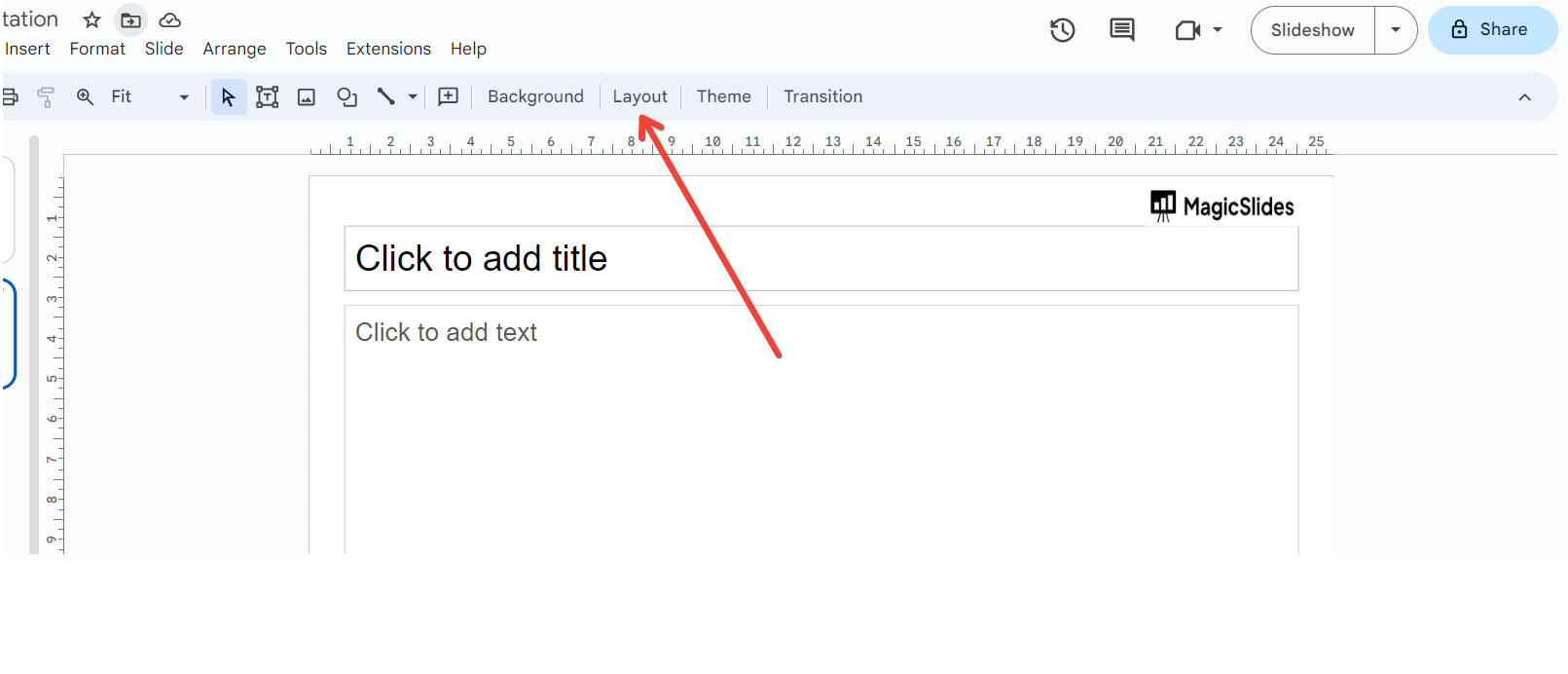
Click on "Slide" in the top menu and then select "Layout."
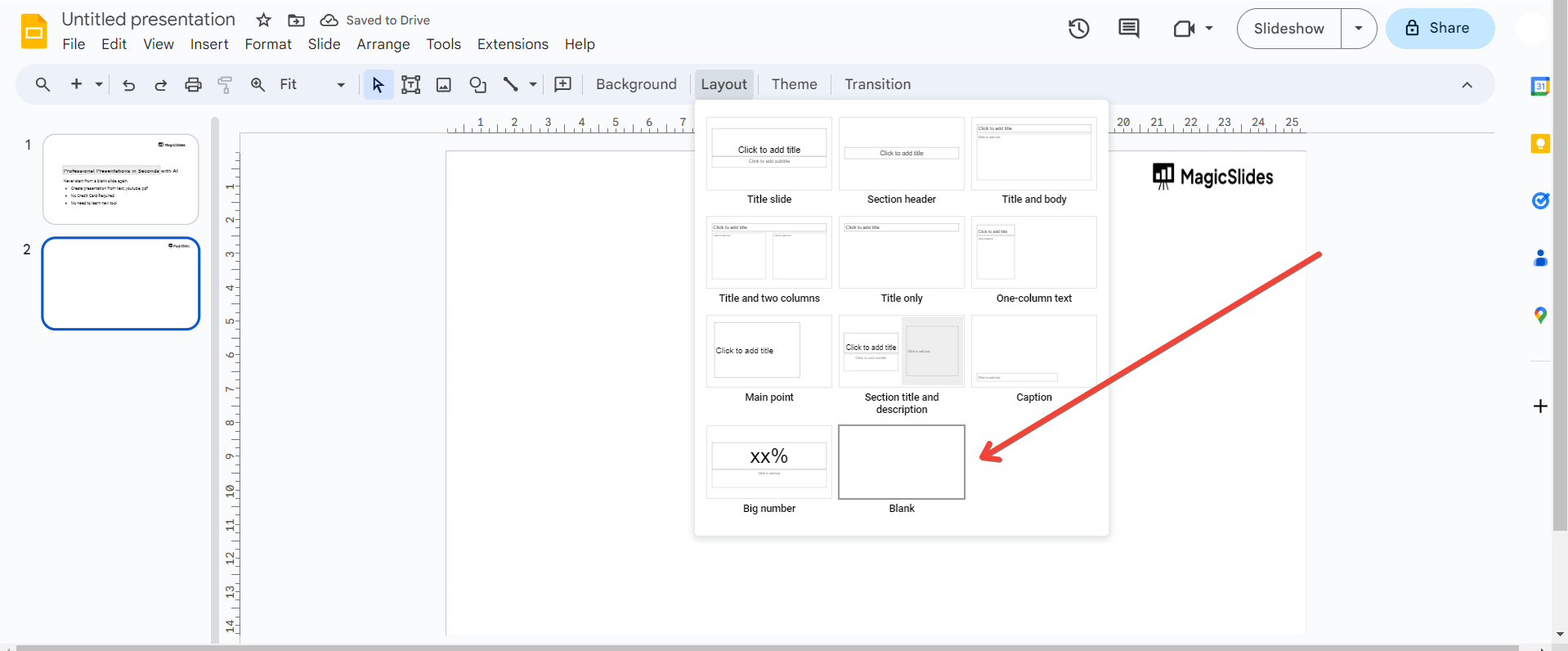
Opt for the "Blank" layout to eliminate pre-existing content boxes.
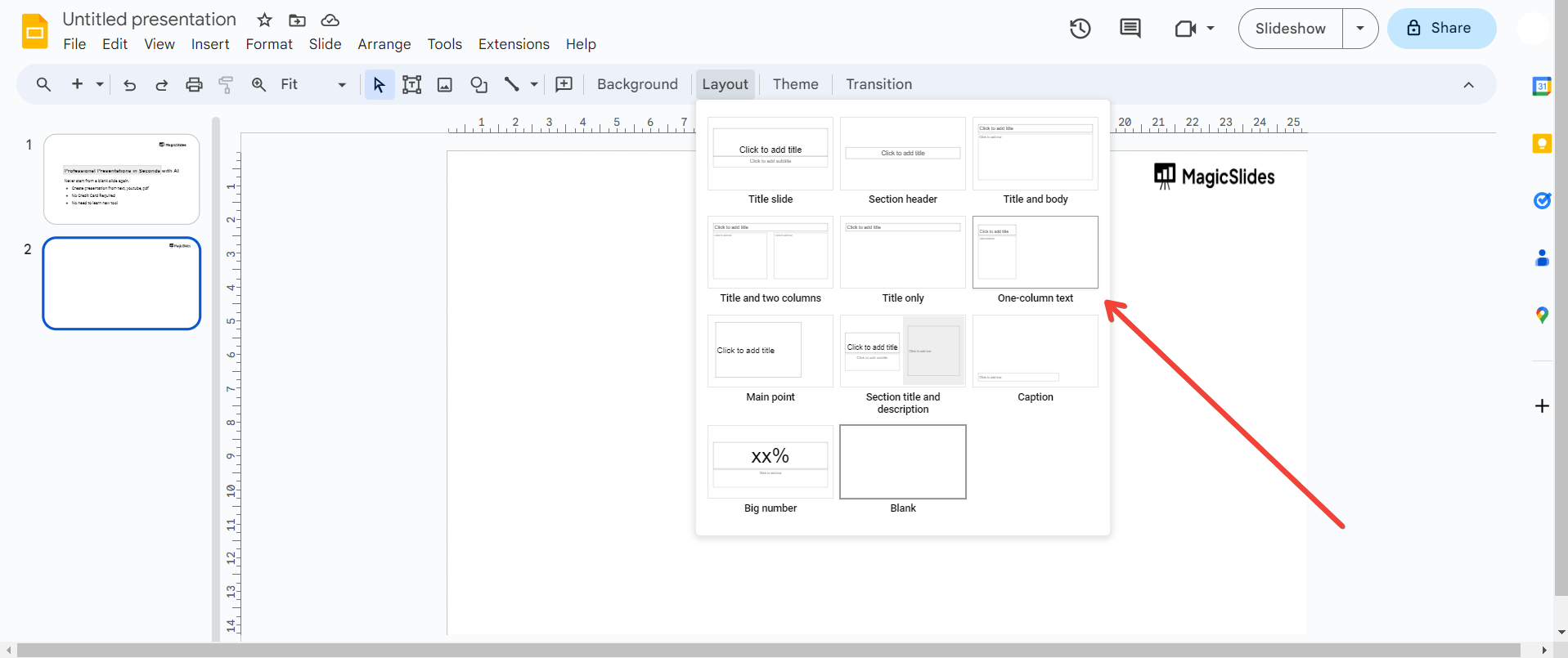
Again go to the same layout option:
Utilize the "Text box" option from the toolbar. Draw a text box that spans the full width of the slide, effectively establishing a one-column framework. Otherwise you can choose to directly select the one column text layout from the options available.
Adjust Size and Position:
Tailor the size and position of the text box according to your content needs. This step ensures that your one-column layout is visually appealing and well-suited to your presentation.
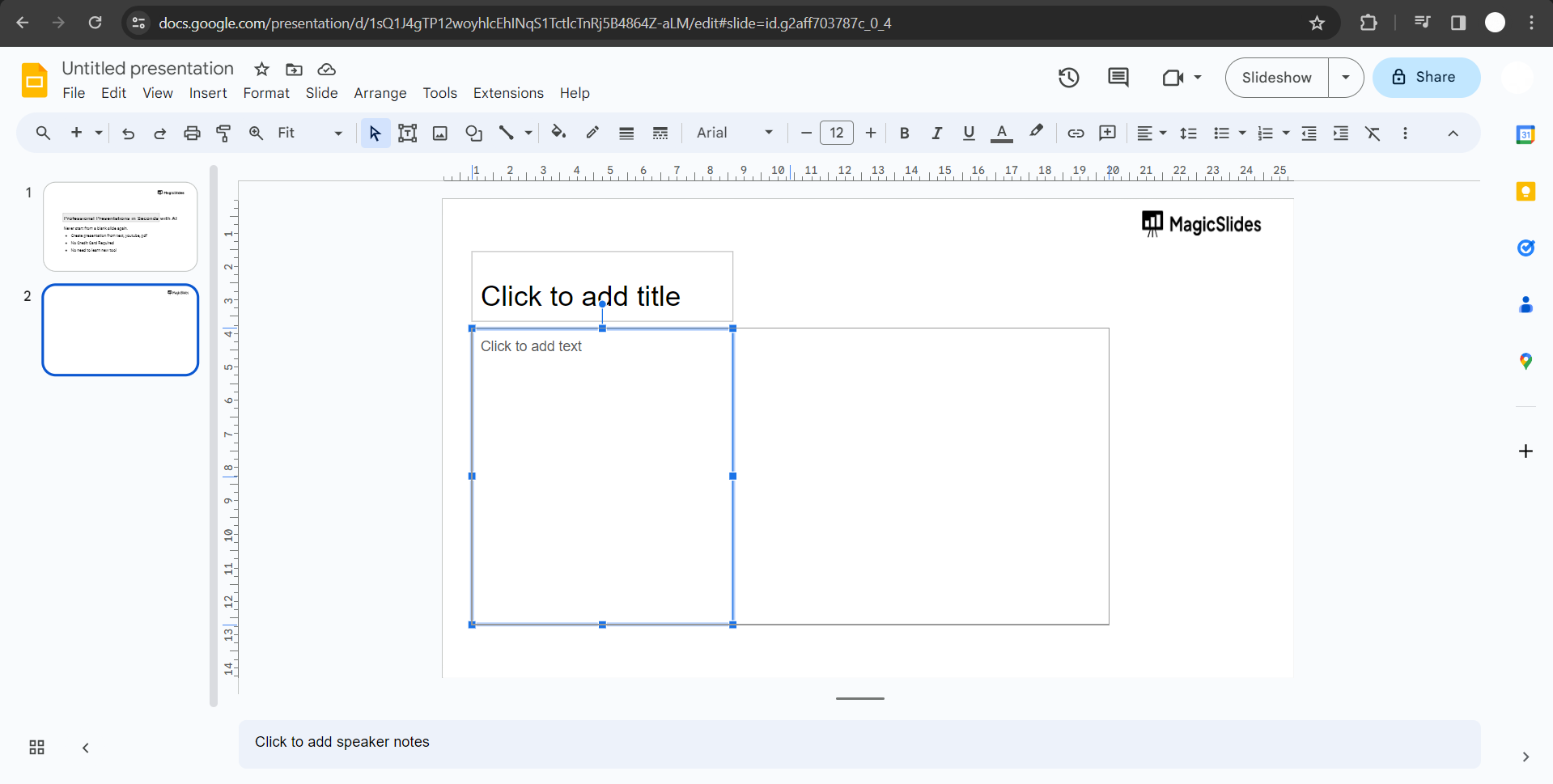
Repeat or Customize:
If your presentation requires the same layout across multiple slides, duplicate the text box or customize each slide individually to maintain a consistent one-column design.
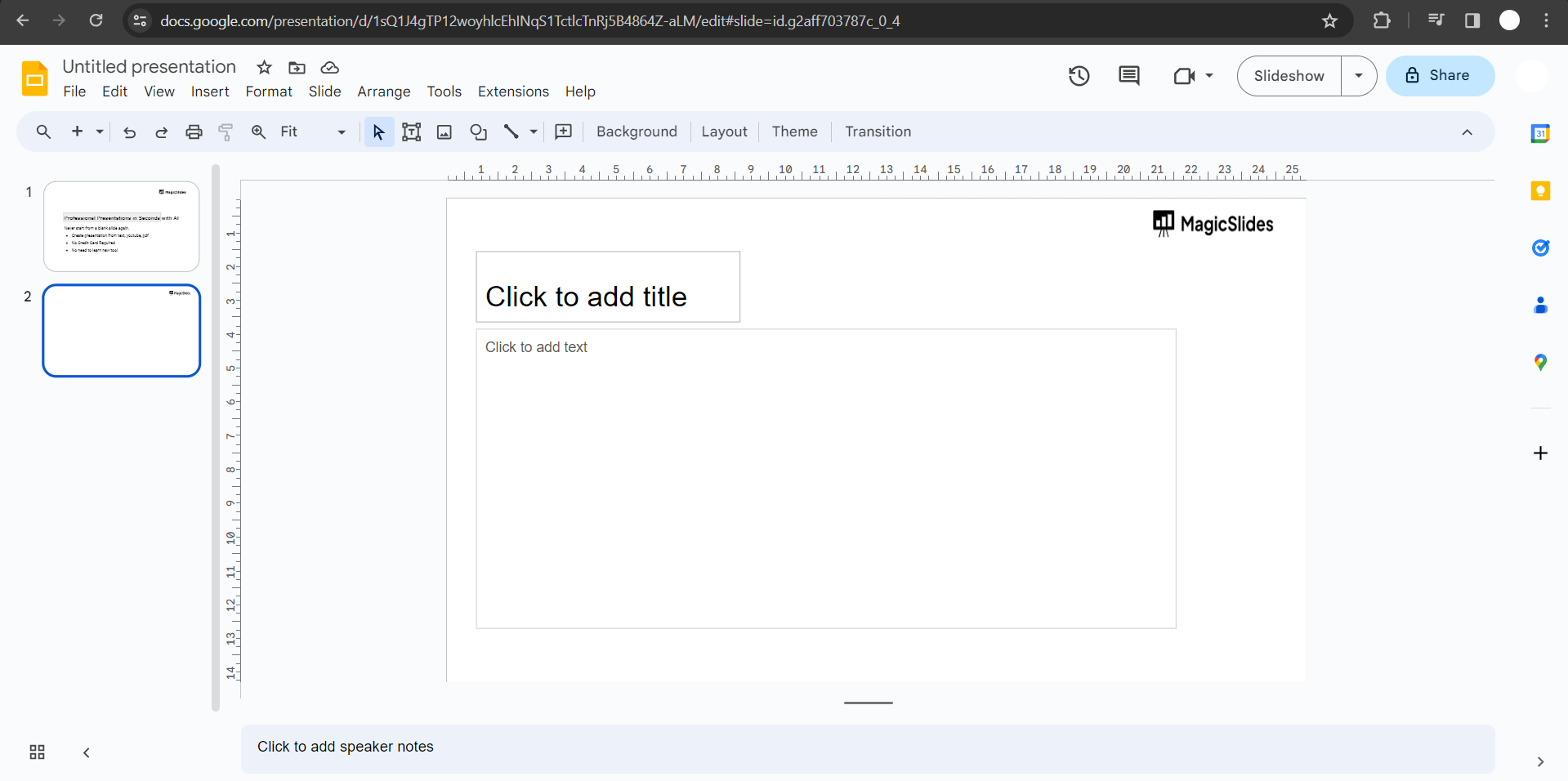
Consider Default Layout (Optional):
If you prefer this one-column design for all new slides, save it as a custom layout. Navigate to "Slide" > "Change background" > "Custom" and click "Save as default layout."
Conclusion:
By following these steps, you can create a one-column layout in Google Slides that is visually cohesive and effectively presents your content. While Google Slides may not have a dedicated one-column layout option, these customization techniques empower you to tailor your presentation to your specific needs. Always stay updated with the latest features, as Google Slides continually evolves with new enhancements.
Frequently Asked Questions:
Is a one-column layout a built-in option in Google Slides?
No, Google Slides lacks a native one-column layout; it's created manually.
Can I add images and elements to the one-column design in Google Slides?
Certainly! Enhance your layout by incorporating images, shapes, or additional text boxes as needed.
How do I apply the one-column layout to multiple slides in Google Slides?
Copy and paste text boxes or elements across slides for a consistent one-column design.
Is it possible to set a one-column layout as the default for new slides?
Yes, save your customized layout as default by navigating to "Slide" > "Change background" > "Custom."


